



New in Beta: Copy Frame to Clipboard (26.3x46)
Sometimes you just need a copy of what’s in your Composition panel—a still of the current frame, ready to paste into chat, email, socials, etc. Exporting a frame works, but it’s more steps than it should be.
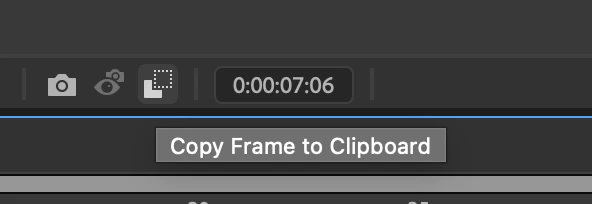
We’re (finally) introducing Copy Frame to Clipboard: a one click option accessible from the Composition, Footage, or Layer panel to grab the currently rendered frame and put it on the system clipboard.
How do I use it?
- Set the Current Time Indicator to the frame you want to copy and let it render.
- Click the Toolbar button in the Composition, Footage, and Layer panel toolbars.
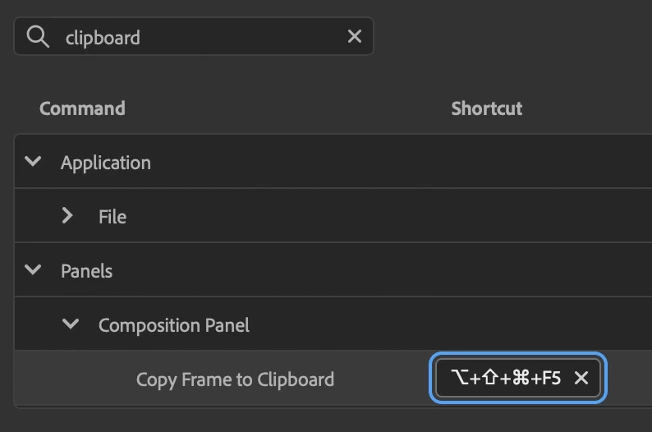
- Or use the Keyboard shortcut when any of those panels are active.
- Defaults: Ctrl+Alt+Shift+F5 (Windows) and Cmd+Option+Shift+F5 (Mac).
What Does Copy Frame to Clipboard Support?
- On Mac and Windows, a PNG will be placed on the clipboard (up to 16-bit when using 16bpc or 32bpc comps in After Effects). On Windows, a bitmap representation is also provided, so more apps can paste reliably.
- With regard to color, what you see is what you copy : when a project working color space is active and Display Color Management is in effect, or when you’re using an OCIO display transform, the copied pixels are transformed to match the viewer.
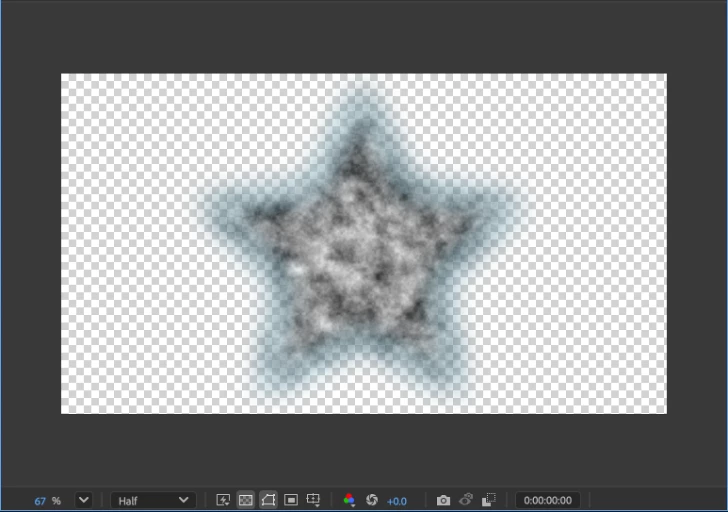
- Enabling Toggle Transparency Grid will include the transparent areas in the copied image (when the destination supports it).
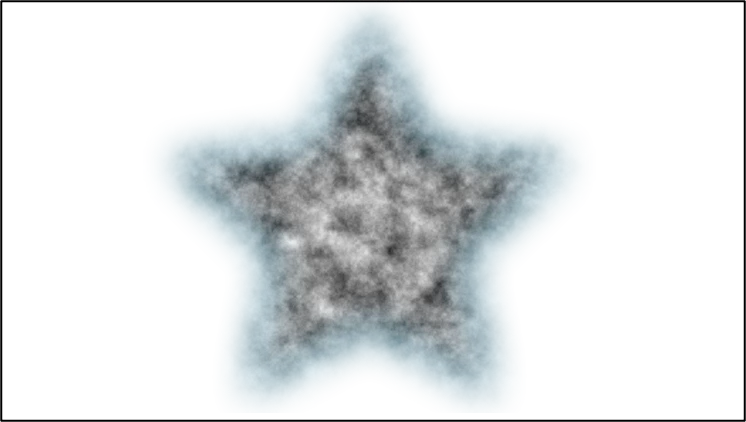
- With Toggle Transparency Grid OFF, the image is composited over the composition background color, matching how the frame looks with the solid background in the viewer.
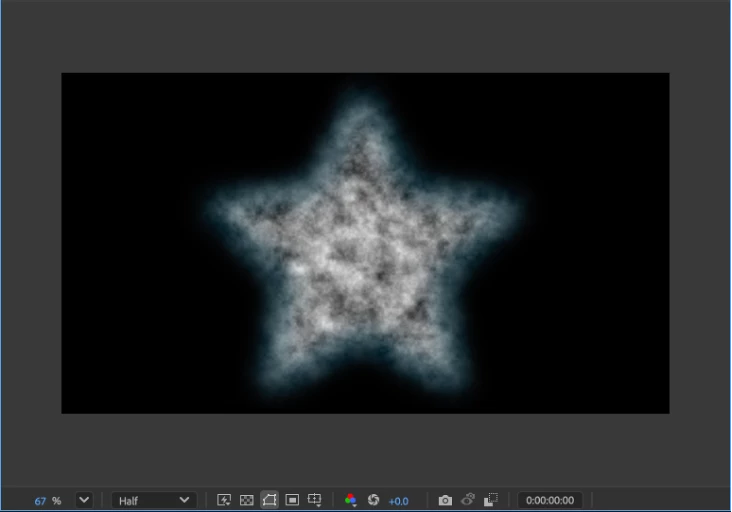
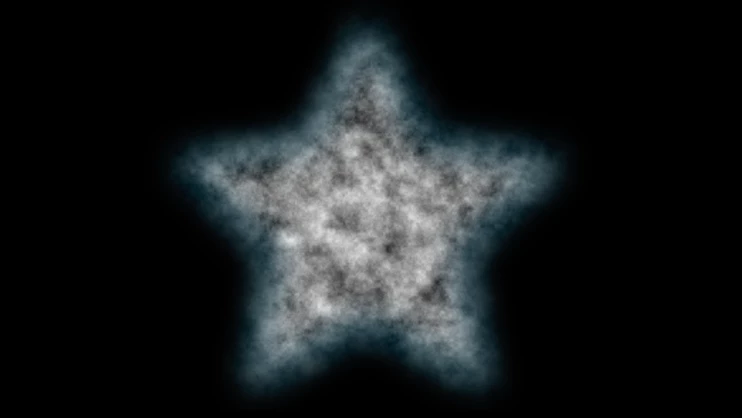
- Copying works with the Classic 3D, Advanced 3D, Cinema 4D and Draft 3D renderers.
- The resolution of the Frame (Full, Half, Quarter, Third, etc.) is used in determining the copied frame size.
What Does Copy Frame to Clipboard Not Support?
There are certain stages of a preview that are done after the composition pixels are rendered, and as such, those adjustments are not currently captured. These include:
- Viewing Individual Channels (Red, Green, Blue, Alpha) will still result in the full RGB being copied. If you need individual channels, try pasting into Photoshop and viewing individual channels and copy from there.
- Panel Exposure changes are not included. Add an Exposure effect to the composition as needed.
- Grids, Guides, Rulers, Title Safe, Mask Overlays, etc. are not included.
- Region of Interest is not respected.
- Draft 3D’s Extended Viewer and Ground Plane is not included.
If any of these seem critical to your usage, please let us know.
We’d love to hear how you use Copy Frame to Clipboard and which apps you paste into most. If you find an application that doesn’t paste correctly, please let us know.
 AdChoices