
Tarun Saini
Community Manager
Community Manager
January 3, 2024

Changes to Adobe Creative Cloud Storage Experience
  • January 3, 2024
  • 18 replies
  • 11395 views


To enhance the Adobe Creative Cloud storage experience, we would like to inform you of the upcoming changes to the Creative Cloud file syncing service that may impact your workflow.


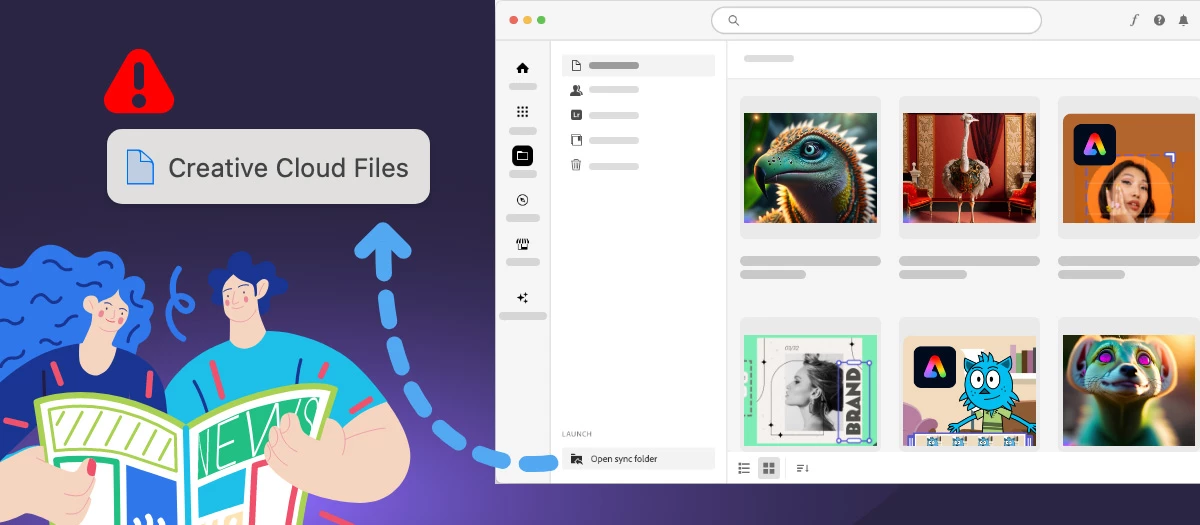
Creative Cloud has previously enabled personal users to save files on their local devices in a folder called Creative Cloud Files. The contents of this folder can be synced (copied) to the user’s cloud storage via a process that runs on the local device. You can access those files locally on the device in a folder named Creative Cloud Files or through the Creative Cloud website within the Launch More menu (from the Synced files option). 


Discontinuation of Synced Files: We would like to inform you that the Synced Files feature in Creative Cloud were discontinued. Starting February 1, 2024 (now extended through February 3, 2025), the Creative Cloud desktop synchronization service, folder, and the file-sharing capabilities of Creative Cloud Synced Files were phased out.


Impact on Users: If you are a personal user (free or paid) relying on Creative Cloud Synced Files for file syncing, folder sharing, or collaborative work, please be aware of the following changes:

  • Files in the Creative Cloud Files local folder will no longer be copied to cloud storage.
  • Copies of files in cloud storage related to Synced Files will be deleted.
  • Files and folders shared with other users from Synced Files will no longer be accessible.
  • Adobe apps leveraging Creative Cloud Synced Files for cross-device file sharing will remove those integrations.


If your Creative Cloud desktop version is less than 6.0, you should mandatorily make a copy or export files in your local Creative Cloud files folder to your chosen destination. They will be deleted from your local drive when cloud copies are deleted.


Your Assets are Secure: Rest assured, all assets in your local Creative Cloud Files folder on your device will remain intact and under your complete control. You have the option to leave the assets in the Creative Cloud Files folder, but we highly recommend to move them to a different local folder or to the other Adobe-supported storage solutions such as Frame.io or Adobe Experience Manager (AEM) assets. Additionally, third-party cloud storage solutions with sync capabilities are viable alternatives.


Adobe continues to offer and support cloud storage and syncing across Creative Cloud with Cloud Documents, Creative Cloud Libraries, Lightroom Cloud storage, and Frame.io cloud storage. None of these cloud storage solutions are impacted by this change.

Quick Links


 Hey community! Upvote if this post was helpful, and leave a comment to join the conversation.

    18 replies

    Known Participant
    May 27, 2024

    Hi

    Possibly I'm missing something. 
    But can someone explain to me how discontinuing the "Synced Files" service will improve
    the Adobe Creative cloud storage experience.

    Thanks


    Noremac
    Participating Frequently
    May 27, 2024

    Easy, it's a oxymoron, It's not ideal but I've move over this years files to sync with google drive, then keep copies of previous years as duplicates on each of my computers, such a stupid move, but its so you have no other choice once you move to libraries, just keep in mind that jobs you need to come back too just stay away from using libraries or you will be stuck with using Adobe, it really should be Illegal for this is anti competitive behaviour.

    kglad
    Community Expert
    Community Expert
    May 27, 2024

    @Noremac 


    you can download all your cc files to your computer and use any storage you like.  use a web browser to navigate to the following locations. at each location there are several folders/link to check.:


    https://assets.adobe.com

    https://lightroom.adobe.com

    https://documentcloud.adobe.com

    https://spark.adobe.com


    if you delete anything from any of these locations, check for a deleted folder where your file(s) was (were) moved. if you want to clear space you must delete files in the deleted folder. the used storage shown at each of those four sites (when totaled), should match the space shown used by your cc files. more info,


    https://helpx.adobe.com/creative-cloud/kb/file-storage-quota.html?linkId=100000257885896

    Participant
    February 25, 2024

    Does anyone know how to transfer the Adobe Premiere Rush project files (not videos) from one android device to another android device, given the Discontinuation of Creative Cloud Synced files for Adobe Premiere Rush in December 2023?

    kglad
    Community Expert
    Community Expert
    February 25, 2024

    @A356811556yeh 


    you were using your local cc sync folder to save rush files?

    Participant
    February 25, 2024
    I wasn't using creative cloud. I have all my projects on the android device
    that I want to replace with another android device.
    Participating Frequently
    February 6, 2024

    All local copies have vanished from the Creative Cloud Files folder that were previously synched. Gone!

    What happened to the promise that "all assets on your local Creative Cloud files folder on your device will remain intact and under your complete control." ??

    kglad
    Community Expert
    Community Expert
    February 7, 2024

    @VFS-Jason 


    really?  the folder name is changed.  did you check the changed folder?

    Inspiring
    February 6, 2024

    Adobe's grand plan, it seems, is to herd us away from the freedom of our local hard drives into the fenced pastures of their cloud. By axing the sync option, they're shoving us towards Adobe Cloud Documents. It's their way of saying, "Forget about choice; welcome to our cloud corral, folks—like it or not." 

    kglad
    Community Expert
    Community Expert
    February 6, 2024

    @ribik 


    that's not really true.  the file types you can use with all the other parts of adobe's cloud are very limited.  eg, you can't use anything from adobe to save an image file to their cloud.

    dbonte
    Participant
    February 5, 2024

    Will Adobe lower prices now that Synced Files are discontinued? We now have a product with missing parts.

    Noremac
    Participating Frequently
    February 1, 2024

    It's funny that is says “to enhance” listen to the community ADOBE! No one wants this gone! 

    john dp49100710
    Participant
    January 31, 2024

    its 31 january and the syncing has stopped, why is that?

    kglad
    Community Expert
    Community Expert
    January 31, 2024

    @john dp49100710 


    did you check the appropriate sync eol link?

    Participant
    January 31, 2024

    1.) My current workflow is with Adobe Photoshop on my laptop and iPad. I assume the cloud syncing enables the documents made on my desktop to seamlessly sync to my iPad for edits and illustration work. With the cloud syncing services discontinuing....this will no longer be possible, correct?


    2.) My current work around is to use a different cloud serve at the moment. Any suggestions for workarounds?

    kglad
    Community Expert
    Community Expert
    January 31, 2024

    @anyataite.art 


    incorrect.  no changes are in store for your work-flow

    Participant
    January 31, 2024

    So these files and assets under Files (in the Creataive Cloud App) are not going to dissapear? 

    Participant
    January 25, 2024

    Less services, same price. I really don't understand the "improvement"...


    kglad
    Community Expert
    Community Expert
    January 25, 2024
    John Eischen
    Participating Frequently
    January 25, 2024

    If I pause the file sync and then move my files to another folder leaving the adobe folder where they put Assets for Rush when I restart the file sync all my files on the cloud should be deleted automatically? this is what I am considering doing to be ahead of the game of the death of the file sync service which I was using a lot and now really is causing me a lot of stress about getting my files to phone and back to my computers... You guys are hurting your paying customers. Why not just leave the paying creative cloud people with the service and cut out the free cloud file syncing service. I pay over 600€ year for a full subscription and this is the treatment I get for investing my time and energy on using their cloud file sync service. Now I must put everyting into lightroom files and psdc files. I have been using photoshop since the 90s and this really is the worst move yet they have made. ;( 

    kglad
    Community Expert
    Community Expert
    January 25, 2024

    you don't need to move anything. all your local files will be left untouched when sync stops.  no different than pausing sync now ( or in the past).

    John Eischen
    Participating Frequently
    January 25, 2024
    ok and they will be deleted on the cloud storage or will they remain there but without the syncing service?

    ciao, john