
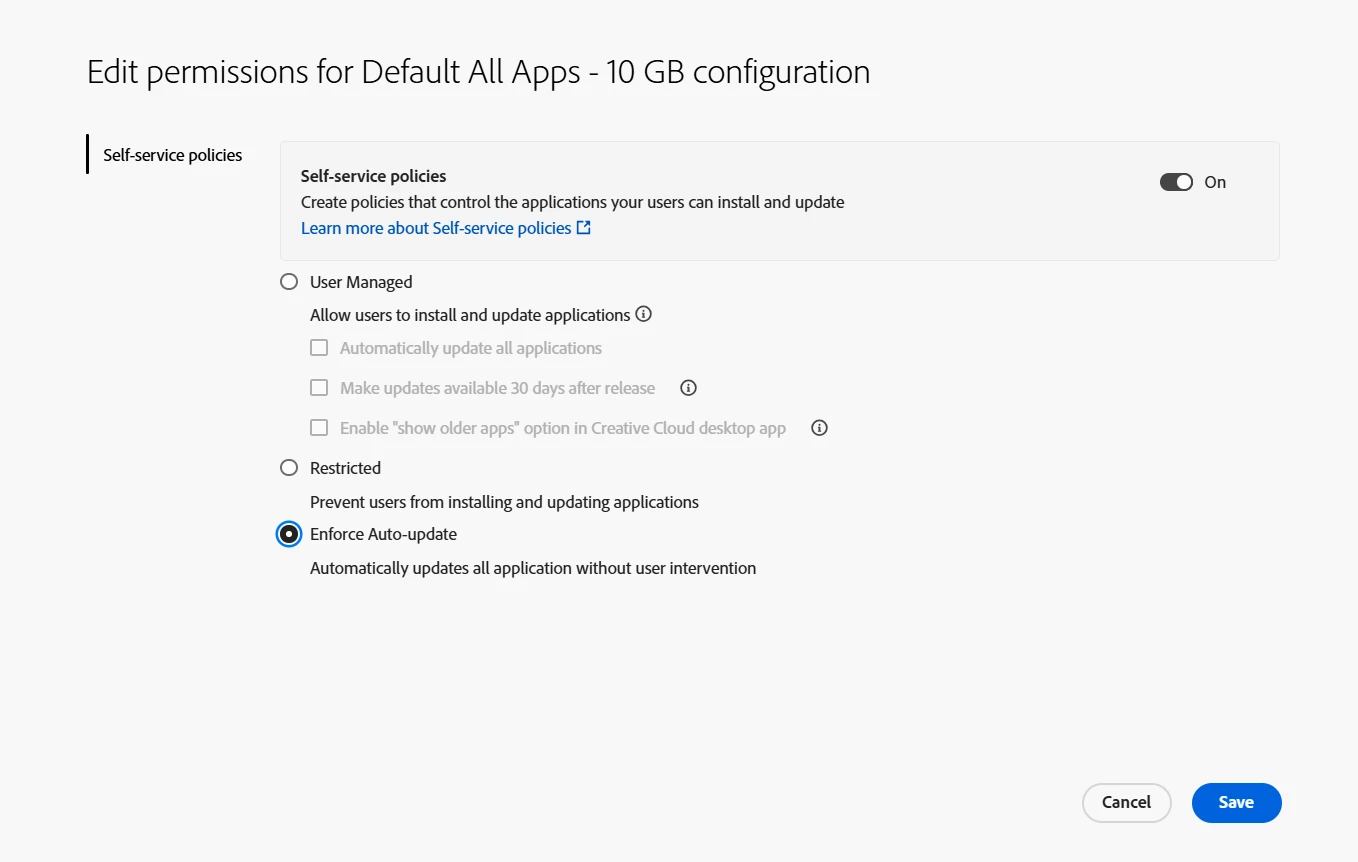
We’re pleased to roll out an exciting new enhancement to Self-Service Policies in the Adobe Admin Console for Enterprise customers, introducing the “Enforce Auto-Update” option!
Before
Previously, IT admins could enable the Auto-update option for users in the Creative Cloud desktop app. However, users still had control over whether to keep this setting turned on or off. This meant admins needed to rely on users to maintain the auto-update setting correctly, or manually manage updates across individual devices, often leading to inconsistencies in app versions, delayed updates, and additional administrative effort.
Now
With the Enforce Auto-Update policy, admins can easily keep Creative Cloud apps up to date. Once enabled on a product profile, all end-user machines linked to that profile automatically receive the latest updates without any manual effort.
When this policy is enabled:
-
Users will no longer be able to disable auto-updates in their Creative Cloud desktop app.
-
The Auto-update option will appear as locked for end users, ensuring consistency and compliance across the organization.
-
IT teams can save time and reduce manual intervention, maintaining standardized, secure, and up-to-date installations across the organization.
Why this matters
This new control simplifies application management for IT admins and ensures:
-
All users are running the latest, most secure versions of Creative Cloud apps.
-
Reduced troubleshooting due to version mismatches.
-
Streamlined update workflows - no need to configure devices individually.
Where to Find It
You can enable Enforce Auto-update from:
Admin Console > Products > Product Profile > Permissions > Self-service policies
For a step-by-step guide, visit our Helpx document: Manage self-service policies
Have feedback or encountering issues? Let us know by posting in the thread below, we’d love to hear from you!
Quick Links
If this was helpful, please click the ‘Like’ icon in the bottom left corner of this post. Your feedback helps us improve the experience. Thank you!
Stay Informed! Explore All the Latest Updates & Releases on Our ICYMI Page!
Have questions? Click 'Reply' below to ask.



 AdChoices