




Design Mockups in Illustrator with Real-Life Objects
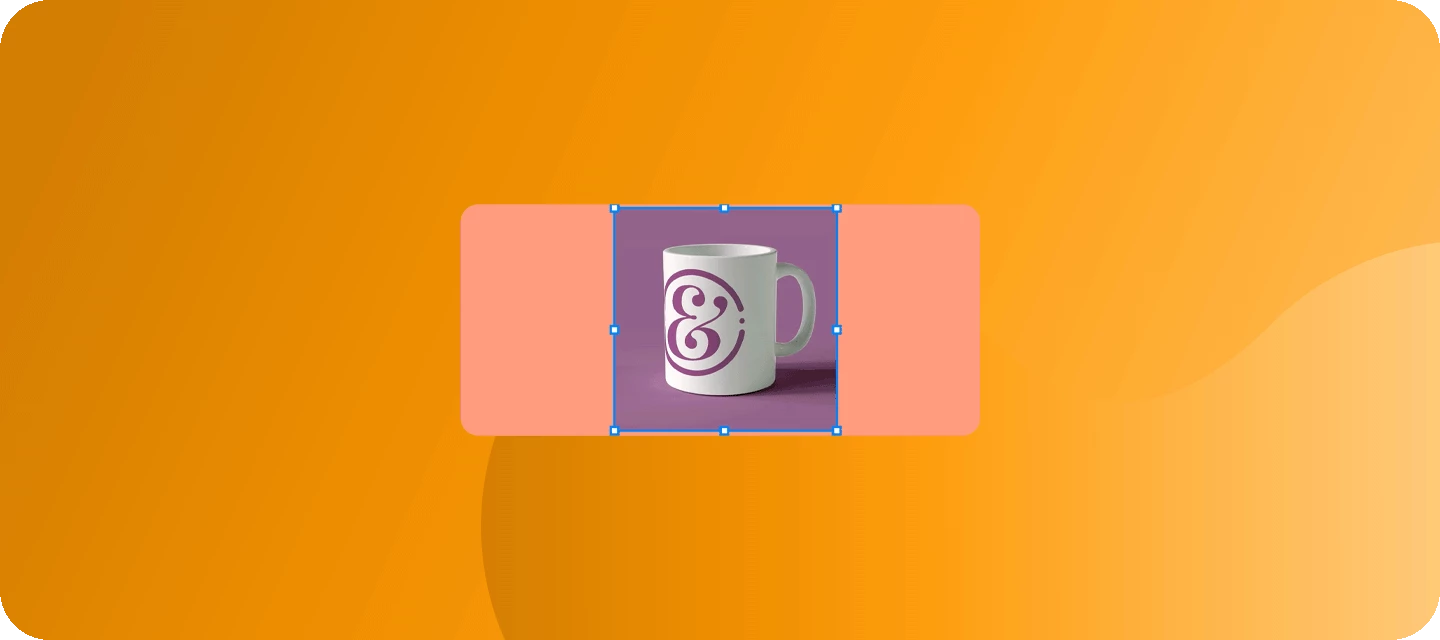
Bring Your Brand to Life: Mockup is now GA with Smoother Performance and High-Quality Results. Vector art auto-adjusts onto planar surfaces realistically when you create a Mockup.
Check out this quick tutorial by Tony Harmer, AKA Design Ninja, to know more about this feature:
Access Mockup
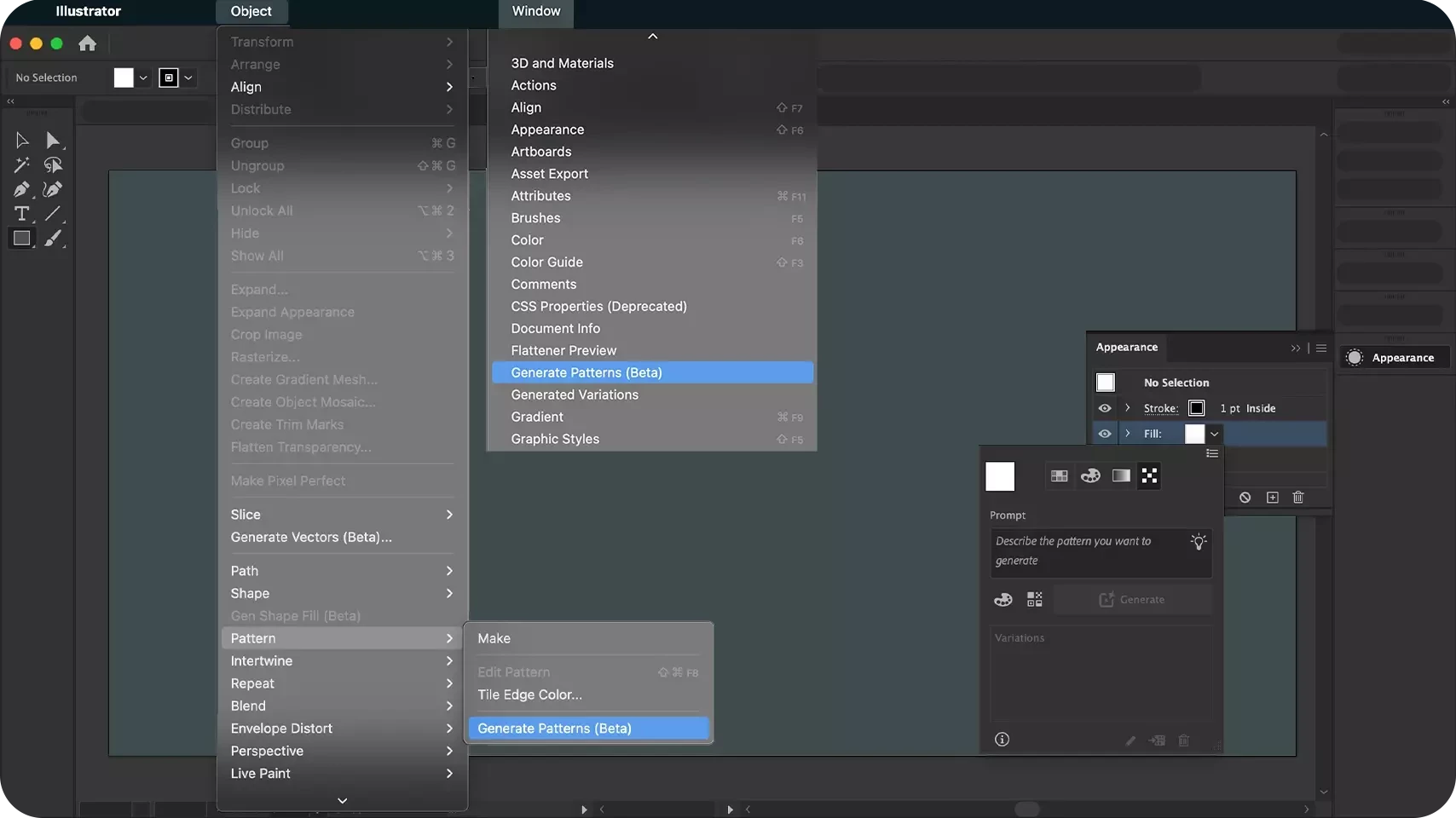
Access Mockup from a couple of locations:
- Object Menu > Mockup
- Window Menu > Mockup
- Right Click vector Object
- Contextual HUD
- Properties Panel
Personalize Mockup with Custom Images:
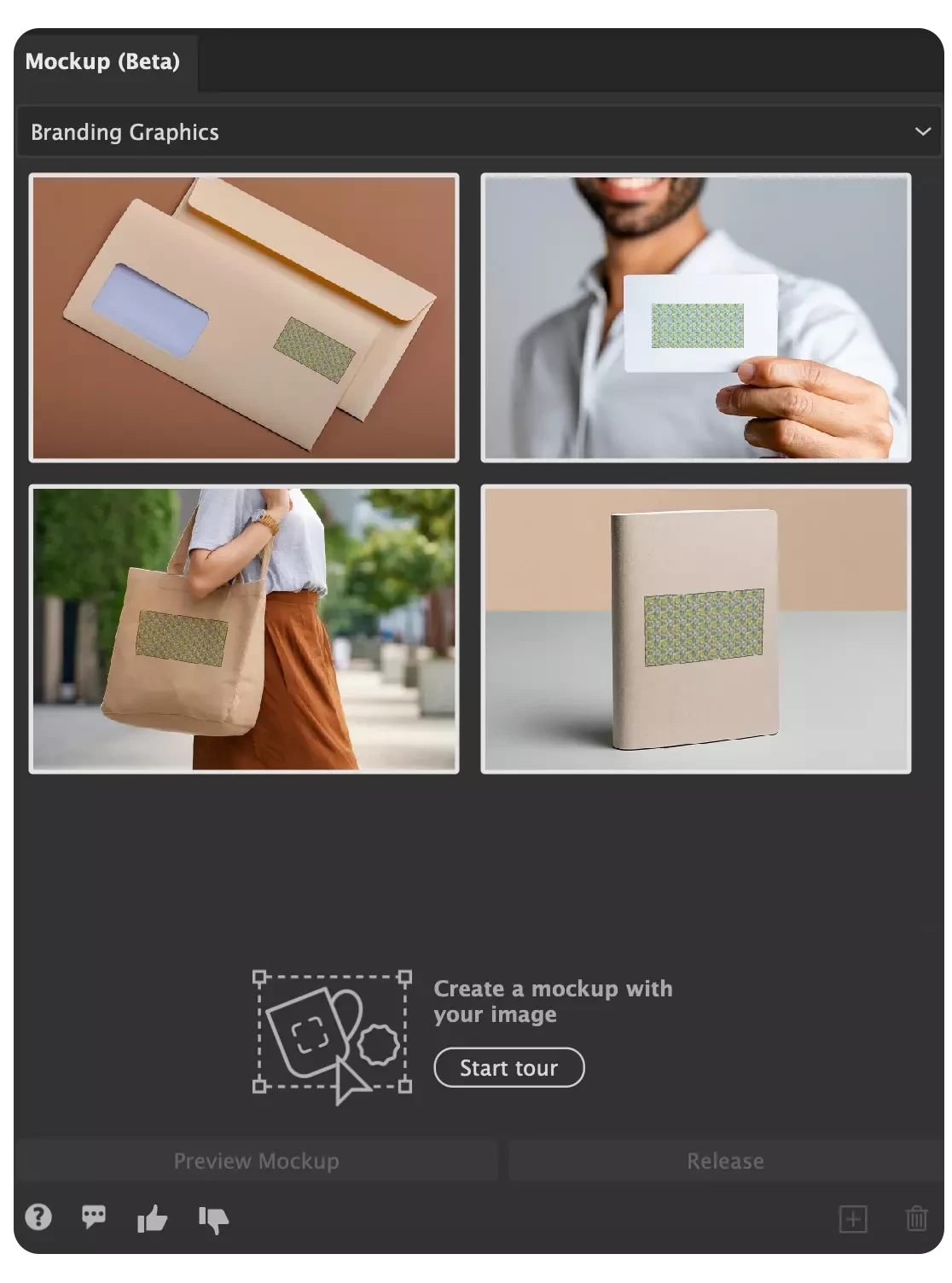
Utilize your own raster image or select from the free curated image templates in the Mockup panel to create mockups.
Also, you can preview your vector art on the free image templates within the Mockup panel and drag any desired template to the canvas.
Template Saving and Management
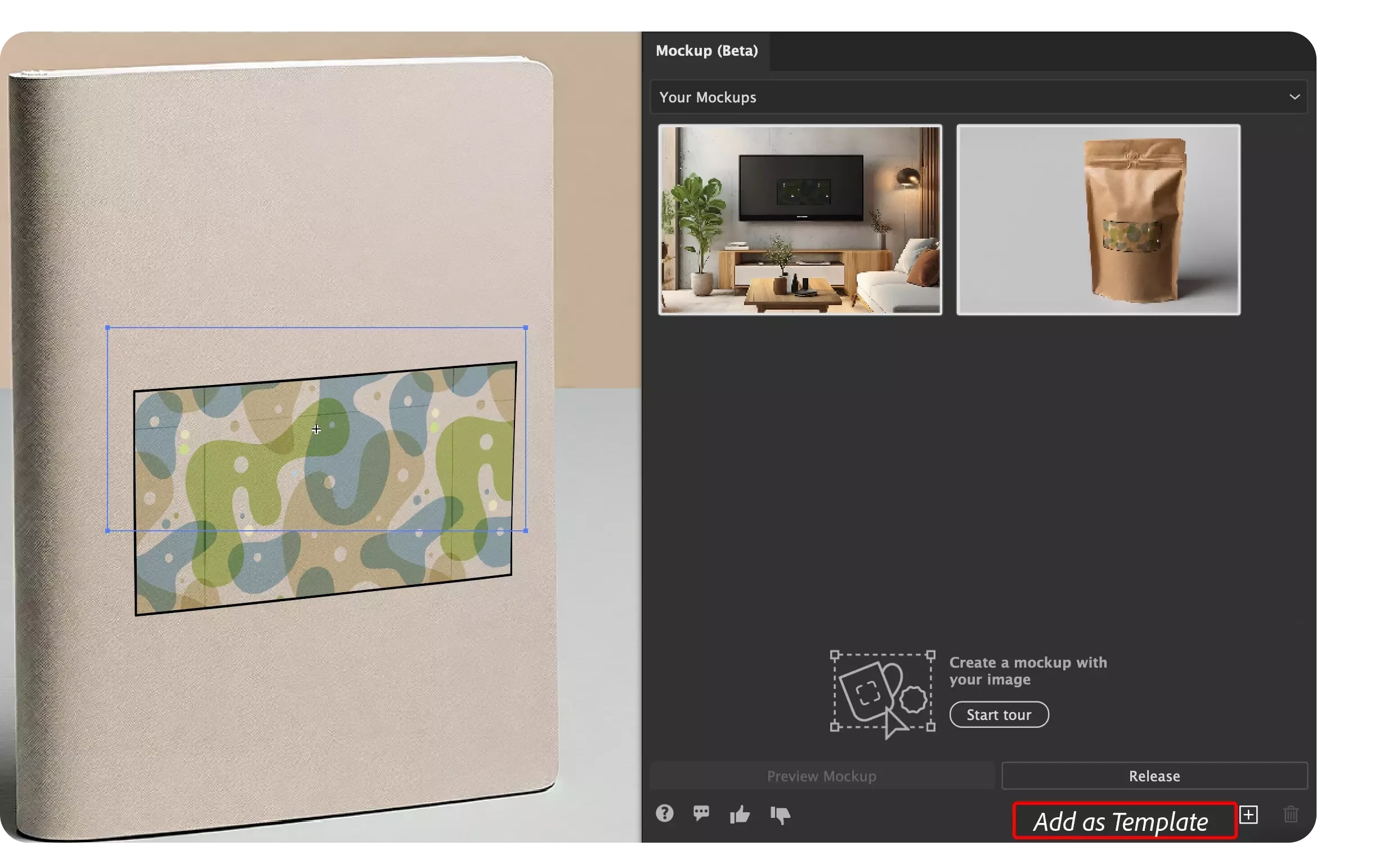
Save your mockup by selecting it and clicking the save icon in the Mockup panel. Templates appear in "Your Mockups," showing vector art positions.
Add up to 20 templates, usable across all Illustrator documents.
Note: Mockup from Illustrator 28.5 or earlier must be released and recreated for use as templates.
Edit your Artwork across multiple objects
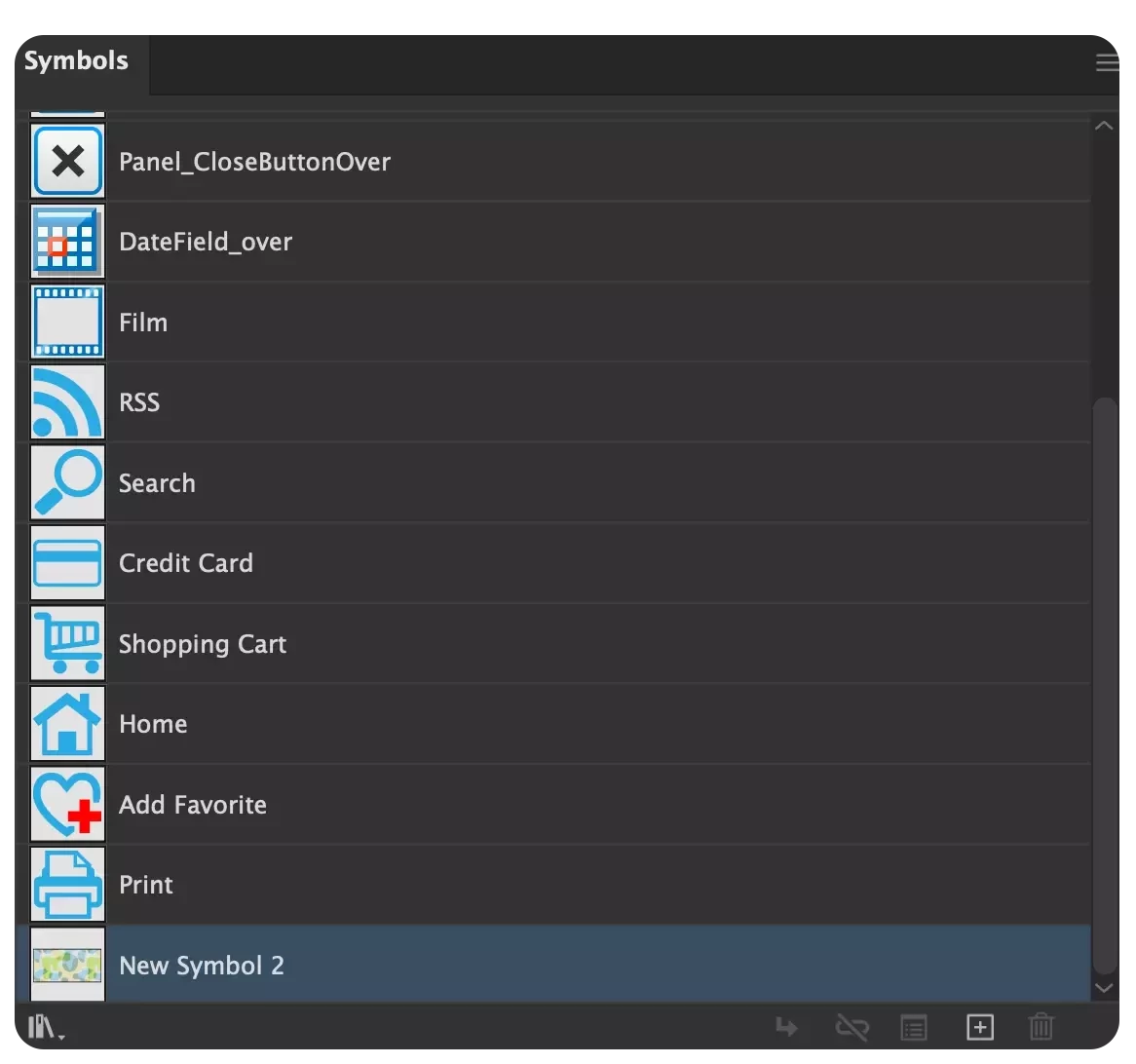
After creating a Mockup, your artwork is automatically included in the Symbols Panel as a Symbol.
If you wish to edit your artwork across multiple objects simultaneously, you can do this by simply double-clicking on your artwork. Once your edits are complete, they will be applied to all objects where the artwork has been used.
Blending Modes
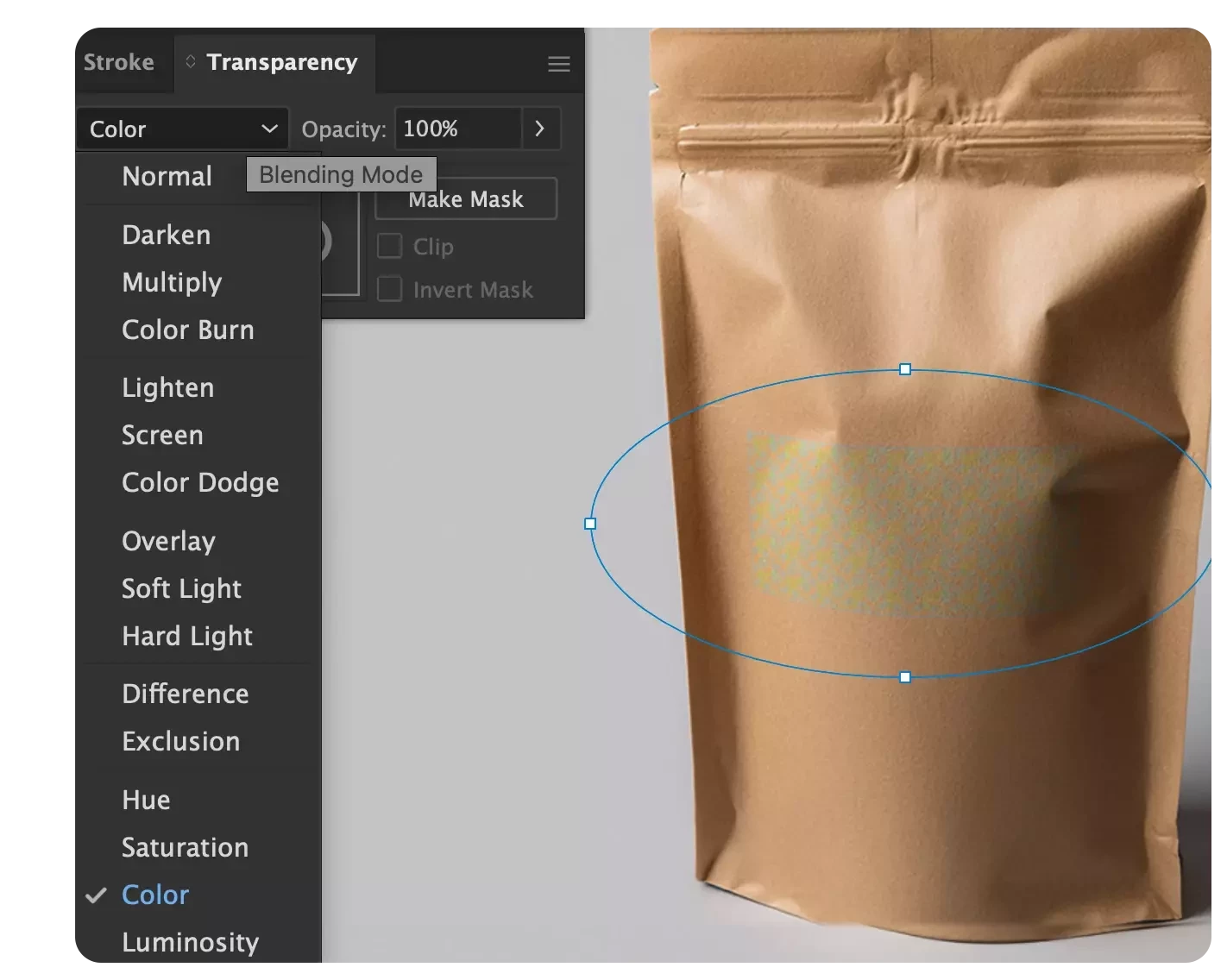
For a more realistic appearance in your artwork, you can utilize the blending options found within the Transparency panel. These options allow you to incorporate details from the raster image, such as lighting effects, curves, and distortions.
Learn More & Provide Feedback
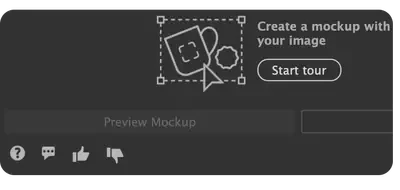
Feel free to provide your experiences and feedback by using the designated "Share Feedback" button.
Also, you can express your liking/ disliking by clicking the thumbs up or thumbs down buttons and provide your thoughts through a survey.
Key Considerations for Best Results:
- Elements such as mesh, graph, gradient mesh, freeform gradient, placed art, non-native art, raster, or raster effects aren't supported as mockup art. For unsupported elements, Object > Mockup > Preview Mockup / Create Mockup will be greyed out or a warning message will appear indicating that Mockup will lead to an appearance mismatch.
- Vector art containing a clip group or expanding to a clip group such as pattern isn't supported as mockup art.
- You can't create a mockup inside a mockup.
- Quality issues can occur with reflective surfaces, small grooves, and images of the sky.
- You can't directly apply vector effects from the Effect menu on vector art within a mockup group. Switch to symbol editing mode to apply vector effects.
- Linked Illustrator files aren't supported. Embed the files to use them in mockup.
- You can't create a mockup with multiple images.
- GPU is required in your computer for Mockup to work.
- You can't add mockup contaning multiple vector objects to Your Mockups.
- You can't directly add mockup created in Illustrator 28.5 and earlier versions to Your Mockups.
Share Your Feedback
Try out Mockup in Illustrator and let us know your thoughts. For more details & FAQs about this new feature, please click here.
If you found this announcement helpful, click 👍 Like.
Use ⭐ Subscribe to stay informed about future updates.
You may also share this post with others who might benefit from these enhancements.
 AdChoices