




From Photo to Video: Using the Generative AI tool in Lightroom
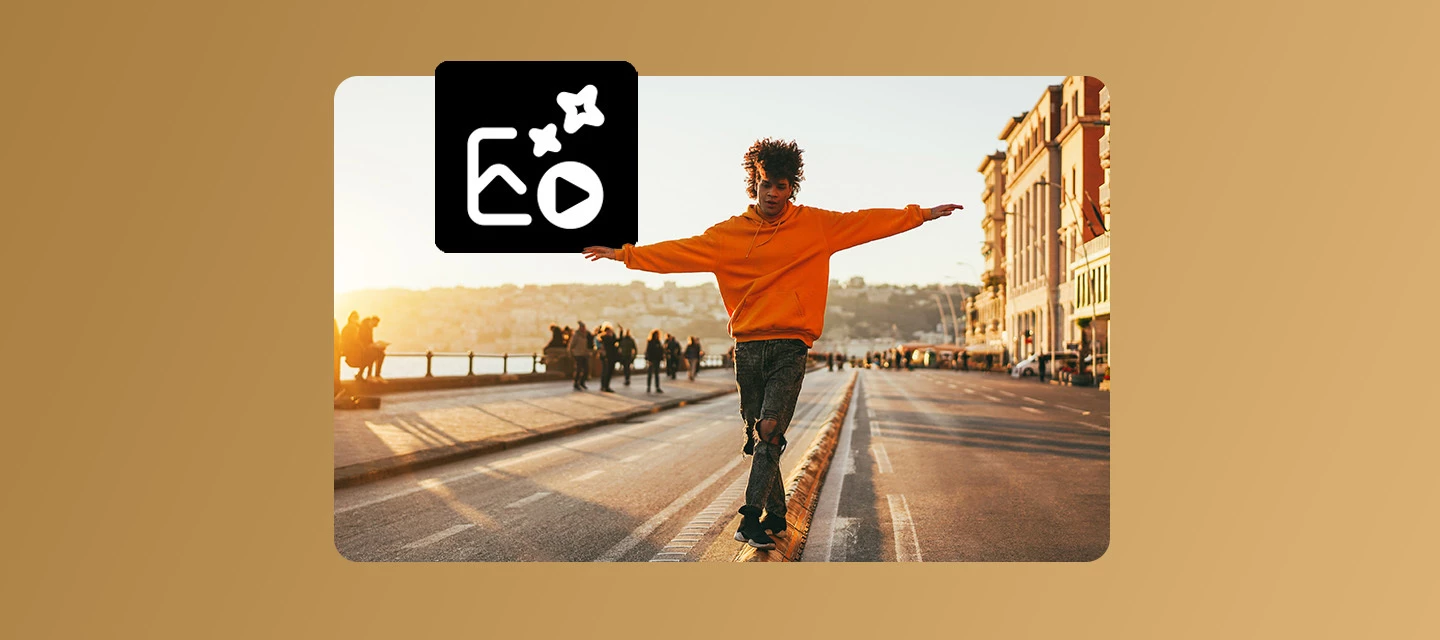
Bring your photos to life with Generate Video in Lightroom
Ever wish a favorite photo had a little more motion, a subtle drift of clouds, a slow pan across a landscape, a gentle sway in the trees? Generate Video in Adobe Lightroom turns your edited photos into short, polished videos using AI, right from the app you already use to edit.
How to Use Generate Video:
- Just open a photo in Detail view, right-click, and select Generate Video (or find it under the Photo menu).
- From there, choose a model: Firefly Video, Google Veo 3.1, or Google Veo 3.1 Fast.
- Then set your aspect ratio, resolution, and duration.
- Once you click Generate, watch you photo come to life!
Not sure what to type in the prompt field?
You don't need to be a prompting expert. Try one of the built-in presets:
- Slow pan for gentle camera movement
- Subtle motion for AI-generated natural motion
- Hyperlapse for AI-generated time-lapse style motion
Want to keep your original photo paired with the new video? Select Create stack to group them together (currently supported in the Cloud). 👉 Learn more about Generate Video here.
Where this makes a difference:
- Social media content: Turn still shots into eye-catching reels
- Portfolio pieces: Add subtle motion to portraits or landscapes for a more dynamic feel
- Storytelling: Bring a single image to life without needing video editing skills
💡 Pro tip: Once your video generates, check the Filmstrip or your stack for the result. You can always try a different prompt or model if the motion doesn't match your vision.
Join the conversation!
What's your favorite photo to bring to life with Generate Video: a landscape, a portrait, something else entirely? Share your results or prompt tips with the community 👇
 AdChoices