



🎉 You Asked, We Answered: Glow, Tethering, Depth Maps, Mask Color Grading & More Across Lightroom Ecosystem

Lightroom is designed to make your photography workflow easier, whether you're sorting through hundreds of photos, finding a specific shot, or making creative edits that bring your vision to life. Many of the improvements that make those experiences better start with you.
You've shared ideas, requests, and pain points. We listen, we prioritize your feedback, and we turn your requests into improvements that help you spend less time on repetitive tasks and more time creating. This roundup covers updates we have already rolled out, the brand-new features releasing for MAX, and even more updates on the way for Lightroom on desktop, web, & mobile. Here's what's new.
🎨 ✅ Check color accuracy with Vectorscope
Vectorscope shows hue and saturation on a circular graph.
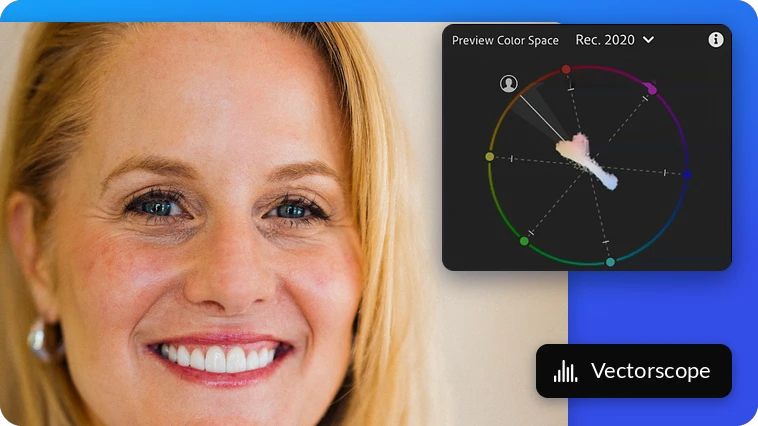
It's another way to spot color casts and judge color while you edit. The Skin indicator can help when you're checking skin tones in portraits. Whether you're making subtle corrections or evaluating a color grade, you get a visual reference to guide your decisions.
Learn more: How to analyze hue and saturation with Vectorscope
.✦ ݁˖ Add a soft, dreamy glow
Want highlights that feel a little more luminous?
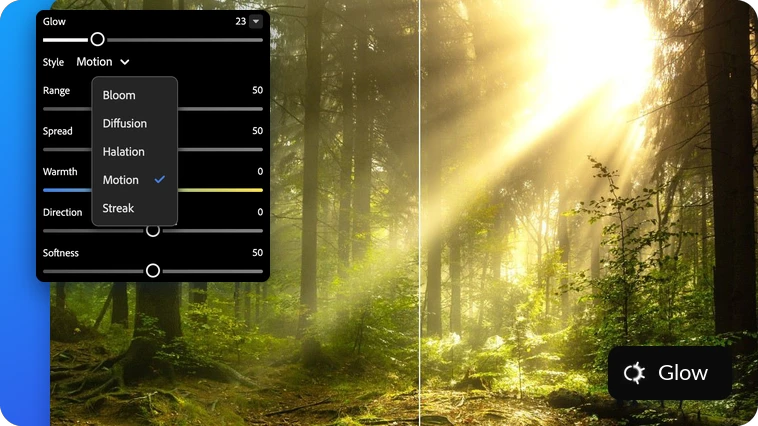
Glow effects add a soft glow to things like streetlights and golden-hour skies. Start with a preset or pick from five styles, then adjust strength, spread, color, and direction until it looks right. You get more creative control over atmosphere and light across Lightroom on desktop, web, & mobile without leaving your editing workflow.
🌡️ Fine-tune your tones with an Extended Temperature Range
Create warmer or cooler looks with an expanded Temp slider range for deeper control over your photo's colors.
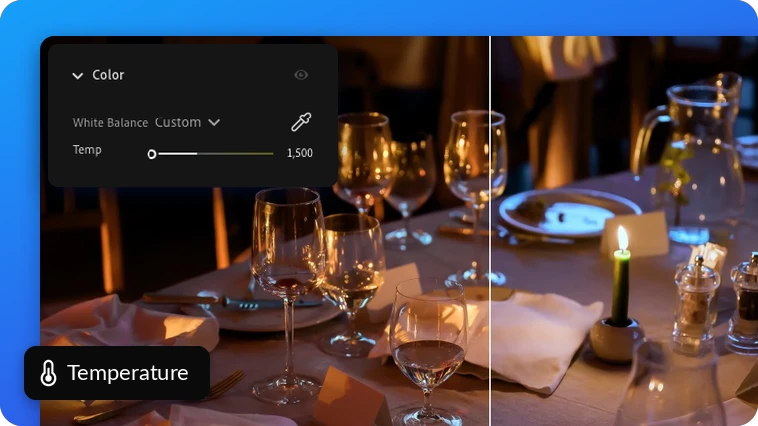
Now, in Lightroom on desktop and web, the slider lets you dial down to -1500 for raw images and -150 for non-raw files to adjust your warm photos.
📸 Shoot straight into Lightroom with Tethered Capture
Plug in a supported camera with a USB cable and capture photos straight into Lightroom.
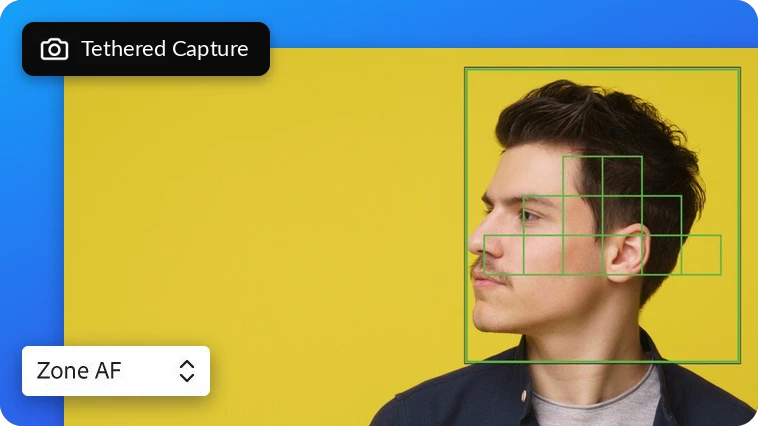
You can check your scene in Live View, work with multiple connected cameras, or automatically apply presets and keywords as your images arrive.
This flexible workflow layer is fully supported across the cloud ecosystem. You can adjust advanced camera preferences using the floating panels on desktop or attach your camera directly to an iPadOS 18-compatible tablet to create impactful edits on iPad while working on the go.
👀 Fix a blink in a photo with Open Eyes
Everyone looks great, the lighting is just right, but someone blinked.
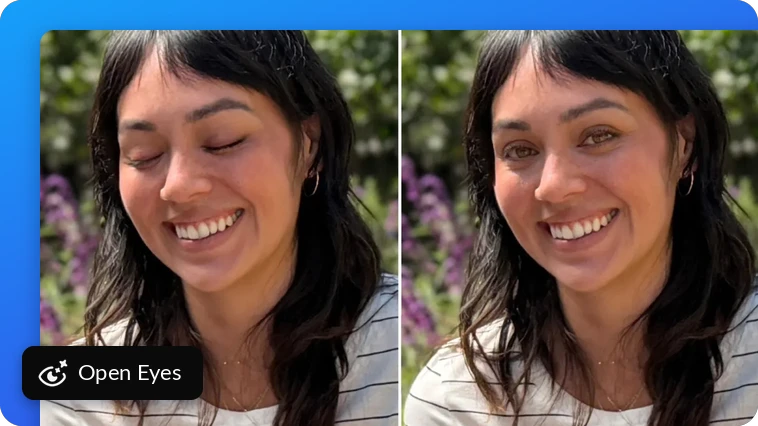
The new AI-powered Open Eyes tool automatically detects closed or partially closed eyes, generating natural, authentic results without the need to retake the shot.
This intelligent feature helps save irreplaceable moments across Lightroom on mobile and desktop. It automatically finds matching photos in your library to ensure eye colors, shapes, and sizes match the person, using generative credits to deliver authentic results in a few taps.
🖥️ Personalize your workspace in Lightroom Desktop
Make your editing environment match exactly how you organize and edit your photos.
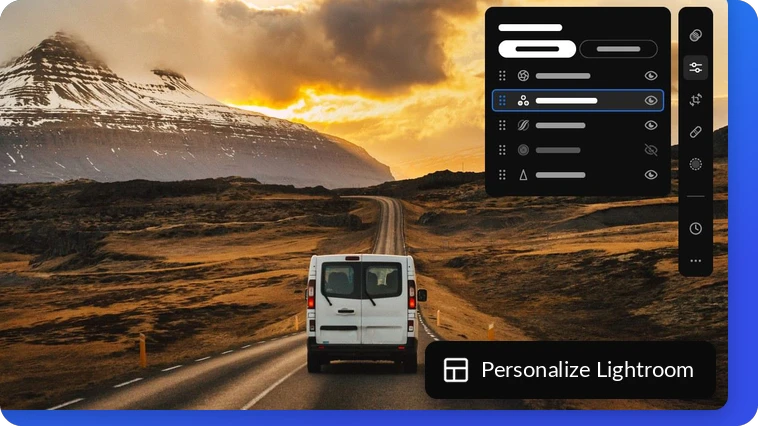
You can fully customize your interface layout, panels, and appearance. You can even choose a workspace preset that mirrors the Classic layout or switch to your familiar Lightroom Classic keyboard shortcuts to make your transition completely seamless.
🔄 Save multiple edits with Versions in Local mode
Try different looks without cluttering your hard drive.
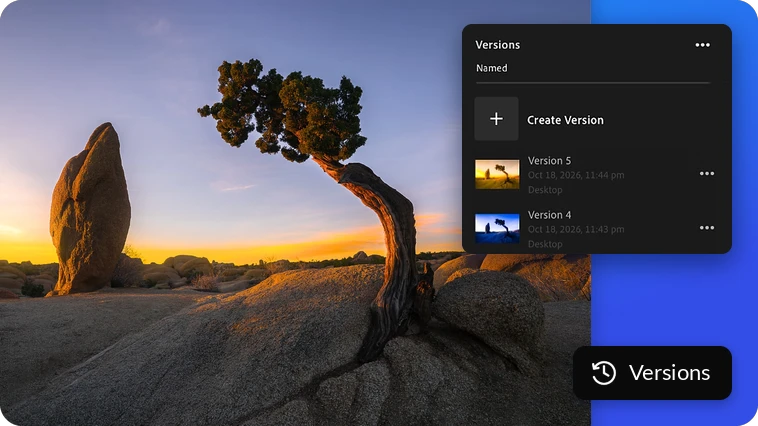
You can now create and manage named versions of your locally stored photos to preserve different creative directions, compare your results, and quickly jump back to a previous edit at any stage without losing your changes.
Learn more: How to create versions of your edited photos in Local mode
✨ Create a consistent look with Batch Edits
Copy edits from one photo and paste them to multiple photos at once to speed up your editing workflow.
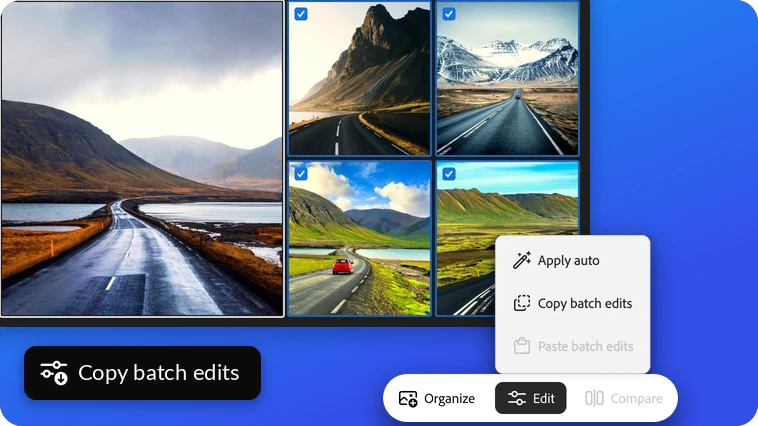
Now available on the web, you can apply your custom settings to up to 1,000 photos in a single step, keeping a uniform look across your entire gallery.
📸 Find your best shot with Survey view
When you shoot many similar frames, finding the best one can take time.
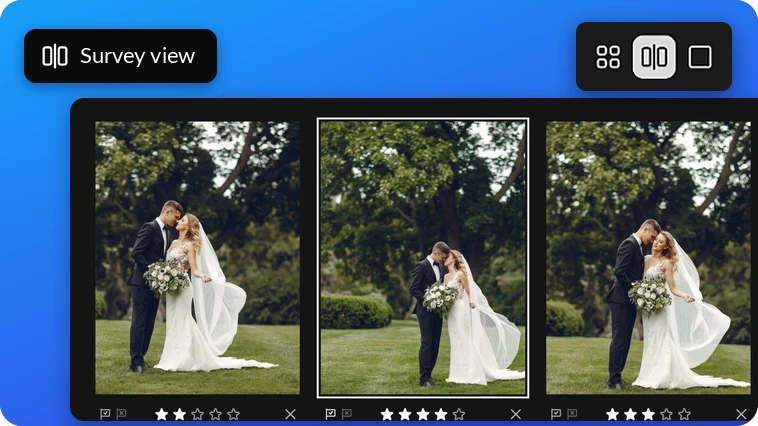
Survey view places multiple photos side by side so you can compare them at a glance, zoom in to check fine details, and cull right from the view.
This view lets you reorder photos by dragging them, rate or flag your favorites, or jump into a full-screen view for a closer look. You can even lock your zoom together to inspect up to 25 photos at the exact same time.
🌌 Clean up low-light shots with AI Denoise
Recover noisy images shot with high ISO or low-light settings without losing sharpness or detail.

Previously limited to desktop, AI-powered noise reduction is now available on Apple Silicon iPads, instantly cleaning up your raw photos while preserving fine details.
📸 Choose your best shots with the Faces section in Assisted Culling
Picking the best photos from a large shoot just got easier.

The new Faces section, part of the latest Assisted Culling improvements, shows you detailed Eye sharpness and Eyes open scores for every face, so you don't have to zoom in and inspect each face one by one.
Sorting portraits, group photos, or hundreds of similar shots? The Faces section helps you spot your strongest images and spend less time comparing them manually. More time editing your favorites, less time deciding which to keep.
🎭 Improved Subject Masking
Isolating the central element of an image from complex or busy backgrounds is now easier.
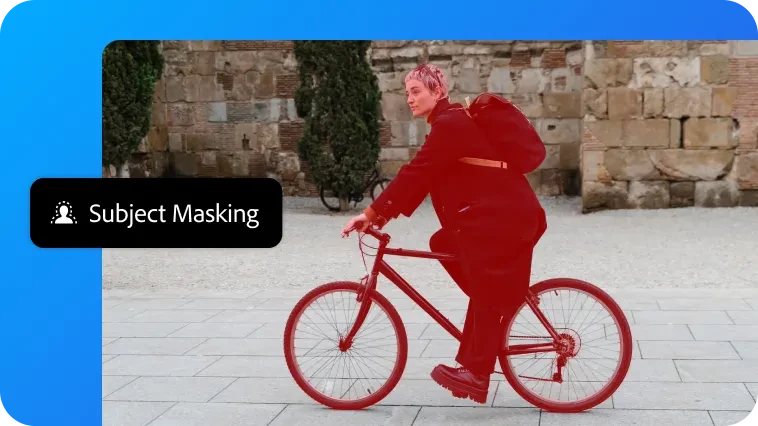
The updated AI masking model delivers faster, more accurate subject detection when you select a subject on desktop, mobile, or web.
The tool handles complex selections of detailed objects, such as hair or bike spokes, with much greater precision. You can also fine-tune your results using the new Feather and Edge sliders to create clean masks against busy backdrops.
🔍 Find your photos with Improved Search
Looking for that one photo but can't remember when you took it?

Improved Search lets you describe what you're after in everyday phrases instead of relying solely on manual tags, and now works seamlessly across any language Lightroom supports. Try searching for something like "ballerinas shot during golden hour in New York City, 35mm"
You can also narrow results with metadata such as file formats, dates, and camera details on desktop, mobile, or web. Keep in mind that Lightroom will take a moment to index your library the first time you use it to deliver the best results.
🏷️ Stay organized with custom Color Labels
Five standard and up to five custom color labels help you organize and identify photos at a glance.
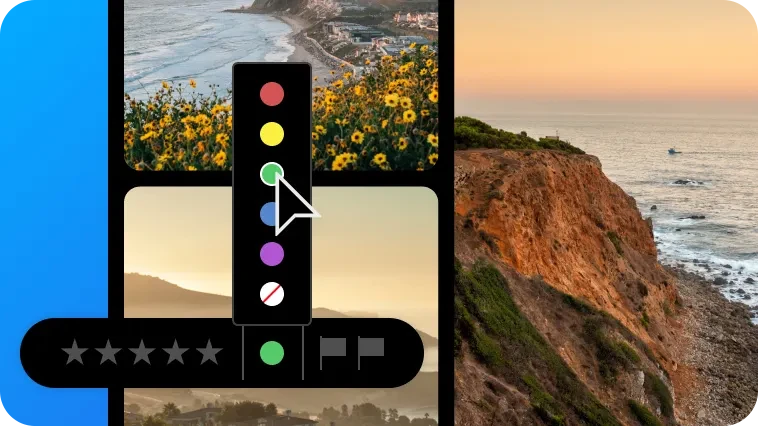
Use different colors to mark favorites, separate projects, track editing progress, or build a system that works for you.
🧹 Clean up your photos with Better Distraction Removal
Small distractions can pull attention away from an otherwise great photo. Improvements to Distraction Removal give you more precise results when you remove unwanted elements.
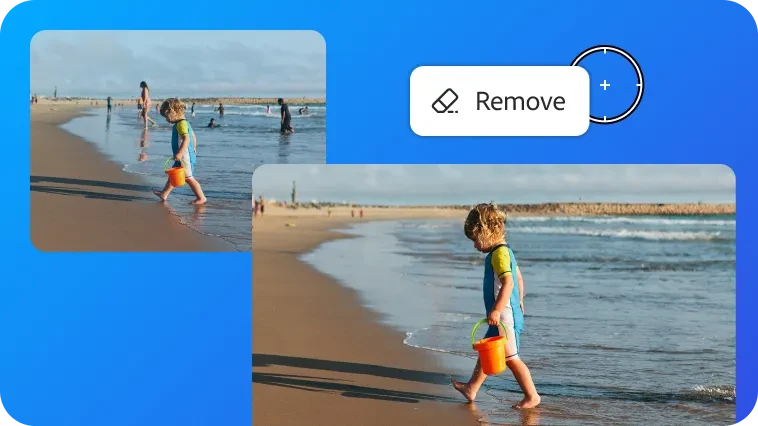
Lightroom can automatically identify distracting people, reflections, and dust spots on desktop under the Distraction Removal panel. You can also automatically Remove unwanted people in Lightroom on the web and Remove extra people in Lightroom on mobile to clean up your frame without detailed manual edits. Photobomber or stray reflection, keep the focus right where it belongs.
📱 Quick Actions in Lightroom Mobile and Web
Know exactly what you want to change? Quick Actions let you make advanced edits in just a few taps.
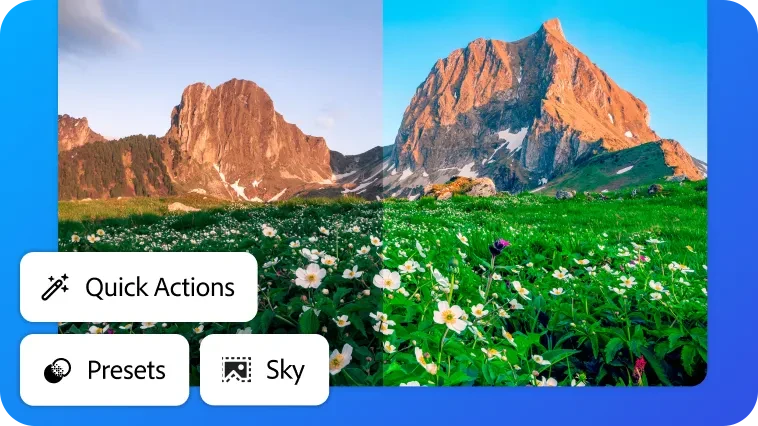
You can apply presets, Auto-enhance photos, edit the subject, background, and sky, or blur backgrounds using intelligent content analysis.
The tool also automatically detects individual faces in group shots, letting you retouch people's features like eyes, teeth, skin, hair, or clothing one person at a time. You can even straighten photos, remove blemishes, and convert photos to video on the go or right from Lightroom on the web.
What are you most excited to try?
From finding your best shots to organizing your library and making more precise edits, these improvements are designed to make everyday photography workflows smoother and more intuitive. Tell us how they're working for you:
-
Which of these improvements will save you the most time?
-
Which feature are you most excited to try in your workflow?
-
What would you like us to improve next in Lightroom?
Keep sharing your ideas, feature requests, and experiences with the community. Your feedback helps shape the tools we build, and we're excited to keep making the Lightroom ecosystem better together.
 AdChoices