




Creating and Using a Texture Brush in Photoshop
Let’s Explore Texture Brushes in Adobe Photoshop!
Designing with texture brushes in Photoshop can produce a lot of interesting textures in your compositions. Of course, knowing how to adjust the application of these brushes and best apply them to your subject can take some additional know-how rather than simply laying down texture all over the place… and what should we keep in mind as we create our texture brush and adjust its settings? We're going to have a quick look at all these considerations when using texture brushes.
How to Design with Texture Brushes in Photoshop:
Create a Texture Brush
First, we'll need to access the Brush tool and create a texture brush through the Brush Settings panel.
- In Photoshop, select the Brush tool and open the Brushes panel - you can find that under Window > Brushes.
- In the Brushes panel, twirl open the General Brushes set and select the Soft Round brush preset.
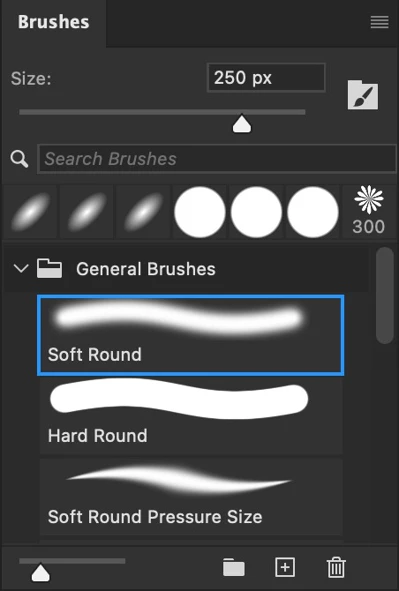
- Open the Brush Settings panel by choosing Window > Brush Settings from the application menu or click the Brush Settings button in the Brushes panel itself.
- This panel will display all of the settings for the selected brush. Active settings have an active checkbox next to them and inactive settings display an inactive checkbox. Initially - none are active.
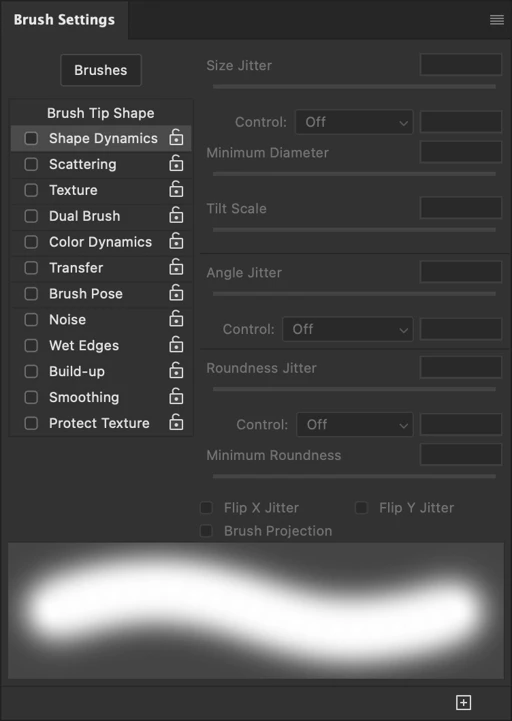
- Once activated, clicking on the name of any setting will give you access to adjust each setting's properties. Some settings have no properties beyond being on or off and therefore will display nothing when clicked.
Let's create our texture brush. - Brush Tip Shape: Select this setting and set the Size to 300 px. Adjust the brush Hardness value to 0% - creating soft edges.
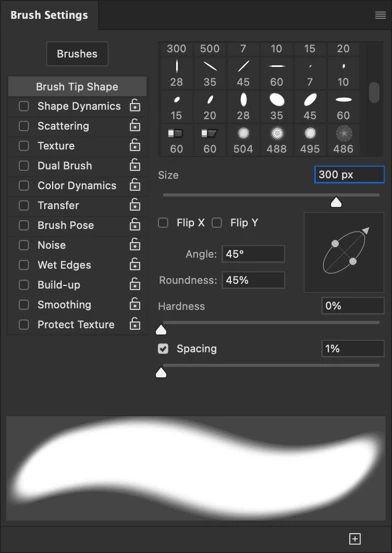
Note: This is the only setting you do not have to activate - as it contains all the standard brush properties.
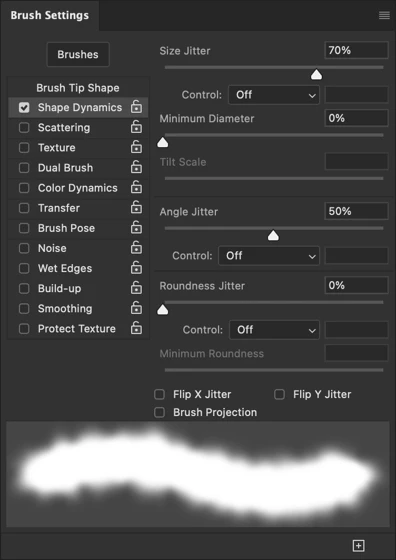
- Shape Dynamics: These settings allow some variation in our brush strokes. Enable it and be sure to select it as well - the Shape Dynamics category will be highlighted once selected. Set Size Jitter to 70% and Angle Jitter to 50%. This will create more randomness as you lay down each brush stroke.
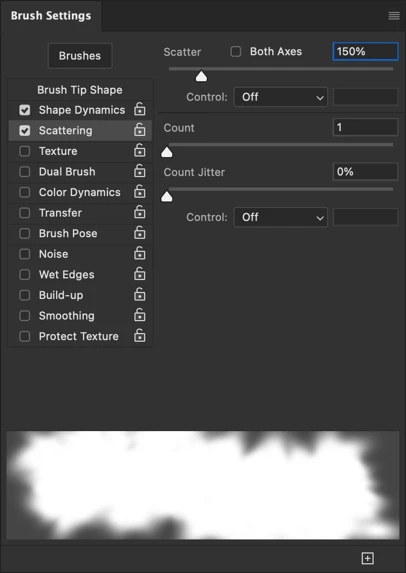
- Scattering: The Scatter property determines how far apart - or scattered - the results of a brush stroke are. Keep an eye on the preview toward the bottom of this panel to see how your changes affect the stroke.
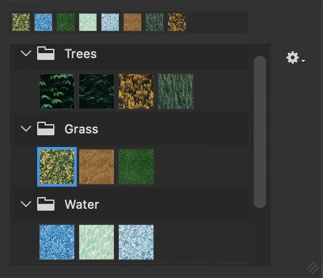
- Texture: Now for the actual Texture settings of a texture brush!Activate and select Texture. The first property is a texture selection dialog right at the top of this section. Choose the Grass-Autumn texture from the default set of Grass textures.
-
Note: The textures that appear in this dialog are defined patterns from Photoshop. You can define your own patterns by making a selection and choosing Edit > Define Pattern… from the application menu.
Set Depth first before any additional properties. I've set my depth to 10%. Now set the following additional property values, keeping an eye on the stroke preview area to witness the results of each change:
- Scale 70%
- Brightness 120
- Contrast 40
- Depth Jitter 30%
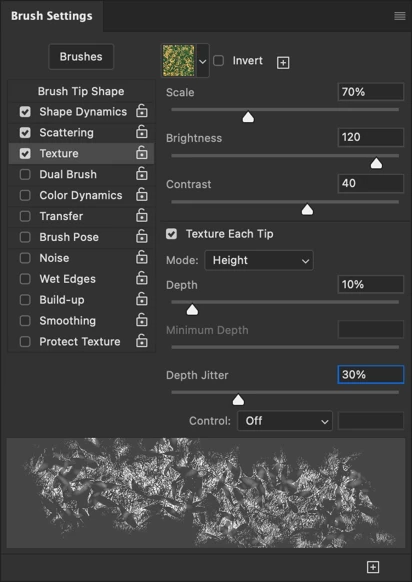
The settings we've dialed in here will create a brush that has great randomness and variability in the textures it creates while avoiding the stamp-pattern-effect so common to these brushes. You can always adjust additional settings to provide even greater variability in your strokes.
We now have a subtle texture brush ready to use in adding fine texture to our photographic compositions.
Note: You can also add your own textures through the pattern selection dialog by clicking the little cog icon and choosing Import Patterns… from the menu that appears.
Adding Texture with the Brush
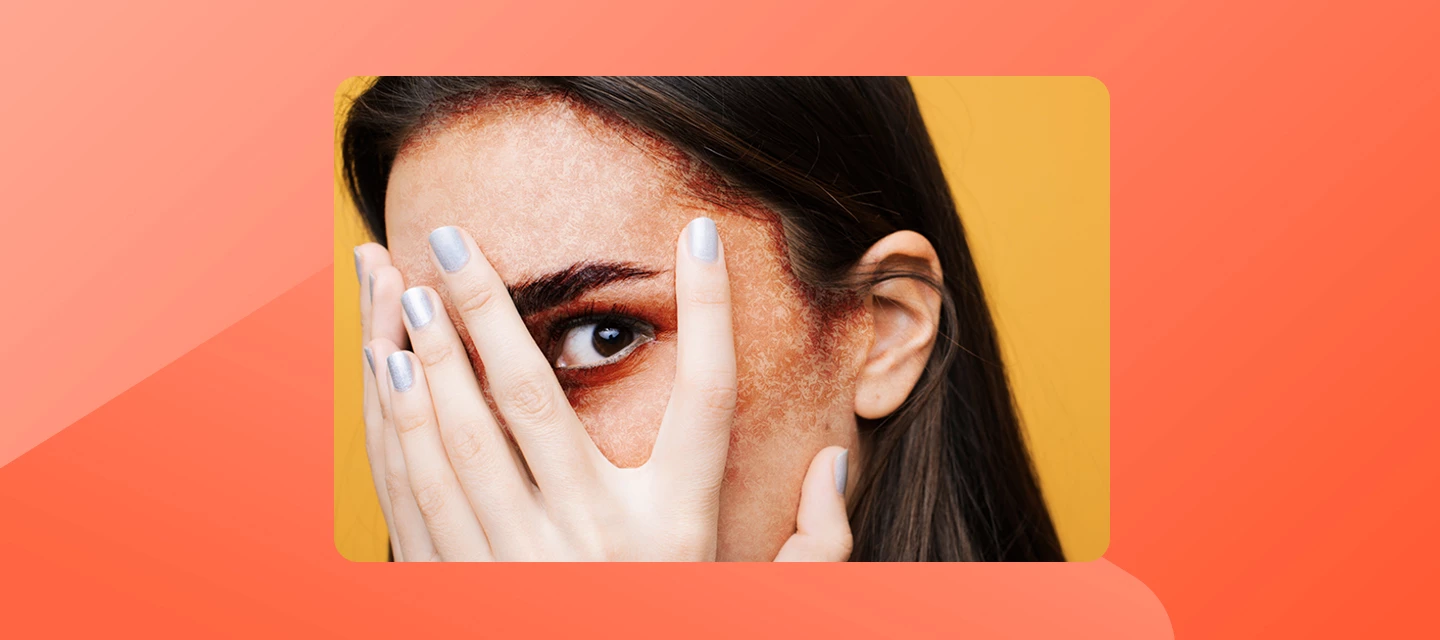
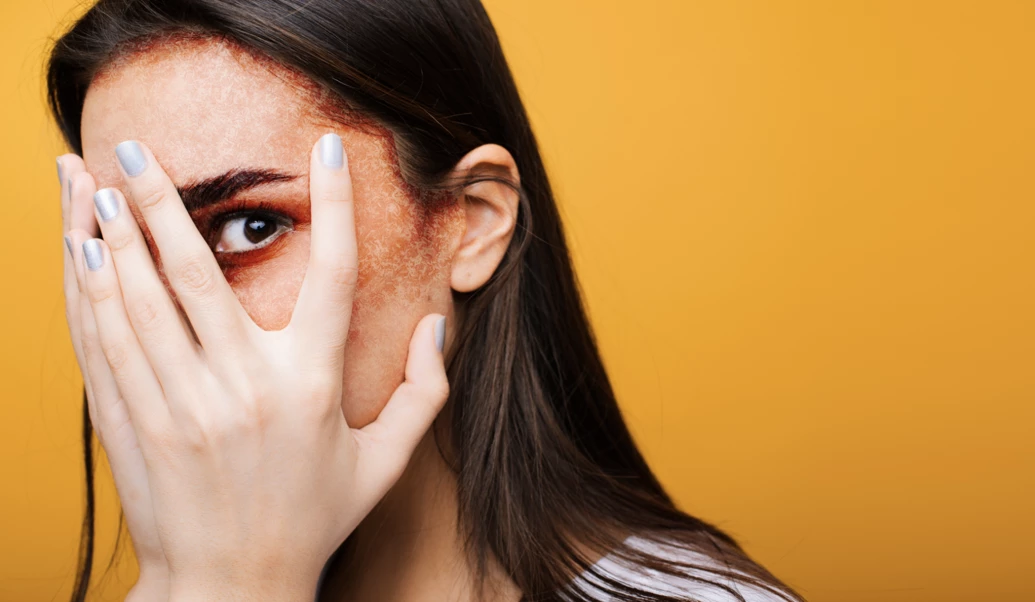
Let's put our new texture brush to use and design a textured composition using an image from the Adobe Stock free library. We'll add some texture to the model's face… keeping her hands untextured - as though she's made her face up for a festive autumnal party.
- Open the .jpeg image file in Photoshop and choose File > Save As… from the application menu to save the files as a .psd to your local computer.
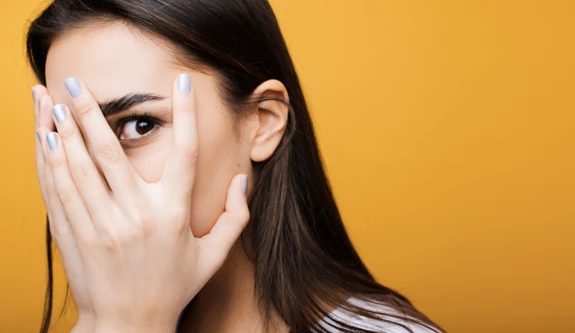
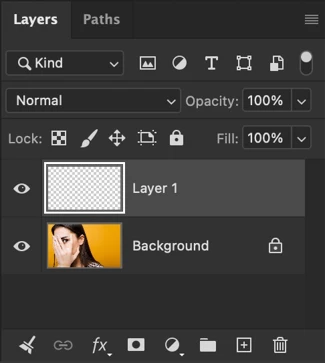
- In the Layers panel, click the New Layer button to create an empty pixel layer above the background. Later on, you must ensure this layer is selected so that any brushing will be contained in this new layer.
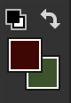
- Select a Foreground Color to use with your texture brush. I've selected #440000 as my color as it will work with her skin tone and the orange backdrop in the photograph.
- Ensure the Background layer is selected in the Layers panel so that we can make a selection of her face and choose the Object Selection tool from the Toolbar to easily isolate the face of the model.
Click Apply with her face selected and a selection is established.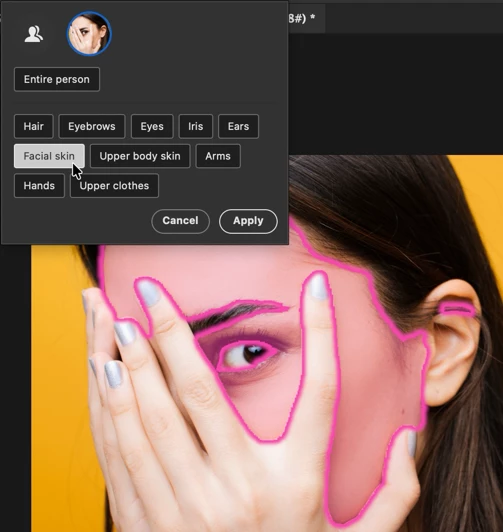
- You will want to clean up the selection with other selection tools within Photoshop - such as the Lasso tool. I've made sure her eyebrow is part of the selection, for instance.
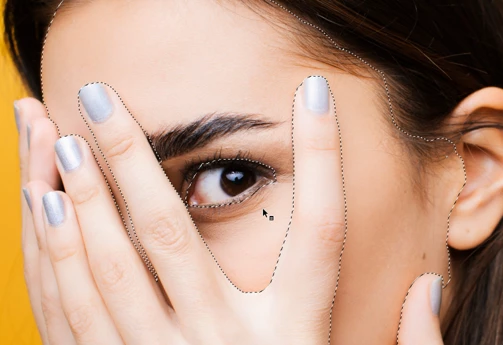
- Select the Brush tool and verify that your newly created texture brush is chosen. You can, of course, adjust the size of the brush (along with other common properties) from the Options bar.

- Now ensure the empty pixel layer is selected within your Layers panel and begin brushing within the selected area. Be sure to adjust the size of your brush as needed. I'll brush mostly to add texture around her eyes, building the strokes up around the darker parts of her face and keeping them more light and subtle everywhere else.
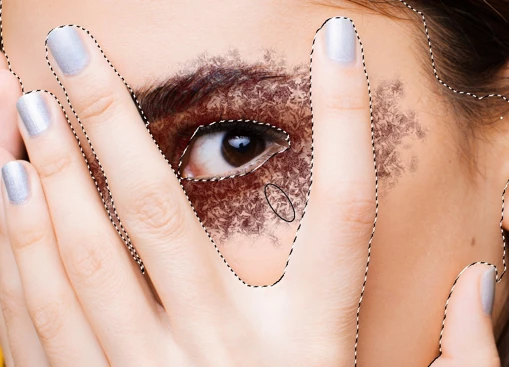
- In the Layers panel, apply a suitable Blend Mode to the texture layer to more fully integrate your texture brush strokes within the composition.
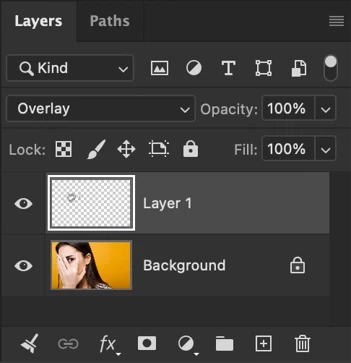
- Lastly, dismiss your selection entirely and blend in any additional textures such as at her hairline… unencumbered by any selection.

The result is a composition of a model playfully obscuring her painted face with her hands - which presents the texture we've added.
Fixing Common Problems
Like any process, you may encounter some problems when exploring texture brushes. Here are a few things to check or adjust to get around common problems designers can encounter.
Verify Blend Mode: Ensure the Blend Mode assigned to your brush through the Options bar is set to what you actually want to use. In the walkthrough above, we controlled layer-based blend modes… but it can be set on the brush level as well.
Brush Settings Option Menu: If having too many issues brushing, you can reset a number of properties by accessing the panel options within the Brush Settings panel such as Clear Brush Settings and Reset All Locked Settings.
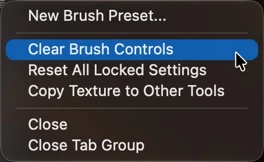
This is a good thing to check if your brush all of the sudden behaves strangely and you aren't sure what went wrong.
Join the conversation
Please feel free to share how and where you’ve applied these tips! I hope you found them helpful. If you have any questions or need further assistance, don’t hesitate to reply here.
 AdChoices