




Edit Images with Advance AI tools in Photoshop
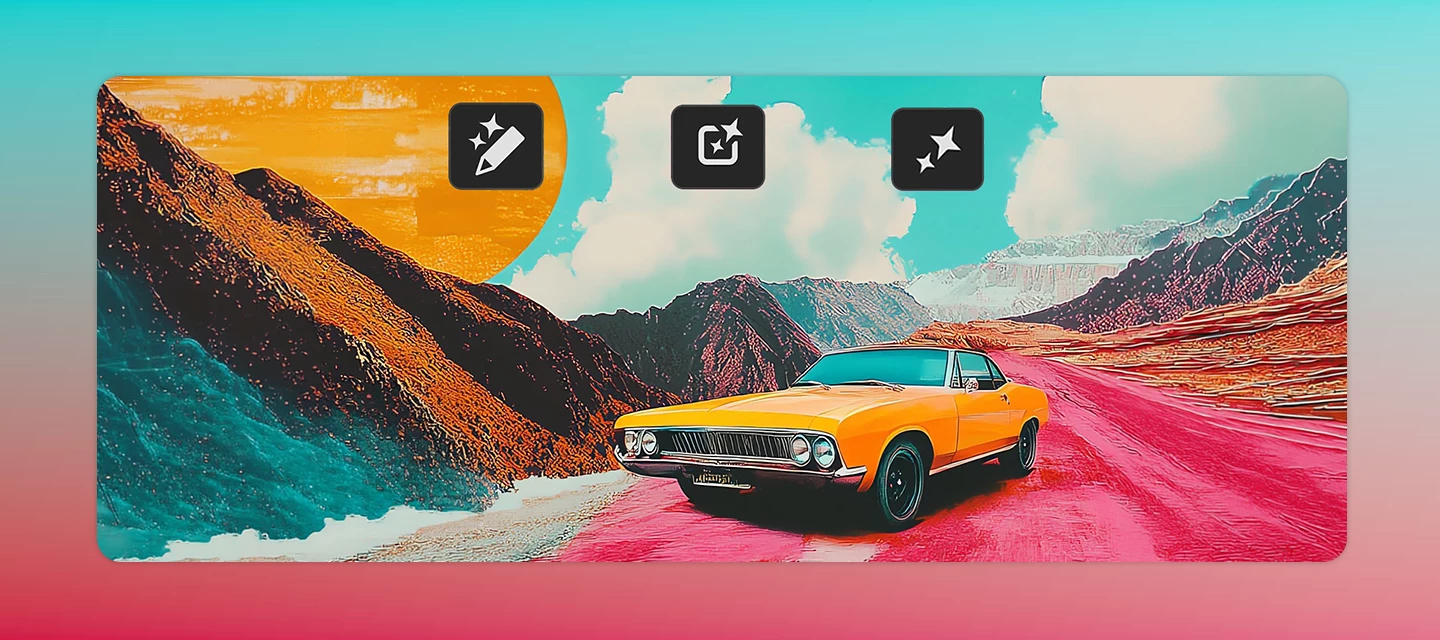
Turn creative ideas into editable image transformations using AI. With Prompt to edit, you can describe changes using natural language and generate image-wide edits in seconds. Use Markup and Marks to guide the AI toward specific areas of an image, add instructions, or indicate where new elements should appear.
How This Workflow Works
Start by generating an image edit using a text prompt. If needed, use markup tools to indicate specific areas and describe the changes you want.
Step-by-Step Guide
1. Open an image
Select File > Open and choose the image you want to edit.
2. Generate an edit with Prompt to edit
Select a pixel layer or generative layer containing the image. If you're working with a generative layer, make sure the entire image is selected.
Select Prompt to edit from the Contextual Task Bar, or choose Edit > Prompt to Edit.
Enter a prompt describing the changes you'd like to make across the image.
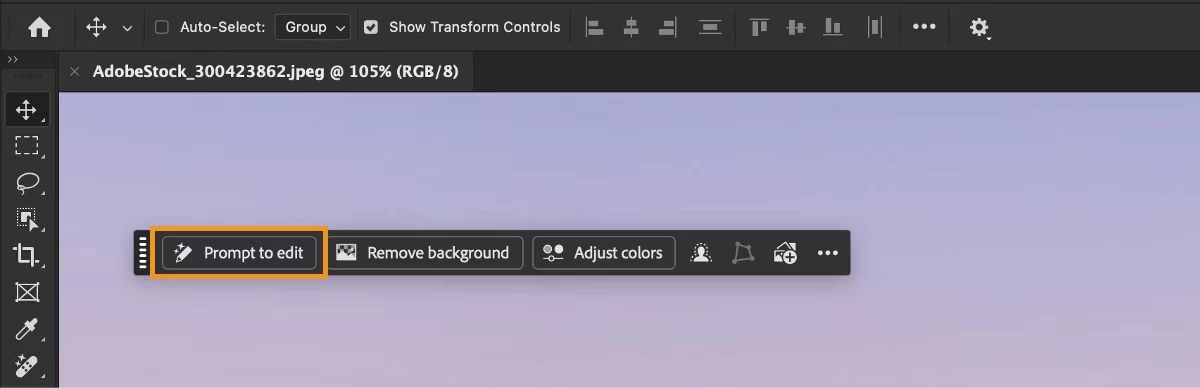
Sample prompts:
-
Change the lighting to a warm sunset tone.
-
Improve overall brightness and contrast.
-
Change the season to rainy, add rainfall and puddles.
-
Make the image more colorful and vibrant.
Choose an AI model from the model picker, then select Generate.
3. Guide the AI with markup and masks
If you want to direct the AI to a specific area of the image or indicate where new objects should appear, use selections or markup tools before generating your edit.
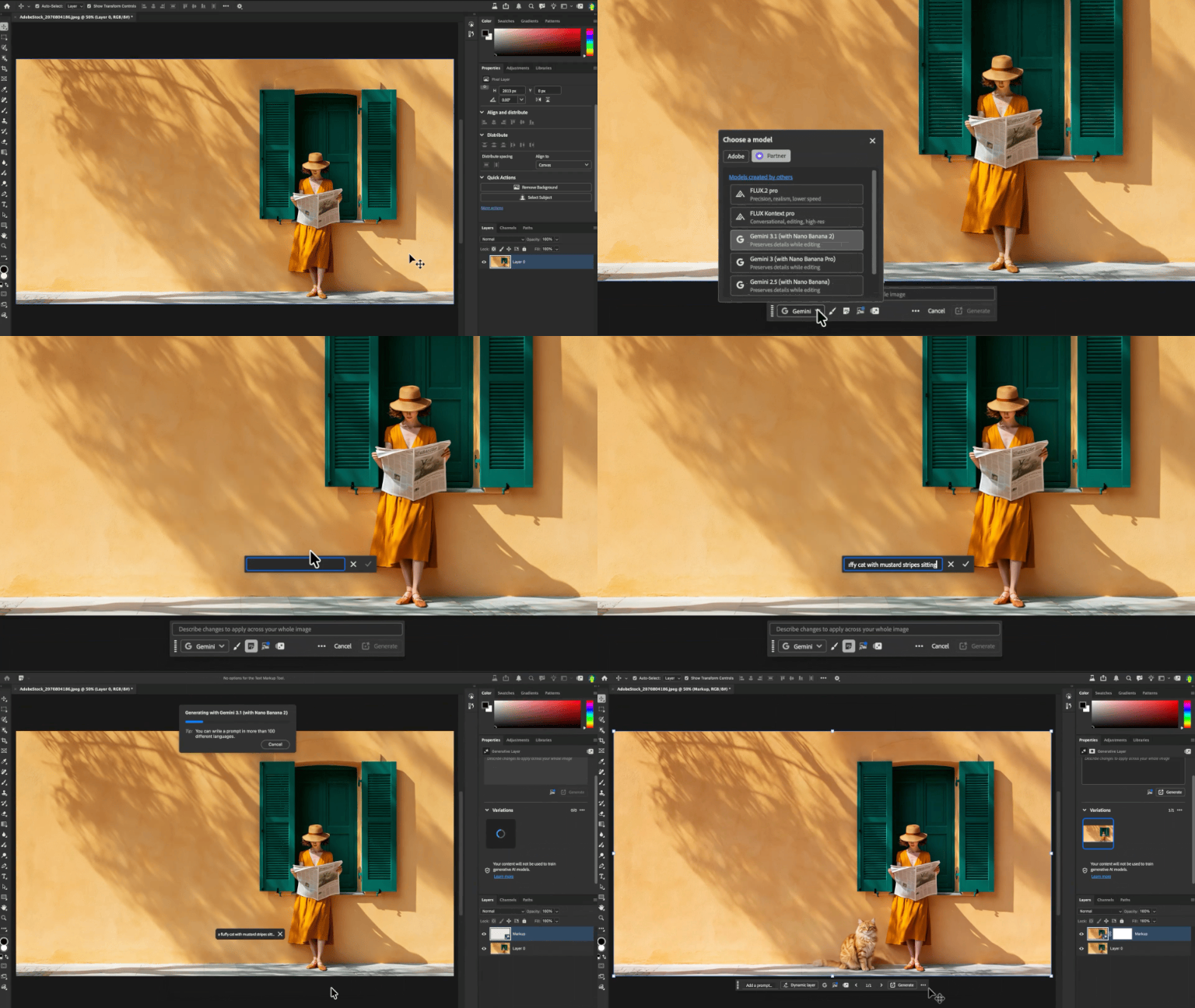
You can:
-
Use any selection tool to select the area of the image you want to edit.
-
Use the Text tool to add notes describing the changes you want to make.
-
Use the Brush tool to draw marks or rough shapes that indicate where changes should appear.
For example, you might mark an empty section of a scene and add a note such as "add a bicycle," or highlight a specific area and indicate a change you'd like the AI to make.
Join the Conversation
What have you created using these new AI-first editing tools? Share your favorite prompts, creative workflows, and before-and-after results with the community. We'd love to see what you create.
 AdChoices