




How to Create Realistic Grass in Photoshop
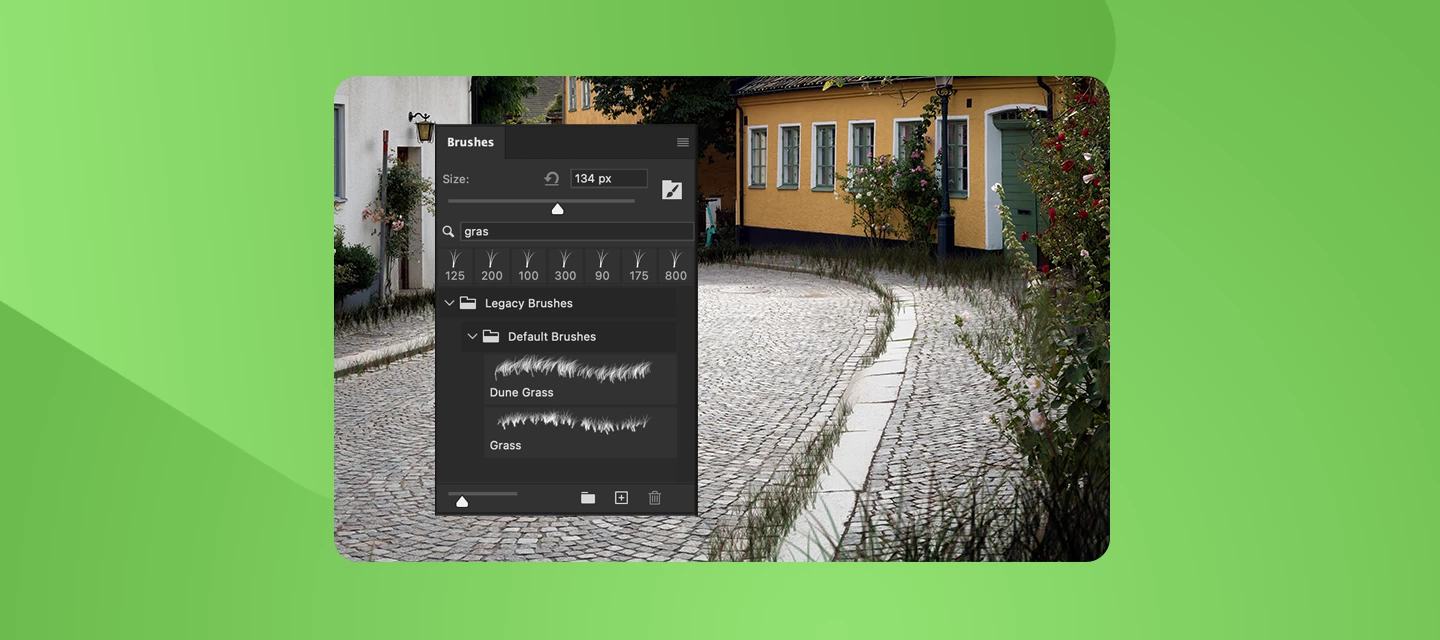
Let’s Create Some Grass Brush Details Using Adobe Photoshop!
The Grass brush in Photoshop can be used to effectively add grass details to a composition in a randomized - yet controlled - way. We'll discover how to access the Grass brush - which can be a major stumbling block for designers unfamiliar with this brush. We'll also examine the peculiar features of this brush through an examination of Brush Settings. Finally, we'll go ahead and use the Grass brush to add details to a photographic composition to make the scene appear to be more overgrown and unkempt.
How to Create this Detail in Photoshop:
Loading the Legacy Brushes Collection
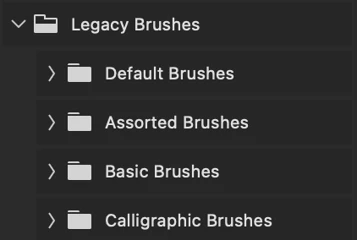
The first item that needs to be addressed is the location of the Grass brush. If you are looking for it within your pre-installed brush collections… you likely will have a hard time finding it - as it is considered a Legacy Brush and that collection of brushes must be loaded first, before you can access the brush.
- In Photoshop, select the Brush tool and open the Brushes panel - you can find that under Window > Brushes.
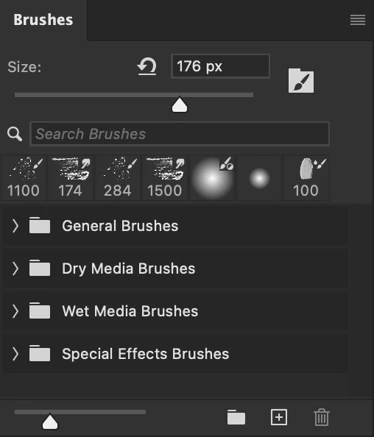
- Photoshop comes loaded with all sorts of brushes - but the Grass brush is notoriously difficult to locate. It exists as part of the collection of Legacy Brushes which are not loaded into the Brush panel by default. In the Brushes panel, click the options icon in the upper-right to open the Options menu.
- Locate the Legacy Brushes option and select it.
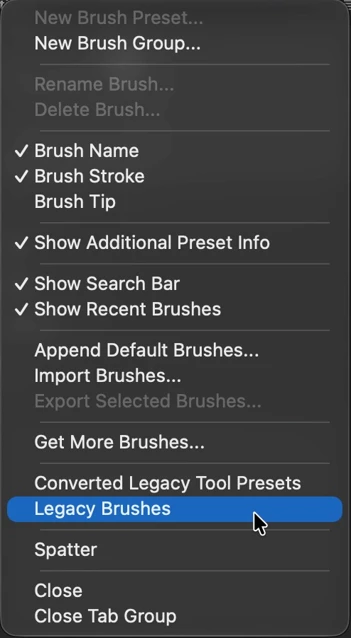
- The Legacy Brushes collection will be added to the Brushes panel below any existing brush collections.
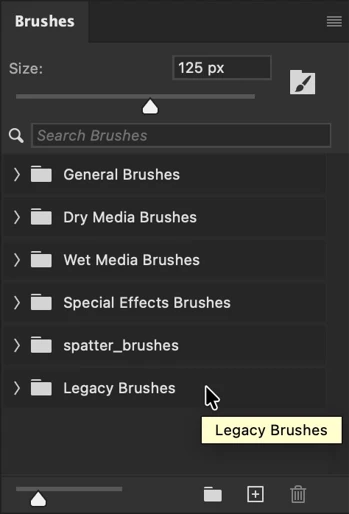
Note: In older versions of Photoshop, the Grass brush is easily located. In newer versions, you must load the Legacy Brushes to access it.
Locating and Selecting the Grass Brush
Now that the Legacy Brushes have been loaded into the Brushes panel, we still need to locate and select the Grass brush in order to use it.
- Within the Brushes panel, twirl open your newly added Legacy Brushes collection.
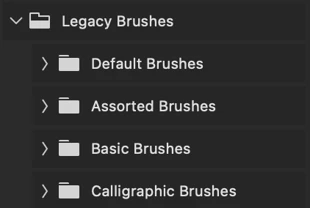
- Locate and open the Default Brushes folder within.
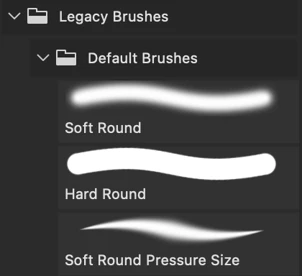
- Scroll down the long list of Default Brushes and locate the brush named "Grass".
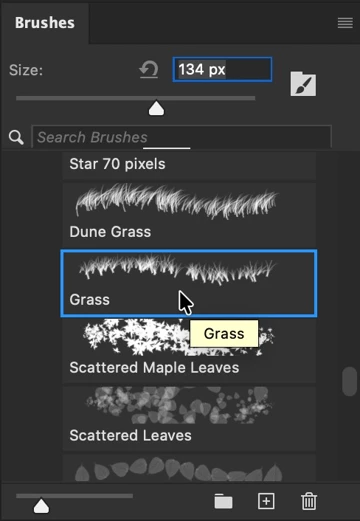
- Select the brush to activate it.
You can also simply perform a search for the Grass brush to easily locate it within the Legacy Brushes collection.
- Within the Brushes panel, twirl open your newly added Legacy Brushes collection.
- Type "grass" into the search field at the top of the Brush panel. Any brushes with that term in their name will appear and all others will be hidden.
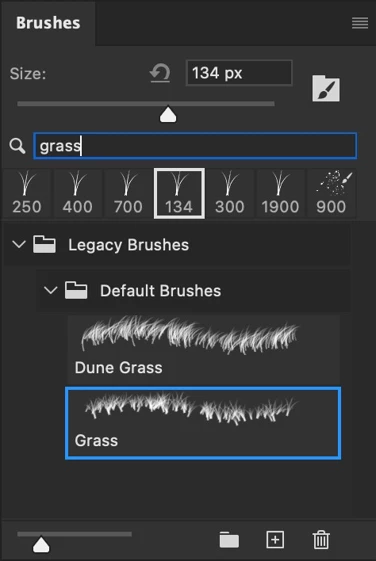
- Locate and select the Grass brush to activate it.
Note: Do not forget to clear your search term if looking for other brushes so they will no longer be hidden.
Controlling the Grass Brush
While you can certainly use the Grass brush without making any changes to it, you do have access to things like scattering, texture, tip shape, and other properties through the Brush Settings panel.
- Open the Brush Settings panel by choosing Window > Brush Settings from the application menu.
- This panel will display all of the settings for the selected brush. Active settings have an active checkbox next to them and inactive settings display an inactive checkbox.
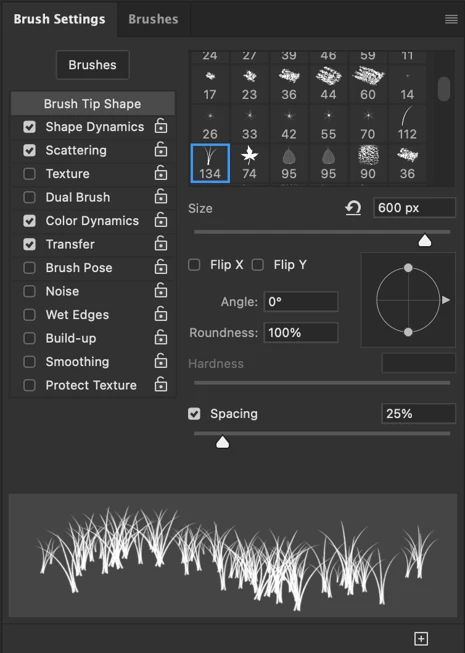
- Clicking on the name of any setting will give you access to adjust each setting's properties. Some settings have no properties beyond being on or off and therefore will display nothing when clicked. .
- You can also adjust properties of the brush such as size and blend mode though Photoshop's Options bar when the Brush Tool is selected. The Brush Settings panel can also be accessed directly from the Options bar!
Note: You can get access to both the Brush panel and Brush Settings panel immediately by choosing the Painting workspace.
Let's have a look at some of the settings that impact the Grass brush the most.
- Shape Dynamics - Here is where you can control the Size Jitter, Angle Jitter and the important Flip X Jitter. Size and Angle determine the variations across those properties through use of a slider - while the Flip X Jitter setting is a checkbox. Adding jitter to the X in this way will randomly flip the grass along the X axis - making the grass appear more natural.
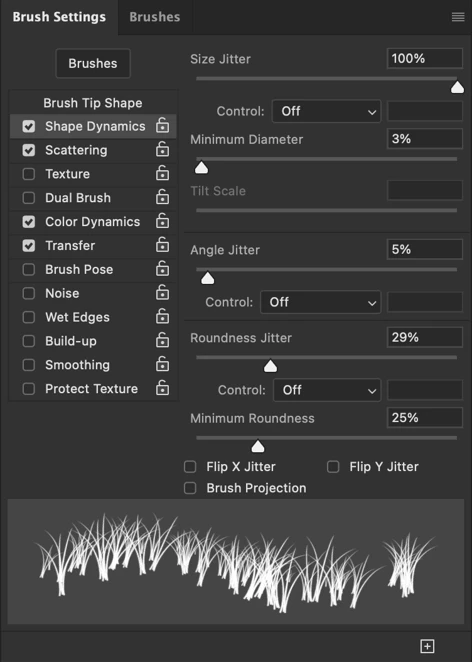
- Scattering - The Scatter setting can be located here. This determines how far apart the grasses will appear in proximity to one another through a percentage slider. You can make your grass more or less densely packed through this setting.
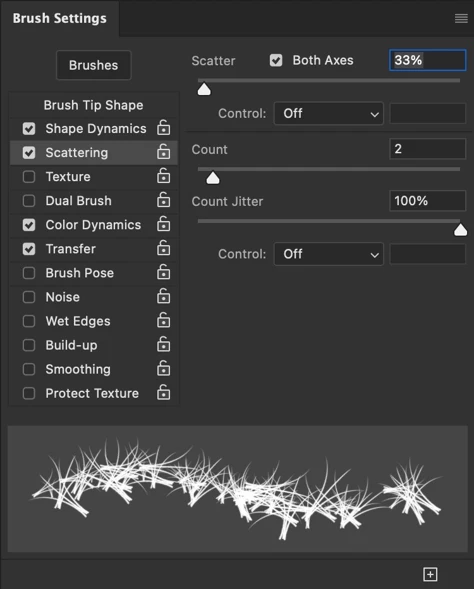
- Color Dynamics - Here you can locate the slider which determines the amount of Foreground/Background Jitter as you paint with the Grass brush. This brush uses a combination of both Foreground Color and Background color for each bunch of grass that is generated. This allows you to determine greater or less variability between these two colors.
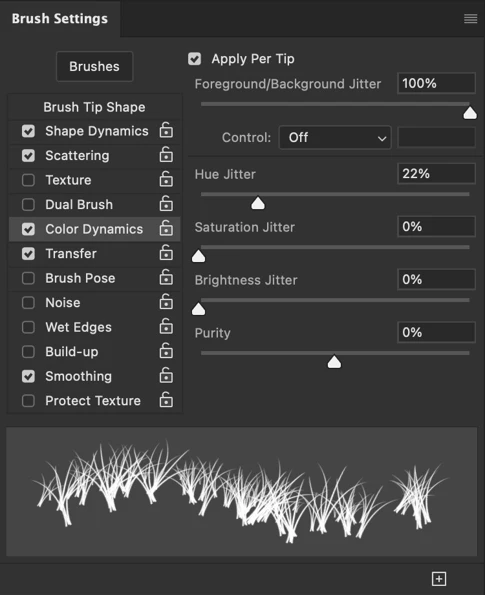
Note: You can, of course, experiment with the many additional Brush Settings available to you through this panel.
Painting with the Grass Brush
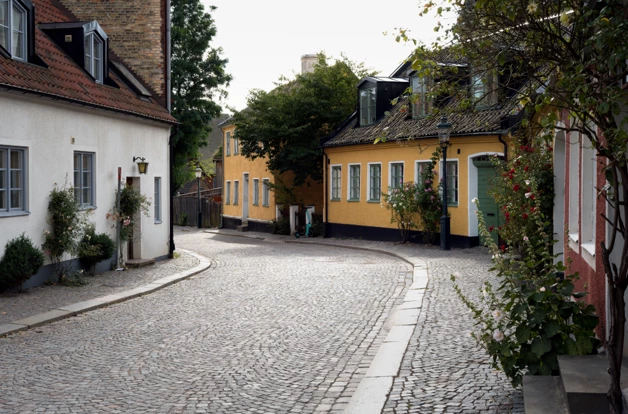
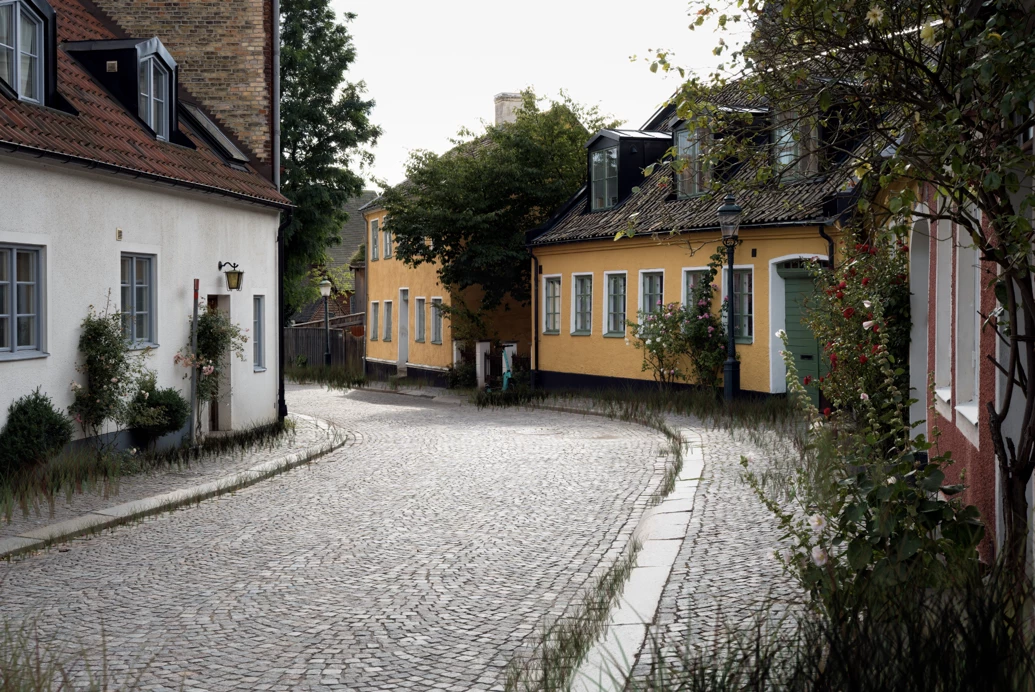
Let's put the Grass brush to use and design an overgrown city street composition using an image from the Adobe Stock free library.
- Open the .jpeg image file in Photoshop and choose File > Save As… from the application menu to save the files as a .psd to your local computer.
- Select the Brush Tool and choose the Grass brush to use. Adjust any brush properties as desired. Be sure to adjust the size of your brush along with the desired Blend Mode from the Options Bar.

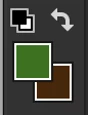
- Choose a Foreground Color and Background Color for your Grass brush from the Toolbar. Remember that this brush uses a combination of both colors based upon the Foreground/Background Jitter property from Brush Settings.
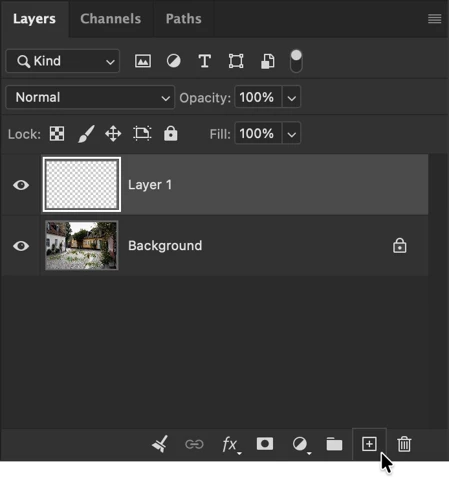
- In the Layers panel, click the New Layer button to create an empty pixel layer above the background. Ensure this layer is selected so that any brushing will be contained in this new layer.
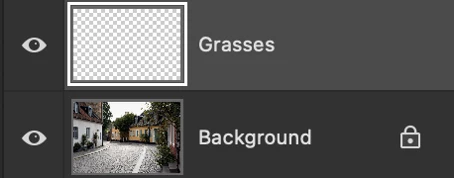
- Rename the new pixel layer by double-clicking its name and typing in a more identifiable name - like "Grasses". Ensure this layer is still selected.
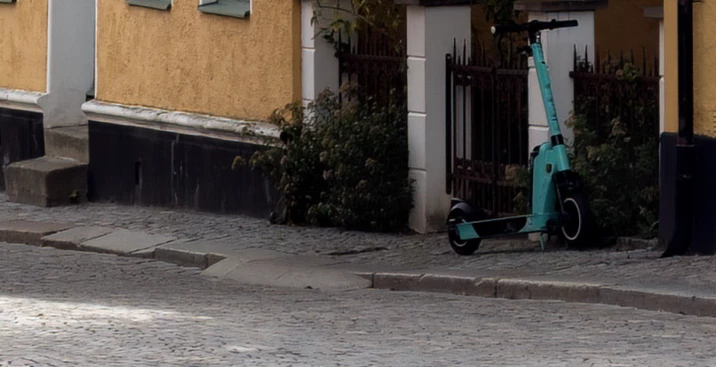
- Now, think about where grass would naturally begin to take over if this area were abandoned. Look for spots where vegetation already exists, as well as cracks and seams in the pavement, gaps between cobblestones, and edges of sidewalks. These are the places where grass would most likely start growing and spreading over time.
- Begin brushing over these spots… being sure to adjust the blend mode and size of your brush as appropriate. Remember that you can always undo your strokes (Edit > Undo) so feel empowered to experiment!
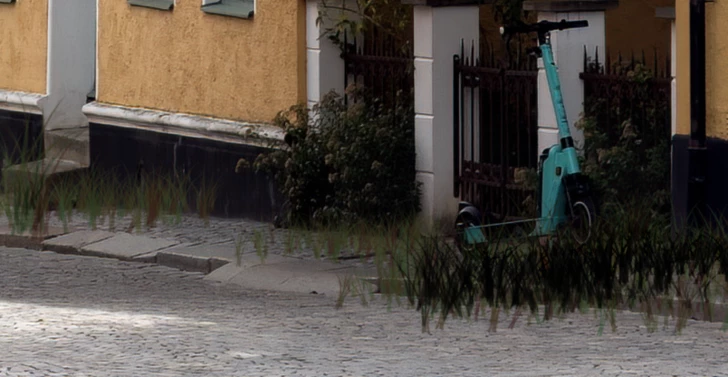
- You can also draw out tufts of grass from one point to another by clicking and then holding down shift and clicking once more. Grass will populate the area between both clicks.
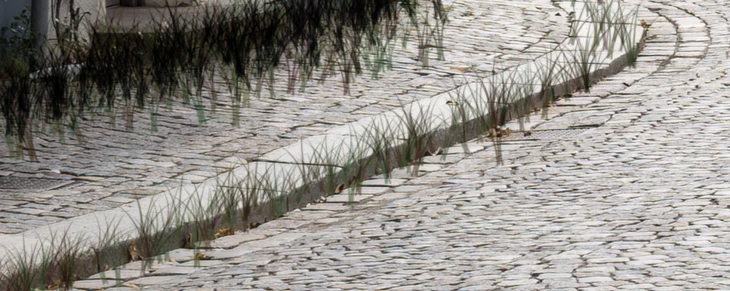
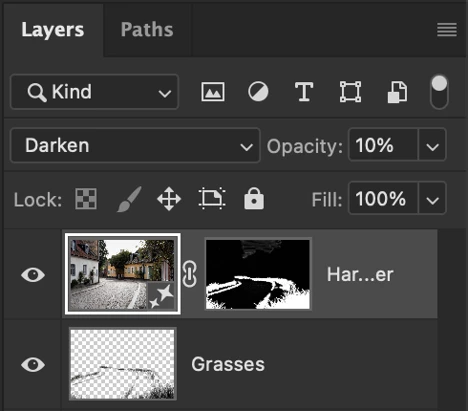
- Lastly, with the grasses layer selected, choose the Harmonize option from the Contextual Taskbar and adjust the Blend Mode and Opacity of the Generative Layer to blend it with your original strokes for a more realistic blending effect.
That's all there is to it!
Join the conversation!
How did you like these tips? I’d love to hear how you use the Grass Brush in your artwork! Feel free to share your techniques, tips, and creations here in the comments.
 AdChoices