





How to Paint and Mask Tight Corners Using Square Brushes
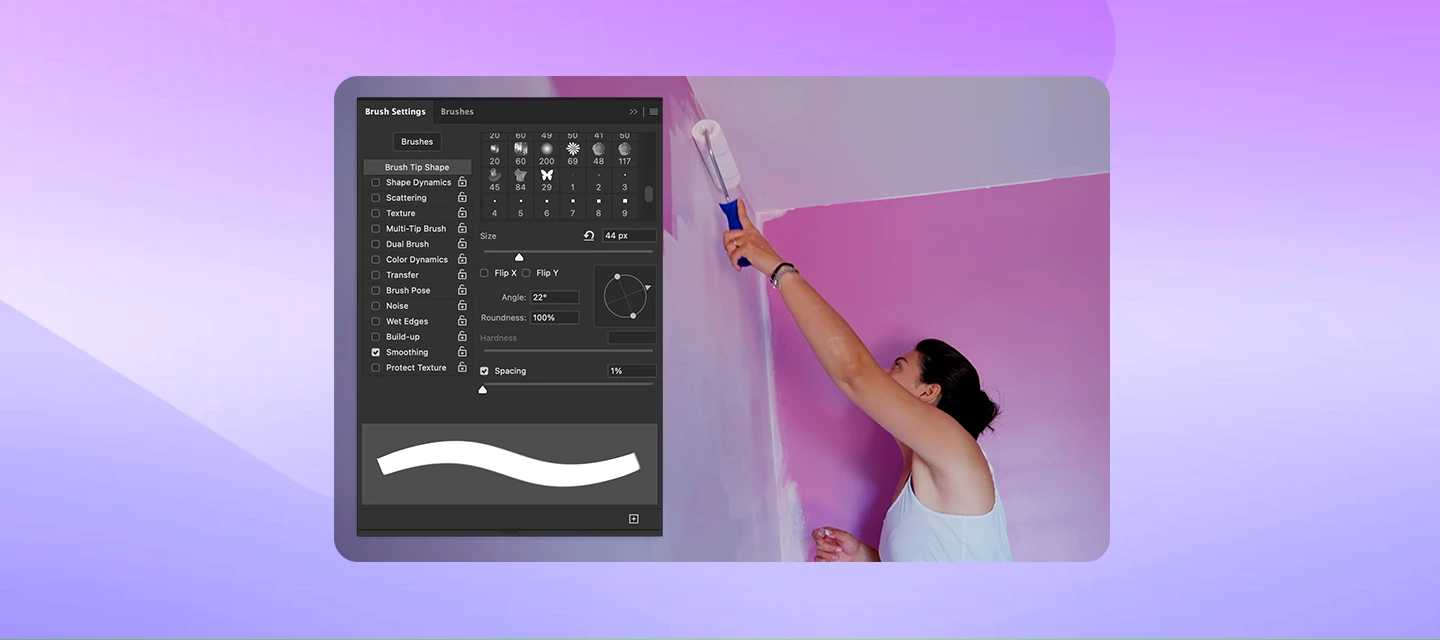
Ever Feel Like You’ve Painted Yourself Into a Corner?
Sometimes in Photoshop, the shape of your brush makes a simple cleanup harder than it needs to be. A round tip is useful for curved edges and soft transitions, but its curved outline can leave a gap where two straight edges meet.
A square brush gives you straight sides and defined corners that you can align with your subject. In this guide, we’ll find a square brush, rotate its tip, draw straight strokes, and combine it with layer masks and selections for precise cleanup.
Note: A square tip fits a right-angle corner when it is aligned correctly. For an acute angle or an irregular edge, use a smaller tip and a selection to protect the surrounding area
Get the Brush
Start with a simple square tip in Photoshop on desktop. Use a temporary empty pixel layer to test the brush before working on your image or mask.
- Select the Brush Tool in the Tools panel, or press B. If another tool in that group is active, choose Brush Tool from the group.
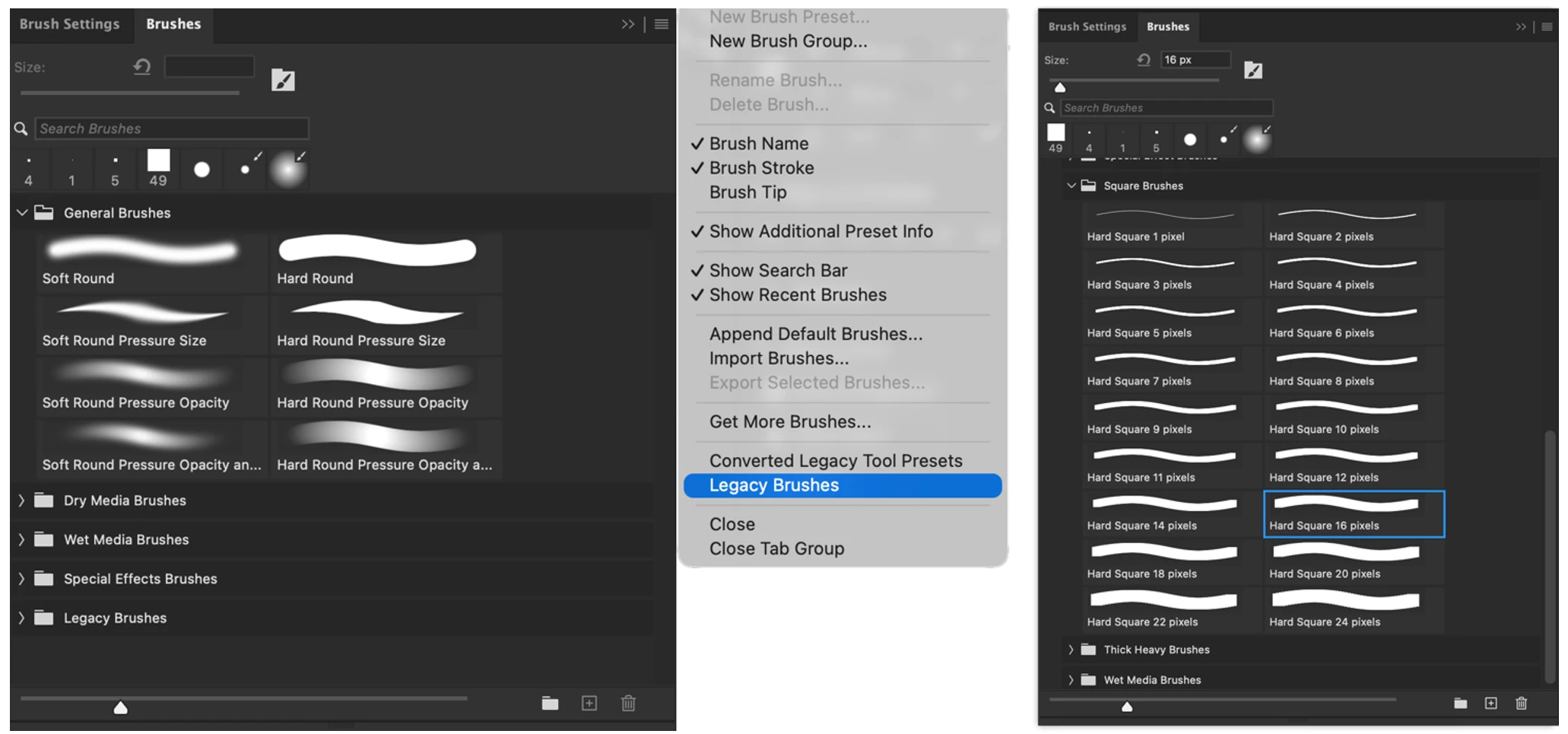
- Choose Window > Brushes to open the Brushes panel. Open its panel menu and choose Legacy Brushes. Confirm the loading prompt if one appears.
- Expand Legacy Brushes, then expand Square Brushes. Select a plain square preset in a size close to the area you want to edit.
- Set the Brush Tool’’s mode to Normal. For a solid test stroke, set Opacity and Flow to 100% in the Options bar. Adjust the brush size to fit the corner.
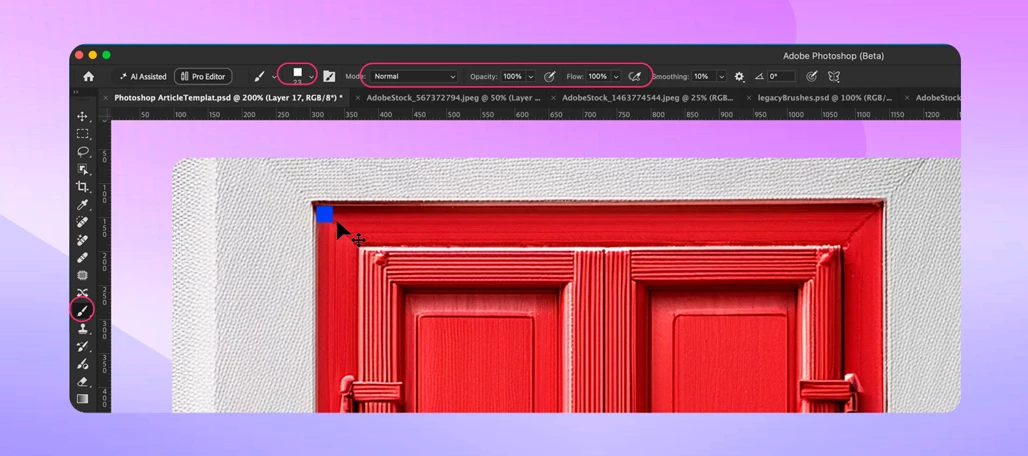
- Choose a foreground color that contrasts with your test background. Click once to check the tip shape, then paint a short stroke.
Note: Already have a square brush in an .abr file? Choose Import Brushes from the Brushes panel menu, select the file, then expand the imported group. Preset names and panel organization can vary by version.
Control the Brush
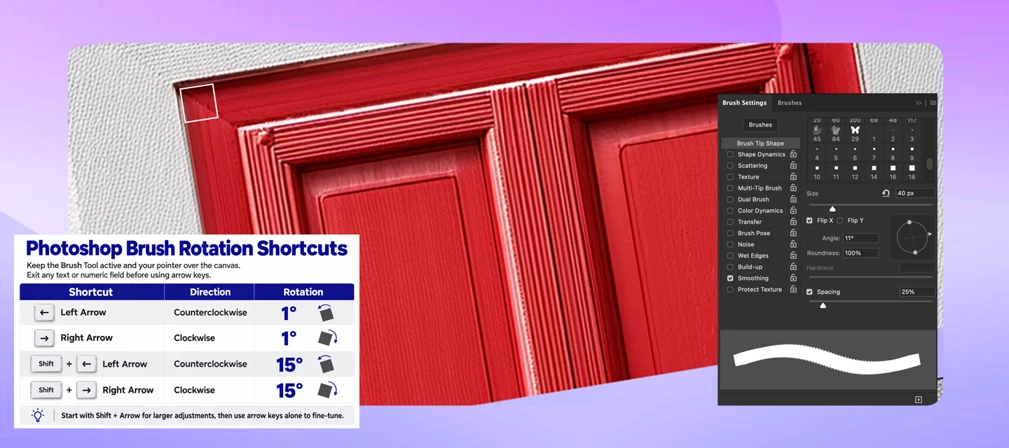
Rotate the square tip so one of its flat sides follows the edge you want to paint. These shortcuts change the brush tip angle.
- Keep the Brush Tool active and move the pointer over the canvas. Exit any text or numeric field before using the arrow keys.
- Press Left Arrow to rotate the tip counterclockwise by 1°, or Right Arrow to rotate it clockwise by 1°.
- Hold Shift and press Left Arrow or Right Arrow to rotate in 15° increments. Use these larger adjustments first, then fine-tune with the arrow keys alone.
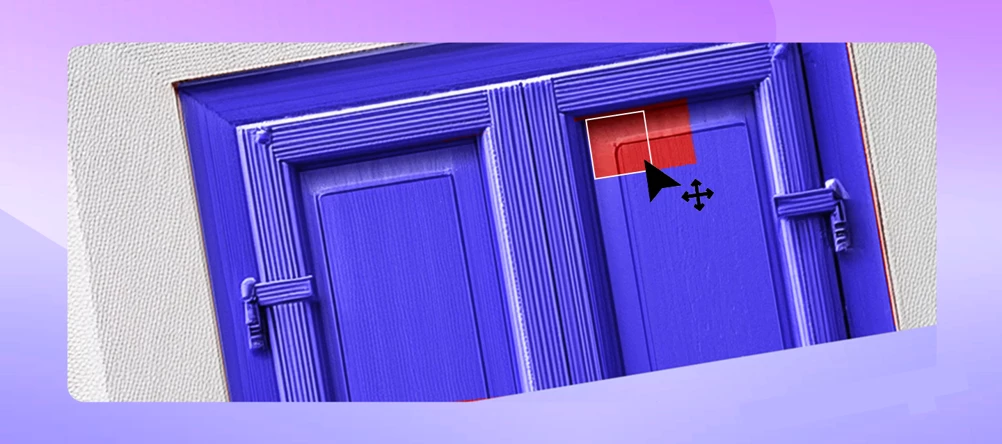
Make a Straight Stroke
- Click once at the start of the stroke.
- Release the mouse, hold Shift, and click at the endpoint. Photoshop connects the two points with a straight brush stroke.
- Release Shift and click a new starting point before beginning a separate line. Rotate the tip as needed to match the next edge.
Tip: The stroke has the width of your brush. Position its flat side against the boundary; placing its center on the boundary paints on both sides. A square looks the same after a 90° turn
Paint and Mask a Tight Corner
Try this on a window frame, a sign, or a product with straight sides. Use a layer mask to hide unwanted pixels while keeping the original image editable.
- Open your image and save a working copy as a PSD. In the Layers panel, select the image layer you want to refine.
- If the layer already has a mask, click its mask thumbnail. Otherwise, choose Select > Deselect, then click Add Layer Mask at the bottom of the Layers panel to add a white mask.
- Select your square brush and zoom in on the corner. Confirm that the mask thumbnail, rather than the image thumbnail, is active.
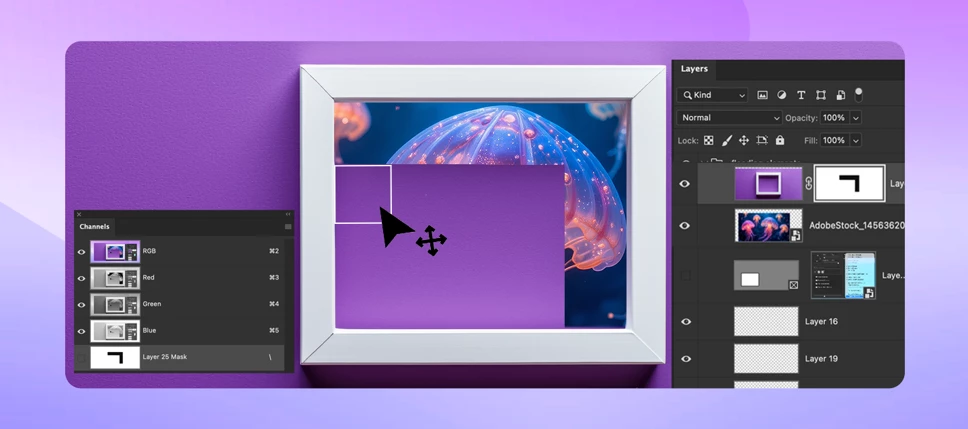
- Set the foreground color to black to hide pixels. Paint with white to reveal them again; press X to swap black and white when those are your foreground and background colors.
- Size and rotate the tip to align with one edge. Use short strokes near the corner, or click then Shift-click along a straight section. Reorient the tip for the adjoining edge.
- Inspect the result at 100% zoom and zoom out to judge the whole image. Paint white on the mask to restore any detail you hid by accident.
Note: Black hides, white reveals, and gray partially reveals on a layer mask. Start with 100% brush opacity and flow for a hard boundary; lower them when you need a gradual transition.
Go Further
Combine a selection with your square brush when the surrounding pixels need extra protection. The selection limits where the brush can affect the active layer or mask.
- Choose the Rectangular Marquee Tool for a rectangular area, or the Polygonal Lasso Tool for angled, straight-sided boundaries. For a crisp boundary, set Feather to 0 px before making the selection.
- Select the area you want to change. If you selected the area you want to protect instead, choose Select > Inverse.
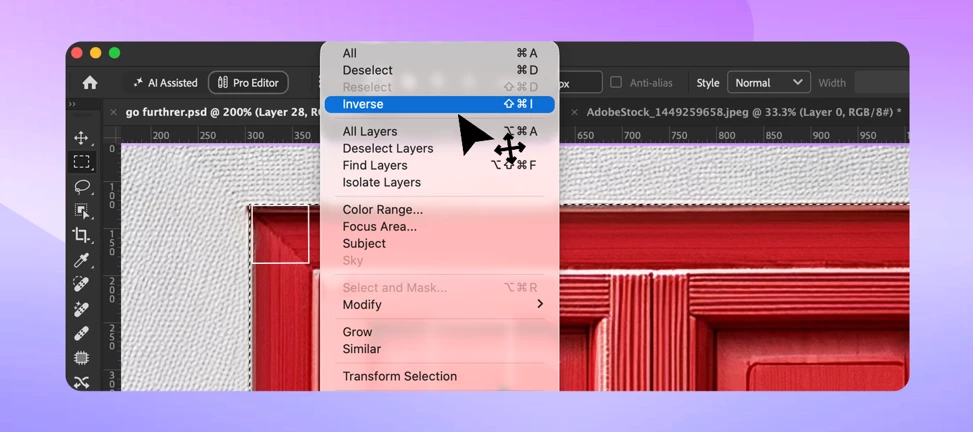
- For mask cleanup, click the layer’s mask thumbnail. To paint color, create and select an empty pixel layer, then choose a foreground color.
- Switch to the Brush Tool, choose your square tip, and rotate it to suit the edge. Paint or Shift-click within the selected area. Pixels outside the selection stay protected.
- Choose Select > Deselect when you finish. Inspect the boundary and make any final adjustments.
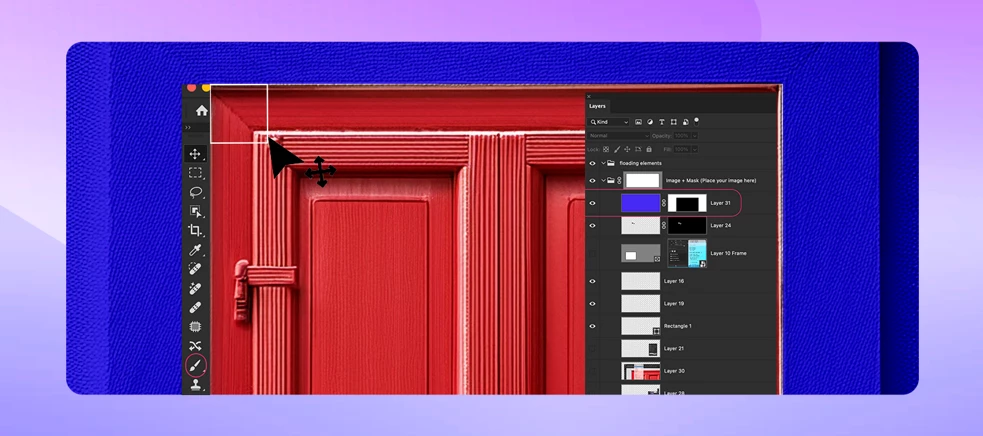
Tip: A selection is especially useful where the angle is narrower than the square brush’s corner. Keep the selection active while you work, even if part of the brush outline extends beyond it.
Try it: Clean the corner of a sign on a mask, then add a colored border on a separate pixel layer using straight strokes. Save as PSD to retain the layers and mask.
Fixing Common Problems
If the result looks wrong, check the active brush, target, and selection before starting over.
- Cannot find Square Brushes: Load Legacy Brushes from the Brushes panel menu and expand its folders. Clear any brush search filter. If needed, import an .abr file containing a plain square tip.
- Arrow keys do not rotate the tip: Make sure Brush Tool is active and no text or number field has focus. In an older version without the shortcut, open Window > Brush Settings > Brush Tip Shape and adjust Angle.
- The tip scatters or turns unexpectedly: In Brush Settings, check Shape Dynamics for angle variation and turn off Scattering or Texture if they are active. Use a plain square preset for predictable edges.
- The line has gaps or rough edges: Lower Spacing in Brush Settings > Brush Tip Shape so the tip impressions overlap. Use an appropriately sized preset and inspect at 100% zoom; extreme enlargement can soften a sampled tip.
- Paint is faint or does not appear: Check brush mode, Opacity, and Flow, plus layer visibility and opacity. Confirm that the active selection includes the area. For solid masking, also check mask Density and Feather in Properties.
- You paint on the photo instead of the mask: Undo, then click the mask thumbnail. To paint color, use a visible, unlocked pixel layer. You cannot brush directly onto a Smart Object, but you can paint on its layer mask.
- The cursor is a crosshair: Turn off Caps Lock to restore the brush-tip outline. If the square still seems misaligned, test a single stamp on a temporary layer before changing the mask.
Join the conversation!
Let me know if this was helpful! Feel free to chime in with any questions or share your own tips and tricks for using square brushes in Photoshop.
 AdChoices