



Remove related elements in Photoshop 2027: Remove the unwanted object and the mess it leaves behind!

Ever removed an unwanted object from a photo, only to be left cleaning up its shadow, reflection, or other traces afterward? The Remove tool in Adobe Photoshop on desktop just got better with Remove related elements, helping you remove an object and its related effects for a cleaner, more natural-looking result.
Photoshop can now account for related elements like shadows, reflections, footprints, smoke, steam, and water wakes as part of the removal. And because the edit is created on a new layer, your original image stays unchanged.
Heads up on credits
Remove related elements uses generative credits. Applying Enhance consumes additional credits based on the output image size: 10 credits for images up to 25 MP and 20 credits for images from 25 MP to 67 MP. For details, read the Generative credits FAQ.
Why you'll love it
- Remove an object and its related elements together.
- Clean up shadows, reflections, footprints, smoke, steam, water wakes, and more.
- Spend less time manually removing leftover traces of an object.
- Select Enhance to further refine the result.
- Keep your original image untouched with edits created on a new layer.
Where it shines
- Travel photography: Remove unwanted people or objects along with the shadows or footprints they leave behind.
- Product photography: Clean up distracting objects and their reflections for a more polished composition.
- Landscape and outdoor shots: Remove objects together with related water wakes or other surrounding effects.
- Atmospheric scenes: Clean up an object and associated smoke or steam instead of tackling each element separately.
How it works
- Open an image and select the Remove tool in the Tools panel
- In the Options bar, make sure Generative AI on mode and Cloud generative AI processing are selected
- Turn on Remove related elements from the Options bar.
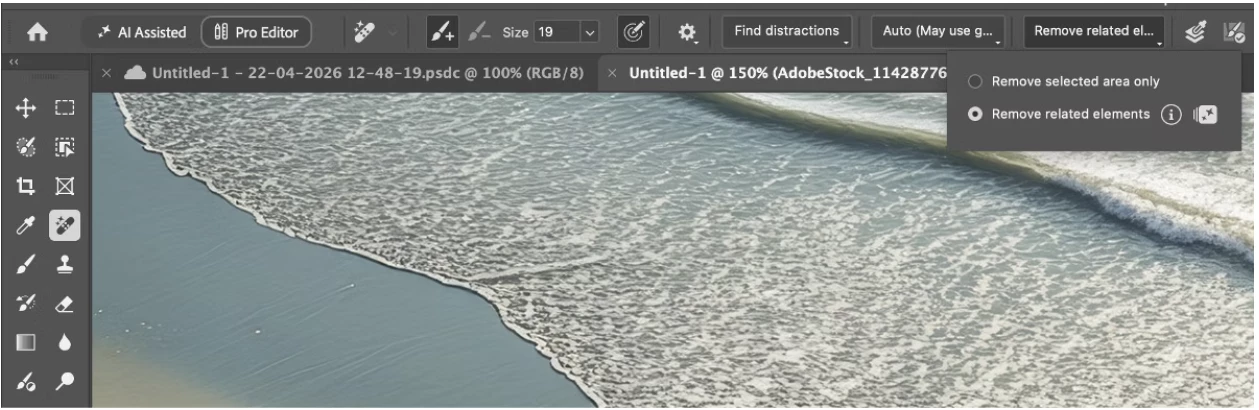
- Draw a loop around the object you want to remove.
- Select Remove in the Contextual Task Bar, or the checkmark in the Options bar
- Photoshop removes the object and accounts for its related elements
Want to polish it more? Select Enhance in the Options bar.
Chime In!
What would you clean up first with Remove related elements? A distracting shadow, an unwanted reflection, or those little traces that usually require extra cleanup? Share where this smarter Remove tool could save you time in your workflow.
 AdChoices