


5 Tips for Generate Music in Adobe Premiere 27.0 🎬🎵
Finding the right music can eat up a huge chunk of your edit.
Sometimes you know exactly what a scene needs but don’t have a track that fits. Other times, you just need something to test pacing, timing, and emotional impact before you commit.
Generate Music in Premiere lets you create original instrumental music right in the timeline, so you can move between picture editing and soundtrack ideas without leaving your edit. Here are five tips to help you get better results.
Heads up on credits and licensing
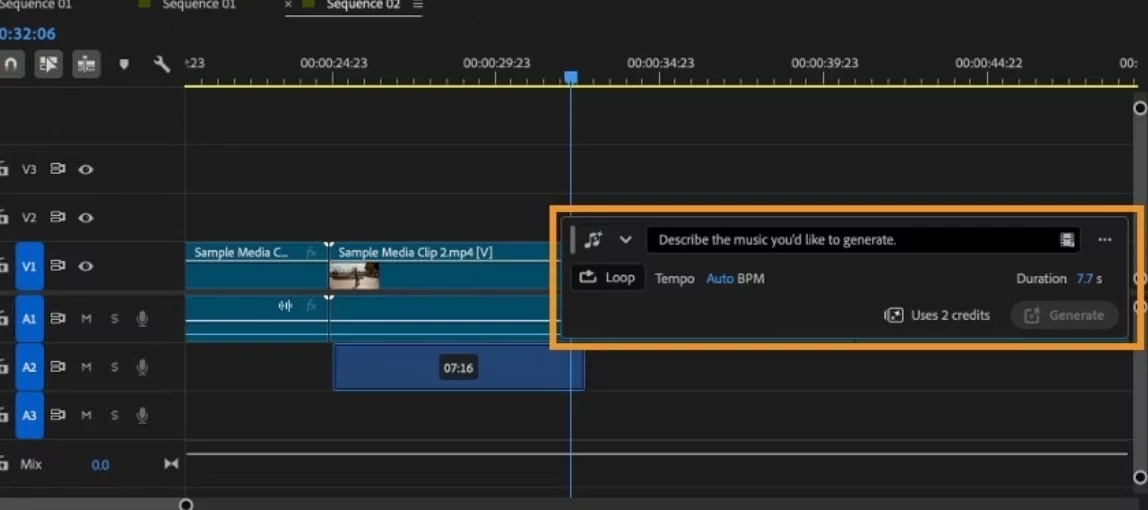
Generative credits: Generate Music uses generative credits. Usage varies based on the available options, and the Generative Media Toolbar shows how many credits the current combination will use before you generate. You can also check your generative credit balance from your profile.
Licensing and commercial use: Generate Music uses Adobe’s audio model to create original instrumental music designed to be commercially safe for your projects. You can include generated music in your edits and publish your projects across platforms without additional licensing steps.
System requirements: Premiere 27.0 requires Windows 11 version 24H2 or later on Windows. On macOS, Premiere 27.0 requires macOS 15 or later on an Apple silicon Mac (M1 or newer). Intel-based Macs are not supported in Premiere 27.0.
Availability: Generate Music requires access to Premiere’s generative AI features. Check the Generative Media Toolbar for the applicable generative credit cost before generating.
1. Start with temp music, not final music
One of the best uses for Generate Music is exploring soundtrack ideas while you edit. Instead of stopping your rough cut to search through a music library, generate some options and keep cutting.
It can help you:
- Evaluate pacing
- Test emotional tone
- Explore different styles
- Identify where music should enter and exit
Hearing a scene with music can help you make creative decisions earlier, even if that first track isn’t the one you ultimately use.
2. Generate for a scene, not the whole project
Instead of creating one long music bed for an entire sequence, try working scene by scene:
- Opening montage
- Interview section
- Product reveal
- Travel sequence
- Outro
Working in smaller sections makes it easier to explore different moods and find music that complements each moment of your story.
3. Let your video help write the prompt
Not sure how to describe the music you want? Try Video to Prompt.
If you have a video clip above the selected range in your timeline, Video to Prompt can suggest a music prompt based on the vibe and style of your video. Use that suggestion as a starting point, then refine it with more details about the mood or musical direction you’re after.
This can be especially handy when you’re still working out the emotional tone of a scene.
4. Compare the variations
Don’t stop at the first option. Generate Music provides multiple variations so you can compare different approaches against your video.
One might:
- Fit the pacing better
- Have a more subtle energy level
- Work better under dialogue
- Support transitions more naturally
Audition the variations against your picture before you generate again. If none of them fit, adjust your prompt or tempo and generate a new set.
Previous generations and their variations are also available in Generation history, so you can return to them without generating them again.
5. Think like an editor, not a musician
You don’t need music theory to get started. Describe the story and the feeling you’re after.
Think about:
- Mood
- Energy
- Style
- Audience reaction
- Story purpose
For example:
- “Hopeful technology showcase”
- “Quiet emotional reflection”
- “Fast-paced travel montage”
- “Confident corporate presentation”
- “Lighthearted product demo”
You can then refine your prompt with more specific musical characteristics. You can also adjust the tempo to match the pacing of your sequence or enable Loop when you need music that repeats seamlessly.
Where it can help
Generate Music can be useful for:
- Rough cuts
- Client reviews
- Storyboards and animatics
- Social media content
- Corporate videos
- Product demonstrations
- Educational content
- Internal presentations
It can also help you explore several creative directions before settling on the soundtrack that works best for your project.
Final thoughts
Generate Music is about keeping your creative momentum inside the edit. Whether you’re exploring ideas, testing pacing, or building a rough cut, generating music directly in the Premiere timeline lets you move from an idea to something you can immediately audition against your picture.
Experiment with prompts, Video to Prompt, tempo, looping, and variations to find music that supports your story.
Generate Music creates instrumental background music and does not generate vocals or lyrics.
Your turn
Have you tried Generate Music yet? Share your favorite prompts, workflow tips, and wins in the comments! 🎬🎵
Learn more: Generate Music in Adobe Premiere
 AdChoices