



Add tracks automatically when editing source clips
There's a reason editors have been talking about automatic track creation in Premiere Pro for years. When you inserted a source clip with more audio channels than your sequence had tracks, Premiere would automatically create the additional tracks. For some workflows, that was helpful. For many editors, it was one of the first preferences they wanted to change.
Back in March, editor Scott Simmons highlighted the new option in the Premiere Pro beta that finally addressed this long-standing request. Now it's available for everyone. As of Premiere Pro 26.3, you can decide how this works.
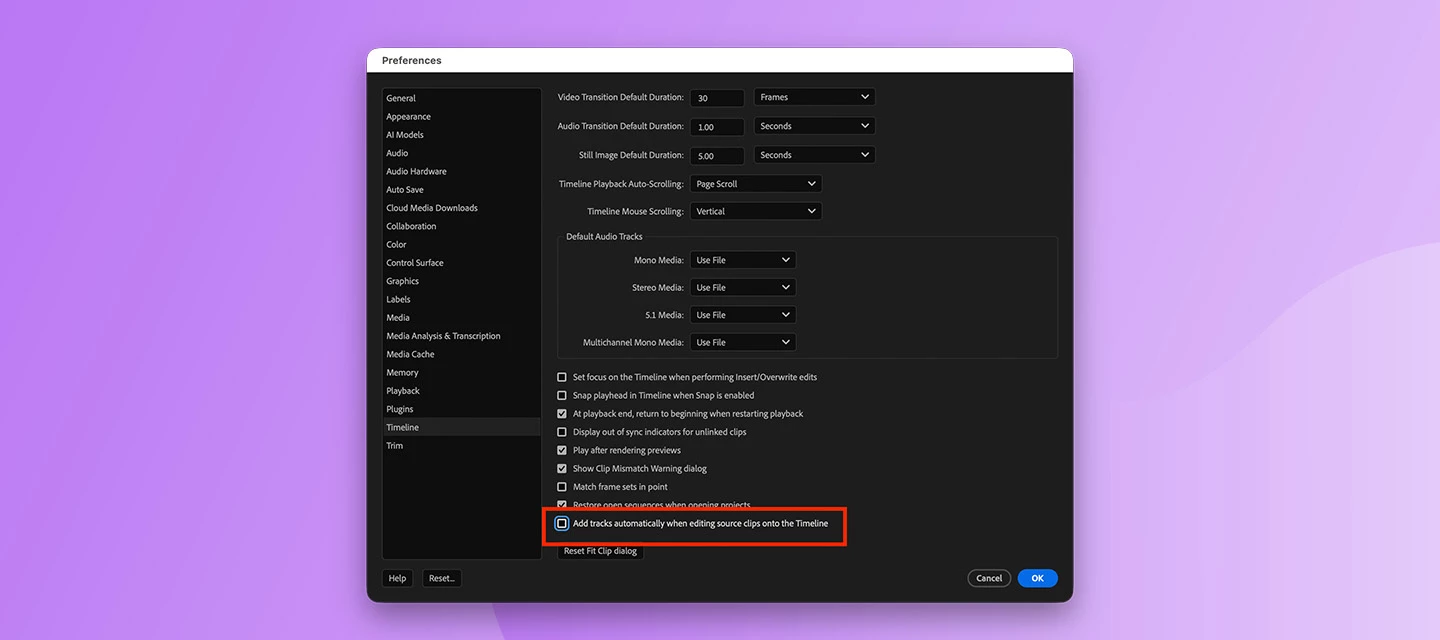
Head to Settings > Timeline and uncheck Add tracks automatically when editing source clips.
That's it.
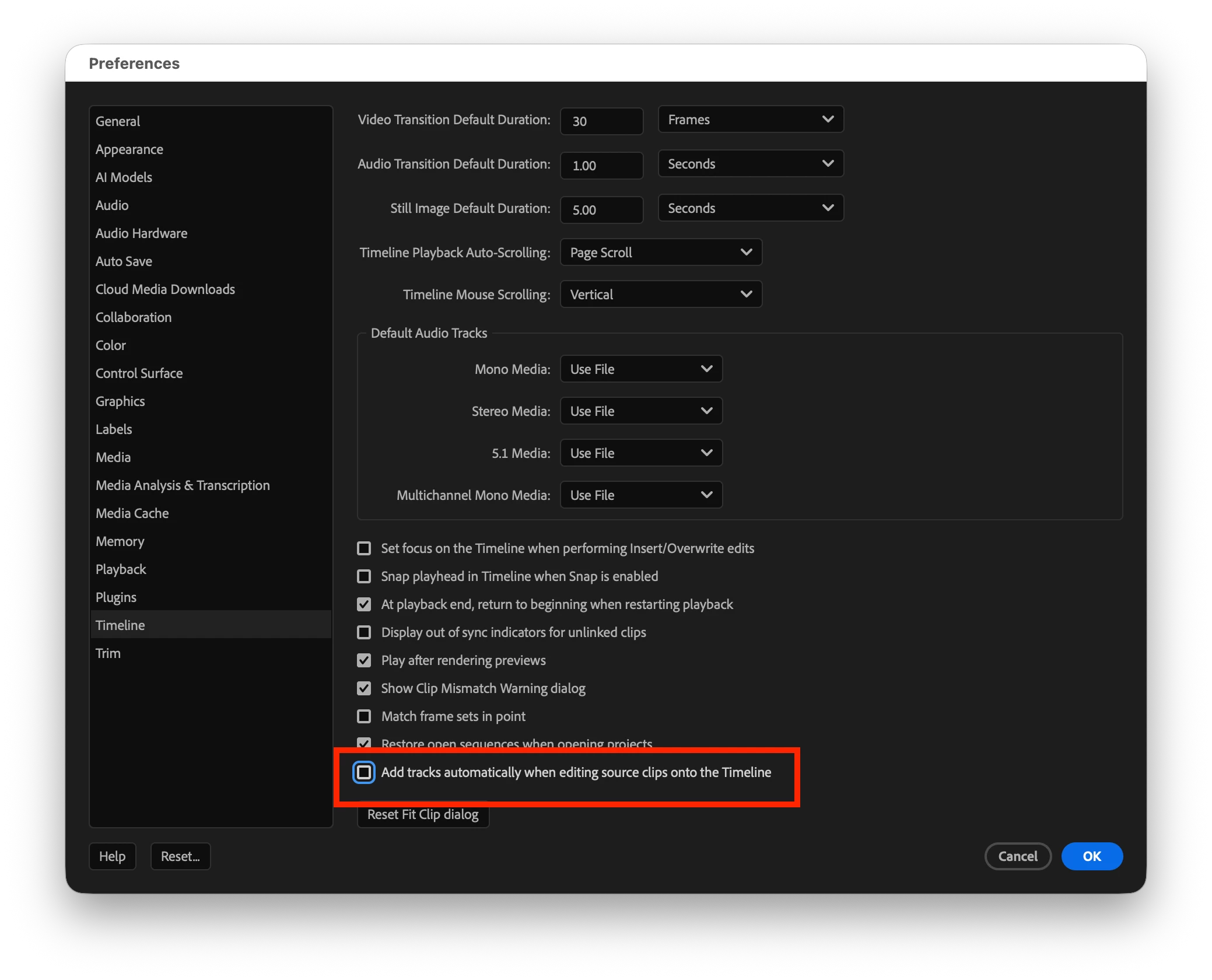
With the preference disabled, Premiere no longer creates tracks automatically when you insert or overwrite clips. Instead, your sequence stays exactly as you've built it. If you need additional tracks, you can add them yourself when you're ready.
For editors who prefer to define their timeline structure up front, it's a small change that makes Premiere feel much more predictable. Set up your tracks at the beginning of a project, and Premiere will respect that layout instead of expanding it automatically.
There is one tradeoff to be aware of. If a source clip contains more audio channels than your sequence has tracks, those extra channels won't appear until you create the additional tracks yourself. That's intentional—it puts you in control of your timeline instead of the application making the decision for you.
This is one of those features that's easy to overlook in the release notes but has a meaningful impact on everyday editing. If automatic track creation has ever interrupted your workflow, it's worth taking a few seconds to change the preference once and forget about it.
Have you switched it off already, or do you prefer Premiere creating tracks automatically? Let us know in the comments.
 AdChoices