



🎙️ Fix Overlapping Interview Dialogue with Separate Crosstalk in Adobe Premiere 27.0

Ever nail a great interview moment, then realize two people were talking at once? Yeah. We've all been there.
Separate Crosstalk in Adobe Premiere 27.0 uses AI to separate overlapping dialogue into individual speaker tracks, giving you more control when editing and mixing conversations.
Here are five tips to get started.
Heads up on credits
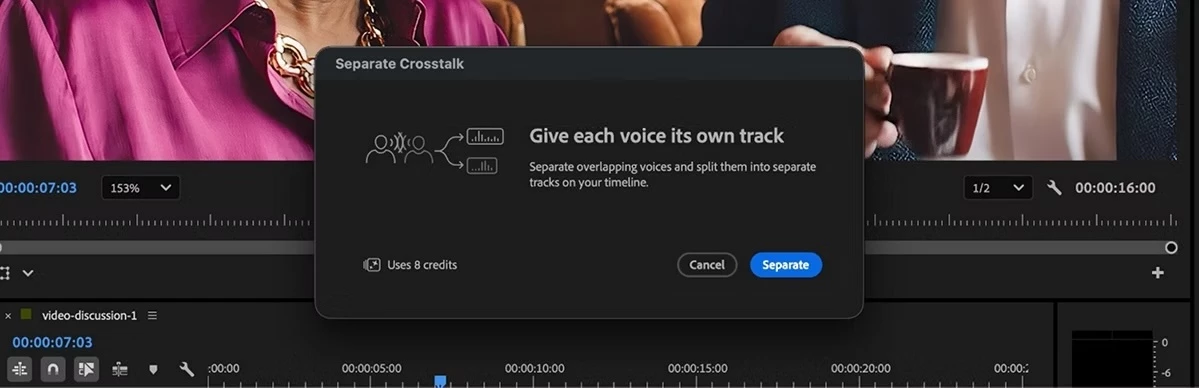
Separate Crosstalk uses one generative credit per second of processed audio.
Premiere automatically adds a two-second audio handle to each side of the selected clip, and that additional processing time is included in the credit cost shown before processing.
To reduce credit usage, trim your clip to just the section containing overlapping speech before using Separate Crosstalk.
Before you start
Version: Adobe Premiere 27.0
Premium feature: Separate Crosstalk is a premium generative AI feature.
Audio handles: Premiere adds two seconds of audio on each side of the selected clip by default. You can adjust the handle duration from 0 to 5 seconds under Preferences > AI Models > Separate Crosstalk > Audio Handles.
Clip length: Each separation supports clips ranging from 1 second to 10 minutes.
One clip at a time: Separate Crosstalk processes each audio clip. Multi-clip selection isn't currently supported.
1. Start with a short section
You don't need to process an entire interview to fix a few seconds of overlapping dialogue.
Trim your clip to isolate the section where the speakers overlap. Then right-click the selected clip and choose Separate Crosstalk.
You can also access Separate Crosstalk from the Properties panel or choose Clip > Separate Crosstalk from the menu.
Because Separate Crosstalk uses one generative credit per second of processed audio, trimming the clip first can also reduce credit usage.
2. Review all three generated tracks
When processing finishes, Premiere creates separate tracks for:
- Speaker 1
- Speaker 2
- Background
The original audio track is automatically disabled but preserved.
Listen to the separated speaker and background tracks individually before making adjustments. This lets you hear what Premiere has assigned to each part of the recording while keeping the original available for comparison.
3. Clean up and balance your dialogue
With each detected speaker on a separate track, you can edit and adjust the speakers independently.
Set levels based on your mix and listen closely to the separated audio as you make changes. If additional dialogue processing or effects are needed, apply them after you've reviewed the separation results.
4. Compare the results with the original
Before finishing your edit, listen carefully to the separated tracks and compare them with the preserved original.
Pay particular attention to:
- Missing or incomplete words
- Changes in vocal quality
- Very short interruptions
- Quiet dialogue
- Background audio that you want to preserve
Keeping the original available makes it easier to compare results as you refine the edit.
5. Adjust the audio handles when needed
Premiere includes two-second audio handles on either side of the selected clip by default.
If your edit needs more or less surrounding audio, go to Preferences > AI Models > Separate Crosstalk > Audio Handles and choose a value from 0 to 5 seconds.
Remember that the handles are part of the processed audio and are included in the credit cost displayed before processing.
Where it helps
Separate Crosstalk can be useful when working with overlapping dialogue in interviews, documentaries, podcasts, event recordings, and other conversations where speakers talk over one another.
Your turn
Have you tried Separate Crosstalk in Premiere 27.0? What kind of overlapping dialogue were you working with, and how did it turn out?
Tell us in the comments!
Learn more: Separate overlapping speakers in Premiere
 AdChoices