


🎬 Generate Video and Sound Effects Directly in Your Adobe Premiere 27.0 Timeline
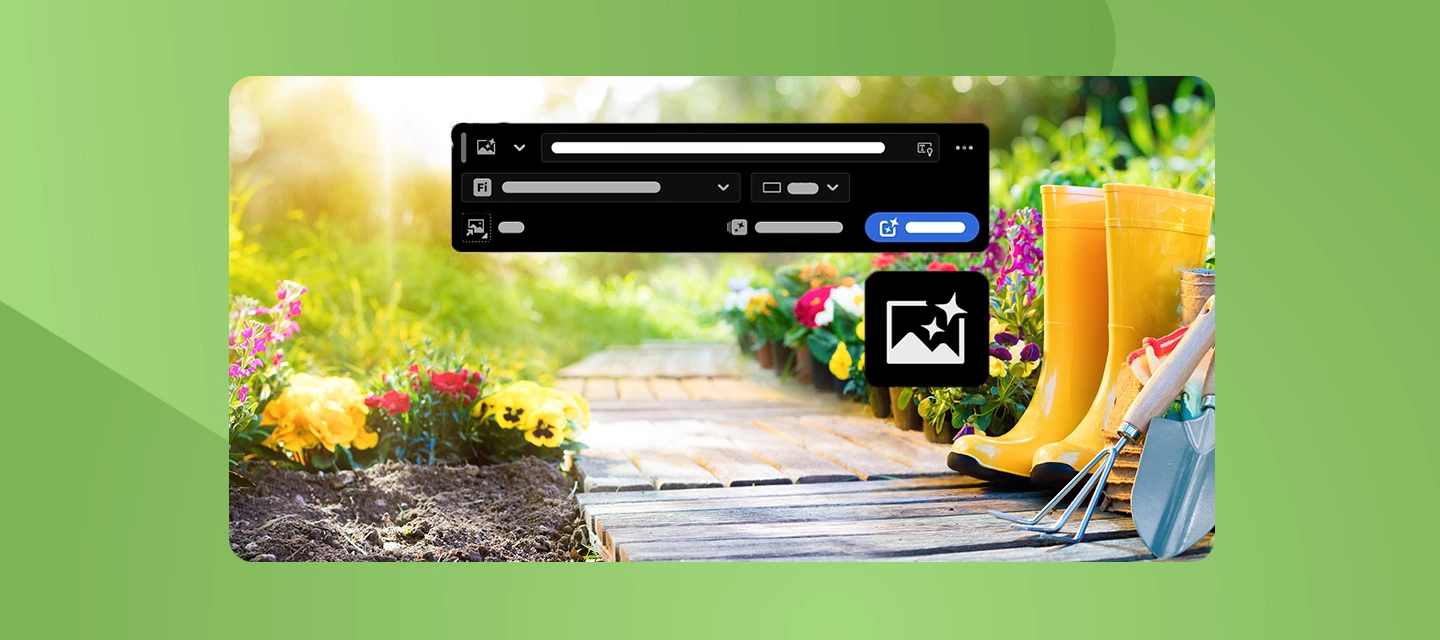
Sometimes your edit needs something you don't have.
Maybe it's an establishing shot, a quick cutaway, an image, or a sound effect that matches an action. Tracking those down or making them can break your flow.
The Generative Media Tool in Adobe Premiere 27.0 lets you generate video, images, and sound effects directly in your timeline, so you can fill gaps and explore creative ideas without leaving your project.
Heads up on credits and requirements
Generative credits: Generating media uses generative credits. Usage varies depending on the model and generation settings. The generative task bar shows the estimated credit usage before you generate, so you can review the cost before continuing.
Internet and cloud processing: Generative media features require an internet connection because generation is processed in the cloud. Your prompts, media, and reference frames are used to generate your requested content and aren't used to train Adobe or partner AI models.
Availability: Available models may vary depending on your region and subscription plan. Some partner models are available only to individual users and may not currently be available with business plans.
Commercial use: Adobe Firefly models are designed to be commercially safe. When using a partner model, you are responsible for determining whether that model is appropriate for your project. Sound effects use Adobe's commercially safe audio model.
Generate video for missing shots
Need a cutaway, establishing shot, transition, or temporary visual while you build your edit?
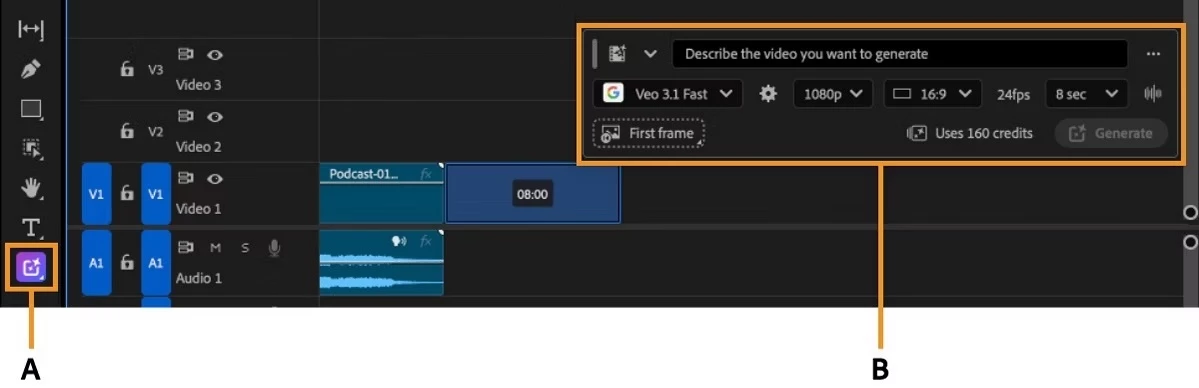
- Select the Generative Media Tool from the Tools panel.
- Drag across your timeline to select the range where you want to generate the video.
- Enter a text prompt describing what you want.
- Choose a supported video generation model.
- Adjust available settings such as resolution, aspect ratio, seed, and duration.
- Review the estimated generative credit usage.
- Select Generate.
You can also use reference frames from your sequence to guide the appearance and continuity of the generated video. Use a First frame to establish the starting point, or First frame and Last frame when generating a transition.
For supported models, you can also enable audio generation with the video.
Create images in your timeline
The Generative Media Tool can also generate images without leaving your sequence.
Select a range, enter a prompt, and choose an image generation model. Depending on the model, you can adjust settings such as resolution and aspect ratio and add reference images to guide the result.
As with video, review the estimated generative credit usage before you generate.
Create sound effects that match your edit
Need footsteps on a wooden floor, a door closing, breaking glass, or another sound tied to something happening on screen?
Use the Generative Media Tool to generate sound effects from a text description and add them directly to your timeline.
Adobe's audio model powers sound-effect generation and is designed to be commercially safe.
Sync sound effects to the action
When timing matters, you can provide additional guidance for your generated sound effects.
Record a reference sound with your voice to guide the timing and intensity of the generated result. This can help when you're creating sounds that need to line up closely with movement or action in your video.
Refine your results without starting over
Generated media is added to your project as editable clips, so you can continue working with it using familiar timeline tools.
Need to revisit an earlier generation? Select the AI badge on a generated clip to reopen the generative task bar with its original prompt and reference frames.
Generated media is also saved in a generation folder associated with your project and organized in the Generation history bin, making it easier to return to earlier results and refine or regenerate them.
Review before you use it
As with any generated content, review the results carefully before using them in a finished project, especially when visual continuity or precise audio timing matters.
If you're using a partner model, also make sure that model and its output are appropriate for your project.
Your turn
Have you tried creating video, images, or sound effects with the Generative Media Tool in Premiere 27.0?
What have you found most useful for filling gaps or exploring new creative ideas? Tell us in the comments! 🎬🎧
Learn more: Generative Media Tool overview | Generate media with the Generative Media Tool | Generative Media Tool FAQ
 AdChoices