


Meet Your New Assistant Editor: AI Assistant in Premiere Pro Is Now in Public Beta
Meet Premiere's New AI Assistant — and What It Can Actually Do
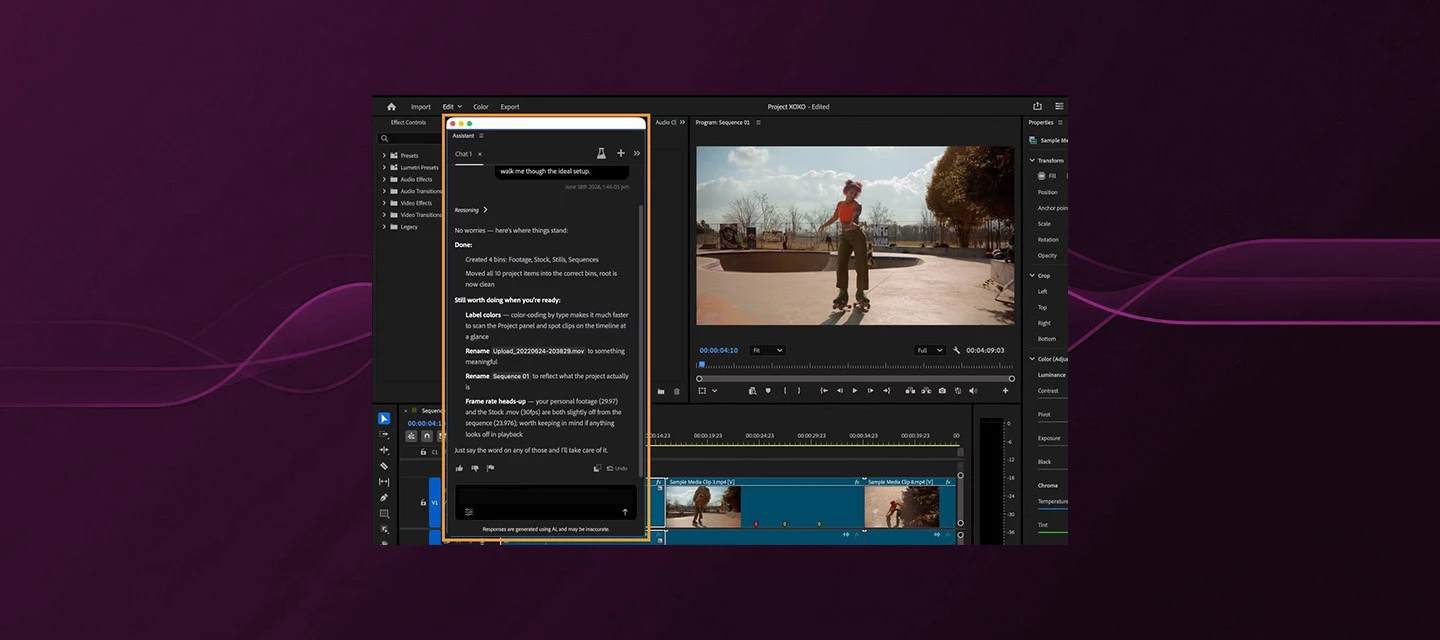
Adobe just launched the AI Assistant for Adobe Premiere Pro in public beta, and it's a different kind of AI feature. Most AI tools in creative apps respond to a single prompt and hand you back a result. The AI Assistant orchestrates and executes — it understands what you're trying to accomplish, breaks it down into steps, picks the right Premiere tools, and carries out the work on your behalf, inside your actual project.
This isn't a plugin or add-on. It's built directly into Premiere as a panel, accessed via Window > Assistant.
Check out this tutorial with Javier Mercedes
What It Can Do Today
The current public beta focuses on project organization and assembly work — the time-consuming tasks that happen before the creative edit begins. You can direct the AI Assistant to:
- Create and organize bins, move and rename clips, apply color labels
- Generate transcripts and prepare footage for editing
- Detect slates and add markers
- Build a stringout or rough assembly and place organized media on a timeline
The output is a fully editable Premiere sequence. Nothing is locked or hidden — you can adjust it, re-cut it, or set it aside like any other timeline. Every action the assistant takes is recorded in Premiere's undo and history stacks, so you can step back through anything it changed the same way you step back through your own edits.
What's not available yet: versioning, cut-downs, and support for reference documents like scripts or production notes. Those are on the roadmap.
How It Works
Open the Assistant panel, type what you need, and the assistant gets to work.
The conversational workflow is designed for iteration. If the result isn't quite right, describe what's off and keep going — the assistant maintains a conversation history, and you can refine from where you left off. Start a new chat for each task or line of work using the + button; switch between open conversations using the tabs at the top of the panel.
As the assistant works, you'll see its thinking in real time. Expand Reasoning on any response to see how it interpreted your request, what steps it planned, and which Premiere tools and AI models it used. This is useful for understanding why it did what it did — and for catching a misunderstanding early.
Staying in Control
Two permission modes let you decide how much the assistant does on its own:
- Always ask permission — the assistant checks in before making changes, so you can review each step before it happens
- Auto approve permission — it carries out the work without stopping to ask, useful once you trust it with a task and want it to run start to finish
Switch between modes anytime from the prompt bar. There's also a dedicated Undo button that resets everything the assistant changed in the last conversational turn — equivalent to stepping back through all its actions at once.
The Self-Aware Assistant
What makes this genuinely interesting isn't just task automation — it's how the assistant reasons about what it's doing. Creator Javier Mercedes, who tested the beta in depth, shared a moment that stuck with him: he asked the assistant to reposition a clip in the timeline. The assistant moved the clip, then paused and noted on its own that the repositioned clip might now conflict with adjacent music timing — something Javier hadn't mentioned. It flagged the problem before being asked.
That kind of proactive reasoning is what separates an AI assistant from a macro. It's not just executing instructions; it's building a model of your project and flagging things a thoughtful editor would notice.
Javier also used it to assemble a memorial video — a task with real emotional stakes and no room for a generic output. His takeaway: it genuinely accelerated the tedious structural work while leaving the creative judgment exactly where it belongs, with the editor.
Who It's For
The AI Assistant is genuinely useful at both ends of the experience spectrum.
For newer editors, it lowers the barrier to getting a rough cut together from a pile of footage. You can describe what you want in plain language and get a structured starting point without needing to know every Premiere workflow by heart.
For experienced editors, the value is in offloading the organizational work that consumes time before the creative edit begins. Bins, labels, transcripts, rough assemblies — you can delegate those and get to the decisions that actually require your judgment faster.
Video editor and journalist Scott Simmons, writing at ProVideo Coalition, put it plainly: the question isn't whether AI will handle some of what editors currently do — it's how editors adapt to working alongside tools like this. His take is that the editors who engage early and develop a working vocabulary with AI tools will have a meaningful advantage. Using AI to free time for higher-level creative work isn't a threat to editorial craft; it's an extension of it.
Beta Caveats Worth Knowing
A few practical things to understand going in:
Credits. During the beta, you get complimentary daily credits for AI Assistant use. These are separate from your paid Creative Cloud credit balance — they don't draw from it, and they can't be used elsewhere. Credits refresh automatically at midnight GMT if you reach the daily limit.
Language. The assistant will try to respond in whatever language you use, but it's currently optimized for English.
Don't use it for client work yet. Adobe explicitly recommends working with duplicates of your projects during the beta, rather than testing on work you can't afford to lose. It's a beta — treat it accordingly.
AI models. The assistant uses a mix of Adobe Firefly models and partner models depending on your request. Outputs generated using Firefly are considered safe for commercial use. When using partner model outputs, you're responsible for determining whether they're appropriate for your project. Importantly, your content is not used to train generative AI models.
Try It
The AI Assistant is available now in Premiere Pro (beta). Open it via Window > Assistant.
- Premiere AI Assistant — Overview
- Premiere AI Assistant — FAQ
- Adobe Creative Agent press release
- Scott Simmons at ProVideo Coalition
- Javier Mercedes — "Premiere Just Got an AI Assistant Editor?!"
The AI Assistant is in public beta. Behavior, capabilities, and credit limits will continue to evolve. Share feedback directly from the panel using the thumbs up/down buttons, or visit the Beta Support Community.


 AdChoices