



Moving and backing up your Premiere Rush projects in Premiere
Hey Everyone,
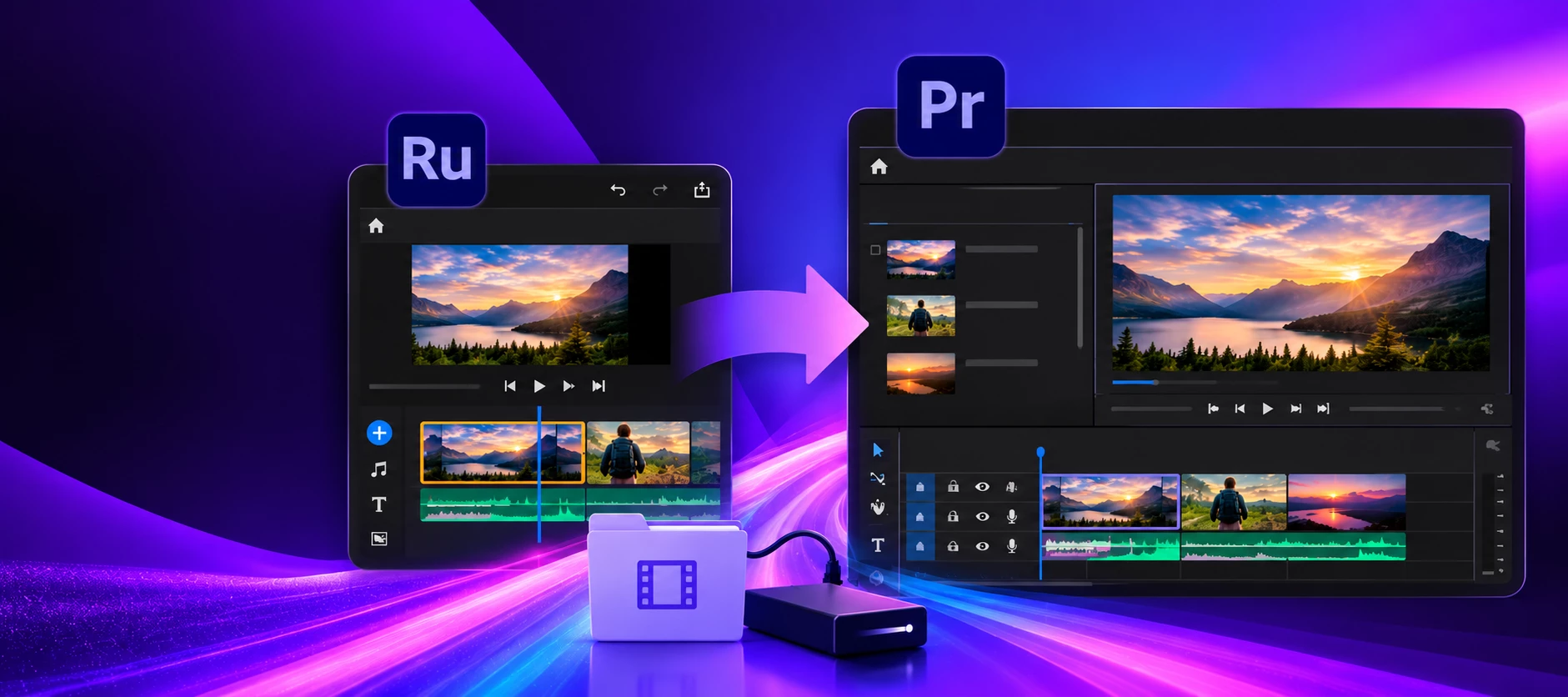
With Premiere Rush reaching end of life, now is a good time to move any important Rush projects to Premiere and create a local backup.
The process depends on where your Rush project currently lives.
If your Rush project is already available in Premiere Rush on your Mac or PC:
- Open the project in Rush desktop and make sure the project and media are available locally.
- Close Rush and open Premiere.
- From the Premiere Home screen, select Open Adobe Premiere Rush Project in the lower-left corner.
- Select your Rush project. Premiere will convert it and open it as a Premiere project.
- Check the project carefully and relink any offline media if necessary.
- Once everything is working, use File > Project Manager > Collect Files and Copy to New Location to create a local copy of the Premiere project and its media.
- Open the collected project once more and verify that everything is online.
If your Rush project exists only on a phone or tablet, the process is more complicated because Rush no longer synchronizes projects between mobile and desktop.
There is a community-discovered method for manually transferring Rush project data and media to a computer:
How to Move Rush files from Mobile to Desktop
Once the project is successfully available in Rush desktop, you can follow the steps above to open it in Premiere and create a permanent backup.
Adobe's existing migration information is also available here:
Creative Cloud Sync was removed in February 3, 2025, so if projects were not moved off Creative Cloud to your desktop computer prior to that, these projects no longer exist. Sorry about that.
Before uninstalling Rush, replacing a computer or mobile device, or updating your operating system, I strongly recommend preserving any Rush projects you still need.
I hope this information helps you.
Thanks,
Kevin
 AdChoices