



Welcome to Premiere Pro 25.4!
Welcome to Premiere Pro 25.4!
Hello, and welcome to the August release of Adobe Premiere Pro! Premiere Pro 25.4 is now available from the Creative Cloud desktop app and is recommended for all users.
Learn about best practices for updating Premiere Pro.
New features
The 25.4 release of Premiere Pro features faster editing with Multi Transitions, new Preferences settings for Graphics, live waveform editing and more. It's the perfect time to update. 😊
Live Waveform Editing
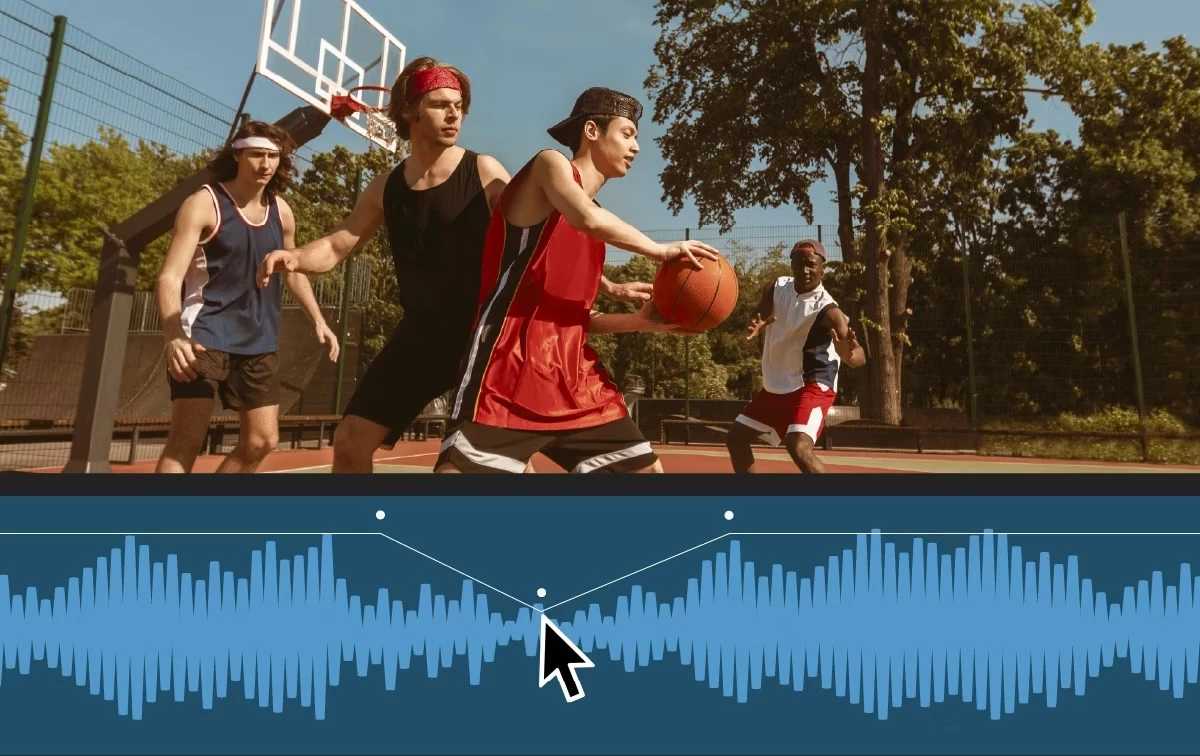 Live waveform editing provides real-time visual feedback as you edit audio waveforms. Audio waveforms remain visible when dragging a clip or performing common edit tasks like ripple/roll edits or rate stretch, making it easier to see how an edit impacts audio or cut to the beat. Keyframes and markers are displayed alongside the waveform while dragging a clip, aiding in maintaining.
Edit faster with Multi Transitions
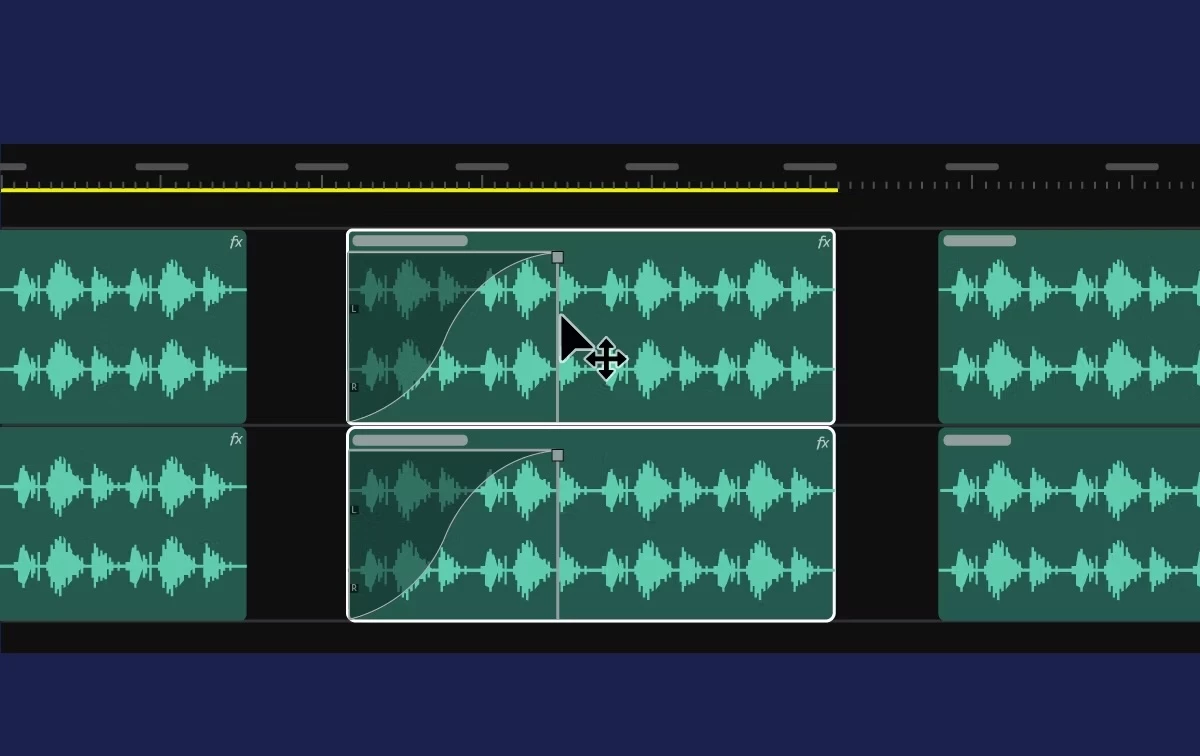 Quickly apply, edit, and manage transitions across multiple audio and video clips at once, speeding up your workflow and keeping edits consistent.
Create and edit multiple transitions at once: Speed up your workflow by simultaneously applying or modifying transitions across numerous clips, ensuring consistency for both audio and video.
Edit using the trim tool or the transition handles across multiple clips in one move: Save time by adjusting fade-in and fade-out handles simultaneously across several audio clips or video transitions, streamlining the editing process.
Delete multiple transitions at once: Remove unwanted transitions from multiple clips in a single action, ensuring cleaner, faster editing workflows.
Apply crossfades for time-aligned cuts: Create smooth audio transitions between clips that are perfectly aligned on the timeline and enhance video transitions for a polished overall quality.
Apply fade-ins and fade-outs on time-aligned and non-aligned clips: Ensure seamless transitions on both audio and video clips, regardless of their alignment on the timeline, for a professional finish.
Create and edit transitions on linked and grouped clips simultaneously: Enhance your workflow by applying transitions across linked or grouped audio and video clips in one action, maintaining consistency and saving time.
Adjust one transition from a linked clip with a modifier: Use a simple modifier, option, or Alt key to tweak the transition of an individual clip, even when it's linked, for precise control.
Snappier Timeline playback
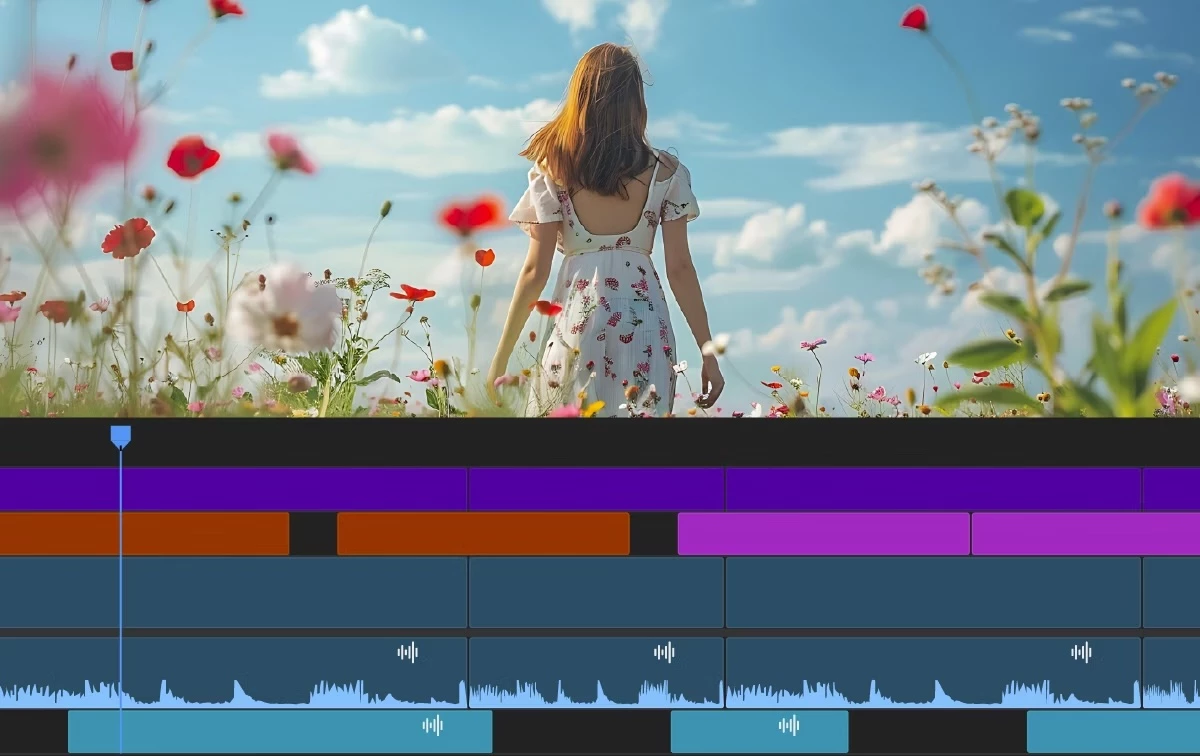 Whether you're fine-tuning a cut or navigating a dense timeline, stable thumbnails will help you stay oriented and confident in your edits. Zoom in or out with the scroll bars, toggle thumbnail modes, and perform your usual edits with a smoother, snappier, and more stable timeline experience.
You can also toggle between different thumbnail display modes: Video Head and Tail Thumbnails, Video Head Thumbnails, or Continuous Video Thumbnails. This gives more control over how thumbnails appear based on your editing needs.
 New hardware acceleration of 10-bit 4:2:2 media in both H.264 and HEVC codecs on NVIDIA Blackwell GPUs, providing great performance for formats that combine small file size and great quality.
ARRIRAW HDE decoding support
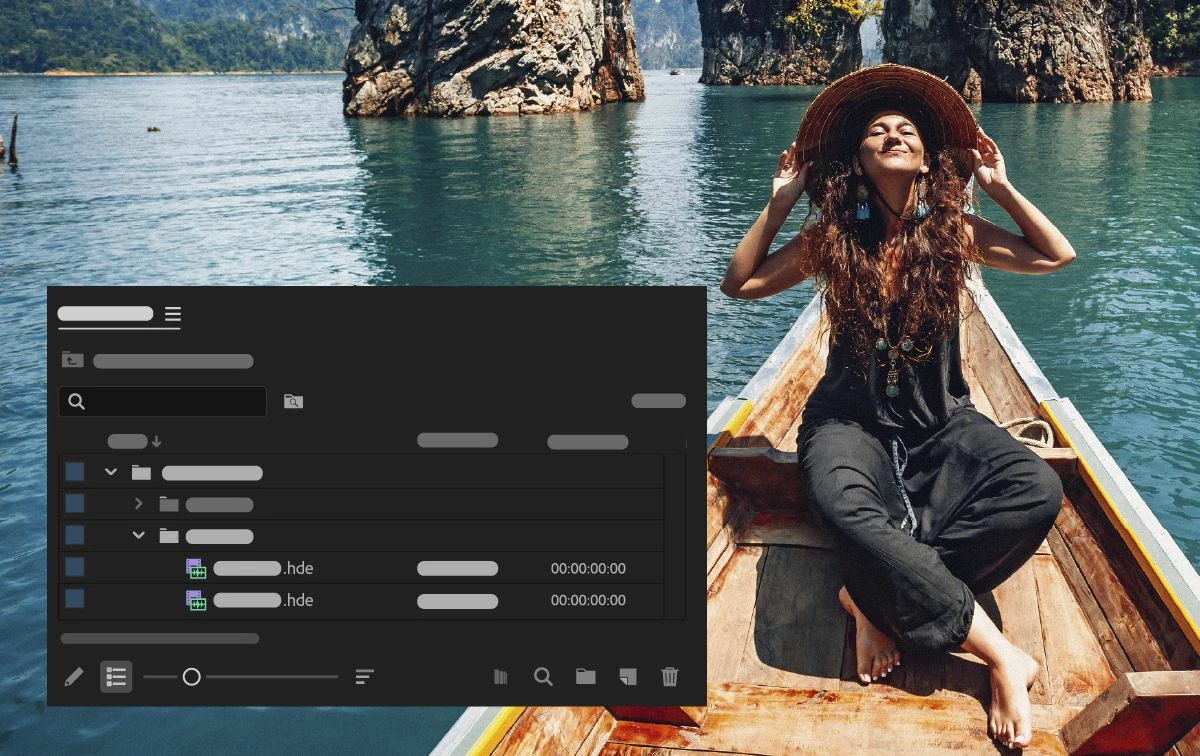 New support for ARRIRAW HDE (High Density Encoding) enabling playback of ARRIRAW that is 60% of the original file size.
New Preferences for Graphics
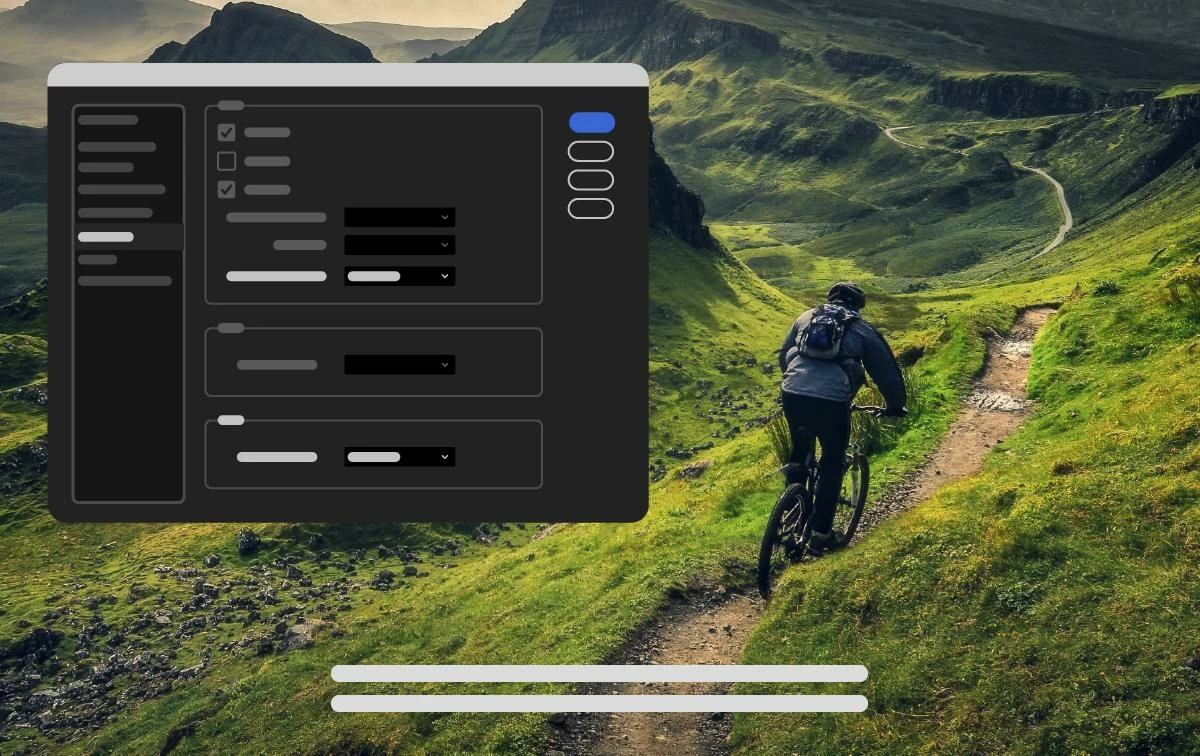 Set your preferred default fonts for text, subtitles, and closed captions, and ensure wide-aspect CEA-708 captions are imported correctly through the new settings available under Preferences > Graphics.
Default text and subtitle font: Automatically apply your chosen font when creating new text items or subtitle tracks.
Default Closed Caption font: Premiere Pro uses your selected font when creating Closed Caption tracks. By default, the font list shows only Monospace fonts for better compatibility. Turn off this option to see all available fonts.
Wide aspect ratio for CEA-708 Closed Caption: Automatically adjust incorrectly formatted CEA captions to display in a wide aspect ratio, fixing issues where text doesn’t appear correctly after import.
Additional Updates
- Improvements to the Effect Control panel make keyframing more predictable.
- Enhancements to the Generative Extend model, including expanded frame rate support.
- New keyboard commands to toggle track mute and solo based on targeting Search for Adobe Stock media from the File menu.
- New support for 16-bit PNG images to support newer HDR finishing workflows that require high-bit-depth media. Improved data range and color metadata handling for DNxHR, DNxHD, and PNG.
- When you select Help or Provide Feedback inside Premiere Pro, you’ll automatically log in to the Adobe Support Community Forums.
Fixed issues in 25.4
We have been working hard at making Premiere Pro even better. Here are the important fixes, performance improvements, and more.
 AdChoices