



marjorie sacks
Adobe Employee
Adobe Employee
June 9, 2022
Question

Click and Drag to select multiple track targets in Premiere Pro (Beta)

  • June 9, 2022
  • 8 replies
  • 6835 views

Track targeting just got a lot easier in Premiere Pro (Beta). You can select and target multiple source or target tracks by holding down CMD/CTRL as you click and drag the cursor across multiple track buttons in the timeline panel.


Holding down CMD/CTRL + Shift while dragging will invert the targeted selection.


This feature is available in Premiere Pro 22.6 x10 and later builds. 


Please let us know what you think!
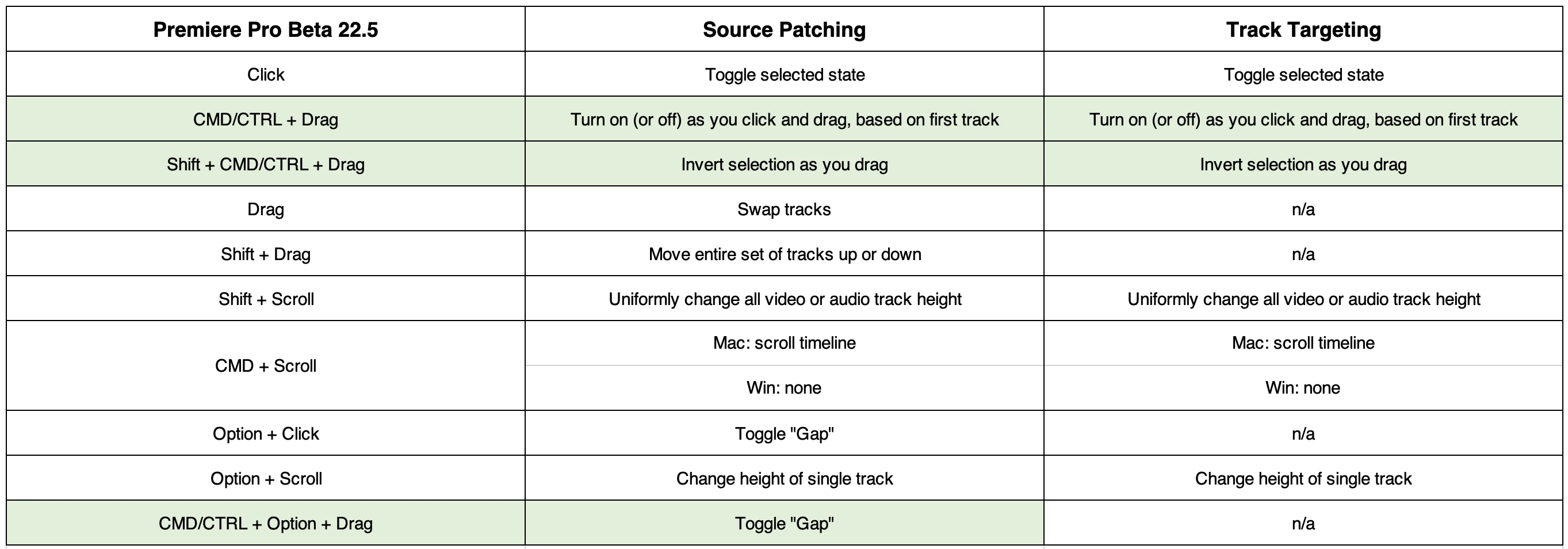
 

The new keyboard shortcuts are highlighted in green. Use CMD for Mac and CTRL for Windows.
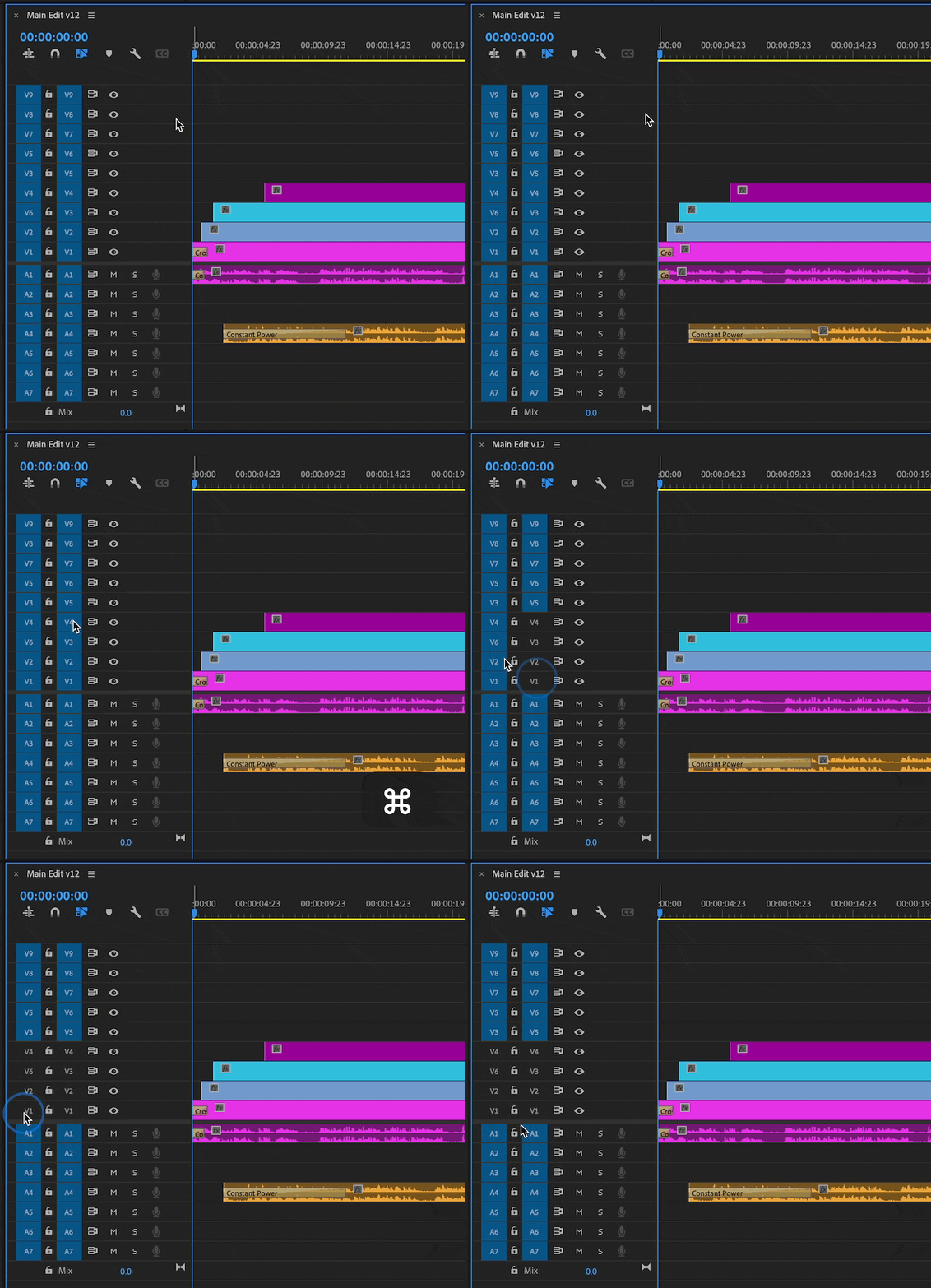
 

Turn Tracks on/off: CMD/CTRL + drag. Whichever action is performed on the first track — turning on or off — will be applied to all of the tracks during the dragging action. You can drag through any number of video and audio tracks while holding down CMD/CTRL to perform this action. 
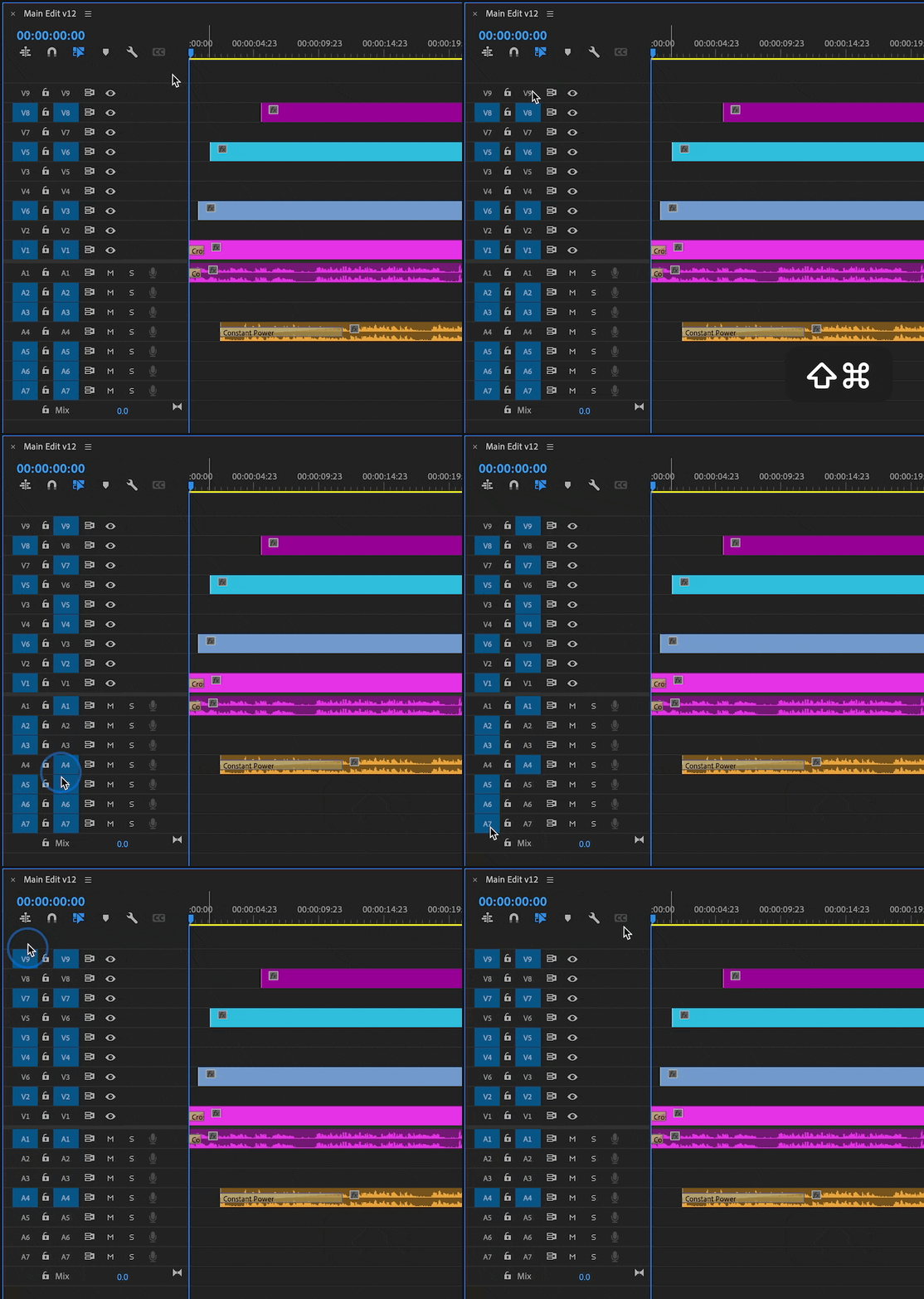
 

Invert Selection of Currently Selected Tracks: CMD/CTRL + Shift + drag. Dragging the cursor across tracks that are already selected will select the opposite tracks.

This topic has been closed for replies.

8 replies

Participant
February 21, 2024

I absolutely love this function. However, I'm working at a company that uses PP 22.6.4 and it WILL NOT work!  Is there a known reason for this?

Bruce Bullis
Community Manager
Community Manager
February 21, 2024

From Marjorie's post: 

> This update is available in Premiere Pro 23.0 x42

The feature isn't present in 22.6.4.

Participant
February 22, 2024

argh!!!  Thanks for the feedback.  I must've been on a higher version before and didn't realize it


Known Participant
September 12, 2022

Ok awesome sauce!!! Any idea on an ETA when we will see this implemented? I'm eagerly waiting for it 🙂

marjorie sacks
Adobe Employee
Adobe Employee
August 31, 2022

Great news! We updated the click and drag functionality to include the track header buttons. 


  • Toggle Track Lock
  • Toggle Sync Lock
  • Toggle Track Output 
  • Mute
  • Solo


Hold down CMD/CTRL as you click and drag the cursor across multiple track buttons in the timeline panel.


Hold down CMD/CTRL + Shift while dragging will invert the targeted selection.


This update is available in Premiere Pro 23.0 x42 and later builds. 


The Voice-over Record (microphone) button is still a single click selection. We thought in most cases you typically are recording to one audio track, but please correct us if that's not the case. 


Check it out and let us know what you think!

Legend
September 1, 2022

Yay! Thank you so much!

Participating Frequently
July 30, 2022

Thank you Adobe!!
This is a great timesaver, and yes like Jarle mentioned.. I would also love to see this functionality to solo, mute, track target & sync lock icons.


Known Participant
June 27, 2022

On a side note, could we please get keyboard shortcuts for toggling individual audio source tracks?


Currently we just have a single 'all or nothing' shortcut option (i.e. 'Toggle All Source Audio').  There are individual shortcut options for toggling target audio 1-8, so why not offer individual shortcuts for source patching as well?  Please take a look at this thread for further elaboration on why this would be a welcome addition.

https://adobe-video.uservoice.com/forums/911233-premiere-pro/suggestions/40105144-shortcut-for-activating-source-audio-tracks


Thank you!


Legend
June 28, 2022

@Pierre Louis B.  I know it's not exactly what you're asking for, but I use Source Assignment Presets a lot.


Known Participant
August 26, 2022

I use those too Jarle.  What I don't like about Source Assignment Presets is that they don't work as an on/off toggle.  I can't hit my keyboard shortcut to turn on Source Assignement Preset 1, for example, and then hit it again to turn off all Source Audio tracks.  For that, I need to create a second Source Assignment Preset that doesn't have any assigned tracks assign it a new keyboard shortcut, and now use 2 shortcuts instead of just 1.  IF Source Assignment Presets could work as an on/off toggle, then that's all the functionality I would ever want, and I would have no need for new individual source audio toggle shortcuts. 

Known Participant
June 27, 2022

This is a very welcome addition!  Now, please add it to all of the other icons: lock, visibility, mute, solo and sync lock! Omitting the requirement for a modifier key (ala After Effects) would be preferable, although if this isn't possible, please keep the same modifier for all icons to avoid confusion.


Thank you Pr team.  Real editors want more of these small, non-flashy, non-gimmicky features, and less interface design overhauls nobody ever asked for and, in the case of the new Export page, most users seem to hate (just look at the many threads on User Voice for proof). 

Legend
June 12, 2022

Love this!
Can we please get the same functionality for the Eye/Loudspeaker icons, Track Targeting icons and Sync Lock icons?


Fergus H
Community Manager
Community Manager
June 23, 2022

The other buttons move if you have taller tracks so it's a little tricky. But based on the feedback here and what we received from Facebook, we're going to look into it, probably after our initial release of the change. 


Thanks for the input! And for your awesome dynamic link article 😉 

Fergus H
Community Manager
Community Manager
August 26, 2022

Hi all, 


As an update to my earlier message, I wanted to let you know that we're working on adding support for the other track icons. Based on the feedback here and on other forums, we think it makes sense to spend more time on this feature to make it complete, rather than releasing a partially finished feature. I don't yet have a date I'm willing to share for when this feature will be released. 


Regards,

Fergus

Jonah Lee Walker
Inspiring
June 10, 2022

Yes yes yes. This is fantastic.

- Jonah Lee WalkerVideo Editor, Colorist, Motion Graphics Artist