



Francis-Crossman17221443
Community Manager
Principal Product Manager
September 17, 2021
Question

DISCUSS: Log color spaces now available in interpret footage

  • September 17, 2021
  • 17 replies
  • 40213 views

Color management is now available for log-based media.  This allows for simpler, LUT-free workflows when working with log footage from popular camera makers like Sony, Panasonic, and Canon.  Set the log color space correctly in Modify > Interpret Footage, then place the media on a Rec709 or HDR timeline and Premiere Pro will automatically apply the correct color conversions. Any camera that shoots log can now be used in HDR production easily.


This method transforms log footage to the color space of the sequence in a non-destructive, real-time workflow, rather than the common use of Log>Rec709 LUTs that can clip highlights, shadows and color information.


How It Works:

  1. Right-click on a video clip in the Project Window and select Modify > Interpret Footage.
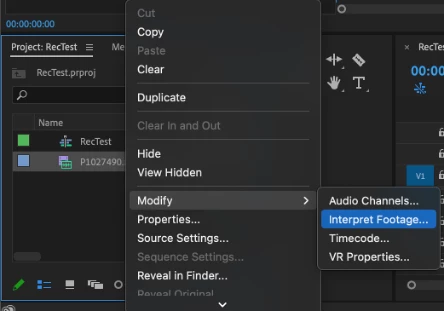


  2. In the Interpret Footage Window, scroll down to “Color Management” at the bottom of the panel. Click “Color Space Override” then use the pull-down menu to assign the format of the selected clip.  This should match the color space that you shot in the camera – V-Log, S-Log, Canon Log.
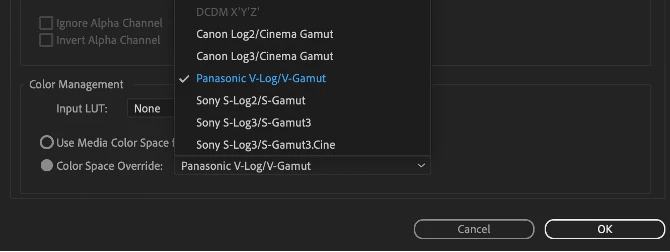
     

  3. Place the media on a Rec709 sequence if working in standard dynamic range.  You can also choose to put it on a PQ or HLG timeline to work in HDR.  Premiere Pro reads the media color space and does the appropriate conversion from source media color space to the Premiere Pro sequence color space. When you change the working color space in Sequence Settings, Premiere executes the color space transformation, no need to add a different Log > Color Space conversion LUT.
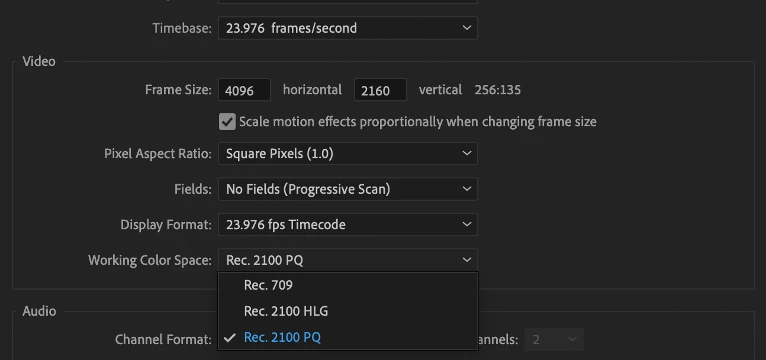
     

    This new color managed workflow is also useful for moving projects out of Premiere and maintaining the wide gamut and luminance of HDR video.


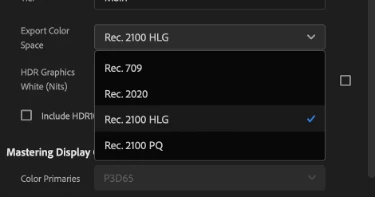
    To export in HLG or PQ, choose format H264 or HEVC, select the Main10 or High10 MPEG profile under Encoding Settings, then choose Rec.2100 HLG or Rec.2100 PQ as export color space.
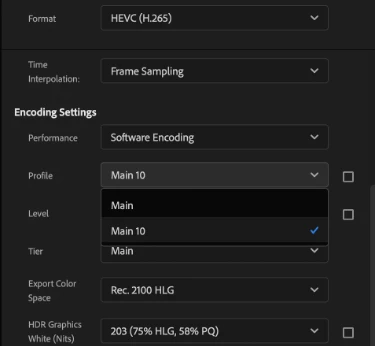
 

Make sure that the check boxes on the right of Profile and Level are NOT checked, and select Main10 if you are exporting in and HDR format. Then set the Export Color Space to one of the three HDR color spaces.
 

Beta testers should note that there is a significant difference between clips that are color managed from log to Rec 709, vs clips that use a LUT to convert.


LUTs can include tone mapping, knee and highlight roll off values that yield which yield a good looking image with little fuss but often clip highlights and shadows and that detail in unrecoverable.  The LUT processing is destructive.  With color managed workflows, none of the color information is lost.  But significant tone mapping is required to fit the enormous dynamic range of log (~14 stops) into the very narrow range of Rec709 (~6 stops). 


We are still working on a tone mapping approach.  You are likely to see results that look a bit blown out in Rec709 sequences.  Log to HDR sequences look fantastic, however.   
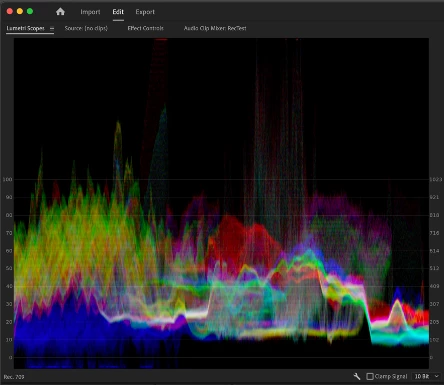
 

The Waveform above is from a Color Managed clip, none of the highlight or shadowed values have been clipped or lost, you can see them extending way above 100 IRE and dipping below 0.
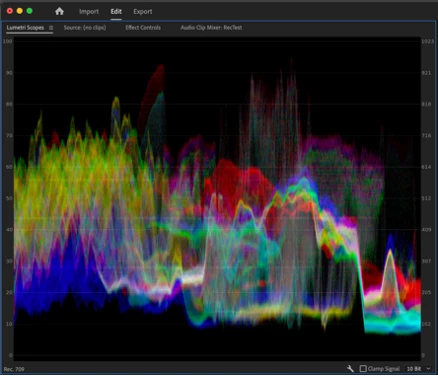
 

The Waveform above is from a LUT converted clip, all highlight values have been remapped or clipped to values below 100 IRE, and shadow values are either remapped or crushed to values greater than 0 IRE.


We want to know what you think.  Please join the conversation below.  


This topic has been closed for replies.

17 replies

Legend
February 14, 2022

Known Participant
January 28, 2022

I love this feature, it produces much better (and non destructive) results than luts, however I'm getting color shifts when using Color Space overide in Premiere Beta 2022. Specifically in HDR sequences.
I'm also experiencing intermittent crashes that prevent the program from relaunching unless I restart the computer. I don't see any of my hardware getting maxed out in task manager to cause a hangup/ crash.

Camera: Sony FX3 shooting UHD 24-60p Slog3/Sgamut3 in XAVC HS

Premiere Beta 22.3
After Effects 22.1.1
Updated Nvidia drivers today 1/28/22
Windows 10 Version 21h2
11900k Quadro RTX5000
64gb ram
Micron 3400 1TB NVME ssd

Premiere Settings:
Display color management and Extended Dynamic Range Monitoring are checked
Sequences: UHD 24p in either Rec 709, Rec 2100 HLG, or Rec 2100 PQ color spaces
Footage is using color space overide to Slog3/SGamut 3

After Effects Comp Settings:
UHD 24p, 32 bits per channel, linearize working space, compensate for scene referred profiles.
Display color management is on
Footage is using color space overide to Slog3/SGamut 3

In after effects when I change the working space from Rec 709 G 2.4 to Rec 2100 HLG Scene W100 or Rec 2100 PQ I get no color shift using color space overrides on my footage, hlg raises the blacks on the waveform a few points but colors stay as they should as evidenced by the chart on the Vectorscope.


In premiere when changing the sequence color space I get wild color shifts between the 3 available color spaces for my sequences. Specifically in the greens and cyans.


Is color space overide not suited for HDR work in Premiere beta 2022 at the moment? Am I missing something? Is this correct functionality?

R Neil Haugen
Legend
January 28, 2022

Curious, what happens if you uncheck the Extended Dynamic Range switch? Lars Borg told me that was there only to work with a couple of the Apple displays within Mac OS, and said as a PC user,  I should ignore it for either Rec.709 or HDR.


And if you set the clips in the Project panel to say HLG rather than Slog-3, what do you get? As all HDR media is by nature log-encoded.


Neil

Everyone's mileage always varies ...
Known Participant
January 31, 2022

No change with Extended Dynamic Range switch. Interpreting the clips as HLG on an HLG sequence doens't help.

Inspiring
January 12, 2022

Can you please consider adding Color Space and Color Space Override as searchable metadata fields? It is already available as metadata in the Properties panel for video files.


That would make it easier to create Search Bins and add metadata columns in the project window to get a proper overview of the Color Space settings for all source footage in a project.


Also, why is the Video Codec metadata field for Sony XAVC Intra displayed as the FourCC code ai12? I know I can look up FourCC codes online, but that is not very user friendly. 🙂


See attached screenshot.


Thomas


R Neil Haugen
Legend
January 12, 2022

Great points.


I've been arguing that we users now need a single color management panel ... one panel to rule them all!


Right  now, they have a bunch of new CM controls but they're spread out over the Project panel, Sequence settings, Scopes panel, and Export dialog.


We need one panel where we can set the defaults we want, AND can override for specific clips or media types. I would appreciate it if everyone would click on the link below and upvote that UserVoice request.


Neil


Color Management Panel

Everyone's mileage always varies ...
Known Participant
April 20, 2023

What we need is ACES, that's what we need!!!!!

Inspiring
January 12, 2022
quote

Color management is now available for log-based media.  This allows for simpler, LUT-free workflows when working with log footage from popular camera makers like Sony, Panasonic, and Canon.  Set the log color space correctly in Modify > Interpret Footage, then place the media on a Rec709 or HDR timeline and Premiere Pro will automatically apply the correct color conversions. Any camera that shoots log can now be used in HDR production easily.


This method transforms log footage to the color space of the sequence in a non-destructive, real-time workflow, rather than the common use of Log>Rec709 LUTs that can clip highlights, shadows and color information.


[...]


We are still working on a tone mapping approach.  You are likely to see results that look a bit blown out in Rec709 sequences.  Log to HDR sequences look fantastic, however.   


Hi @Francis-Crossman17221443. It is very nice to see some much needed improvements for Color Management in Premiere Pro coming along. Using color space transforms and tone mapping rather than destructive LUTs is for sure the way to go.


I do however find it confusing and quite honestly very frustrating that a big change like this is enabled as default in production releases of Premiere Pro 22.0.0 and 22.1.2 when most Log footage now looks dramatically over exposed in Rec. 709 sequences by default. There should at least have been a way to revert to the "old way" of handling Wide Gamut Log video for Rec. 709, until you manage to figure out the best way to solve this.


This change clearly makes HDR workflows easier, but it is causing major headaches for all customers still working in Rec. 709, and there is no good documentation for this change apart from posts like this in the beta forum and other FAQs in the Community forums. Considering that Rec. 709 is still the standard delivery/output color space for most customers out there, this change does not sit well with our users in the Broadcast industry.


I really hope this will be addressed soon.


Regards,

Thomas Berglund

NRK

Participant
November 23, 2021

This is a great function! I've been waiting a while for this addition.

Known Participant
November 4, 2021

The Sony Slog 3 colour spaces re missing from the drop down menu.  I can only see the rec.709, 2020 and 2100 ones - any ideas?

Known Participant
December 24, 2021

I have the same issue, Premiere 2022, 4k Slog3 SGamut3Cine/ Sgamut3 footage shot in 24p XAVC HS 100m from an FX3. Color space override to Rec 2100PQ doesn't look too bad, whites end up "clipped" but those can be recovered since color space override is non destructive unlike luts. I would love to have the SLOG3 overrides shown above so that premiere could match the color space tranform functionality that Resolve has.

The LOG gamuts that Francis shows (Canon, Panasonic, Sony) are not available.

R Neil Haugen
Legend
December 24, 2021

What is available seems to vary by the media involved. And maybe the computer, as the M1's may have a slightly different setup. And of course, what camera shot it. So that's a bit of a frustration at this time.


I've tested a clips from an Fx3, and the HLG and Rec.709 overrides both worked decently. I had to 'manaually' normalize the clip in Rec.709 though.


Neil

Everyone's mileage always varies ...
R Neil Haugen
Legend
September 18, 2021

This is going to take some playing with to sort out. But thanks for getting this out there, I've got a couple projects that I can work with this going right now.


Neil

Everyone's mileage always varies ...
JoshWeiss
Known Participant
November 3, 2021

Should this work in the source monitor too. Currenlty I'm only seeing the change when it's in a sequence. The footage is Sony A7SIII w SLOG3 Lut applied.

R Neil Haugen
Legend
November 3, 2021

Source monitor shows the 'base' clip with whatever has been applied in the Source tab only. If you haven't made a change to the "source" settings, no change will show on the clip in the Source monitor.


If you go to the ECP, the source tab, and change anything, it will now show in the Source monitor. Sometimes changes to the clip properties only seem to show after you've dropped it onto a sequence.


Neil

Everyone's mileage always varies ...