
Community Manager
April 1, 2020
Answered

Discuss : Nvidia Hardware Accelerated Encode for H264/HEVC

  • April 1, 2020
  • 23 replies
  • 31222 views

With the latest Adobe Premiere Pro Beta build we have enabled Hardware Accelerated Encoding through Nvidia GPU card.


If you have Nvidia GPU card on your Windows machine, you will be able to use this feature.


To enable this option, select H.264/HEVC from the Format drop-down under Export Settings. Then under the Video tab, go to Encoding Settings and set the Performance to Hardware Encoding. Setting it to Software Encoding will disable hardware encoding and Adobe Premiere Pro won't use Nvidia HW to encode the media. Please see attached screenshot.

Feature is enabled in Adobe Premiere Pro Beta , Adobe Media Encoder Beta and Adobe Premiere Rush.


Please try out the feature and share your feedback.
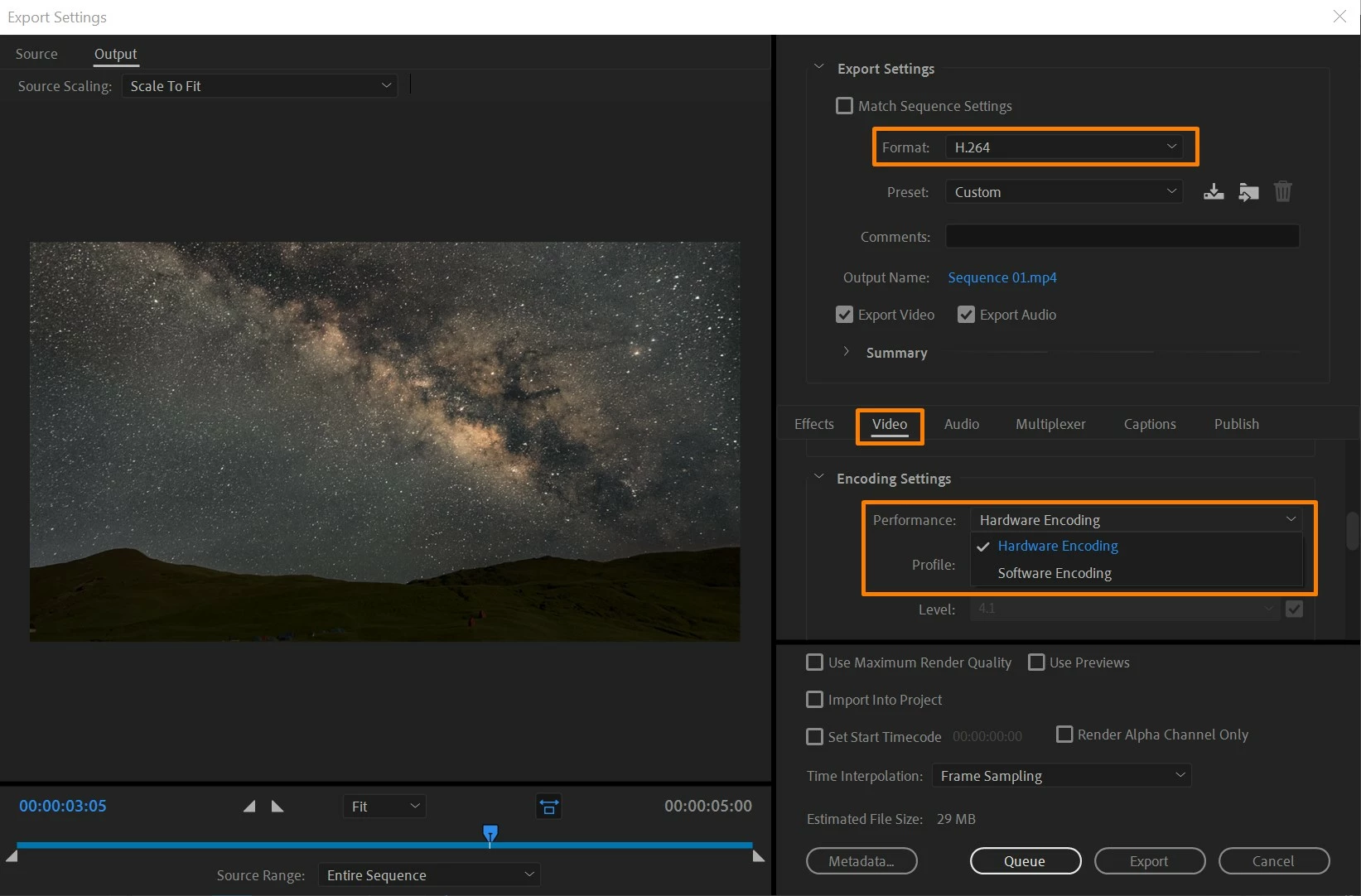
 

[Image embedded by mod]


This topic has been closed for replies.
Correct answer brajesh_kumar

Hi Everyone,

Nvidia Encode support is now available in the released (non-Beta) versions of:
- Media Encoder 14.2
- Premiere Pro 14.2
- Premiere Rush 1.5.12


Thank you to all for your feedback during the Feature Development. 


Thanks

Brajesh

23 replies

Known Participant
April 29, 2020

My performance card is blurred

BrajeshCommunity ManagerAuthor
Community Manager
April 29, 2020

Please share which GPU card you have on this machine.

Sammy85
Participant
April 25, 2020

Will that also be available for playback/scrubbing in timeline? AMD-users do not have quick-sync but the newer hardware is generally more powerful so it would be great if hardware enabled playback/scrubbing would be possible... Thank you

johnpooley3
Inspiring
April 25, 2020

AMD does not offer an equivelant to Intel QuickSync, unfortunately

Participant
April 20, 2020

On my Surface Book 2 (Intel i7-8650U, NVIDIA GTX 1050), the beta version with NVIDIA acceleration is 2x slower than Intel Quick Sync in the old version. I used the Youtube 4K preset, except I set the H.264 level to 5.2 because the Beta version would fail to export the 4K video at level 5.1.

In Task Manager it seems that Premiere Pro/Media Encoder Beta is not using the "Video Encoding" part of the GPU, only the CUDA part.


NVIDIA Encoding Log:


- Source File: D:\Personified Roomba\Premiere Pro\Personified Roomba.prproj
- Output File: D:\Personified Roomba\Premiere Pro\C0127 NVIDIA Cold Start.mp4
- Preset Used: Custom
- Video: 3840x2160 (1.0), 29.97 fps, Progressive, Hardware Encoding, 00;01;40;23
- Audio: AAC, 320 kbps, 48 kHz, Stereo
- Bitrate: VBR, 1 pass, Target 40.00 Mbps
- Encoding Time: 00:07:49
04/20/2020 02:30:58 PM : File Successfully Encoded


Intel Quick Sync Log:


 - Source File: D:\Personified Roomba\Premiere Pro\Personified Roomba.prproj
 - Output File: D:\Personified Roomba\Premiere Pro\C0127 Intel 5.2.mp4
 - Preset Used: Custom
 - Video: 3840x2160 (1.0), 29.97 fps, Progressive, Hardware Encoding, 00;01;40;23
 - Audio: AAC, 320 kbps, 48 kHz, Stereo
 - Bitrate: VBR, 1 pass, Target 40.00 Mbps
 - Encoding Time: 00:03:06
04/20/2020 12:58:52 PM : File Successfully Encoded


Adobe Employee
April 21, 2020

Hi CoolTNT,


Please update latest Nvidia display drivers and also share the copy of Premiere Pro Projecct file and Source file.


Regards

Abhishek 

Participant
May 6, 2020

Unfortunately I am not allowed to share this project file, however, if you can provide a sample project file I can test it on my system. I think it might have something to do with Lumetri Color - I tried exporting another project that was very simple and did not use Lumetri, and it was faster with NVIDIA compared to Quick Sync.

DAVIDE PEPE
Known Participant
April 20, 2020

Hi there,

I've used this feature a lot and it really saved my life!!!!!!
I had to send hours and hours of material at a low resolution and well on my system (please see below the technical specs)

I was able to export 1 hour of materials at 1080p  resized at 1024x576 in just 5 minutes.

What I've noticed is that file dimension extimated is not respected. Here I had an extimation of 756Mb but the real file size is 350Mb.

It works perfectly at low resolution and the quality is great but if you want to work at high resolution with a huge quality

going with hardware acceleration is not the best choice. An expected file of 4,9Gb has got a real size of 750Mb and the quality 

is not good at all.

I feel it's not respecting the bit rate I've chosen. I would really appreciate if it could really work fine with the high quality files!!!
Please keep it improving it's a magnificent add to premiere!!!!!!!!!!!
Best, Davide


BRAND AND MODEL: ASUS G752VS-BA266T
GPU:NVIDIA GTX1070 2048 CUDA CORE + 8Gb of memory on board
CPU: INTEL i7-7820HK @2.90GHz
RAM: 64 GB
OS: Windows 10 64bit
2 SAMSUNG 960 PRO NVME SSD drives by 2TB each
1 SAMSUNG 860 PRO SSD hard drives by 4TB

Premiere updated to the latest build
After Effects updated to the latest build
NVIDIA DRIVER VERSION: 441.66

kevcar
Known Participant
April 18, 2020

Just tested enable hardware encoding on the following specs:

OS Name Microsoft Windows 10 Home
Version 10.0.18363 Build 18363

Processor AMD Ryzen 9 3900X 12-Core Processor, 3793
BaseBoard Manufacturer ASUSTeK COMPUTER INC.
BaseBoard Product ROG CROSSHAIR VIII HERO
Installed Physical Memory (RAM) 64.0 GB
Adapter Description NVIDIA GeForce RTX 2080 Ti
NVIDIA GeForce RTX 2080Ti 11GB RAM

Tested on a 3:23 minute clip:

Software enabled           44 seconds to export

Hardware enabled          19 seconds to export

Very very impressed, great work Adobe


Participant
May 11, 2020

Im sure the New Hardware support is helping your speed, but with a 12 core proc. and that beast of a video card has ALOT to do with the speeed your getting...but even with my 4Gig video card and 6 core Proc. I still saw a 2 hour 36min video took only 56min. to encode with many effects to render!!

johnpooley3
Inspiring
April 16, 2020

Please also note that 14.1's release notes are messed up referencing this feature when it does not exist: https://helpx.adobe.com/premiere-pro/kb/fixed-issues.html

johnpooley3
Inspiring
April 16, 2020

I'm now getting the message "Your system's hardware does not support hardware acceleration for the current settings." on an M4000 with 431.70 Studio Driver and a K5000 with 442.74 Studio Driver on 14.2.0 build 15. Don't have Two Pass enabled or anything...

kevcar
Known Participant
April 18, 2020

Hi John,

Try using HEVC (H.265) in the Format. I tried the H264 first and had the same error. My clip was filmed in 265 that's why I received the same error as you.  Hope this helps John.

johnpooley3
Inspiring
April 18, 2020

Just tried HEVC on an RTX 4000, no dice. Also tried H.264 on a M4000 and a K5200


HEVC has the Performance greyed out, mixed results from H.264 today, sometimes it's grey, sometimes it gives the error message


Thanks for the reply, seems like they're still figuring out the device discovery

Community Expert
April 15, 2020

Just tested hardware encoding and it's faster but the file's size is much bigger. I used the "mobile device 480 SD wide" preset, the rendered file (40 minutes documentary) was supposed to be 280 MB, but the resulting file was 1.77 GB. Using the same render settings in PPro 14.04 resulted a correct 280 MB file

Adobe Employee
April 16, 2020

Hi Ali,


We are able to reproduce the issue. we are working on it. Please also share display card and CPU details.


Regards

Abhishek 

Community Expert
April 16, 2020

GPU: 2080 TI

CPU: i7-5930k

johnpooley3
Inspiring
April 12, 2020

Thanks, it's about time. Performance and quality is as expected with NVENC. The smoothing filter actually looks better than MainConcept's


I feel that it should grey out the 2 Pass option when using Hardware. This part of the UI is a bit off. 


Would be nice to have confirmation of which encoder is being used for the scenario that Ann mentioned. 

Ann Bens
Community Expert
Community Expert
April 12, 2020

Would be nice to have confirmation of which encoder is being used for the scenario that Ann mentioned. 

Answer is in this thread.

johnpooley3
Inspiring
April 12, 2020

Brajesh has explained the logic, but that is not confirmation. What if the NVENC encoder isn't being sensed by Premiere your machine, you would never notice that the Intel encoder is being used unless you look at a resource monitor or can tell based on the output file (Intel looks much worse than MainConcept and NVENC). 


There's no reason to not put an indicator saying "Using Nvidia Hardware Encoding" or "Using Intel Hardware Encoding" to make it transparent and intuitive. 

Known Participant
April 10, 2020

Encoding is of course much faster now that GPUs are included.  Welcome addition.

While encoding I'm seeing about 50-60 CPU usage on each core and the GPU at about 60%

Encoding a 4k (GH5) to 4k with audio effects and no video effects or grading.


If you don't already know, under task manager-performance you'll see your CPU and GPU usage nicely laid out (W10)


i7 6800 6 core/nVidia 1070 SC/64GB RAM/950 Pro SSDs*nvme OS w10x64

BrajeshCommunity ManagerAuthor
Community Manager
April 27, 2020

Thanks for trying out the feature!