


AnnikaKoenig
Community Manager
Community Manager
May 5, 2021
Question

Discuss: Upgrade Legacy Titles to Essential Graphics

  • May 5, 2021
  • 9 replies
  • 29945 views

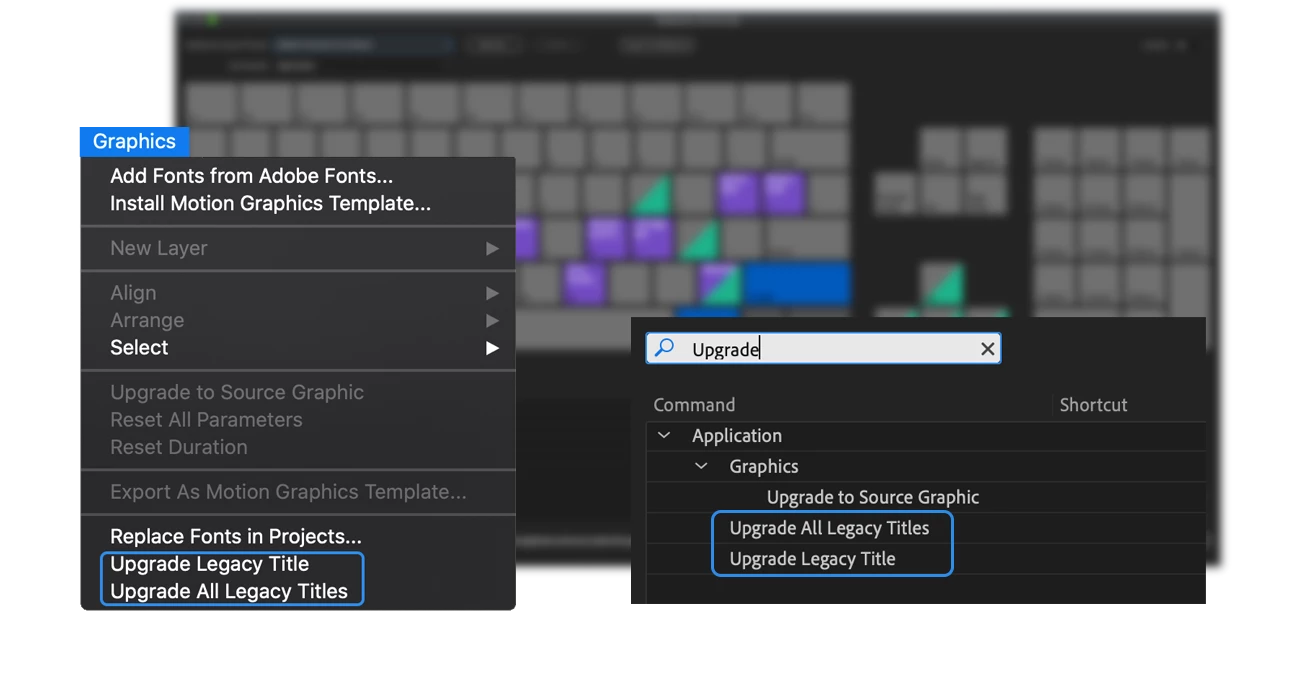
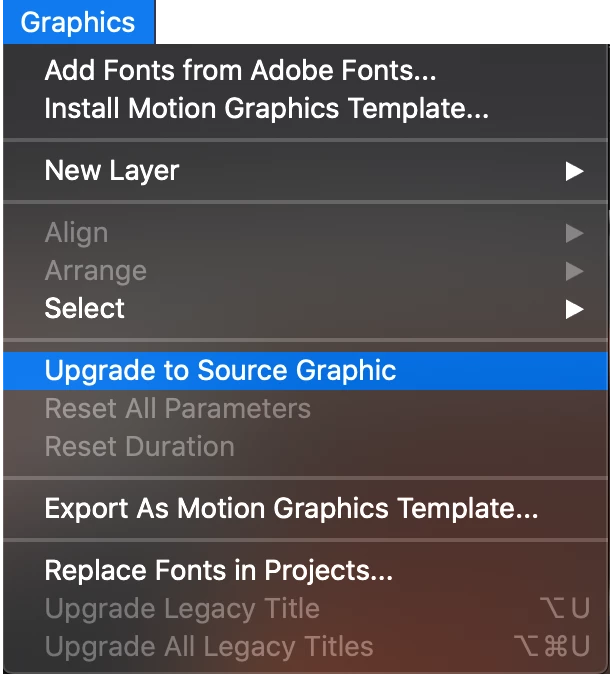
In order to ease the transition from an established Legacy Titler workflow to an Essential Graphics workflow, we have added two new commands that allow you to upgrade your Legacy Titles into Source Graphics in the latest Beta build of Premiere Pro. You can access these commands through keyboard shortcuts or through the top Graphics menu:

• Upgrade Legacy Title

• Upgrade All Legacy Titles
 

What are Source Graphics?
Source Graphics are a kind of Essential Graphic that behave similar to Legacy Titles in the sense that

  • they have a project item,
  • you can track usage through the metadata column for Video Usage and
  • edits made to the project item or an associated track item will ripple edits through all track items.


Note that Source Graphics do not support rolls or Responsive Design Time. By the way, any Essential Graphic can be turned into a Source Graphic through the "Upgrade to Source Graphic" command in the Graphics menu (make sure the focus is on the timeline).


Upgrade Instructions

In order to upgrade a single Legacy Title into a Source Graphic:

  • select the Legacy Title in the Project Panel and execute the Upgrade Legacy Title command.
  • This will add a Source graphic with the suffix "-Upgraded" to the Project panel and replace all instances of the Legacy Title on tracks with the Source Graphic.
  • This action is undoable.

In order to upgrade All Legacy Titles into Source Graphics:

  • Make sure the focus is on the Project Panel, and execute the "Upgrade All Legacy Titles" command.


If you want to compare the upgraded Source Graphic to your Legacy Title, you can duplicate your Legacy Title on the track and only upgrade one of the copies in the project panel. This way you can do a side by side comparison and get a feeling for how your Legacy Titles upgrade.
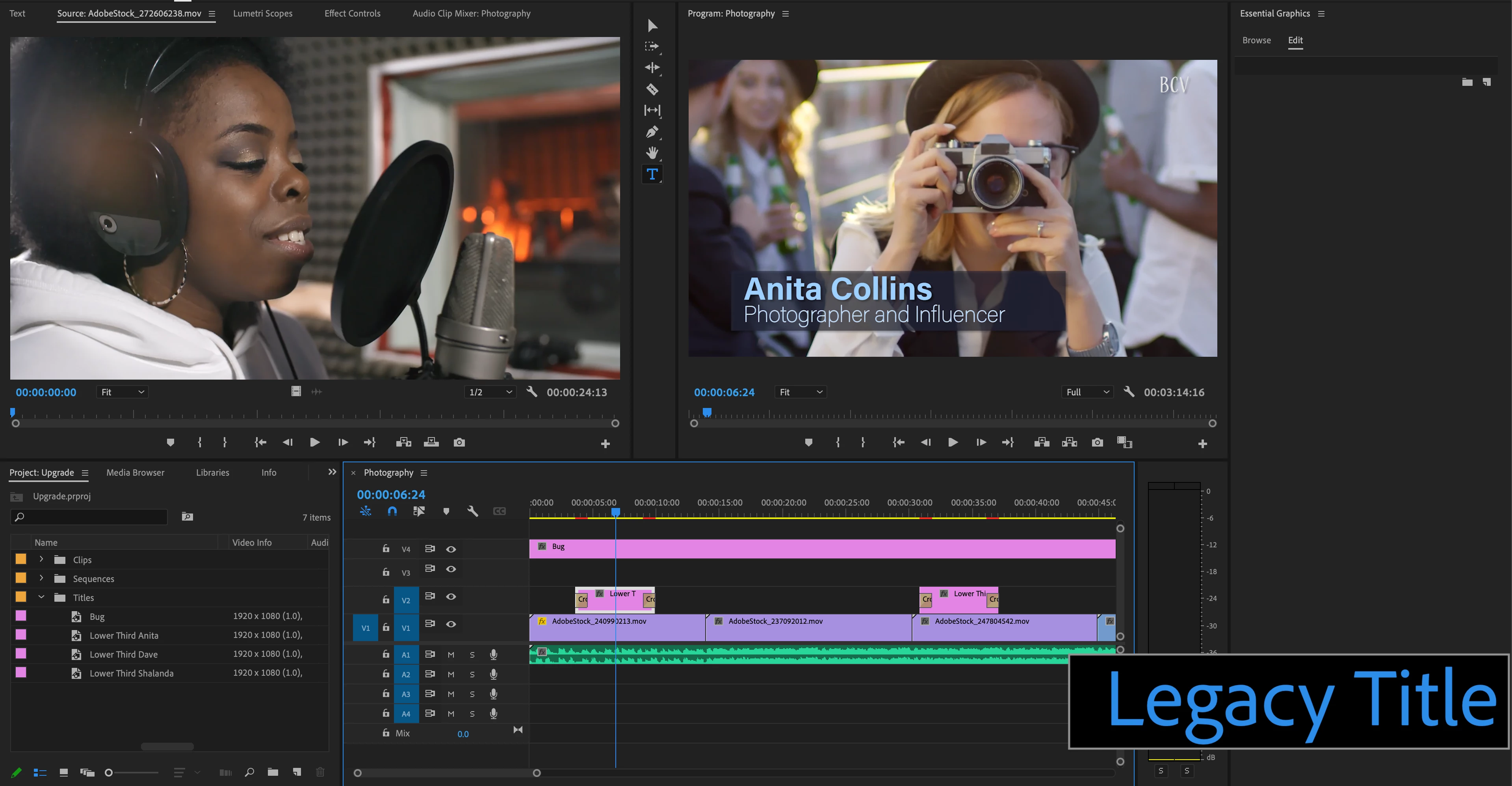
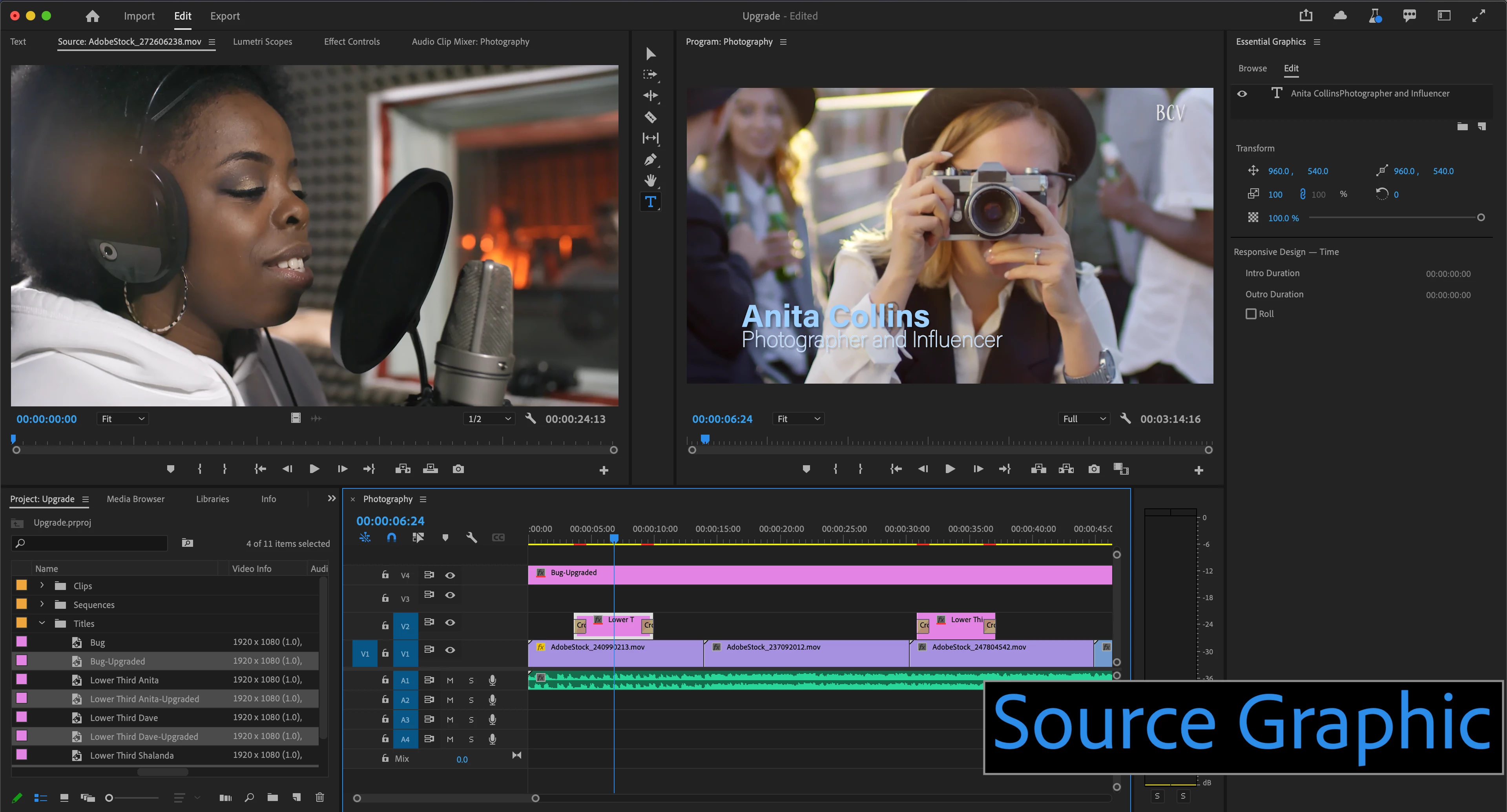
What to expect

We have done our best to get the conversion as good as possible, however it is advised that you quality-check the upgraded graphics, since not all characteristics of a Legacy Title will translate. The main things that will not come over are shapes, rolls, crawls, tracking and rotation. With other characteristics you might see small differences, such as the spreads of gradients, strokes or the thickness of fonts.


Here a list of what to expect:


What we are translating:

* = might look noticeably different under certain conditions

** = most likely will need to be redone because it looks very different


Character settings: 

• The Glyphs of the text

• Fill color and visibility

• Font

• Font Size

• Font Style

• Shadow substring (e.g. different shadows on different characters will take the shadow of the first character and apply it to the whole text)**

• Radial/Linear Text Gradient substring (same as with shadow substring)**

• Outer strokes

• Underline

• Kerning

• Baseline shift

• Small Caps

• Cap Sizes (note, we always translate to the default 75%)**

• Just Width Scale**

• Just Height Scale**

• Vertical box text**

• The positioning of multiple lines when there are different font sizes used**

• Text box wrapping*


Layer settings:

• Position/Alignment

• MENA/Indic

• Hindi Digits

• Leading

• Shadow*

• Linear and Radial Gradients*

• Vertical text*

• Sheen*


Track items filters: 

  • Shapes (rectangle and ellipse work well, other shapes will need to be redone)
  • Motion and Motion keyframes
  • Opacity and Opacity keyframes
  • Effects and Effects keyframes


What we are NOT translating. These characteristics will be missing completely from the source graphic after the upgrade:

• Rolls

• Crawls

• Slant

• Fill types other than solid, linear and radial

• Inner Strokes

• Texture

• Background

• Distort 

• Rotation

• Shapes

• Right to Left text

• Track Label Colors

• Tracking

• Tab Width/Stops


This topic has been closed for replies.

9 replies

Participating Frequently
December 16, 2022

Hello - this command appears to be COMPLETELY GONE in v 23.1.0 (Build 86), which is the most current version as of today Dec 16 2022.  While I fully understand the need for code changes and upgrades/etc. the fact that you simply "disabled" the legacy titles with no way to convert them seems agregious and I'm hoping I'm just missing something.


There were QUITE a few surprises in the new V23.1 release, which again although we understand the necessity for upgrades and changes, it would have been nice to have at least had a warning on the legacy titles - something like the old popup that said "legacy titles will no longer be supported..." - this time it should have said "Legacy titles ARE no longer support, you MUST upgrade your existing titles now." 


Just my two cents...

Stan Jones
Community Expert
Community Expert
December 16, 2022

devGuru,


I did not test this in 23.0.0, but I can confirm that in 23.1.0, the global commands Upgrade Legacy Title and Upgrade All Legacy Titles through both keyboard shortcuts and through the top Graphics menu are gone.


The command "Upgrade to Source Graphic" is there, but I cannot find any way to get it to act on unconverted legacy titles.


The problem situation would be one in which you have legacy titles but none are in sequences. If you have at least one legacy title in a sequence you get an alert that all titles (in the project) will be converted (and they are - not just the one or more that are in sequences).


Are there other ways to get legacy titles into a current project?


Stan


AnnikaKoenig
Community Manager
Community Manager
January 4, 2023

Hey Stan!

There should never be unconverted legacy titles in 23.1. Even legacy titles that are not in sequences should automatically get upgraded to source graphics. That's also the reason why the commands are gone.  I took a look and see that there is in fact an issue when you have none of the legacy titles in a project in a sequence. Then the upgrade does not function as expected, you just get an empty graphic if you pull them into a sequence. The workaround for now is to have at least one legacy title in a sequence. Can you confirm that it then works?

James Brady
Participating Frequently
April 21, 2022

Hi all,

I just used the "upgrade legacy titles" option in Adobe Premiere Pro Version 22.3.0 Build 121, (from the pop-up screen upon lauching a previously saved project). The upgrade worked well: extremely fast, and no less accurate than expected based on the limitations discussed in this thread. However, I found a few issues:

BUG 1: Any effects added to the upgraded title cause the vector motion of the title to respond erratically. The only way I can view and export these upgraded graphics as part of my project is if there are no effects applied to them.

BUG 2: After copy/pasting layers from one upgraded graphic into another, the text layers pasted into the new upgraded graphic are not editable as text. The text is visible, but does not appear in the transcript view as an existing essential/source graphic.

FEATURE REQUEST: Please add the "ALT+drag to replace" function to Source Graphics files. This will save a lot of unnecessary copy/pasting to duplicate vector motion, opacity, etc. between graphics.


Best,

James

Adobe Employee
April 21, 2022

Hi James -


For 1, can you be more specific (like which effect and what is happening), or even share a small project which demonstrating the problem?


2 sounds like a bug. Are you able to edit the text in the program monitor?


Mike

James Brady
Participating Frequently
April 21, 2022

Hi Mike,

Thanks for the quick response. Yes of course:


For #1) The specific effects I was attempting to use were "CC Light Sweep" and "Change to Color". In both cases, when the affect is applied, the graphic ignores all vector motion (and even individual layer motion) and just displays the graphic centered at 100% scale as if there were no motion applied.

I can work to export a reduced project to demonstrate.


For #2) No, in the program monitor, I can select and even move the text graphic as if it is just an image, but the text is not directly editable in any way, in any window.


For the feature request, when an "Essential Graphic" is converted/upgraded to a "Source Graphic", it then lives as an instance of media in the project folder--shouldn't it then be able to take advantage of Alt-replace functionality?

Participant
January 5, 2022

One thing I do not see discussed is the ability to Insert a Graphic in Legacy Titler.  Currently, this is the only way I know of to easily add a stroke to a PNG image or non-rectangular image with alpha channels.  We use these types of images a lot.  And it's a hassle to have to apply a stroke in Photoshop and then go back to Premiere to see if it looks OK against your background.


Is there a work-around to make adding a stroke to a Logo as easy as it is in Legacy Titler?  We really need that real-time preview to see if the color and thickness works will against the background.  I'm aware of Paint Bucket, but that only works if your logo is a single shape without holes (such as in text), plus it's in the "obsolete" folder so it that going away too?


Other things I will miss when Legacy Titler goes away are...

• Font Style Visual Library

• Inner/Center Stroke

• Quickly previewing font options with arrow keys (not everyone knows exactly what font they want to use ahead of time)

• Updating one instance of a graphic on timeline and having them all change.

• Slant Text

• Small Caps Size


I'm sure I'm missing some, but these are what I can recall right now.  If any of those mentioned are possible and I just don't know about it, I'd love to know how.


Thanks!

Adobe Employee
January 5, 2022

At least one of those is fully supported in Essential Graphics today (and for many years). If you upgrade your graphic to a Source Graphic then you will get a project item which parents all of its children track items, just like the Legacy Titler. Upgrade Legacy Title will do this automatically.


There are styles for Essential Graphics as well. They are now project items which are live parents of any graphic that uses them.


I'm not sure what you mean about previewing font options. Are you just talking about changing the font? You can navigate the font menu in the EGP with arrow keys.


Small caps size is not going to be brought over as it works in the legacy titler, because that is not something that is supported in the type engine that we now share with all of the other Adobe Professional apps like Photoshop. But you can adjust the font size to get the effect. Slant text is another case that is not part of the shared engine and unlikely to be added.


We are considering adding more stroke options to Essential Graphics so stay tuned there.


Mike

Participant
January 6, 2022

Thank you for your reply, Mike!


"There are styles for Essential Graphics as well. They are now project items which are live parents of any graphic that uses them."

I've seen that I can save styles, but they are a drop-down list, not a visual bank like in LT, so I need to remember what I named each style and what that font looked like.  Unless there is something different you're speaking of?


"I'm not sure what you mean about previewing font options. Are you just talking about changing the font? You can navigate the font menu in the EGP with arrow keys."

Myself, and several of my collegues, like to browse fonts by cycling through them with arrow keys.  In LT, the type would update in real time and be a preview of what your type would look like in that font as you scrolled though, without ever touching your mouse.  EG doesn't do this.  You can select a font with the arrow keys, but it doesn't change the text until you apply it, then if you don't like it you have to grab your mouse and open up the font list again and chose another.  Much more tedious when you don't have a specific font in mind.  I was curious so I timed it, hah.  In 10 seconds, I could only preview about 5-6 fonts in EG, but I could preview ~25 fonts in LT in that same time.


"No, there is not an easy way to stroke a clip layer in Essential Graphics. You are not the first to make this request, though, and we are taking that into consideration."

Looking very forward to something.  This is of course my number one concern on losing Legacy Titler.  The text fuctions mentioned above I can deal with.  Less convenient, but at least still possible.  Adding a stroke to a Logo is a fundemental part of our regular edits.  So much so that I'm boggled as to how the Adobe users community has gone so long without a better solution, lol.  You talk about sharing an engine with Photoshop, and this is something that Photoshop has always been able to do of course.  So hopefully a solution is right around the corner!  If you could bring Layer Styles into Premiere, that would be fantastic!  At least being able to apply a stroke as easlily as you apply a drop shadow should be a minimum.


Thanks again for taking the time to reply!

Scott

jstrawn
Community Manager
Community Manager
July 27, 2021

Product Team UPDATE: As of current Beta builds (Pr22.0xBeta036), Shapes are now supported for Legacy Title Upgrade. Shapes were previously called out in the list of things that were not supported for upgrade. We're happy to say that that has now changed, so please give it a try if you can and let us know what you think.

Attached is an image with a mixture of Legacy shape, text and appearances that you can expect to upgrade to Essential Graphic reasonably well. You can use the same Upgrade Legacy Title command that has been in the Graphics Menu for a while.

Known Participant
July 28, 2021

That's great news!  Thanks for the update! 🙂

Participant
June 28, 2021

For small things it's good.
For me, putting subtitles on my videos is not good as it gets too heavy.
Also: I want to be able to choose a STANDARD SOURCE in the Legacy titler and not use Essential Grapichs.
Essential Graphics is very heavy and is not functional in my case, I put subtitles on my videos.

Known Participant
May 30, 2021

Hi Annika,


You wrote in a prior post that you and your team want to find ways to make Source Graphics as easy to find and reuse as possible.


Smart Bins are a big part of making that happen!  I just posted an new FR for this feature that stands to help not just some, but virtually all Pr users!  https://adobe-video.uservoice.com/forums/911233-premiere-pro/suggestions/43533861-smart-bins-bins-that-automatically-collect-files


What do you think about using this kind of approach?


Hope you're having a great weekend! 🙂

Richard TOULON
Legend
June 3, 2021

Hi,

I understand many users but here are my thoughts about Legacy titles. This is an outdated workflow for many reasons. The EG has a better efficiency with the ability to create and share MOGRT, to use Responsive design. When rounded rectangles and maybe stroke issue will be solved, there won't be any major reason to keep legacy titles. I never use it and if I want some fancy or more complicated lower third, I use Photoshop. Pierre-Louis has indicated that he uses bezier curves to create mask with LT but you can easily do it outside legacy title with bezier mask on a color matte. I think too many users has kept old habits, sticking to their old school way to make lower thirds ( and I'm a old user of Premiere Pro to be clear ). I don't want to offense anyone but this is true. Adobe has implemented the EG a while now and since the day the the titler has been named Legacy Title, people should expected to see it removed and prepare for changes. Another thing, How many times you get back to an old project and want to change stuff ? In my corporate world...almost never. Now, what about an option to convert all legacy titles to PNG so previous project could at least being seen and rendered with no issue if needed. I could swear I have seen this option one day but I might be wrong.


Pierre-Louis has mentionned the Esc button to get back to slection tool and this is a so smart idea. Most of the time, my student basicaly click in the Program monitor and forget to get back to selection tool, creating many empty titles. Using Esc would be great indeed for advanced users and new users.


The only thing that is bugging me is when it comes to resize sequences for Instagram or something else. All elements positions values are breaking apart. Instead of using the overall position of all elements, it use the position of each element. This is something that many editors will face when making different formats for social media.

So yes a workaround is to nest each title...not ideal. Would be perfect if was taking into account the overall scale of all the elements. Notice that the actual result is the same using the "scale motion effects proportinally ".


That's all folks. 🙂


Known Participant
June 3, 2021

"Now, what about an option to convert all legacy titles to PNG so previous project could at least being seen and rendered with no issue if needed."


If after the LT is axed, titles need to be converted in order to display in/export from the Timeline, then an option to batch convert all LT titles and replace all Timeline instances with identical looking PNG files is brilliant!  Of course PNG files would remove the ability to edit text, but it WOULD allow for perfect, pixel accurate conversions of everything in a static title, including shapes!


Could this be added Annika?

It's already possible to export+auto import a single title as a .png from the Project window, or to batch export several LT titles at once using AME, so this should be a relatively simple addition. 


Here's what I suggest:

  1. PNG conversions should be added to the Project window next to the original LT title and renamed something like "Title name-PNG".  This is what happens now with Source Graphics, but I'm not sure if the plan is to have Source Graphics replace LT titles in the Project window rather than continue to appear next to them when LT gets axed.  It would be preferable to keep it the way it is now, with conversions appearing next to the original file. 
  2. Converting LT titles to Source Graphics or PNG files should be possible right from the Timeline or Project window, from an LT title's context menu.  A context menu is generally a more practical and discoverable location for a new options than the top menu.
  3. If a user converts all of their LT titles to Source Graphics and discovers that they didn't get the expected results on some of them, it would be great to be able to right click on problematic Source Graphics and select a new option called something like "Convert to PNG version of original title".  This would allow users to easily convert back to perfect replicas of their original LT titles whenever having a pixel accurate copy trumps the need to edit text!
  4. Likewise, a new option to convert all titles to PNG would be helpful since it would guarantee pixel perfect results everywhere in the Timeline.  Anywhere a user needs to edit a PNG title's text, a new context menu option to "Upgrade to Source Graphic" would make it possible, albeit at the risk of losing pixel perfect accuracy. 


I believe this would provide the best upgrade path possible!

A. "Convert All Legacy Titles to PNGs" - Pixel perfect conversions for those that don't need to edit the contents of any/most their old titles, with the option to upgrade any png conversion in the Timeline to a Source Graphic whenever text editing is needed.

B. "Upgrade All Legacy Titles" - Best option for users who need to edit the text of most of their old titles, with the ability to convert any Source Graphic in the Timeline into a pixel perfect png copy of the original LT title, should they need to see shapes or other missing element(s) from their original LT title.


This would best serve the needs of users needing to open old projects once LT is axed, and provide what I believe would be the lightest workload for Pr's team, since most of the code needed for this already exists within Pr (Batch exporting LT titles to png.  Converting all LT titles and replacing all Timeline instances, which was already introduced with the Upgrade to Source Graphic workflow)


What do you think?

mickpeninsulaTV
Known Participant
May 25, 2021

While I welcome the EG upgrades as I we find the EG crashes alot and is a system hogger.


We really want LT to remain as an alternative. This is what our clients and mastering houses want:

Simplicity converting to other platforms.


EG is over engineered for these.


100's of professional editors and production companies have been crying out to leave LT and we now find out adobe is driopping it compleyety.


We have been ignored since 2018 on this subject : https://adobe-video.uservoice.com/forums/911233-premiere-pro/suggestions/34577332-please-do-not-eliminate-the-legacy-title-creator-i?tracking_code=56f4fd7decc6b1339fb8e2d1cee13277


And now we are told to voice our concerns on this page....


Adobe Employee
May 25, 2021

Can you give us projects/example which crash or cause performance problems? We need concrete examples that we can work with.


Thanks,

Mike

mickpeninsulaTV
Known Participant
May 25, 2021

Hi Mike,

I have discussed this in length with one of your team this year why the new
titler is
no good to our workflow.


Mick


Peninsula Television
[personal info deleted by mod]

Known Participant
May 24, 2021

Hi Annika,


Would it be possible for your team to add an option to Pr's Preferences window that would allow users to make EG titles act like LT titles by default by automatically creating a Source Graphic for any new EG title?  This would remove the additional steps of upgrading EG titles to Source Graphics for users that always want all of their EG titles to act like LT titles, and it would make the transition more familiar/easier for users.


For this to work, users would NEED to have a way to determine on the fly if duplicating a Source Graphic creates a duplicate Source Graphic or not, just like is the case with LT titles when alt-dragging one to duplicate it in a sequence. (please see my prior post in which I mention the way EG, LT and Source Graphic titles act when cut, copy/pasted or alt-dragged).


Thanks!

Adobe Employee
May 24, 2021

In the current Beta (15.4.0.5), alt-dragging source graphics should copy the project item like legacy titles.


Mike

Known Participant
May 24, 2021

Thanks for letting me know Mike.  Fantastic news!  I just tested it out in the newest beta.  I'm so glad to see this was added to keep it more consistent with the workflow we're used to with LT titles!  Also glad to see that duplicating a Source Graphic this way adds versioning info to the names of the duplicates (i.e. Copy 01, Copy 02).


Are there plans to add automatic versioning info to Source Graphic names (i.e. Graphic 01, Graphic 02)?  Naming all Source Graphics to the same name 'Graphic' by default makes it impossible to tell them apart in the Project window unless manually renamed by the user.  This is something that could so easily be automated by Pr that I don't see any reason users should be forced to waste time adding version numbers.


Thanks! 

Known Participant
May 16, 2021

Hi Annika!


I can't get the new "Upgrade to Source Graphic" function to work in Pr 15.3.0 build 27, with either the keyboard shortcut or the option in the Graphics menu.  It's a shame since it seems like a great new feature!

The "Upgrade Legacy Title" and "Upgrade All Legacy Titles" functions do work however.


I'm sad to see the Legacy Titler (LT) is going to be abandoned for good since this will make it difficult to revisit old projects that are full of legacy titles, especially given that LT shapes can't be upgraded.  This is going to create a workflow nightmare for people who regularly used LT shapes to create track mattes. 


Some things that absolutely need to be added to EG before the LT is removed are:

  1. Ability to create rectangles/squares with rounded corners.  Any time I want to create a PIP or image with rounded corners, I've always created a matte in the LT.  I see rounded corners have been added to EG title backgrounds, so hopefully this is added to EG rectangles before LT is removed.  Note: Rounded corners in LT were a pain to use since they would distort on any shape other than a perfect square.  To create a rectangle with symetrical rounded corners, it's necessary to stack 2 or more squares.  Please make sure EG gets this right, with aesthetically correct rounded corners (see illustrations below that I posted in a FR for this over a decate ago).
  2. Easier resizing.  EG resizing should work exactly as it did in LT since it works flawlessly there: intelligently, as expected, and with plenty of keyboard modifiers.  Current resizing in EG is a utter nightmare and the #1 I still avoid using EG as much as possible. https://adobe-video.uservoice.com/forums/911233-premiere-pro/suggestions/41079490-fix-the-way-essential-graphics-resize
  3. Ability to upgrade LT shapes into EG titles (so that users who've used LT shapes as masks don't end up with severely messed up projects).
  4. Font Style previews.  LT has this.  Why not EG?  Please see item #4 of this FR: https://adobe-video.uservoice.com/forums/911233-premiere-pro/suggestions/41109709-fix-font-lists-in-egp-and-ecp-consistent-lengths?fbclid=IwAR3__Z4ZBX9IxfnLWgntycrdc5F3awYjz_DA5Lgczl0A_c172cMAuyZnQl8.  Font lists are in serious need of a major overhaul, not just in Pr but across all Adobe programs.  Currently, they don't work in a logical, consistent manner that gives users the functionality they need.  Why not set the gold standard in Pr first and then copy the new design to other programs from there?


There are probably several more items to add to that list but I can't think of them off the top of my head.  I'll add them in a new post if I think of them.


Thank you!


Known Participant
May 16, 2021

Hi again,

I just thought of a couple more things that would help make the transition from LT to EG easier for users. 


  1. LT users are used to being able to turn the Video Background on/off with the "Show Background Video" (see pic).  Turning off the background is very handy to avoid distractions while creating titles.  Adding a Transparency Grid (on/off) button to the Program Monitor's Button Editor could effectively replace the LT's "Show Background Video" button.  Please see this FR: https://adobe-video.uservoice.com/forums/911233-premiere-pro/suggestions/35766448-transparency-grid-icon-in-source-program-monitors
  2. Ability to see EG titles placed outside bounds of Program Monitor screen.  In LT, I would often store different versions of a title outside the visible portion of the screen (see pic).  Anything outside the visible bounds of a LT title is completely excluded from the title in the Timeline (i.e. shrinking or moving the title doesn't bring those elements into view).  It would be handy if it was possible to do the same thing with EG titles: keep titles visible when completely or partially placed outside the bounds of the screen.  This would be handy to reference alternative fonts/styles of a title, or to see all of a title when parts of it extend outside the Program Monitor's screen.  Of course, this is something that users would need to be able to easily turn on/off, as seeing titles extend past the borders of the Program Monitor screen would be distracting any time users don't want to see that extra info.  A new keyboard shortcut-assignable function + button in the Program Monitor's Button Editor could achieve this.  The ability to see parts of a title that extend off screen would be even more helpful with EG than LT titles, since with EG, users can choose if parts of title outside the bounds of the screen are seen when resizing/moving the title:
  • Change Vector Motion attributes = Offscreen parts of a title can be brought into view
  • Change Motion attributes = Only the visible portion of the title seen on screen is used

Note: Why stop at just EG titles?  The ability to turn on visibility for all elements that fall outside the bounds of the Program Monitor's screen would make this new feature even more useful (such as graphics that are animated from offscreen into view)!