




HDR display on Windows using DirectX
We are replacing OpenGL with DirectX12 as the preferred display technology on Windows with the eventual goal of phasing out OpenGL entirely. There are many benefits to DirectX including better stability and performance, and a more modern codebase that is more efficient for us to maintain. But possibly the most exciting benefit is support for Windows 10 advanced color which allows displaying HDR content on an HDR10 capable display. There are some prerequisites to making this work which are detailed below – you must have an HDR-capable GPU and monitor. If your system configuration does not support DirectX12, it will fall back to use OpenGL as it used to.
System Requirements
Operating System: Windows 10, version 1709 or later.
Display: To take advantage of high dynamic range, you must have a display that supports the HDR10 standard. Windows works best with displays that are VESA DisplayHDR certified.
GPU:
- Nvidia GeForce 1000 series (Pascal), or newer
- AMD Radeon RX 400 series (Polaris), or newer
- Selected Intel Core 7 series (Kaby Lake), or newer
To check if your system configuration supports DirectX HDR – right-click anywhere on the desktop and go to Display Settings. If both your monitor and graphics card are qualified, you should be able to see the option, as circled below, "Play HDR games and apps", and it can be switched on.
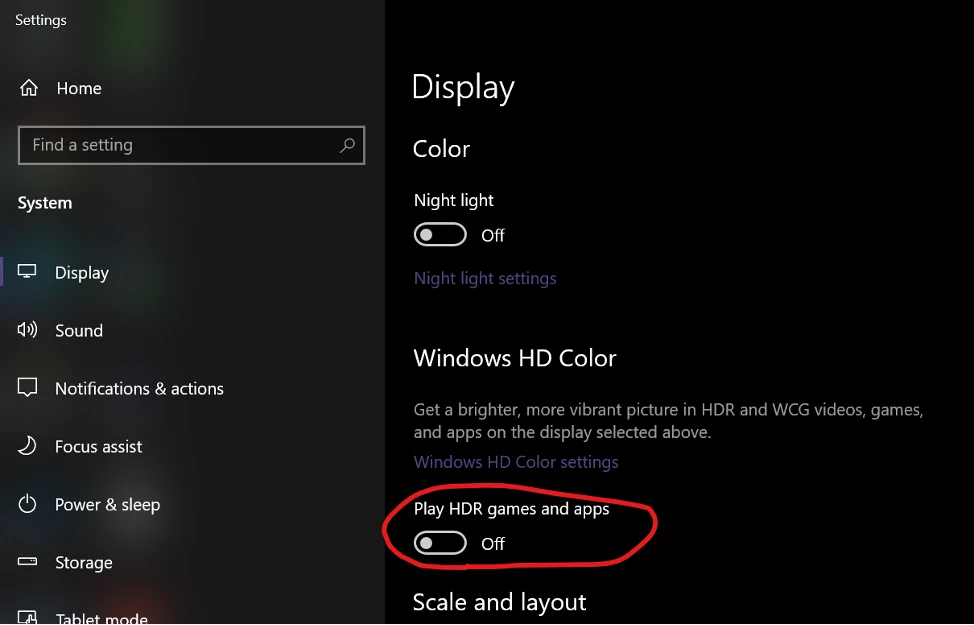
Otherwise, if your hardware is unqualified, you will not see that option.
Enable DirectX HDR
To enable DirectX HDR support, you need to switch on the “Play HDR games and apps” in Display Settings as demonstrated in the System Requirement section. That will put your system into advanced color mode.
Note that the advanced color mode can be switched on/off on a per display basis. You can have one display in advanced color mode, while the other display stays in SDR mode.
When advanced color is enabled, non-HDR content, including the system background, desktop and menus will appear dull and flat. Only actual HDR content will appear normally. It is recommended that you only enable the HDR capability in the Display Settings when you are dealing with HDR content.
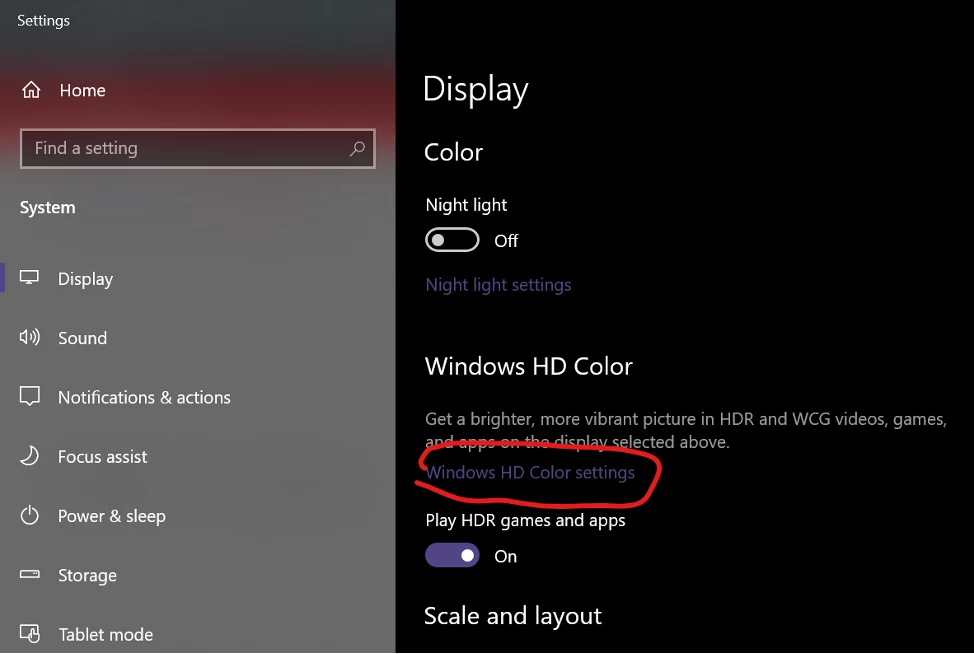
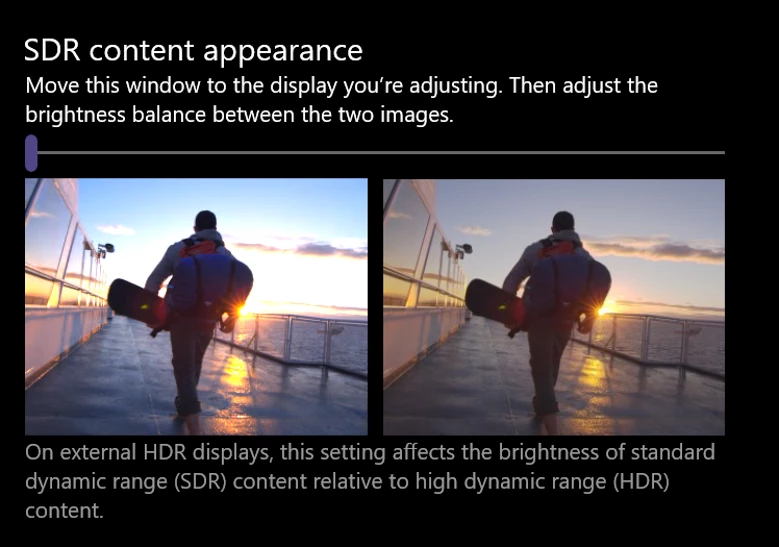
If the non-HDR content are too dark for you. Windows does provide a master control to increase brightness for non-HDR content.
- With "Play HDR games and apps" switched on, click on Windows HD Color settings.
- Drag slider SDR content appearance to adjust the brightness of SDR content.
App-specific configurations
Premiere Pro
- Set project renderer to one of the GPU-accelerated renderers: OpenCL/CUDA.
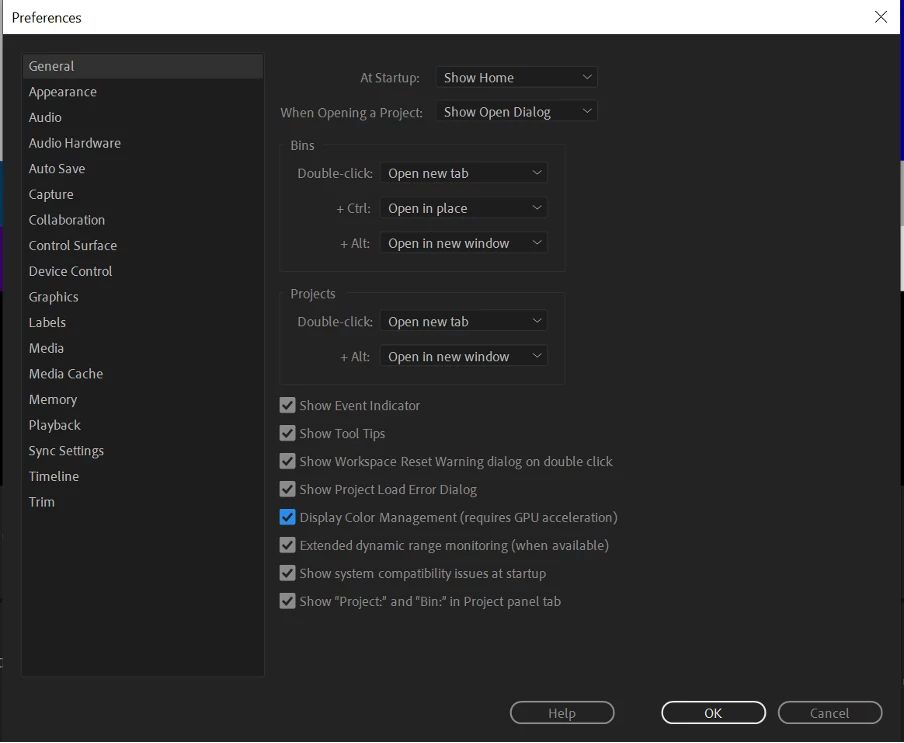
- Enable preference “Display Color Management (requires GPU acceleration)”, located in Preferences/General.
Major views that support DirectX HDR:
- Program Monitor
- Source Monitor
- Transmit
Views that don’t support DirectX HDR:
- Export Window
- Legacy Tilter
Premiere Pro Known Issues
When sequence working space is set to Rec 709 (SDR), the preview files would be clipped into SDR ranges. You may notice that importing HDR clips and directly playback preserves the HDR appearance. This is because we process color in 32bit floating point and you will see the overrange values going into the HDR range. However, all the HDR range data would be lost as soon as you render them into preview files. An HDR sequence working color space is recommended for HDR production (Rec2100 HLG or Rec2100 PQ). You can choose the sequence working color space in the Sequence settings.
After Effects
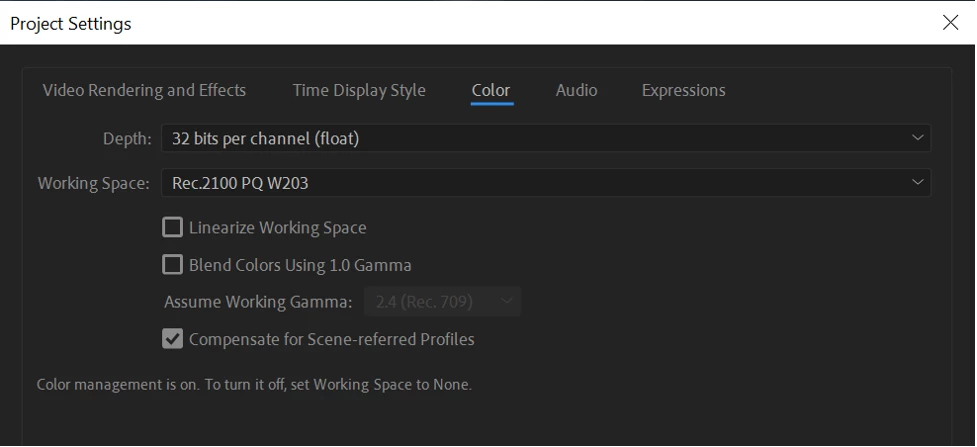
- Set Project bit depth to 32bpc.
- Set project working space to an HDR compatible one, such as "Rec.2100 PQ W203"
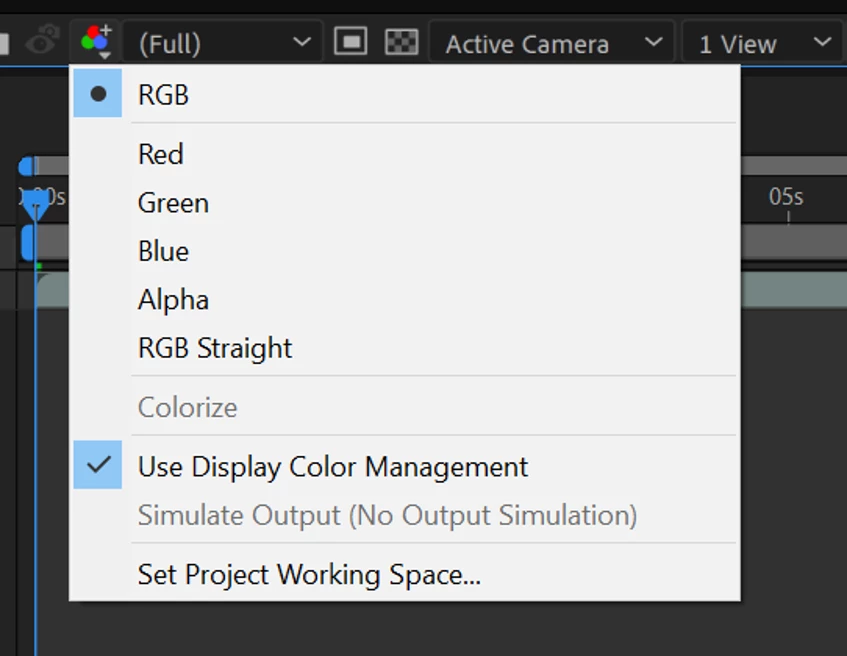
- Enable "Use Display Color Management" in display panel drop down option menu.
Major views that support DirectX HDR:
- Comp Window
- Layer Window
- Footage Window
- Transmit (not working yet)
After Effects Known Issues:
The Comp/Layer/Footage/ Window background color will look different from other UI elements, most likely darker, when system advanced color mode is turned on.
Premiere Rush
DirectX display technology will also be used on Rush desktop on Windows, but there is no HDR capabilities in Rush.
 AdChoices