


Francis-Crossman17221443
Community Manager
Principal Product Manager
February 7, 2026
StickyBlog

Now in Beta: 5 new effects and transitions coming to Premiere
  • February 7, 2026
  • 18 replies
  • 1332 views

We are adding some exiting new effects and transitions to Premiere, and they are ready to test out in beta right now. Effects (Gradient, Channel blur, Noise); Transitions (3D spinback, Push).  Keep reading for descriptions of each.


Gradient effect

Find it in: Effects panel > Video effects > Generate
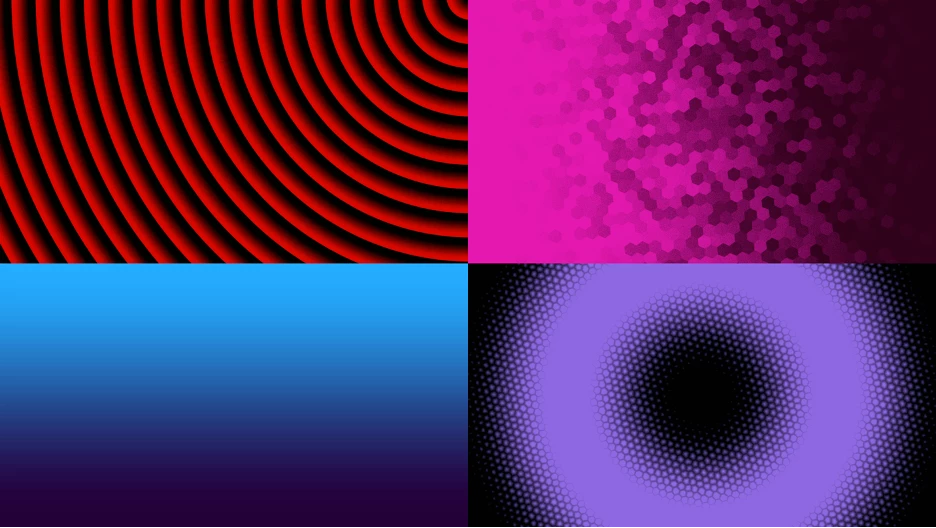
Gradient is a new generator effect designed as a modern replacement for Ramp. It’s a great tool for creating background textures with support for a wide range of visual styles. It supports both linear and radial gradients and adds expanded color and texture controls for more creative flexibility. Gradient gives you precise control over position, scale, orientation, repetition, mirroring, interpolation, feathering, and grain, with master opacity and alpha preservation for predictable compositing. Color controls let you blend a tone color and an ambient color independently, with optional desaturation and posterization for stylized looks. Optional texture controls add subtle or bold surface detail through adjustable patterns, scale, distortion, and amount. 


Don’t know where to start?  Just press Surprise Me! to get a random result. This is a great way to get some ideas fast and then finesse it further.


Channel blur effect

Find it in: Effects panel > Video effects > Blur & Sharpen
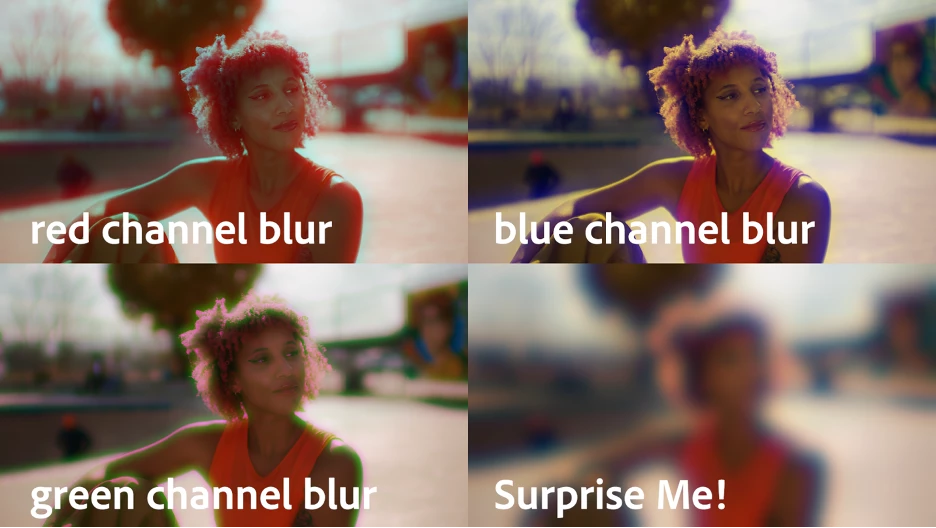
Channel Blur is a high-quality blur effect that lets you blur individual color channels — including alpha — independently. It supports RGB, HSV, and YUV color modes and uses a Gaussian-style blur for smooth natural results.  This is a modern replacement for the obsolete Channel Blur effect Premiere used to have.  It brings that familiar workflow forward with improved quality and broader color-space control, making it well suited for compositing, color work, and targeted blur operations.  


Press Surprise Me! to get a random result.


Noise effect

Find it in: Effects panel > Video effects > Noise & Grain
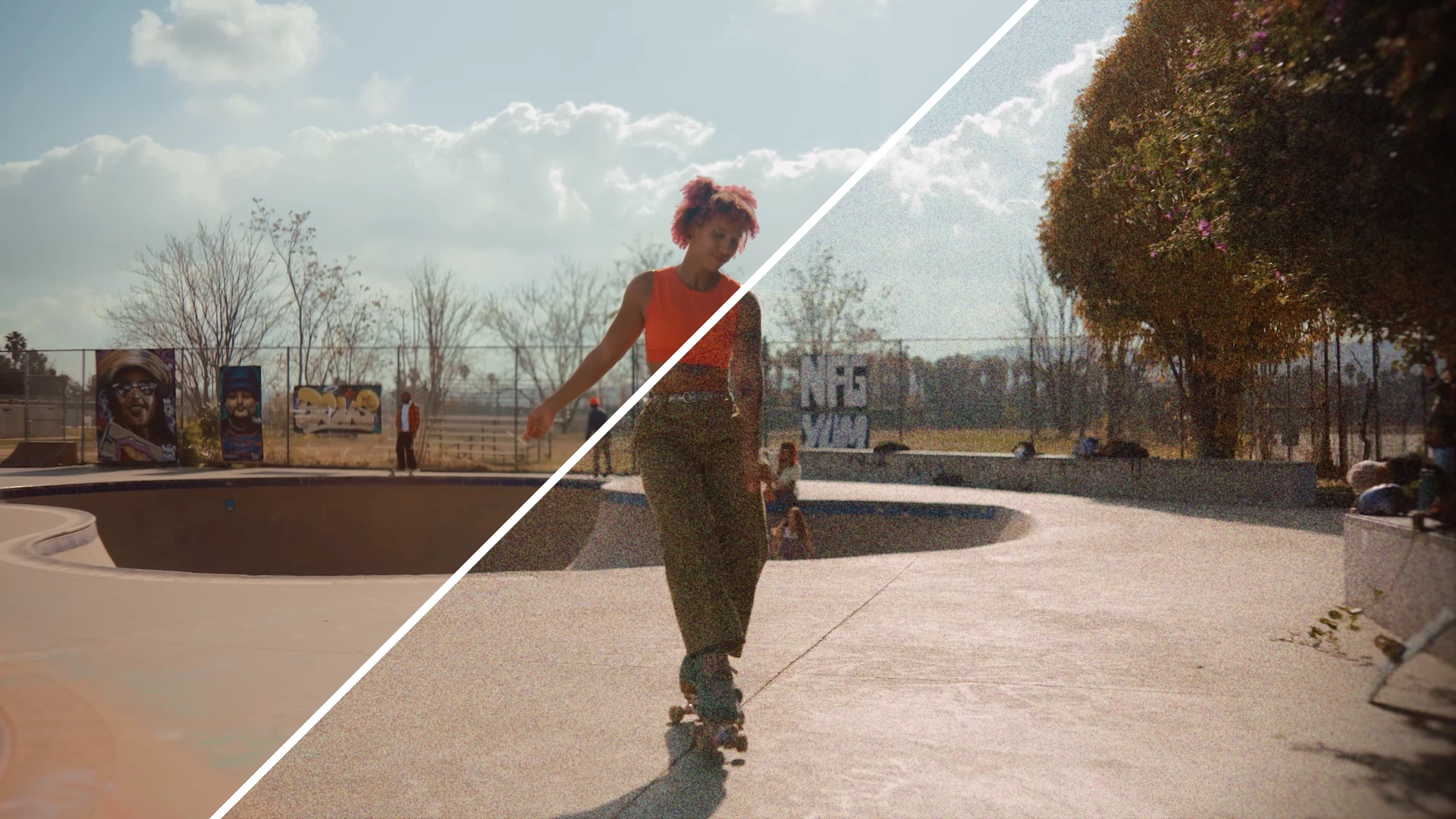
Noise is designed to add controlled, animated noise.  It’s not quite film grain, but is still well suited for breaking up smooth gradients and adding subtle texture. It includes a global amount control along with separate adjustments for shadows, midtones, and highlights, allowing noise to be distributed selectively across the tonal range using a custom, high-quality noise kernel.  Additional controls include noise saturation tuning, HDR-compatible blending modes (Normal, Screen, Additive, Soft Light), and an option to preserve the original alpha channel for safe compositing. This is a modern replacement for the legacy Noise effect that could often look “digital” and fake.  Easily dial in a subtle amount of noise or crank it to the max for a super crunchy look.


Press Surprise Me! to get a random result.


3D Spinback transition

Find it in: Effects panel > Video transitions > Transformers
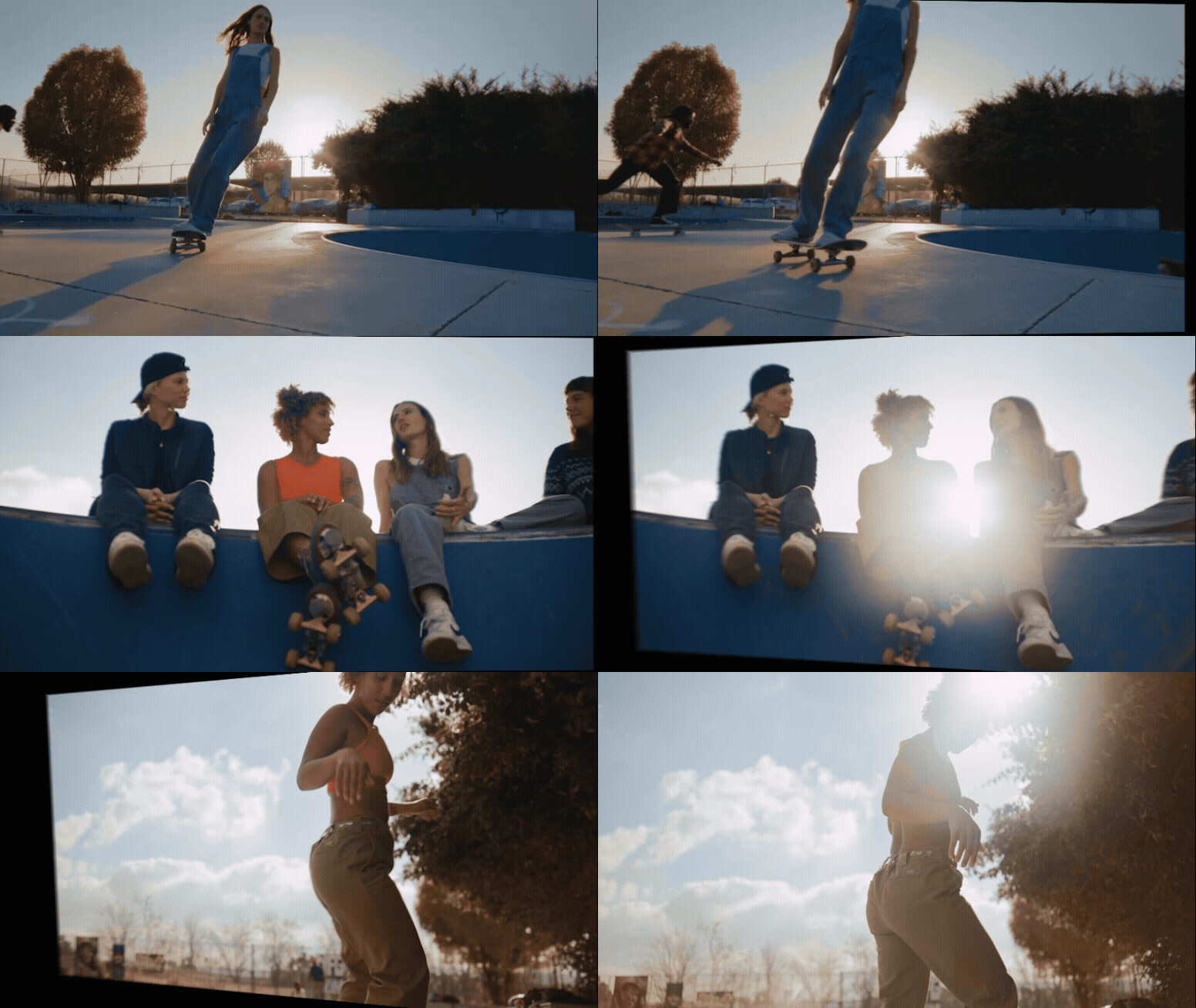
3D Spinback is a stylized transition that simulates a three-dimensional spin to add energy and flair between clips. It’s designed to feel dynamic and polished, with high-quality motion blur. The transition offers multiple motion styles — Bezier, overshoot, and bounce — with controls for ease in and ease out, letting you fine-tune how the movement accelerates and settles. Additional animation controls for angle, perspective, dolly and rotation make it easy to dial in anything from subtle depth to bold, expressive motion and a satisfying sense of depth.


Press Surprise Me! to get a random result.


Slide transition

Find it in: Effects panel > Video transitions > Transformers
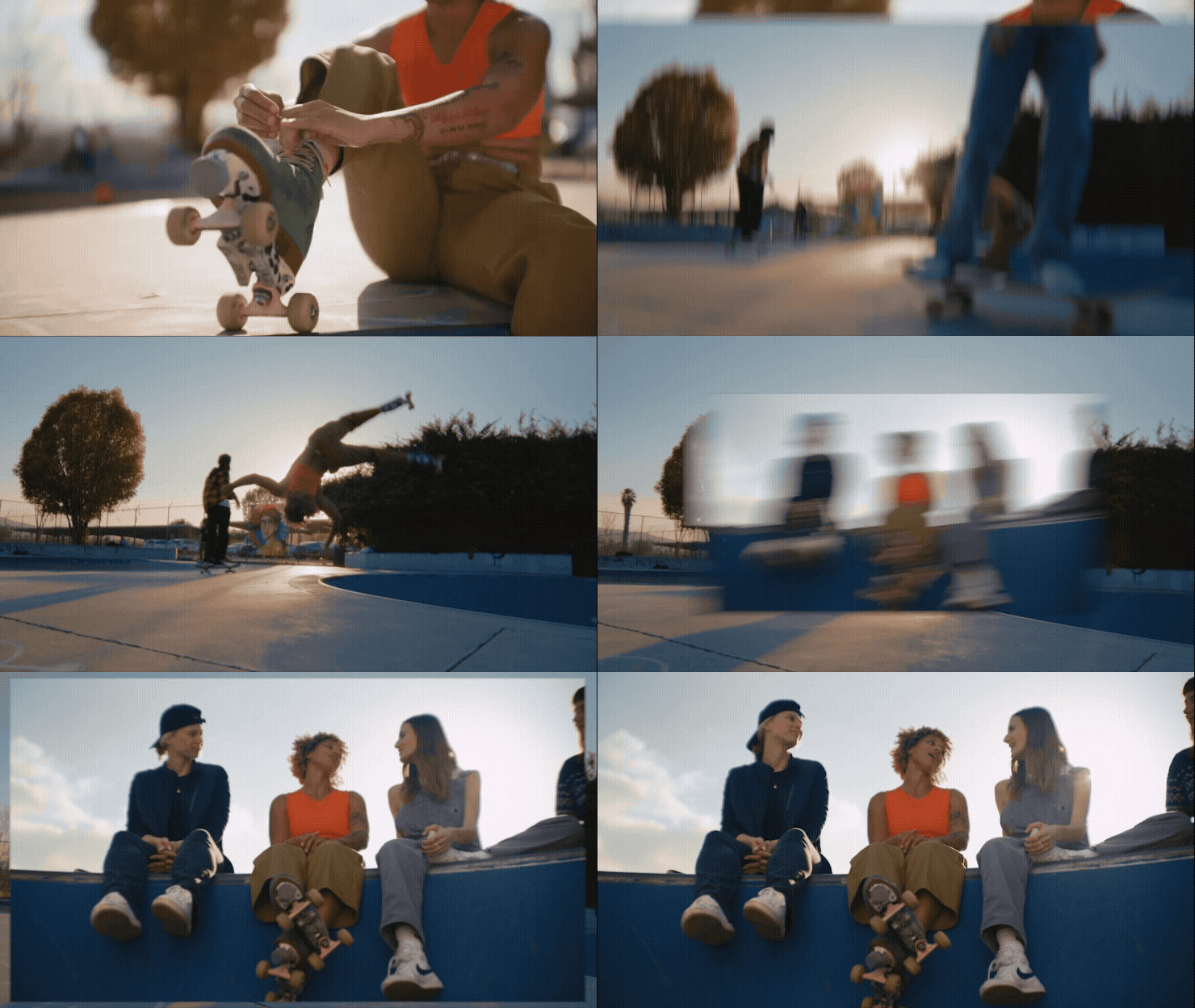
Slide is a bold and playful transition that moves from one clip to the next by sliding them across the frame. You can choose from Bezier, overshoot, or bounce styles with controls for velocity, elasticity, and number of bounces to shape how the movement behaves. Additional animation controls for angle and dolly let you add depth and directional variation, while high-quality motion blur keeps the transition smooth and polished.


Press Surprise Me! to get a random result.


We want to know what you think about these new effects and transitions.  Please join the conversation below.

18 replies

JulioCMendes
Participant
March 10, 2026

Eu amo trabalhar com o Premiere, porém alguns meses atrás tive a experiência de trabalhar com o CapCut, que acredito ser um dos seus concorrentes em apps de edição. Eles facilitam muito o processo de edição e, principalmente, na hora de exportar um arquivo.

Não estou puxando o saco deles. Tanto que voltei para o Premiere. Mas percebo que as atualizações são mínimas, enquanto a concorrência está avançando cada vez mais para facilitar a edição, tanto no PC quanto no celular.

Hoje as edições precisam ser simples e rápidas para serem postadas o quanto antes e serem vistas por clientes e amigos.

Simplifiquem o Adobe Premiere como o CapCut faz, e vocês continuarão sendo número 1 sempre.

Grande abraço,
Julio – Cascavel, PR, Brasil.

R Neil Haugen
Legend
March 10, 2026

As a long-time user of both Premiere and Resolve, and some AfterEffects and Audition also ... it is intriguiging watching the duality of the posts on such forums. On one hand, yours, saying the updates are not fast enough and the app should be more automated and simplerl

On the other hand, the many posts that say TOO MANY updates are made, fewer changes should be done to the apps, NO AI or automation crud should be in a profesional app.

And to may eternal amusement, so many people think they  are the base sample of the user base, and not an outlier of one users.

There are several million daily users, and we are all only an outlier of one user.

That said, the more users that post their feelings and opinions here the better! So thanks for posting ... we need everyone’s ideas.

Everyone's mileage always varies ...
Mkt_repor
Participant
March 9, 2026

I’ve been working with Adobe Premiere since I was 16. I've always been a fan of the software, both for its practicality and the workflow speed it offers. However, after recently acquiring a Nikon ZR cinema camera and diving deeper into color grading, I’ve realized that Premiere falls short for users who deal with high-end color profiles (such as R3D, S-Log, V-Log, etc.). It might suffice for marketing agencies where most content is shot on mobile or in SDR, but not for professional color grading. Currently, I’ve been using DaVinci Resolve for my color work, but my goal is to be able to use only Premiere. I truly wish Adobe would launch an 'Adobe Color'—a dedicated tool integrated via Dynamic Link, much like After Effects—focused exclusively on color. This would keep the Premiere interface clean while meeting the needs of those working on high-end professional productions.

R Neil Haugen
Legend
March 9, 2026

I was a rather vocal critic of the decision to EOL SpeedGrade back in 2016 ... to the point of really ticking off the then-head of Premiere. Showing up at NAB that spring was ... frigid, shall we say? But people come, people go ... he left.

I’ve been working for/with/teaching pro colorists since shortly after that, especially how someone used to Resolve gets something done in Premiere. Which, you can actually do a lot more in Lumetri than most people think it can ... if you know how. 

A huge thing in Premiere ... even more important than Resolve! ... is having a control surface. At least a Tangent Ripple ... if not a Wave2 or a full Elements panel. That elements in Premiere is a massive tool, can do not just color but audio track mixing, sizing/positioning/rotating any screen element, all sorts of things. 

But having that under your hands means the ability to work muiltiple tools at once, getting to image states you can’t ‘see’ working with a mouse, one tool at a time. So ... properly set up to work in Premiere, and knowing exactly what the various color tools do ... which is often not the same as most users think they do! ... gets you to much more possible stuff, and that done so very much faster.

I agree with you that it would be wise to get something well past Lumetri’s capabilities though ... and they do have Alexis Van Hurkman working on color now. That entirely new and vastly improved color management system was probably his baby. They never tell us anything until it appears in the public beta, so ... no way anyone knows what’s maybe in the works. IF there is something in the works.


I never understand the corporate minds though ... never. I’ve always been a self-employed person, living by my own ability to get and care for the nice people what pays my bills. 40+ years of that ... I’m pretty independent minded, mind you.

Everyone's mileage always varies ...
higor yanni
Participant
March 9, 2026

It’s incredible how Adobe is supposedly moving forward in 2026 — the era of technology, the year of artificial intelligence — and Premiere Pro still keeps releasing insignificant updates that, in most cases, people don’t even notice because they simply don’t use them. Meanwhile, simple updates that would actually make sense in everyday usability are being ignored.

We all know that most Premiere users are people editing videos for social media. They need dynamic captions, dynamic text intros, and effects similar to what CapCut offers — without feeling like you’re operating an airplane cockpit. Something intuitive, with a panel that clearly shows what the effect does.

But no. Year after year, Premiere only receives updates that nobody is asking for and nobody really wants. And the things that actually matter — the things people constantly complain about on social media and in communities — Adobe simply ignores.

The result? Millions of people using CapCut.

And as if the price of Adobe’s software wasn’t already expensive for most people, the updates that actually make sense are still missing.

Another thing: while other competing software is heavily investing in artificial intelligence within their tools to help content creators — people who spend the entire day in front of a computer creating content for social media — Adobe simply doesn’t seem to care and continues to release insignificant updates.

It’s a shame to see what such a big company is doing. Seeing this is very sad.

JonathanVeloso
Participant
March 9, 2026

é minha primeira vez aqui na comunidade, vou tentar participar pra ajudar de alguma forma. Eu preciso do Adobe Premiere pra fazer meus vídeos.

Vamos lá!


Luis DEBIASI
Participant
March 9, 2026

Only this for 2026? C'mon, man! 

Shebbe
Community Expert
Community Expert
February 25, 2026

Thanks for these!
 

Noise:

  • It lacks a scale control so if for example all footage is 4K+ in an HD timeline the desired grain size could be too small. Below the difference 4K vs HD source (scaled to fit HD). But also as general creative control adding scale would help a lot.

Slide:

  • It would be useful to have an option to also move away the bottom layer in the same direction. The overlap feels too cheap especially if it has motion blur because the bottom layer pixels remain sharp during the transition. For ‘straight' orthogonal transitions sliding both would be better.

    Premiere's Slide:

    Red Giant's uni.Slide: (slides the whole A frame along with B, but only does orthogonal)


  • The curve for non-overshoot feels too linear to achieve a super fast slide in with smooth end. Maybe the ease range should go to -100 or remapped to have 0 be a stronger bezier, more vertical.


STUDIO GJ
Participant
March 8, 2026

Is there any prediction for when the artificial intelligence audio separation feature will be available, and when it will be possible to correct wrong words through text with automatic lip synchronization? This is the feature I am most looking forward to.

R Neil Haugen
Legend
March 9, 2026

They never give timelines for releasing things. In fact, none of the pro video post software does ... which is frustrating but it’s what is.

Everyone's mileage always varies ...
R Neil Haugen
Legend
February 17, 2026

Francis, thanks for bringing back a Noise effect with the options for shadow/highlight and color ‘sat’. That was the one I used to use before it was dumped in the obsolete effects years back!

Everyone's mileage always varies ...
Francis-Crossman17221443
Community Manager
Principal Product Manager
February 19, 2026

Just for you, Neil!

R Neil Haugen
Legend
February 19, 2026

Aw shucks!

Everyone's mileage always varies ...
Colin G Smith
Inspiring
February 16, 2026

The new transitions are perfect for title reveals too! The amount of controls in the new Gradient is insane. Thanks Jaap!

Francis-Crossman17221443
Community Manager
Principal Product Manager
February 19, 2026

Thanks Colin.  I agree the Film Impact team are the best!

AndrewTheGreat
Known Participant
February 9, 2026

Slide transition - how does it differ from the current ex-FilmImpact Push? (cannot use Beta for now)

Stop trying to edit and EDIT!
Adobe Employee
February 11, 2026

There’s a bit of overlap in functionality, but there are some important differences.

To create a true “slide” effect with the former Film Impact Push, you need to place one of the clips on a separate track. The new Slide Transition works directly between two clips on the same track — no extra setup required.

The Slide Transition also introduces a Dolly slider, giving you more control over the depth and movement of the shot.

Another key difference is the blur method.
Push uses directional blur, while Slide uses motion blur. This makes a noticeable difference, especially when using the Dolly control, as the blur follows the actual movement more naturally and results in a more realistic motion feel.

Have fun trying it out!