




Palash Sanjay Kotgirwar
Adobe Employee
Adobe Employee
March 24, 2024
Question

Now in Beta: Continuous Zoom and Pan now available in Premiere Pro

  • March 24, 2024
  • 17 replies
  • 8008 views

Please note: This feature has been updated, please refer to the ‘Updates’ section at the end of this post.

Whether you’re trying to move titles or graphics more precisely, checking a clip for unwanted artifacts, or getting a closer look at a mask that you’re drawing, starting with Adobe Premiere Pro 24.4 Beta you can freely zoom into and out of the Program, Source, and Reference monitors quickly and conveniently using the scroll behaviour of your mouse, trackpad, or pen and tablet. Additionally, scroll bars appear to show you the position of your content within each Monitor.
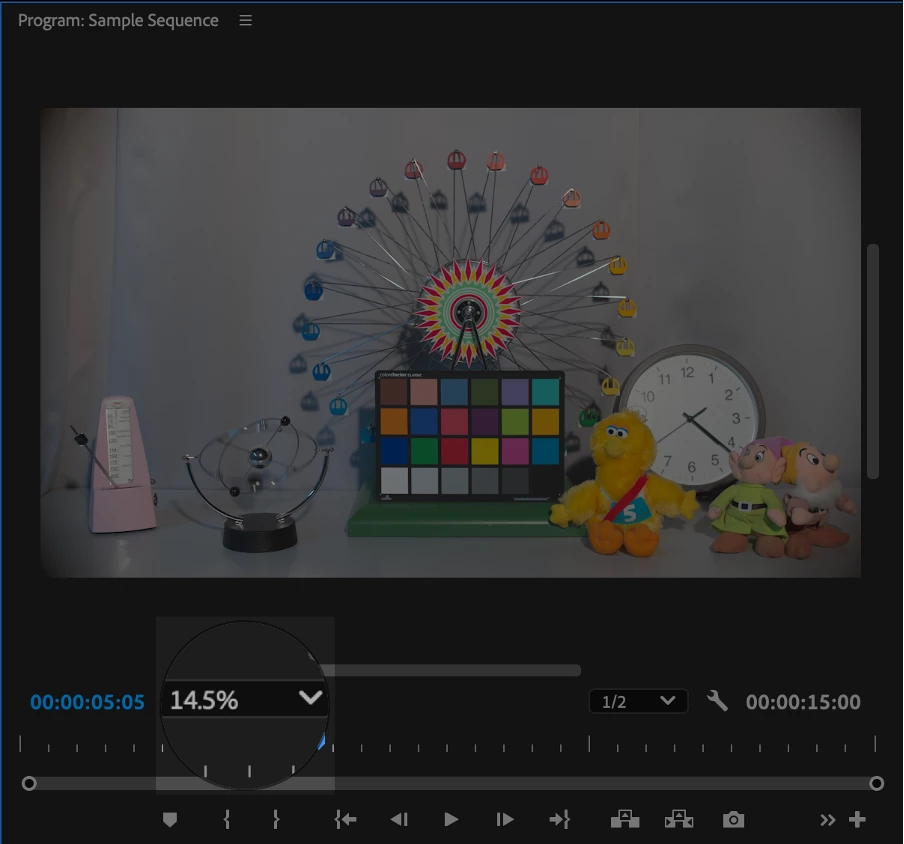


Details of this feature’s use include:

  • When using mouse scroll wheels, magic mouse scrolling, and tablet scrolling, zooming is anchored to the centre of the monitor view. For these devices, holding Opt/Alt + Scroll lets you zoom into the pointer’s position onscreen, so you can zoom directly into any detail you choose.
  • When using trackpad pinch, zooming is anchored to the cursor. In this case, holding Opt/Alt + pinch lets you zoom while keeping the image centred to the monitor view.
  • Holding the Shift key while zooming with a mouse scroll wheel, trackpad, and wacom pen accelerates zoom so you can get where you need to be faster.
  • Panning is also supported using Mouse Button 3, aka the scroll/middle button.
  • At this time, no panning is available when using a trackpad. However, you can use the 'H' keyboard shortcut to select the Hand tool with which to pan the image freely.

Updates

The following changes appear post Premiere Pro Beta 24.4 Build 44:

  • Zooming is always anchored to the position of the cursor, so you can easily position your pointer on or near a detail you’re interested in to zoom straight to it. This is true for all devices including Mouse, Touchpad and Pen/Tablet. Holding Opt/Alt while scrolling lets you zoom while anchoring the image to the center of the monitor view.
  • Decimal zoom percentages are rounded to the nearest integer.
  • To maximize the Monitoring area while providing a consistent behavior, scroll bars have been removed from the view monitor, but this has no effect on panning. To pan vertically and horizontally, click and drag Mouse Button 3, or press 'H' to select the Hand tool with which to move the content.

17 replies

Participating Frequently
May 8, 2024

Please let us the possibility to desable this fonction to zoom the source/monitor when scrolling the mouse over!!! this is why i never switch to resolve it so annoying, i just want to shutlle the video whenever the mouse is over the video and not forced to point in a small part to access to the shuttle. Better will be to to be able to turn in circle left/right over the video to jog/shutlle and to dispaly the waveform over the video. So if people need this, ok but put a menu to desable it! thank's

Known Participant
April 26, 2024

About time!!!!  Thanks for adding this, even though it's years late.


Now please take a look at the chart in this post that I did years ago, and finish the job already.  🙂  Even though the chart is based on Pr 15.1, a lot of the feedback there is still relevant.

Legend
April 10, 2024

We need a keyboard shortcut for FIT that works even when the Program Monitor is not the active panel. I keep finding myself needing to click way too much just to set the zoom to FIT. I do not like extra clicks. 

Known Participant
April 16, 2024

... and Fit command that works for BOTH Program Monitor and Source Monitor. Currently you need to set up 2 different shortcuts for what is essentially the same command in 2 viewers. Thats a pretty dumb way to "waste" shortcut keys.

The same "fit" shortcut should be able to be used for the similar commands in other panels too, so you could "fit" the timeline with the same shortcut, or scroll to a selected file in a Project Bin panel.

very nice to see middle button drag scroll being implemented in one area in Premiere, this has been long overdue.
Now we just need it everywhere in Premiere, all panels that can be scrolled should be allowed to scroll by holding middle button and drag. This is one of those Quality of Life features that would make a HUGE difference in using Premiere with a Wacom pen daily.
Using Ae and Resolve (and Cinema, Blender, Assimilate and many more apps) that uses this default way to navigate the app is just so more fluid, and Premiere feels so clunky in comparission.

DJP2014
Inspiring
March 30, 2024

Be great to get this feature added to the scopes. V useful in Resolve.

Shebbe
Community Expert
Community Expert
March 25, 2024

I quickly tried the feature out and it works very well and smooth, thanks!
I do have some feedback however...

1. Keyboard shortcuts for zoom in / out are now broken. They make the zoom amount dropdown menu switch from "Full" to the actual current percentage, but zooming in or out doesn't make the viewer jump between the "legacy" default steps seen in the dropdown list.

2. It could be nice to have a zoom to 100% button that you can toggle and add to a viewer's toolbar. Enabling it would jump to 100, disabling jump back to last used scale/position. Additionally an assignable keyboard shortcut for this function.


3. Zooming in without viewer panel focus works (which is what we want) but keyboard shortcuts don't. So jumping back to Fit view requires a mouse click in the window which is annoying. It would be nice that those keyboard shortcuts would be able to discriminate source/program/reference monitor via which one the mouse is hovering over so we don't have to change focus to that window.

Community Expert
March 25, 2024

I agree with #2, woudl like to see a quick "snap to 100%/Fit" option now with this feature.

-------------------------------------------------------------------------JVK | Editor/Designer/Software Instructor. Pr, Ae, Ch, Ps, Ai, Id
Mike McCarthy
Community Expert
Community Expert
March 25, 2024

This is great, and works as advertised, although I don't quite understand why centering zoom on cursor isn't the default option, instead of the ALT option, since the cursor has to be in the panel for the function to work.  And I also think that any zoom within 1-2% of 100 should automatically jump to 100% for pixel accurate viewing. (I keep finding it at 99.8% and such)

Shebbe
Community Expert
Community Expert
March 25, 2024
quoteAnd I also think that any zoom within 1-2% of 100 should automatically jump to 100% for pixel accurate viewing. (I keep finding it at 99.8% and such)

By @Mike McCarthy


Not sure if that is practical. I would rather have a button + assignable hotkey to jump to 100% and back to last zoom position and keep the zoom scroll behavior smooth.

Mike McCarthy
Community Expert
Community Expert
April 2, 2024

I favor both ideas.  It should snap to 100% (because no one really needs to view at 99.2%) and maybe snap to 'Fit' when you get close to whatever percentage that is for your panel size, but I also like the idea to have buttons & shortcuts available to jump to 100% and to Fit.

Shebbe
Community Expert
Community Expert
March 25, 2024

About time! Hope to see this in AE as well very soon.