



Now in Beta: Enhance Audio in Premiere
Hi everyone! As a dialogue editor, I've always chased the same thing: the tool that gets me the best-sounding result in the least amount of time, and the most control over my dialogue, whether I recorded it myself or it came back from set in whatever shape it happened to be in.
For years, the answer meant reaching for a few different tools. One to make the voice sound better, another to wrestle down the background noise. And production audio is never just "speech." There's ambience, there's music, there are effects, all baked into the same recording, and that's exactly what makes cleaning it up so hard.
This is where Enhance Audio comes to shine. In the same spirit as what we showed at MAX Sneaks last year, it hands you control over the ambience, the music, the sound effects, and the dialogue, and lets you rebalance every stem as much as you need. That's what makes it one of the most powerful noise reduction tools in Premiere today.
For a couple of years now, the one thing you've told us over and over is that you want the same Enhance Speech enhancement you get on the web, right inside Premiere. That's exactly what Enhance Audio brings in, and it brings it all together. The next generation of Enhance Speech is live now in Premiere Beta 27.0 (Build 36), pairing Enhance Speech V2 with full source separation, built right in.
What's New?
Point Enhance Audio at a clip and it pulls the recording apart into its component layers: speech, music, ambience, sound effects, and reverb. From there you're not stuck with one blended result. You can dial how much enhancement lands on the voice and balance the separated layers against each other until the clip sits the way you need.
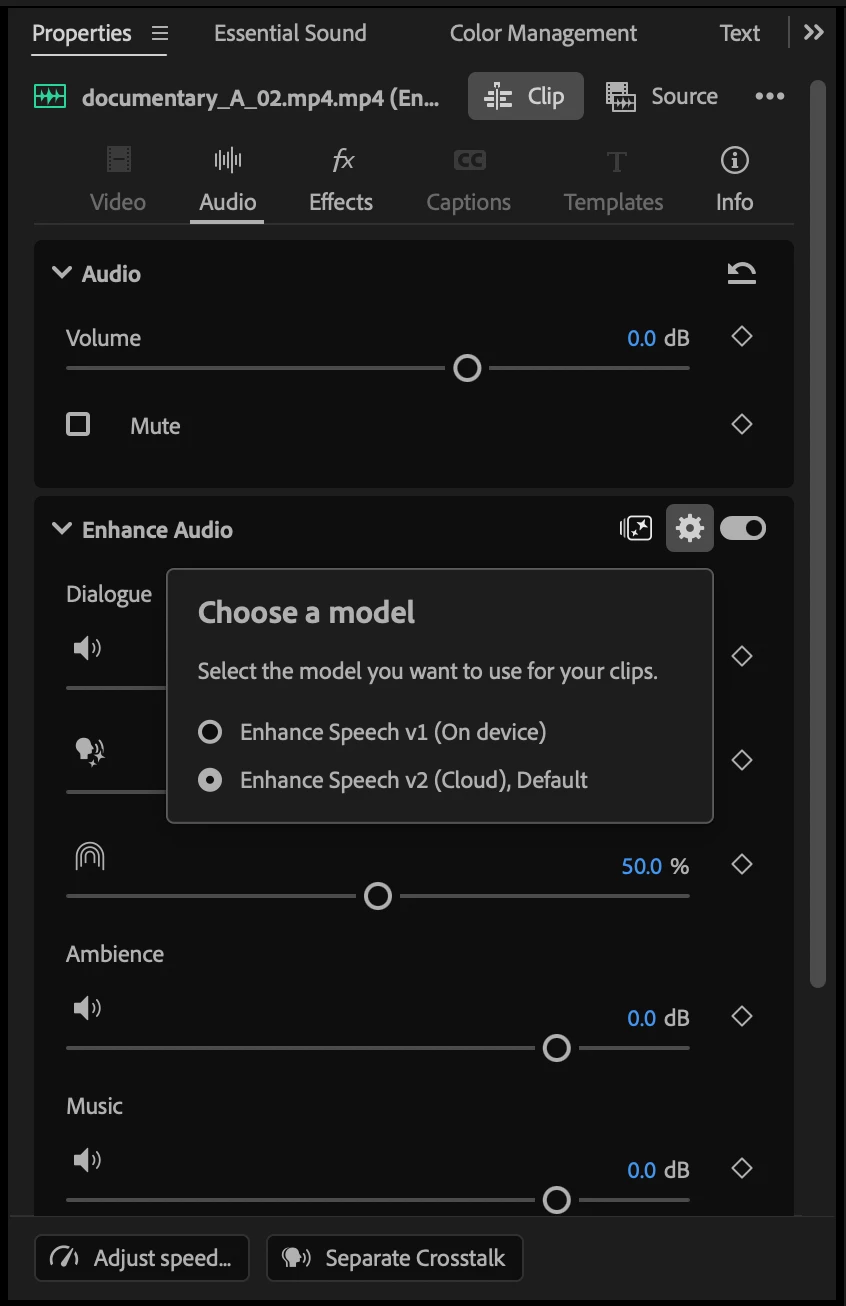
It's a hybrid approach. The source separation runs on-device, while Enhance Speech V2, our highest-quality voice model, runs in the cloud as part of Firefly. As a cloud model it draws two generative credits per minute, from the pool already included with your Creative Cloud subscription. Want to stay fully local? Enhance Audio works with Enhance Speech V1 too, and picking it still gives you the complete source separation on-device, with no credits used. Enhancing with V2 is the only thing that ever touches your credits.
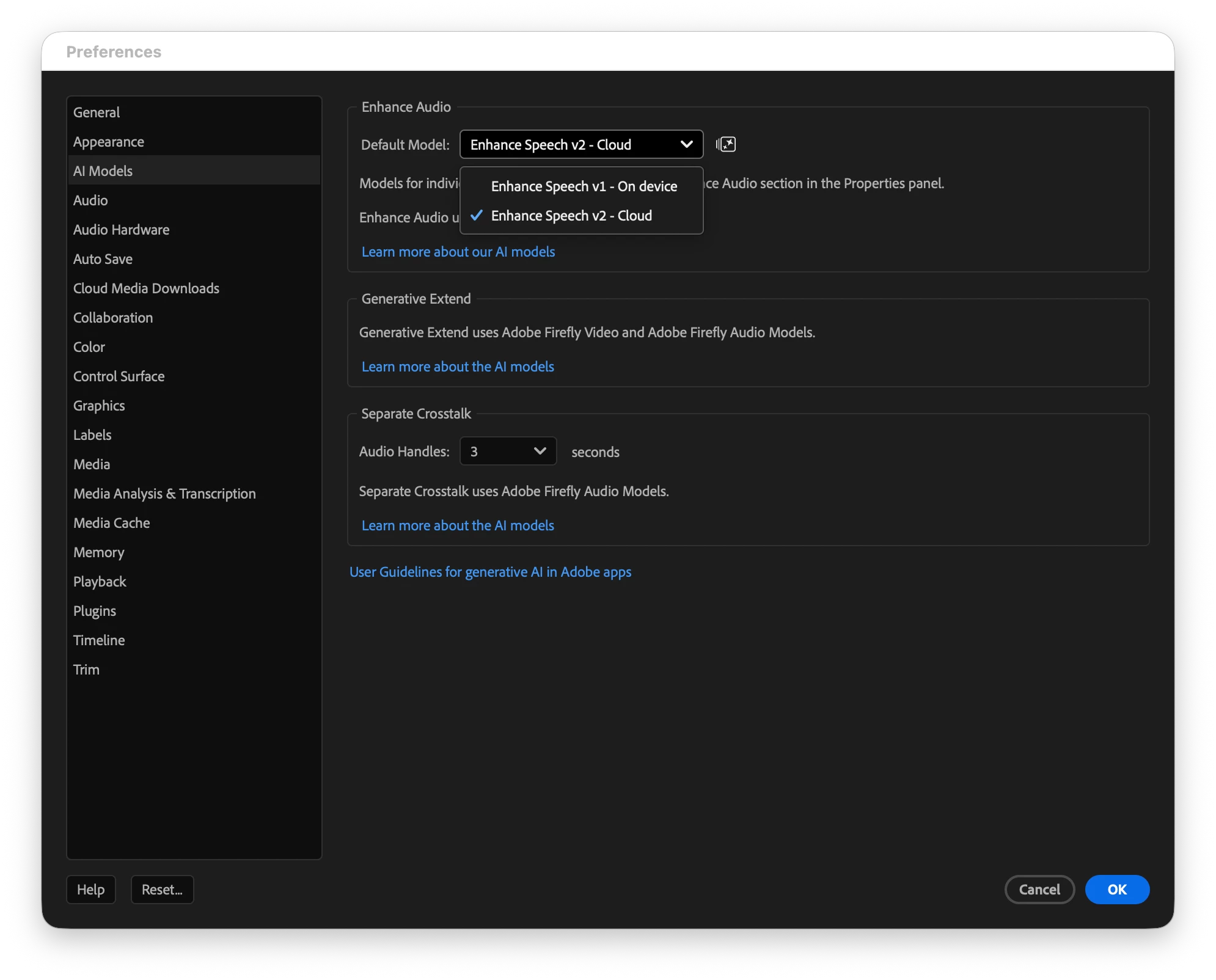
You also choose which model runs globally. Set a default in Preferences, or switch between V1 and V2 on the fly from the settings inside the Properties panel when a clip calls for it.
Where to find it
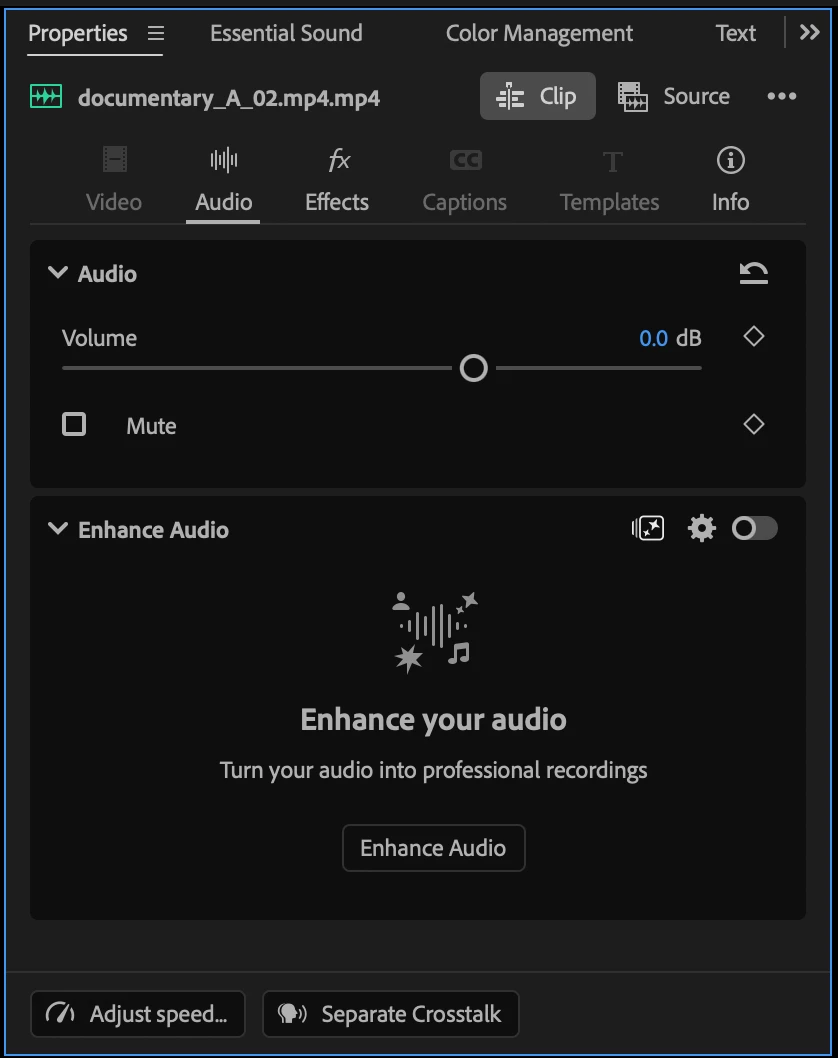
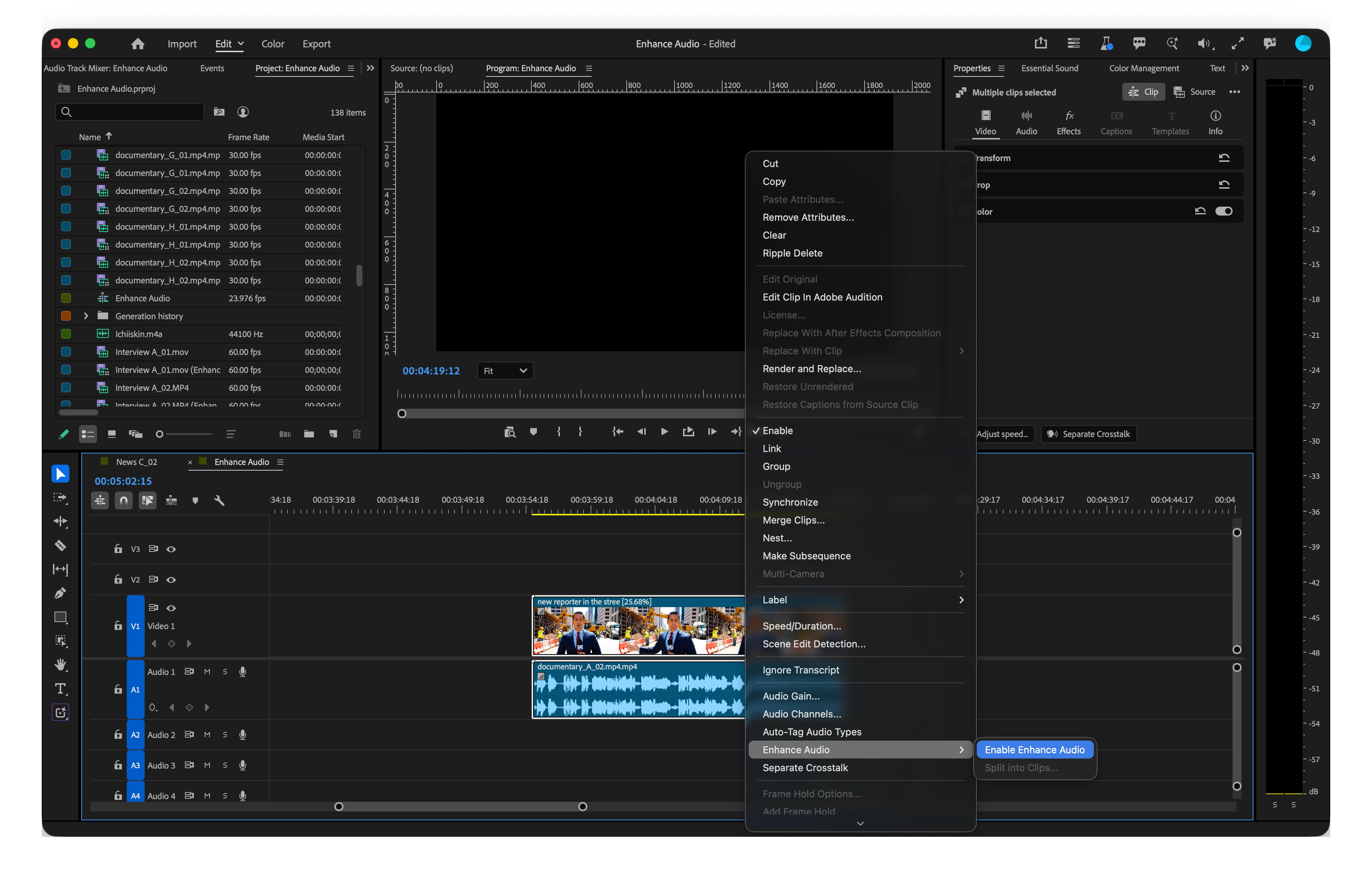
Enhance Audio lives in the Audio section of the Properties panel. Select a clip and the Enhance controls are right there. Prefer menus? You can trigger it from the right-click menu or the Clip menu just as easily. Either way, select your clip, click Enhance, and Premiere does its thing. When it's done, you're ready to start reshaping the clip.
The controls
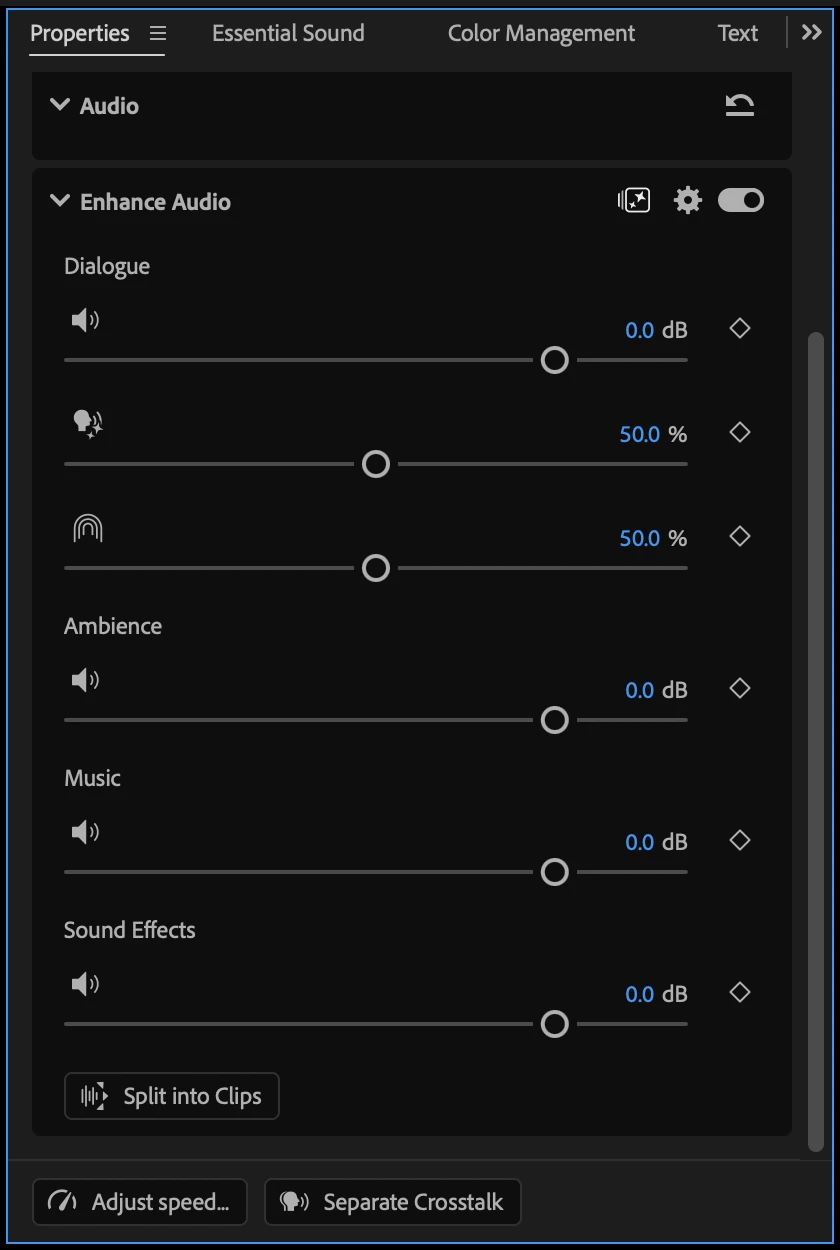
Once a clip is enhanced, you get a section for each layer: dialogue, music, ambience, and sound effects.
Dialogue is where you get the most say, with three controls:
- Volume, to ride the level of the dialogue on its own.
- Enhancement, to set how much cleanup you want. Take it all the way down and you're back to the original sound; push it up and you get the full treatment from Enhance Speech V2, with everything in between on the table.
- Reverb, to pull the room off the voice. How much this one does depends on the clip: a reverberant recording will show an obvious change, while a dry one barely moves. It only touches the reverb on the speech, nothing else.
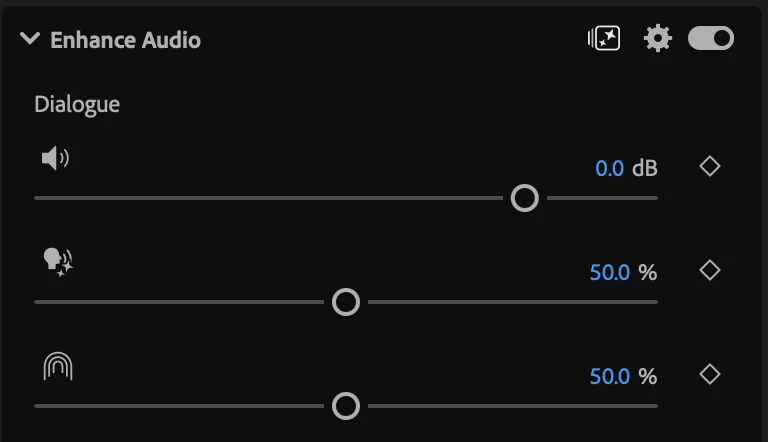
Enhance Audio Dialogue Controls Music, ambience, and sound effects each get a volume control, so you can bring a stem up, tuck it down, or click its icon to mute it entirely when you want it gone. And you're not doing this blind. The clip's waveform reacts as you go, so the moment you lower or mute a stem, you can watch the change land right there on the timeline.
Editing after you enhance
Here's one that used to drive people up the wall. On Enhance Speech V1, every little edit, a cut, a fade, a trim, kicked off another re-render. That's gone. Edit an enhanced clip however you like and it just plays, no reprocessing to sit through.
Every enhancement also comes with five seconds of handles on each side. Trim in or pull out within those handles and there's nothing to reprocess, it's already done. The only time Premiere goes back to work is when you extend past the handles into material it hasn't analyzed yet, and even then it only processes the new section, not the whole clip.
One thing to keep in mind on Enhance Speech V2: reprocessing that new material runs through the cloud model, so it draws credits at the usual two-per-minute rate, just for the speech enhancement part. Stay inside your handles, or work on V1, and it costs you nothing.
Splitting to clips
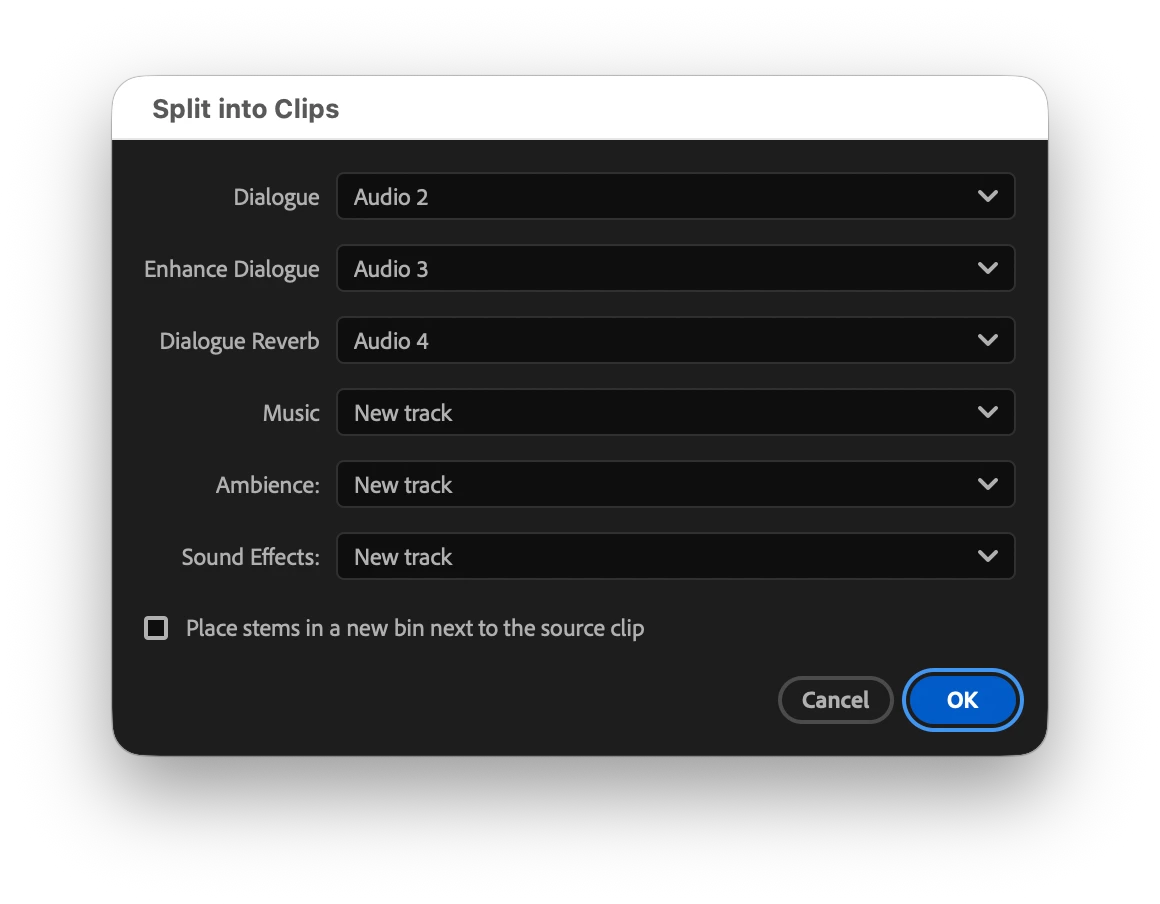
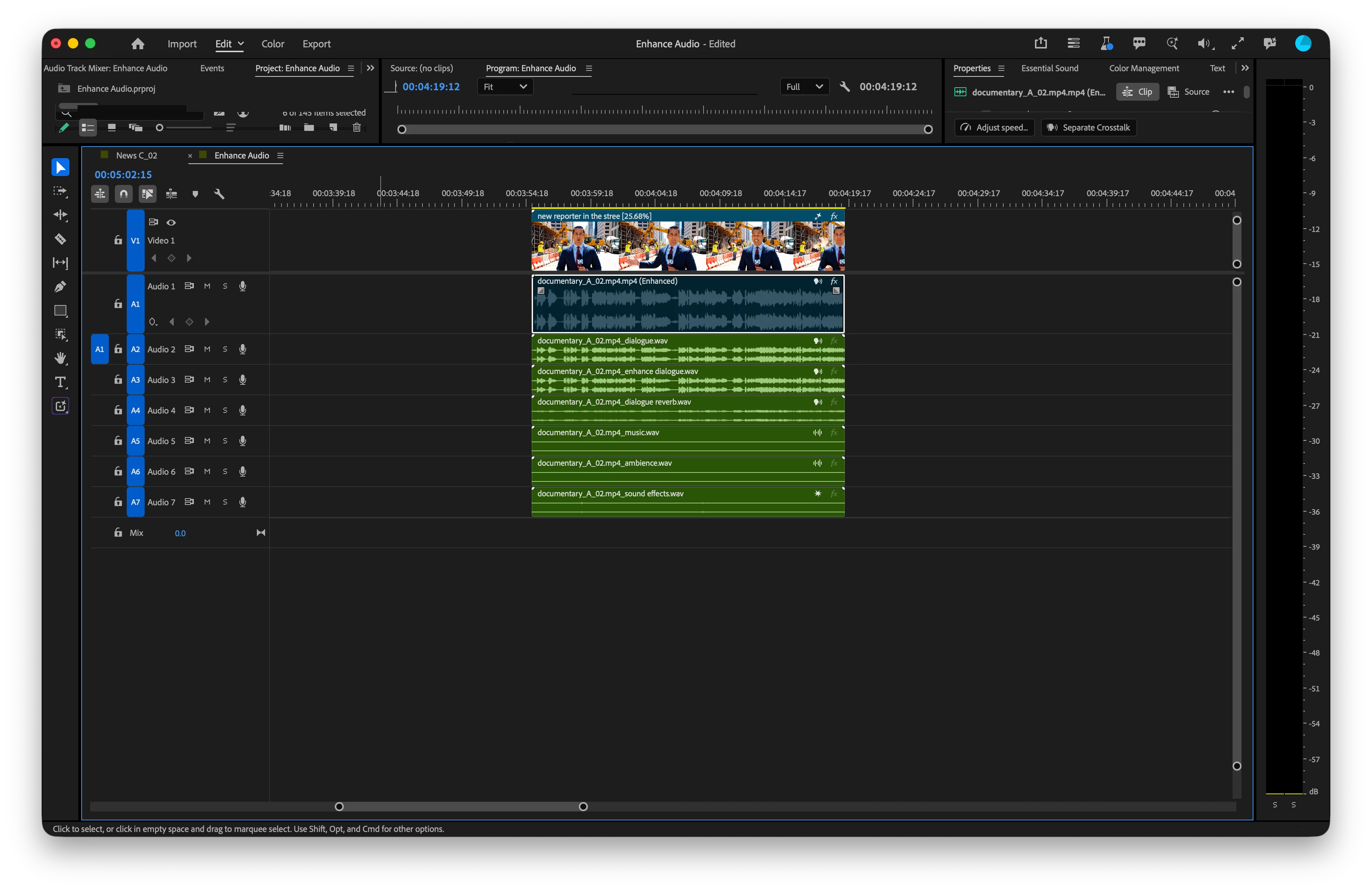
Want to really get in there? You can split the enhanced result into separate clips, one per element. Speech, music, ambience, and effects each land on the timeline as their own clip, so you can edit, level, and move them on their own. It's the difference between a cleaner clip and a real starting point: exactly what you want when you're prepping a turnover, or any time you'd rather work the stems by hand.
Why this matters
Cleaning up production audio has always meant hopping between tools, or accepting one blended pass and hoping it holds. When the dialogue, the room, the traffic outside, and the music bed are all fused into one recording, a single "reduce noise" move can only get you so far. Real separation is what turns that from damage control into actual control, and now it's sitting right where you already edit.
You can:
- Enhance dialogue to studio-level quality without leaving Premiere.
- Separate speech, music, ambience, sound effects, and reverb in a single pass.
- Rebalance those layers instead of accepting one blended result.
- Run cloud-based Enhance Speech V2 for top quality, or Enhance Speech V1 fully on-device with separation included.
- Split the result into independent clips for turnovers or full timeline control.
Try It Out
Enhance Audio is live now in Premiere Beta 27.0 (Build 36). Throw your real production audio at it, the messy stuff, and tell us how it holds up. We're still working through a number of details and there's more on the way, but we wanted this in your hands as early as we could. Your feedback right now is what shapes where it goes.
Happy editing from your audio friends!
Note: Still polishing plenty here, so expect things to keep changing as we iterate.
 AdChoices