



Now in Beta: Generate Images in the Premiere Timeline
Editors can now generate images in the context they need it. They can describe the image they need, guide the results further using reference frames pulled from their own footage, and generate images that match the look, subject, or composition already established in their edit all using Adobe Firefly or supported partner models.
Select a range, choose your model, add optional reference frames, describe what you want, and Premiere inserts the generated image into your sequence.
Generating Images
-
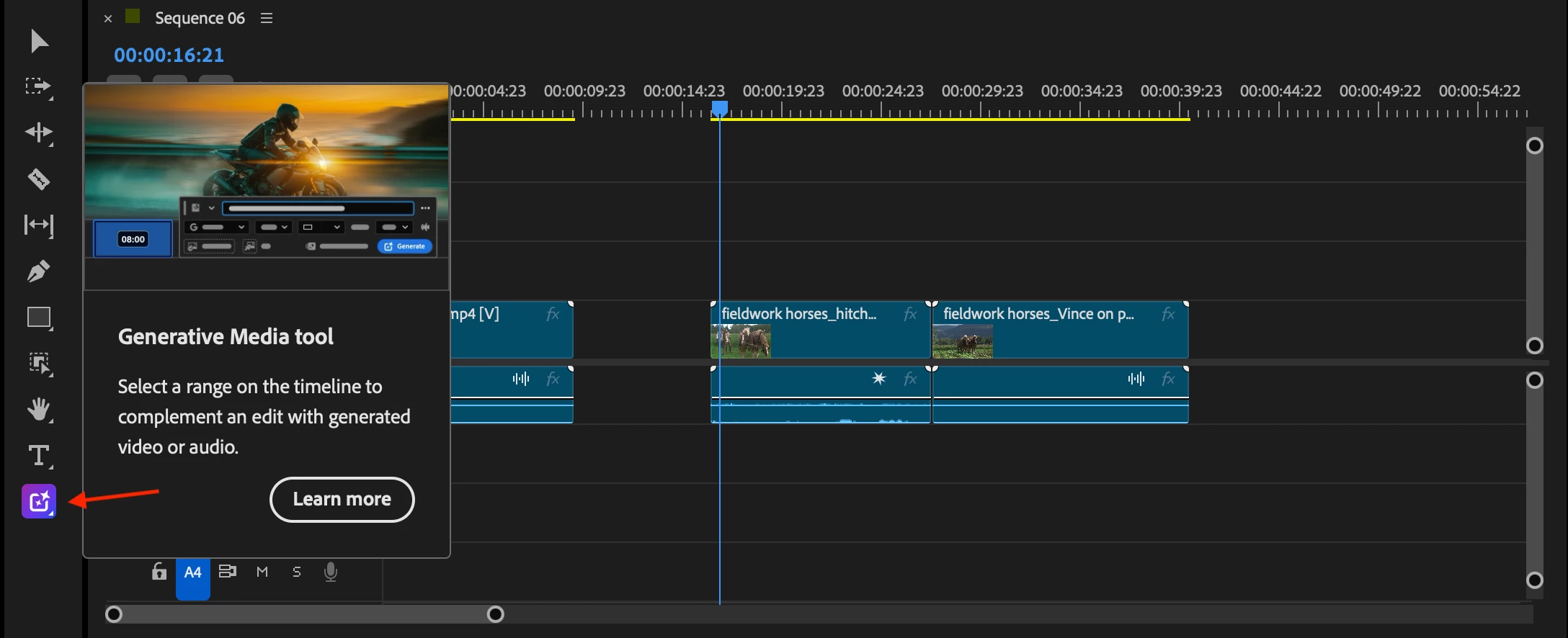
Select the Generative Media Tool from the Toolbar
-
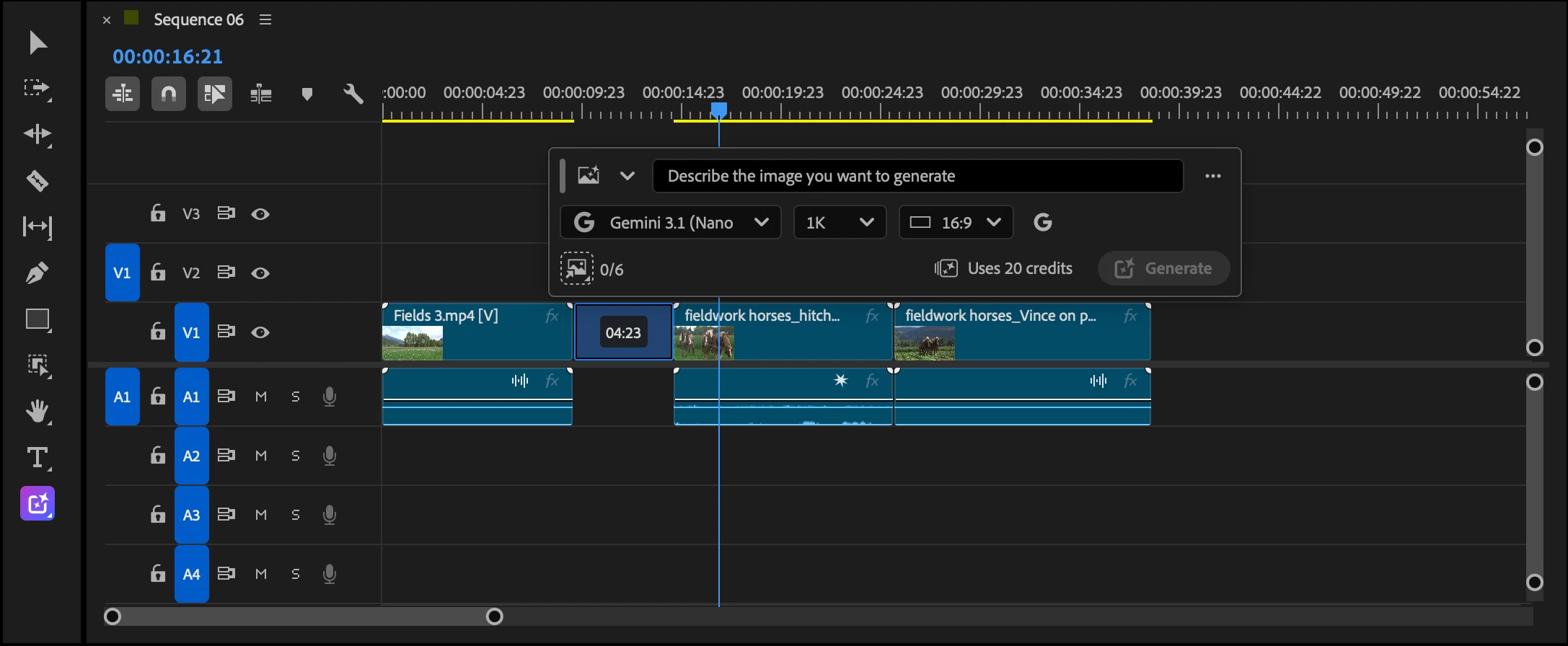
Drag across any video track or double click a gap to select the duration you want to generate.
-
Select your model, select any reference images, enter your prompt and generate.
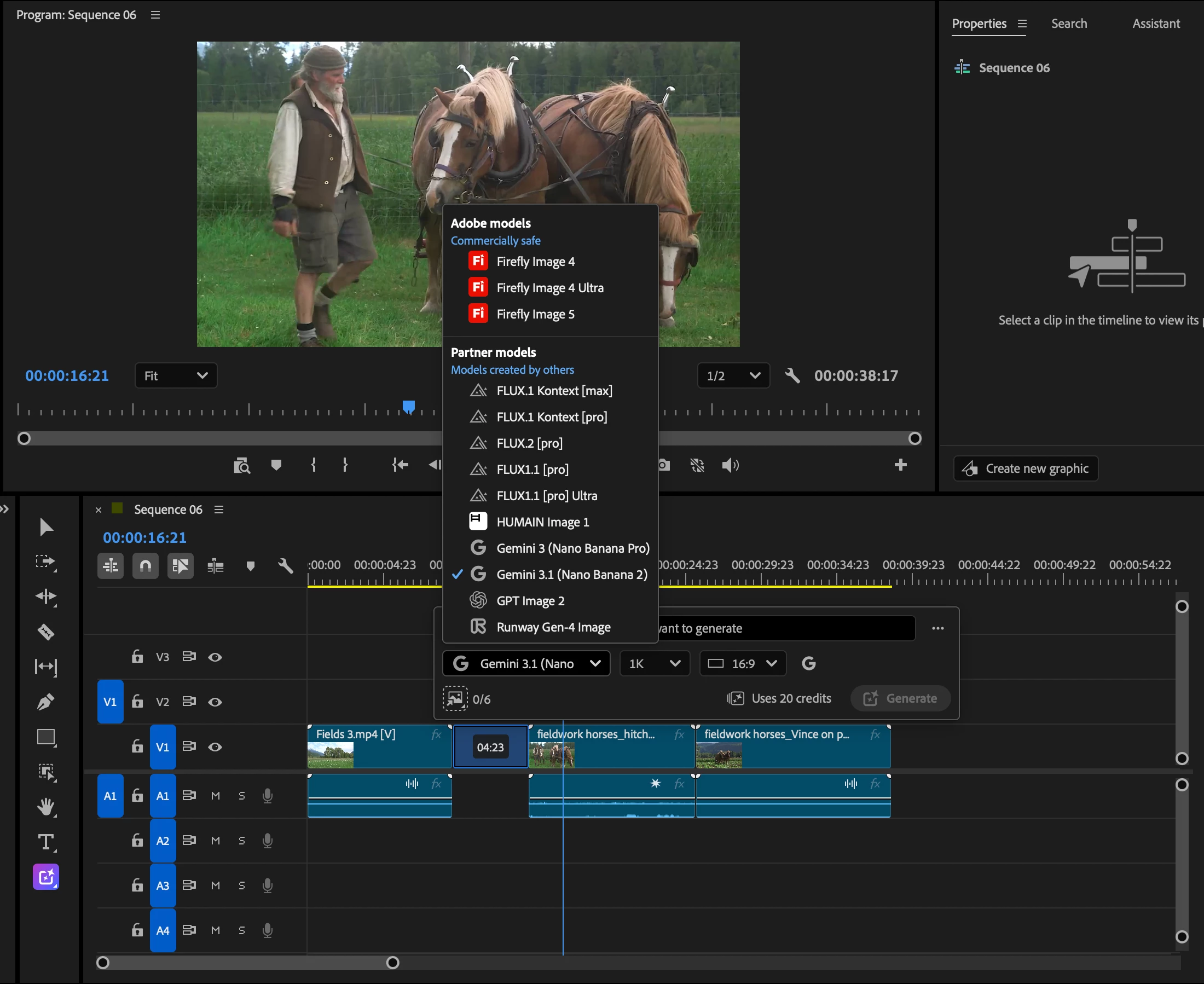
The Generative task bar supports Adobe Firefly Image Models and Partner models. The default model on the Generative task bar for Generate Image is Gemini 3.1 (Nano Banana 2) 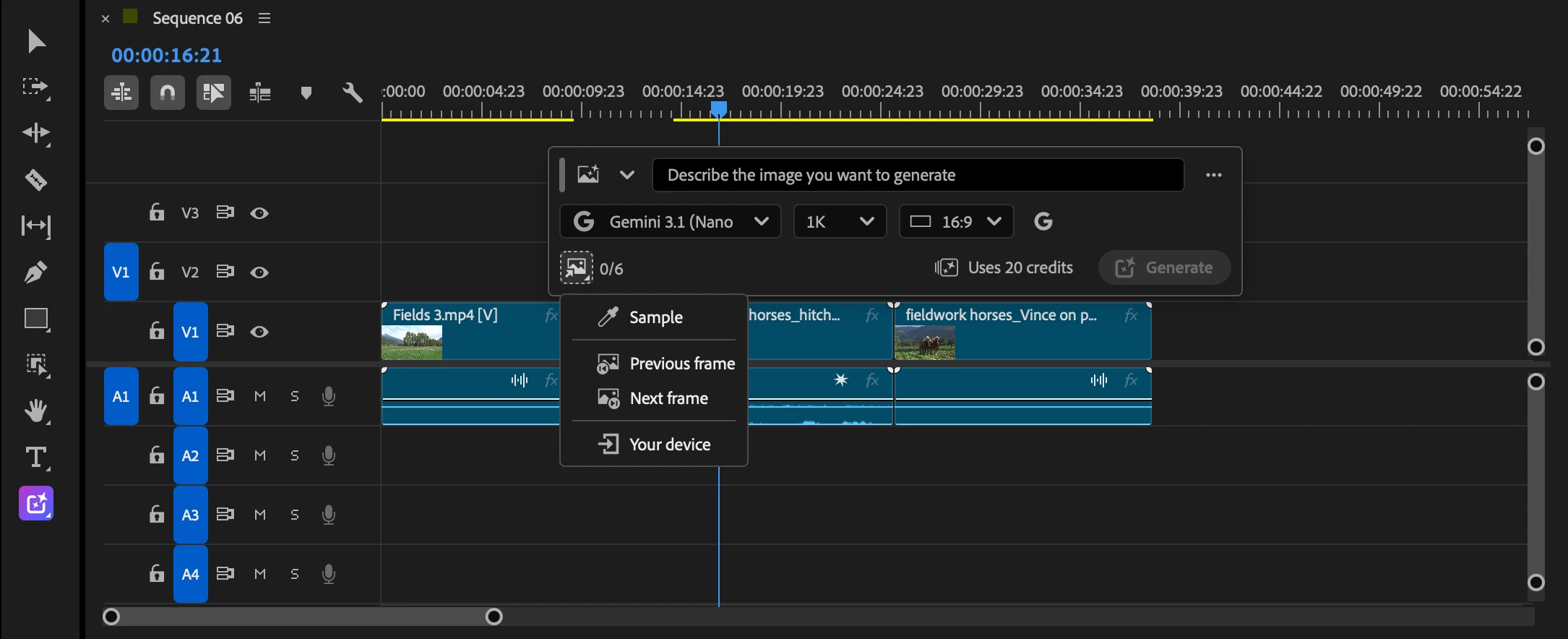
You can use multiple reference frames per generation. Input frames can be sampled from the Program Monitor, Source Monitor, or Project Panel. We recommend using reference frames for more accurate results. - The eyedropper lets you input frames for reference from the program monitor, the source monitor or from the project panel.
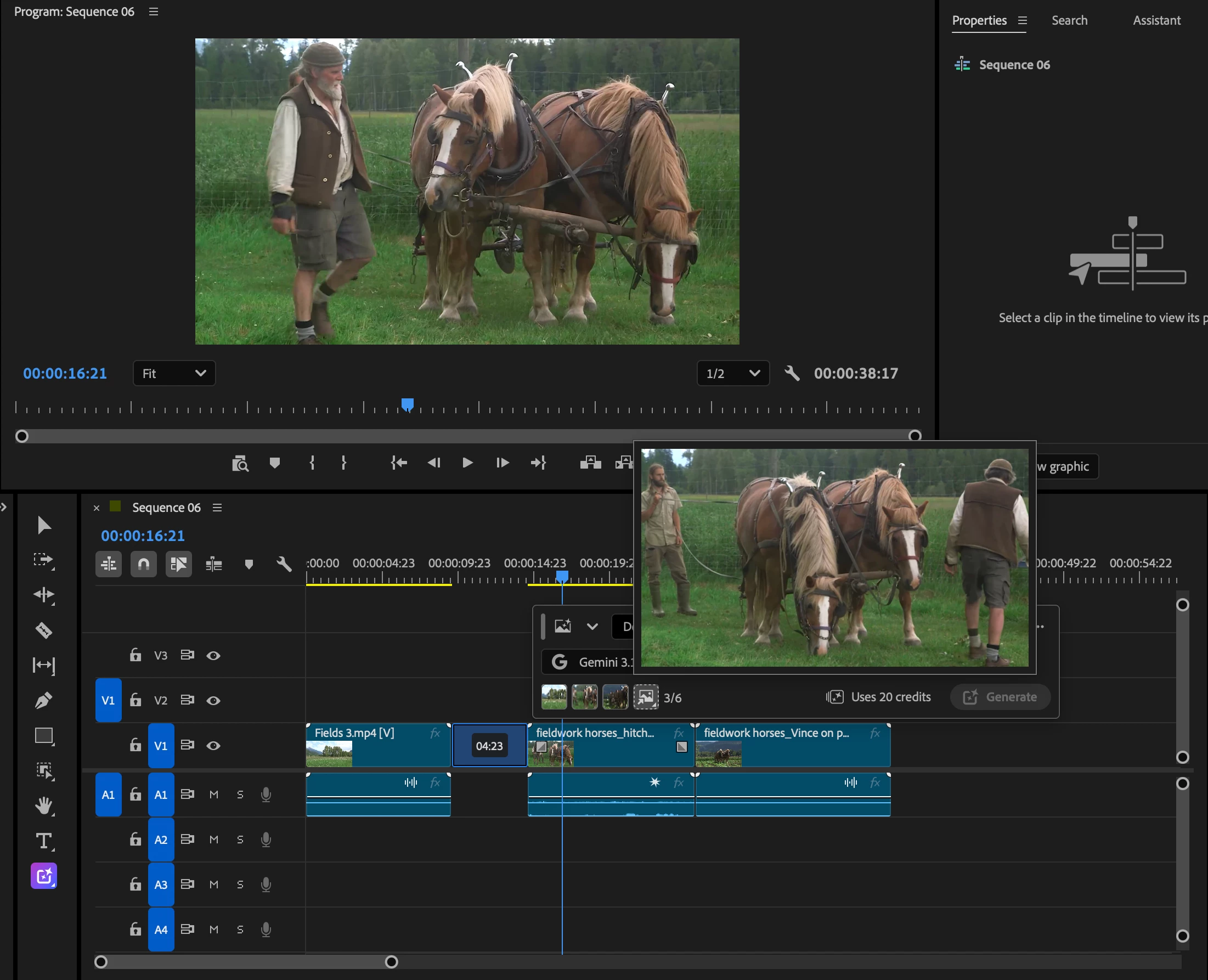
-
Enter your prompt, check your settings and click generate. The Generative task bar displays the settings used for generation, including resolution and aspect ratio. Premiere automatically selects the closest model settings that match your sequence wherever possible.
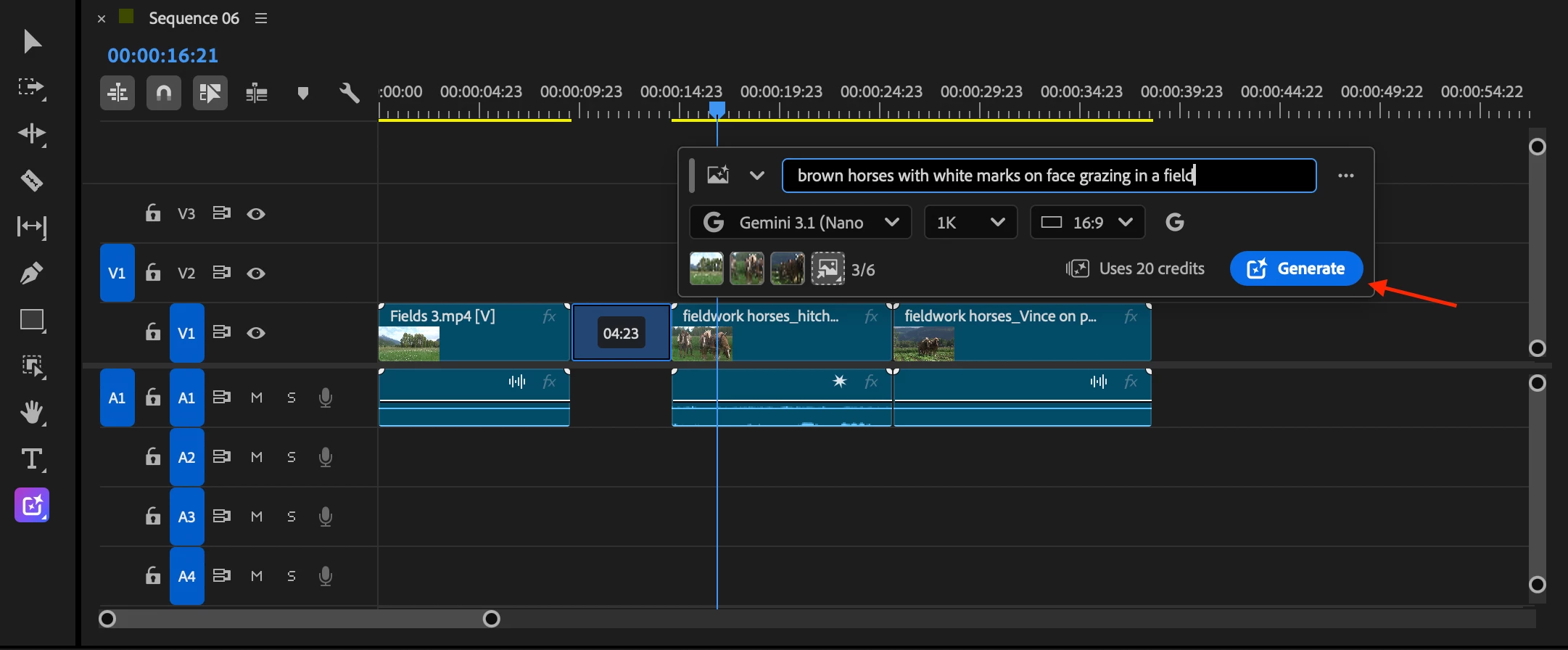
-
You can easily turn that image into a video by switching to “Generate Video” from the tool dropdown. This is great if you want to make sure the output is what you want via an image before generating a video.
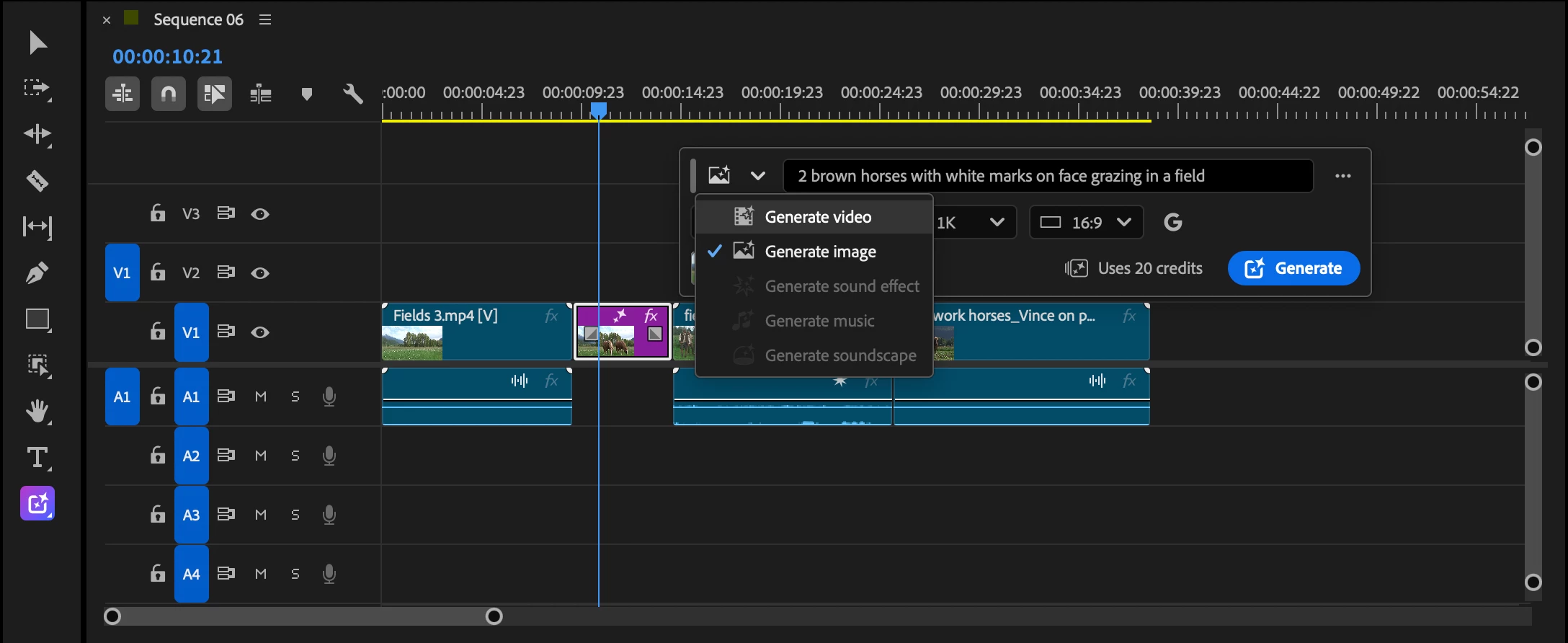
Once on “Generate Video” you’ll see that the image you generated has already been added as a reference frame. You can edit your prompt from here, check your settings and click generate.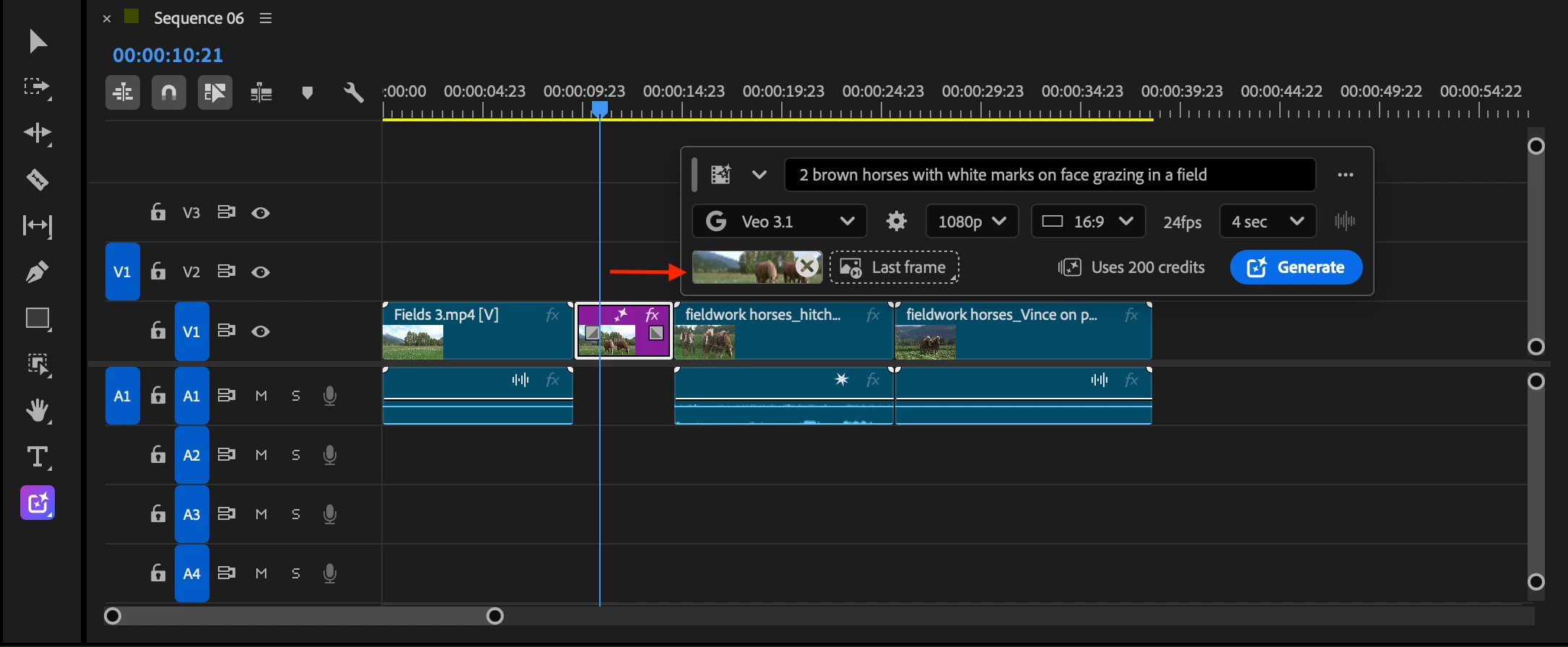
Content that includes AI-generated media or has been edited using generative AI tools will automatically receive Content Credentials at export to indicate the use of generative AI.
Have some feedback or questions? Let us know in a comment below!
 AdChoices