



[Now Released]: Hide Audio Channel Labels in the Timeline
Hey everyone! We’re excited to share a small but impactful quality-of-life update that just landed in Premiere Beta 26.2 (Build 14). You can now hide clip audio channel labels directly in the timeline.
This update is all about giving you more control over how dense or minimal you want your timeline to feel, especially when working with multichannel audio or complex sequences.
What’s New?
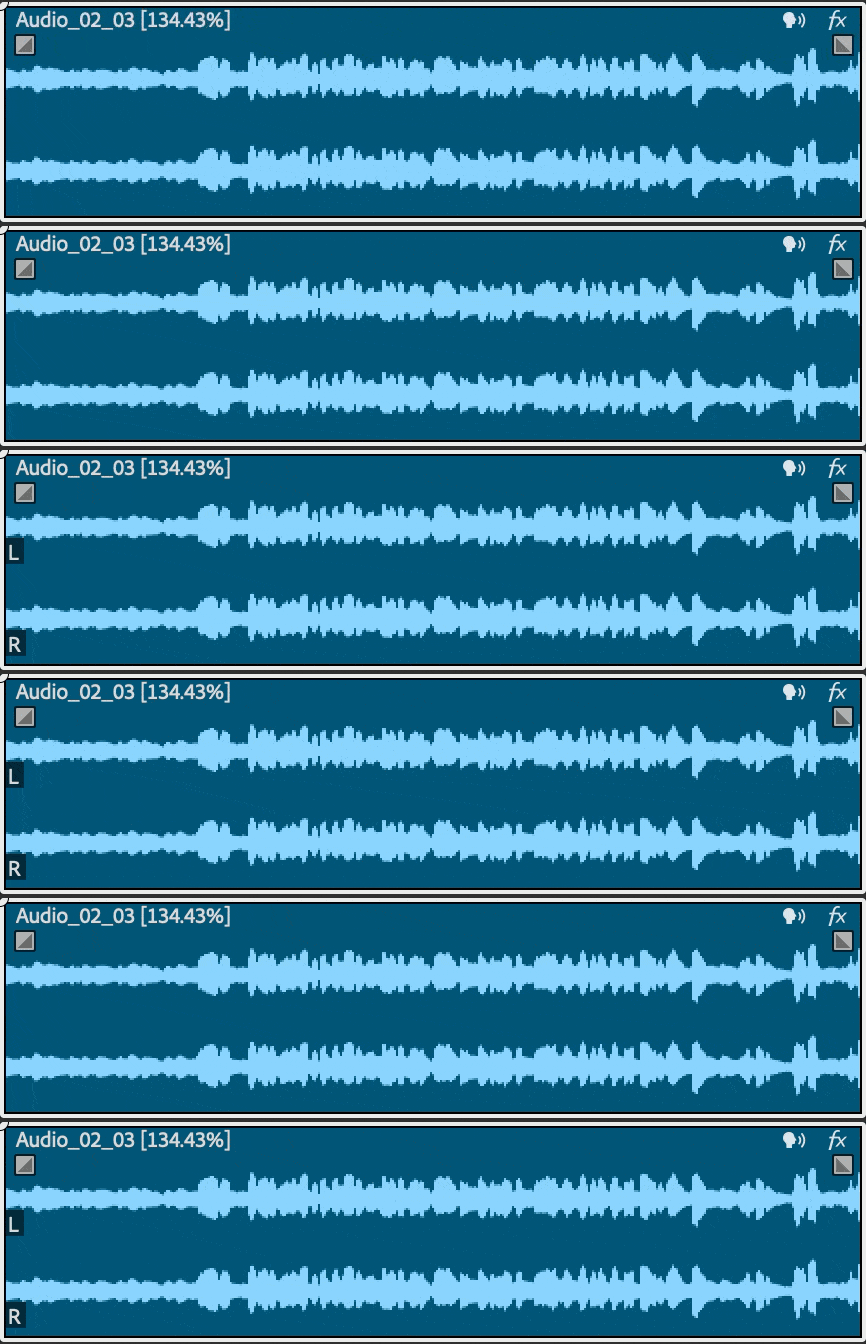
You can now toggle the visibility of audio channel labels on clips in the timeline. When hidden, the timeline becomes cleaner and easier to scan, helping you focus on the waveform itself rather than extra overlays.
This is particularly useful when:
- Working with multichannel clips
- Editing dense timelines
- Reading waveforms at a glance without obstruction
Where to find it
The new option lives in the Timeline wrench menu.
You can toggle Show/Hide Audio Channel Labels on or off at any time, depending on your workflow and the level of detail you need in the moment.
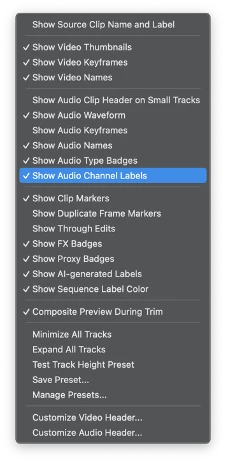
Bonus: This action can also be assigned to a custom keyboard shortcut, making it easy to toggle instantly without breaking your editing flow.
Why this matters
Audio channel labels are helpful, but they are not always needed. This preference lets you decide when they add value and when they get in the way. With this update, you can:
- Keep the timeline visually clean when working with complex audio setups
- Improve waveform readability in tight or stacked edits
- Reduce visual noise in dense sequences
- Toggle the behavior instantly without changing your audio setup
Try It Out
This feature is now available and we’d love for you to give it a try. As always, your feedback helps us fine-tune these quality-of-life improvements.
Happy editing!
 AdChoices