



[Now Released] Smooth Mode in Object Mask
We’re excited to release a new Smooth mode in Object mask to Beta which will let you create masks which handle fine edges better.
When creating an Object Mask, you can now choose between Sharp and Smooth modes to achieve the best results for your specific masking needs.
What's new
The new Smooth mode creates masks with softer edges that are better suited for fine edges and detailed objects. This enhancement allows you to handle complex masking scenarios more effectively without compromising quality.


Mask quality modes
Sharp mode
Sharp mode continues to create masks as they are currently created, with crisp, well-defined edges. This mode is ideal for:
- Objects with clear, distinct boundaries
- Standard masking workflows
Smooth mode
Smooth mode creates masks with softer edges that provide superior handling of fine details. This mode is particularly useful for:
- Objects with intricate or delicate edges
- Hair, fur, or fabric textures
- Subjects with semi-transparent or translucent elements
- Situations requiring natural-looking edge blending
Creating masks with quality modes
Follow these steps to create an Object Mask with your preferred quality mode.
Select a clip
-
Select a clip on the timeline that you want to mask.
Access the Object Mask Tool
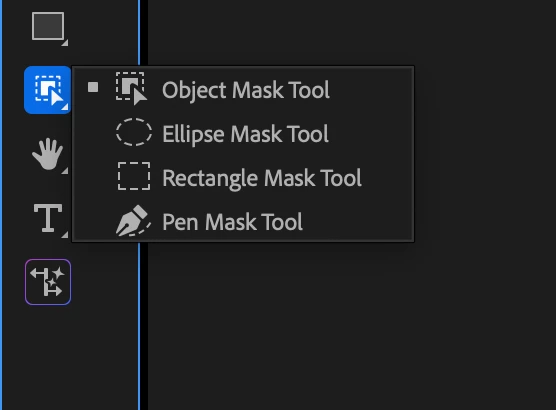
- Find the new Mask Tool group in the toolbar.
- Long-press on the tool group to see all the masking options.
- Choose the Object Mask Tool.
Choose mask quality
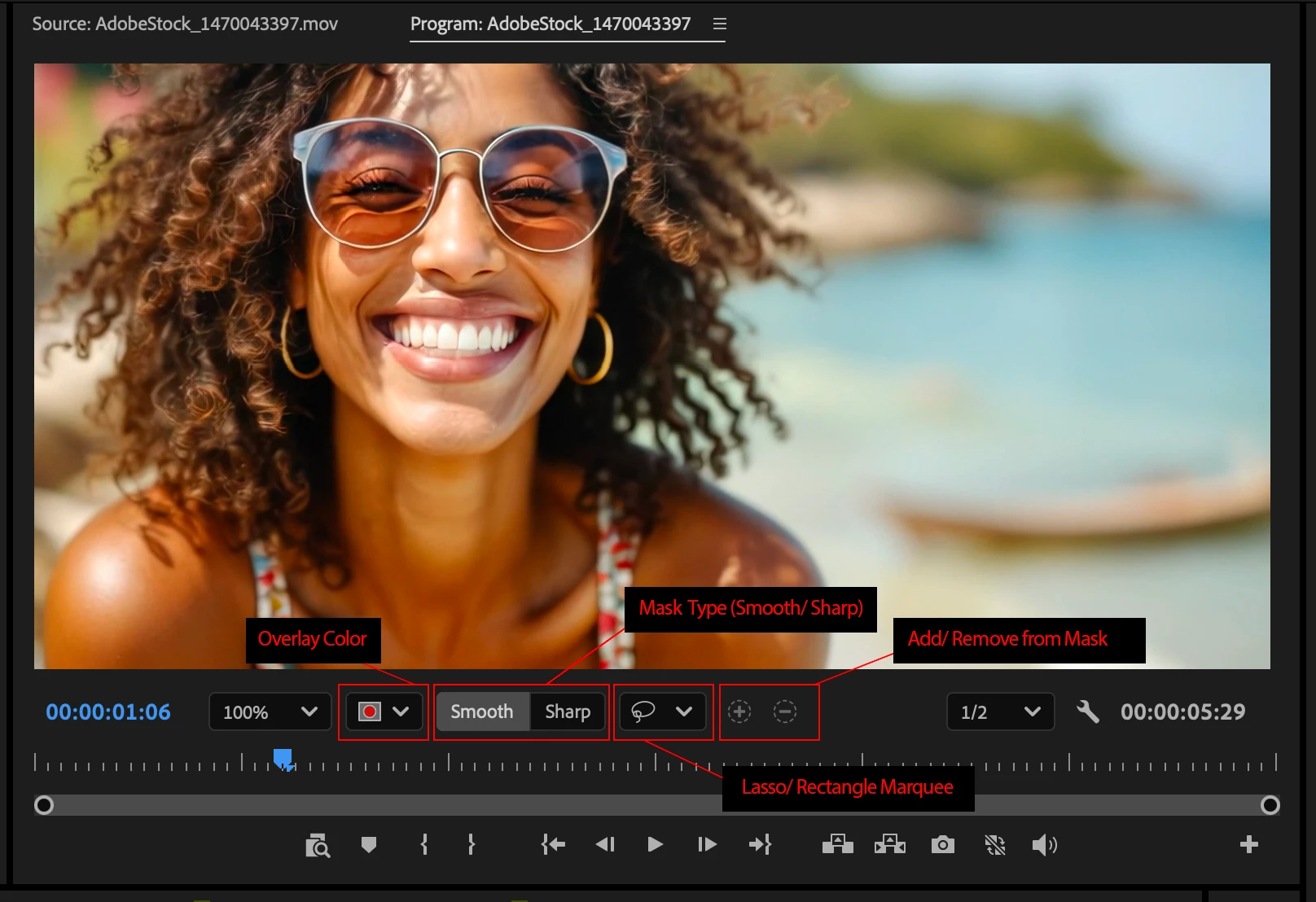
- Before creating the mask, choose between Sharp or Smooth mode from the quality options.
Select the object
- Hover over the Program Monitor and watch as objects are identified automatically.
- Click on the desired object or person to create the mask, similar to the standard Object Mask workflow.
Apply an effect
- Find an effect in the Effect Panel, such as Gaussian Blur.
- Drop the effect on the clip in the timeline.
- The mask will automatically be applied to the effect.
Viewing mask quality
Once you've created an Object Mask, you can view which quality mode was applied:
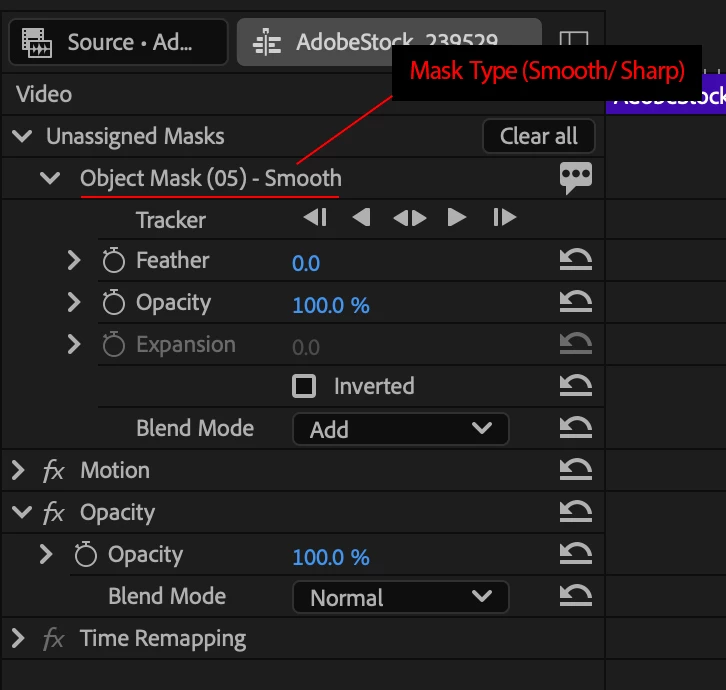
- Open the Effect Controls Panel.
- Locate the mask in the effects stack.
- Next to the Mask name you'll see either "Sharp" or "Smooth" displayed, indicating which mode was selected to create that mask.
In earlier Beta builds you could Switch mask quality modes from Smooth to Sharp (and the other way around). This has been disabled for now until we have a better way to change mode without users losing their masks and tracking data.
Now, if you made a Smooth mask and wanted a Sharp mask instead, delete your earlier mask and use Object Mask to create a new Sharp mask (remember to choose your new mask quality in Program monitor)
Best practices
To get the best results with Smooth mask quality:
- Choose Smooth mode for subjects with fine details like hair, fur, or intricate patterns
- Use Sharp mode for objects with clear, defined edges
- Start masking from a frame where the object is most prominently visible
- Test both modes to see which works better for your specific footage
- Consider the limitations of Smooth mode (no extension capability) when planning your workflow
Known issues
Project compatibility with version 26.0
If a project containing a mask created in Smooth mode is opened in Premiere version 26.0, the mask will not be rendered properly. Editing and saving a project with Smooth mode masks in version 26.0 could damage the mask data and corrupt the mask permanently
This feature is available from Build 37.
Your feedback helps improve these features. Please engage with the beta community forum to report: Bugs and technical issues, feature requests and suggestions, quality feedback on mask results and workflow improvement ideas
 AdChoices