




Now in Beta: Manage Plugins Better with the Video Effects Manager
The Effects Manager lets you see which third-party video effect plugins are installed and disable or enable them. If you suspect a plugin could be causing stability issues, it’s now easier to disable it with the new Effects Manager. We need your input as we finish working on this new manager!
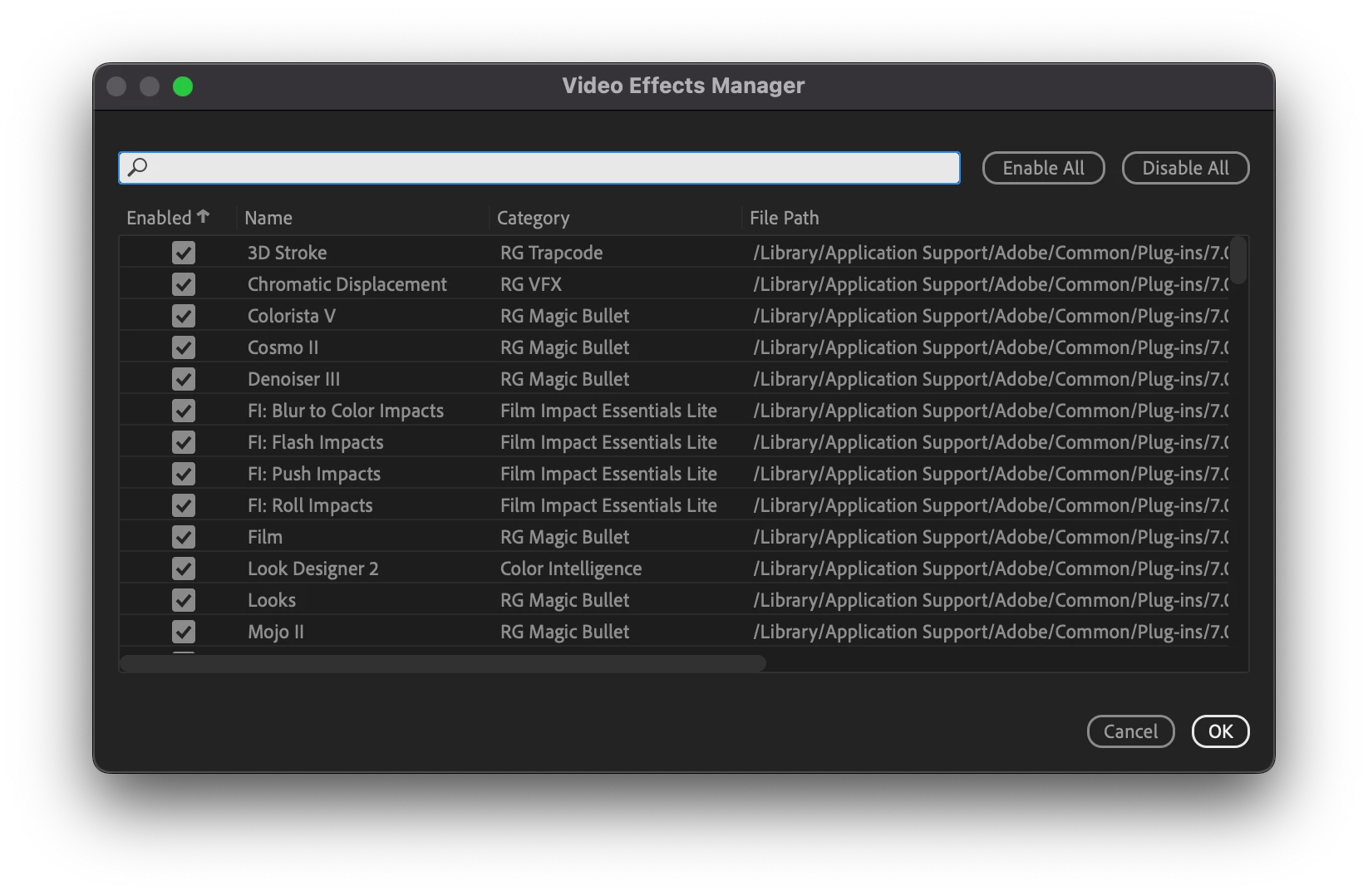
The Video Effect Manager is a dialog that allows you to see a list of all your installed video effects along with helpful details including Effect Name, Category, and File Path on disk. But most importantly: each effect has a checkbox to enable or disable the effect on next startup. Effects that have been disabled in the Effects Manager will no longer be available to apply in the Effects panel. Any projects opened that use disabled effects will display them as “Offline” in the effects control panel and they will not render.
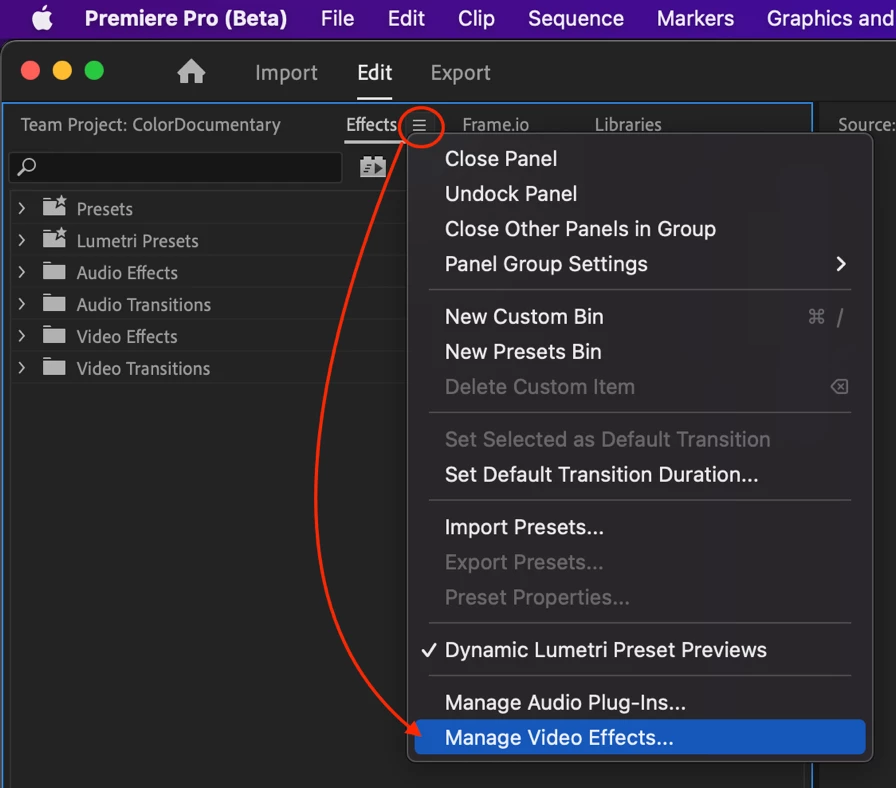
To find the Effect Manager, choose Manage Video Effects… from the Effect panel hamburger menu.
Future features that are in the works but not yet functioning include the ability to:
- Automatically detect when a plugin crashes and prompt you to disable it
- Show rendering technology (CPU/ GPU) – you could disable all CPU effects for example
- Export the plugin list as a CSV text file
- Unify the Video Effects manager and Audio Plug-in manager into one dialog. Right now, they are separate.
We need your help to make this feature great! Our questions for the beta community:
- Would you ever want to disable built-in Premiere Pro effects?
- What do you expect to happen when sending a rendering job to Media Encoder that contains effects that were disabled in Premiere Pro?
We want to know what you think. Join the discussion below.
 AdChoices