




Now in Beta: Object Masking- New Tracking Options, Smaller Masks and Automatic Cleanup, Smooth Mask outlines
Hey everyone,
A few updates are landing in Object Masking ahead of the next release. Here's what's changing.
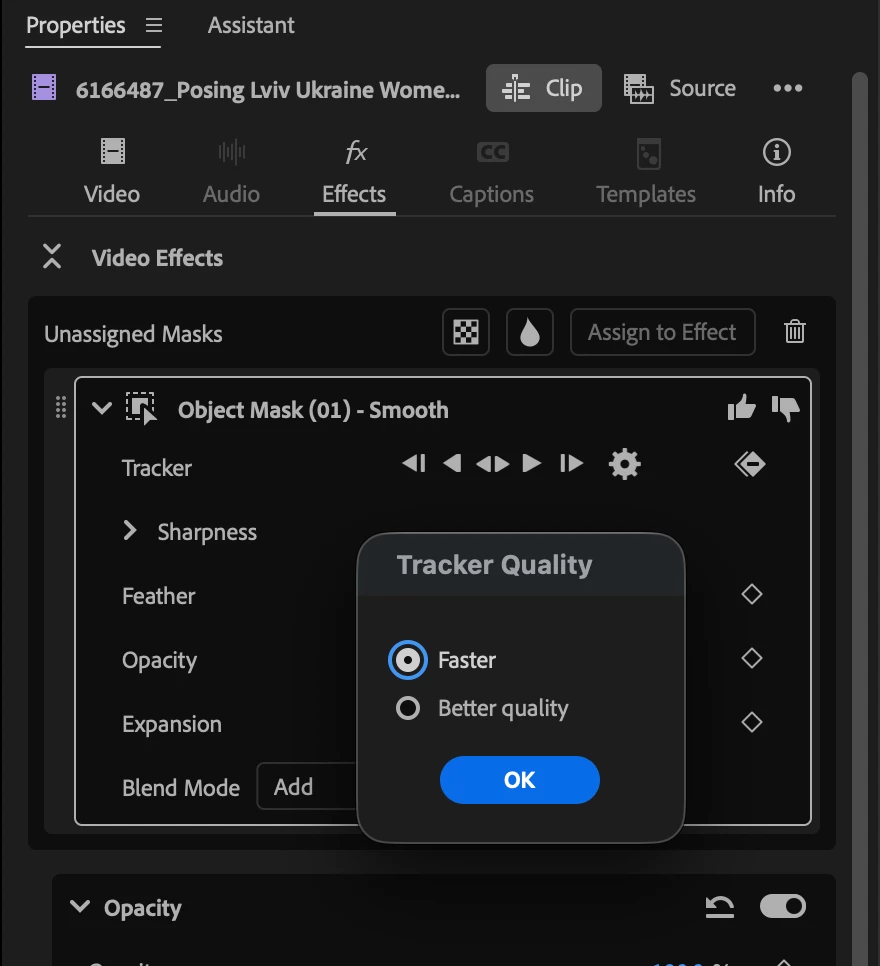
Choose your tracking quality: Better Quality vs. Faster
Today, tracking runs on a model which is tuned for speed. It does a solid job in the common case, but mask detail is capped by its resolution, and it can also lose the subject in longer clips and through occlusion.
We've built a new tracking model to close both of those gaps. Better Quality tracks at a higher mask resolution than Faster, which shows up as real gains in mask detail and edge quality, especially on hair, fur, and fine edges. It also adds long-term memory, which should meaningfully help tracking hold onto the subject through occlusion and in longer clips.
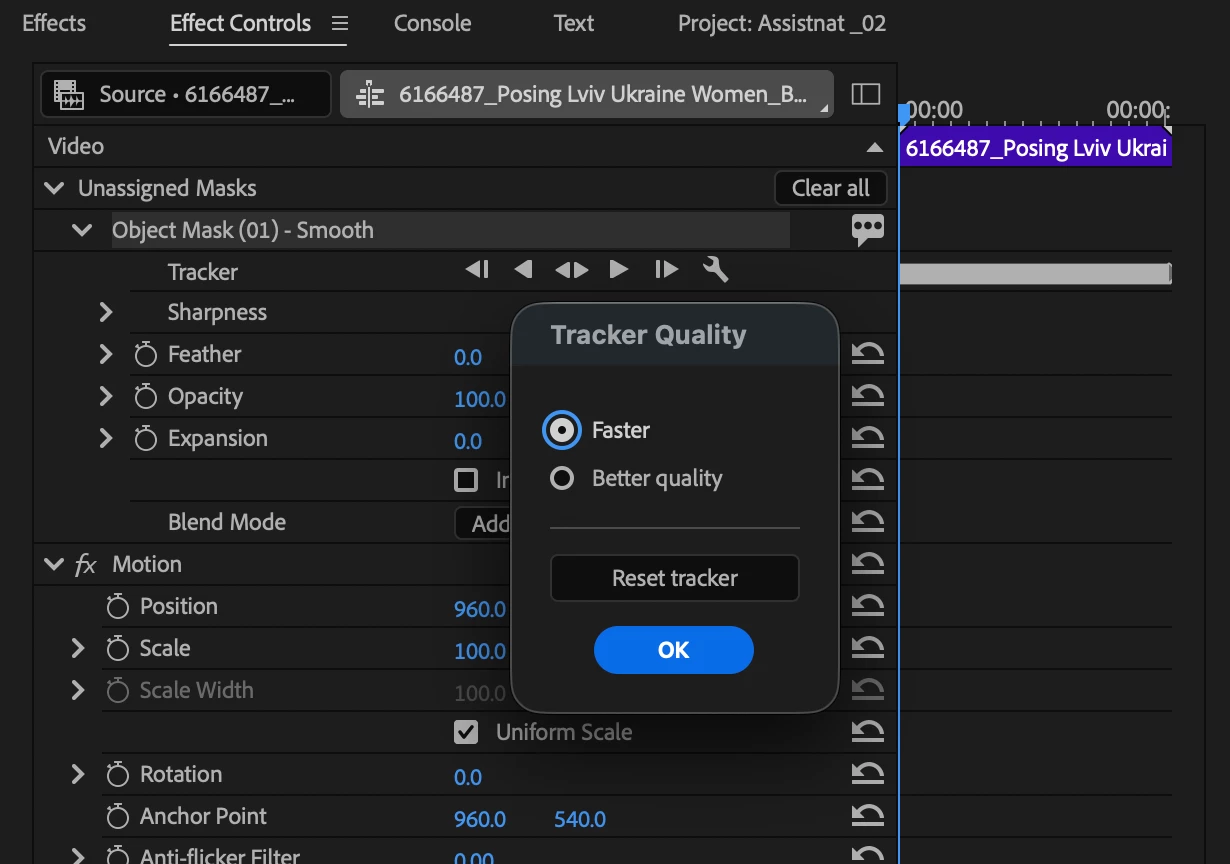
The tradeoff: the higher resolution makes Better Quality slower, noticeably so on some systems. So we're giving you the choice to select tracker of your choice. You'll see two tracking quality options:
-
Faster: This is the default tracker, today's tracking resolution and speed. Same behavior you already know.
-
Better Quality: Newer, higher-resolution tracking, fewer jagged edges, more detail, better occlusion handling.
To switch to Better Quality, you'll find a choice in the Effect Controls Panel and the Properties panel, under the settings/gear icon next to the tracker. It's set per mask, so you can mix Better Quality and Faster across masks in the same project. While a mask is tracking, you'll also see a quick tip letting you know which quality you're using, so you're never left wondering why a track took longer or came out softer than expected.
Object Mask data on disk adds up fast- here's what we're doing about it
Right now Object mask storage has a large footprint and there's no way to bring it down once it's there. Two recent changes address this directly.
Reduction in mask size: Newly created masks are getting significantly smaller on disk. In our own testing, storage dropped by roughly 4 to 7.5 times depending on the clip and tracking mode, with the biggest reduction on 4K/UHD footage. Tracking speed and mask quality are unaffected. This change applies to masks created after this feature ships.
Note: Masks you've already created won't shrink retroactively; re-track the masks to use the new features.
Masks Cleanup: Mask files from old selections and superseded tracks currently just sit on disk even if they're no longer referenced, quietly eating space over the life of a project. Now, when you close a project, Premiere automatically deletes any Object Mask files of newly created masks, that are no longer referenced by the project. In testing, this recovered roughly half of the disk space a project's mask data was taking up.
Note: This covers masks tracked after this feature ships. Tracking data from before the update won't be swept up by cleanup.
Between smaller masks and automatic cleanup, Object Mask storage should stop being something you have to think about going forward.
Smooth Mask outlines
Sharp Masks and other vector masks like Ellipse and Rectangle show an outline when selected: dotted if the mask is unassigned, solid once it's applied to an effect. Smooth Mask never had this, since by definition it's a greyscale mask with a soft, indeterminate fringe rather than a hard boundary. There wasn't a clean line to draw, and many folks reached out with the feedback that it was always confusing to tell if the Smooth Mask was selected or not.
Smooth Mask now shows the same outline behavior as every other mask type: dotted when unassigned, solid when assigned to an effect, visible on selection either way. Selecting and identifying a Smooth Mask in your project should now feel consistent with every other mask type in Premiere.
Try these out and let us know how it goes, especially on longer or more demanding footage. Drop your findings in the thread below.
 AdChoices