



Abhi Singh Principal PM
Adobe Employee
Adobe Employee
June 13, 2024
Answered

Now in Beta: Properties panel for Premiere Pro

  • June 13, 2024
  • 27 replies
  • 24429 views

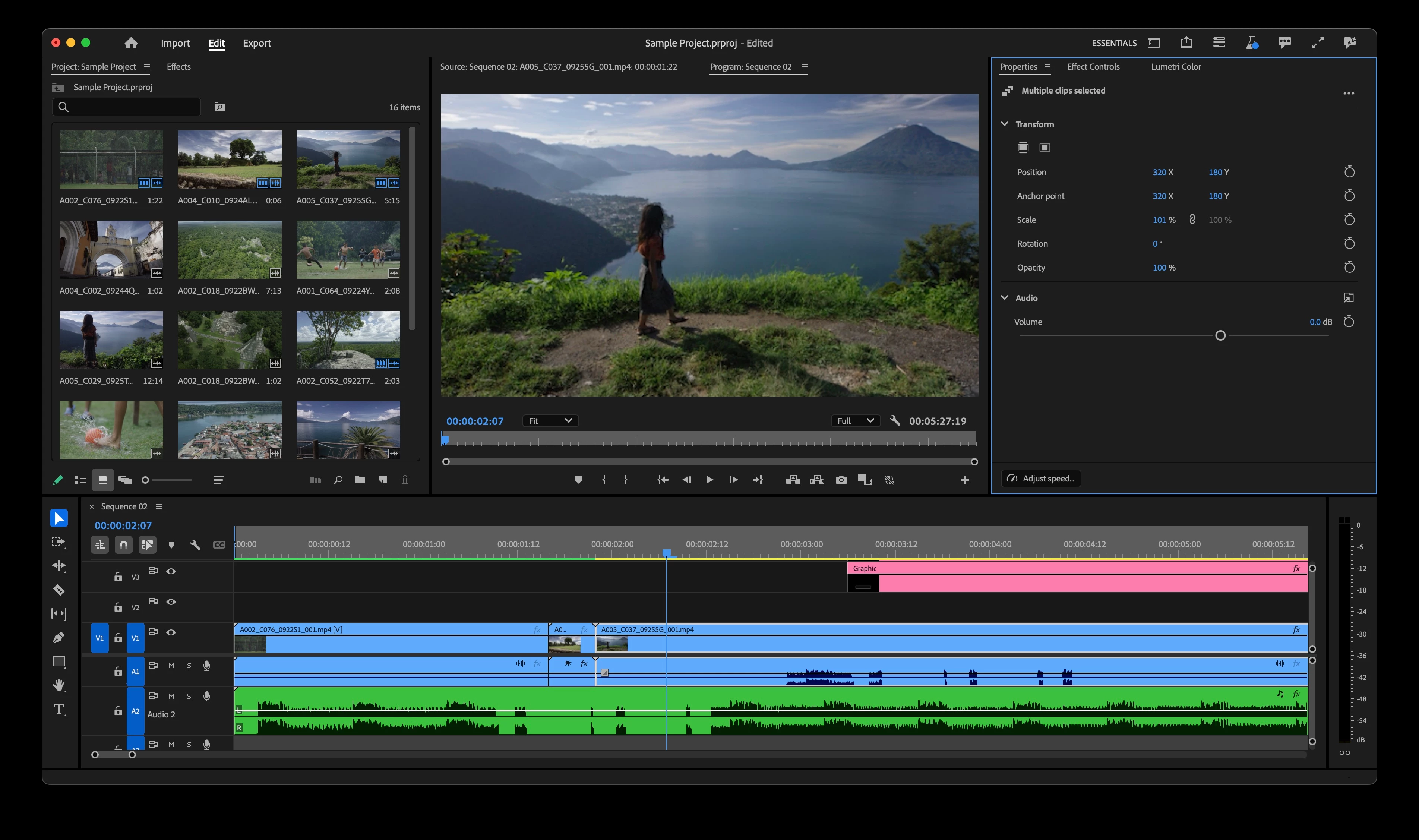
Now you can easily access frequently needed controls in Premiere Pro using the new Properties panel. As you select clips in the timeline, the most relevant controls and quick actions will automatically display in the Properties panel.


Need to change the scale of multiple video clips and graphics? Or change the volume of multiple audio clips? You can now select multiple clips in the timeline and change properties on all of them at once.


Need access to more advanced controls? The Properties panel will guide you to the additional panels that you need.


How do you enable the Properties panel in Premiere Pro?

To access the Properties panel, select the Window menu in Premiere Pro and then choose Properties:
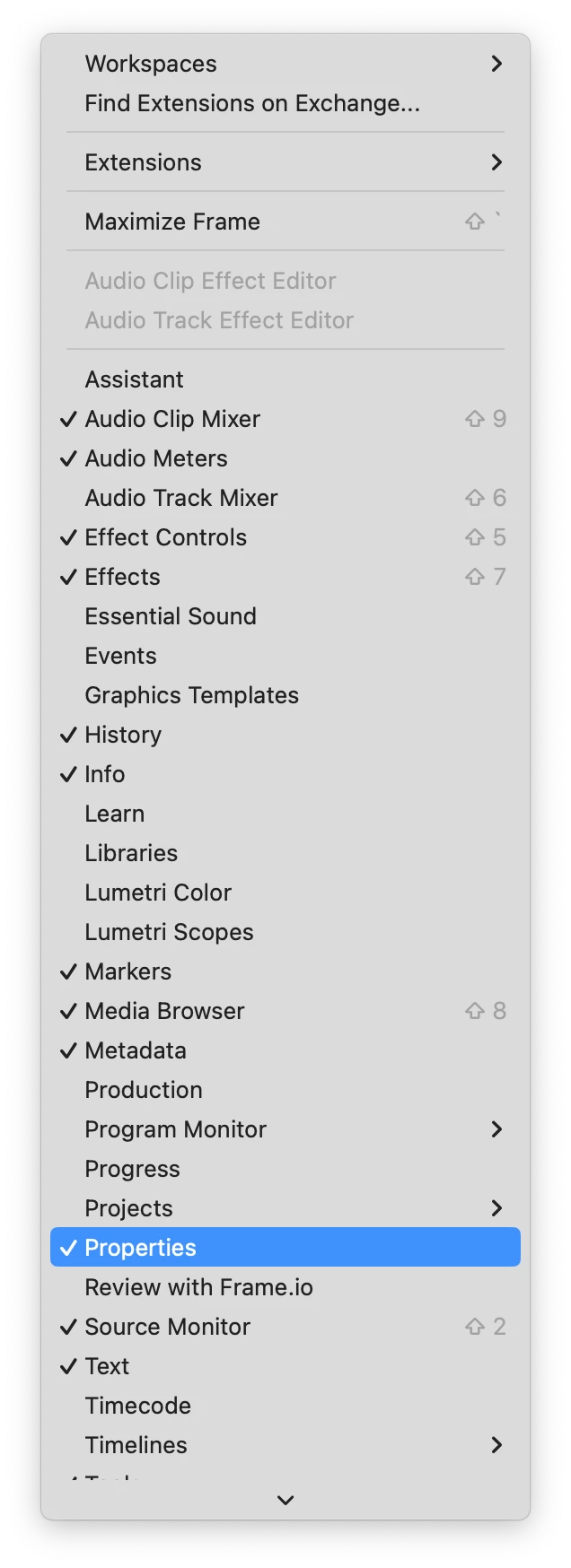
 

You can add the Properties panel to your existing workspace by docking it wherever you like. The Properties panel is now automatically docked in all default workspaces and will be visible when you Reset to Saved Layout.  


What has changed?

  • Controls for editing Graphics and Captions have moved completely to the Properties panel.  
  • You can access your Motion Graphics Templates from the Graphics Templates panel.
  • Properties Window for source clips has been renamed to Media File Properties.


Which controls are available via the Properties panel?

The following controls are available via the Properties panel based on the type of clip that you have selected in the timeline:

  • Video
    • Transform
    • Position
    • Scale
    • Anchor Point
    • Rotation
    • Opacity
  • Audio
    • Volume
    • Pan
  • Graphics:
    • All Graphics Controls
  • Captions
    • All Captions Controls
  • Speed Quick Action
  • Fill Frame and Fit to Frame


How do I change multiple clips at once using the Properties panel?

If you select clips that have the same property value (for instance, if the scale of two graphics is 100%) then you will see the value of the property in the Properties panel and can modify the property for the multiple clips that you have selected.


If the properties for multiple clips are different (for instance, the scale of one graphic is 90% and the scale of the other graphic is 100%), you will see ‘–’ in the input field. Entering a number will change the absolute value for all selected clips. Dragging the number control will change the values relative to the amount that you entered. If you increase the values, you will see a plus (+) in front of the number while dragging and if you decrease the values, you will see a minus (-) in front of the values while dragging.


What is coming soon?

We plan to continue adding features while the Properties panel is in beta. The following are coming soon:

  • Crop
  • Direct Manipulation Controls for Crop and Transform in the Program Monitor
  • Mute


We want to hear from you about what you would like to see added. Please try it and give us feedback!


Abhi Singh

Principal Product Manager, Adobe Premiere Pro



Correct answer Anna Lehman

Anna

@Anna Lehman 


Thanks for your response on this.


"Other Adobe apps such as After Effects and Photoshop have Properties Panels ... we felt it was appropriate to adopt the term as well to maintain congruity across apps."


This is a desirable ideal. Adobe does indeed struggle with an inconsistent and opaque lexicon, some baroque design principles, and a history of poor documentation.


Consider that Premiere Pro has Properties (now "Media File Properties" as you have indicated), new Properties, and Info panels. Can you distinguish for me the difference between the (new) "media file properties" and "info", for example? Why is "media file properties" (a panel) accessible from a contextual menu while "info"(which seems to be a subset of media filel properties?) is a panel listed under the "window" menu? Note also that copy/paste "attributes" involves a subset of "properties" with the addition of effects.


Such issues are exacerbated by the dearth of documentation from Adobe (find me anything in the online guide about the "info panel" and you win a prize).


Some clean up of the lexicon and design would be welcome. This new properties panel does indeed seem to have potential along these lines (notwithstanding issues I've outlined above).


However, any communication from Adobe around these issues (like this announcement) should take care to communicate not just "new features", but the implications and changes in the design (like the renaming of the old "properties" to "media file properties"). Absent that, Adobe risks antagonizing users with these announcements.


R.


@Remote Index thank you for highlighting these challenges – the confusion between Media File Properties and Info panels, along with the way they're accessed, is a definitely a valid concern. As the app evolves we hope to clear up any overlap and redundancies that exist, including what you've mentioned above.


We will update the original post to include the change in nomenclature and be mindful of incorporating useful information like this in future announcements to avoid frustration! Thanks again for bringing this up.

27 replies

Randune23
Inspiring
June 17, 2024

Many of the controls (which used to be displayed in the Essential Graphics panel) are not included (or are hidden) by adding them from the new "Graphics Templates."  You can view them in the new Graphics Template, but as far as editing (which meant you only had to move your mouse up to EDIT) are gone.  It is still very clunky to edit them in the Effects Controls box.

As a person who uses TONS of mogrts this actually slows down the overall process.


Randy 

Theresa Rostek
Community Manager
Community Manager
June 17, 2024

Hi @15203742,


Open up the new Properties panel, all of your mogrt edit functions will be in there now. Sorry for the confusion! We're working on making the workflow change more visible.


Cheers,

Theresa

Eugene Mogrts
Known Participant
June 16, 2024

Please, add fill/fit buttons for MoGRTS as well

Eugene Mogrts
Known Participant
June 27, 2024

When several MoGRTS are selected in the sequence the transform properties are present in the properties window -- which is great, as there are also new fit / fill buttons too, but what'd be even more conveniet: that selecting several copies of the same MoGRT would show all the controls unified so they could be edited all at once -- like we do with several text layers selected...

So, it is a huge feature request!

Participant
July 8, 2024

How did you change premiere's UI to white? please reply, thanks!

Participant
June 15, 2024

Can we PLEASE PLEASE PLEASE get a motion blur function in the new properties panel. I'm tired of using the transform effect with the shutter angle. 

Participant
June 15, 2024

This is a really nice update, and will be espeically useful when reversioning for different aspect ratios.


I wonder if this new shared clip functionality could be unified with the Effect Controls tab, so that we don't have to scramble between that panel and thew new Properties panel. 

Inspiring
June 14, 2024

So I just got curious and discovered the stopwatch buttons. This enables motion animation by simply putting the timeline indicator at a place in the clip and then changing the settings. Move to another spot and make the adjustments and you have an animation.  That's really slick.


It appears if you do a 2 step move, it applies a continuous bezeir, but it appears to be a hard start and stop at the beginning of the move.  I'd like to see a default of ease out/ease in at start and stop for these common ordinary types of moves.

MyerPj
Community Expert
Community Expert
June 13, 2024

Oh.... awesome! The properties panel in After Effects is great. This one sounds excellent, thanks very much!

🙂


Inspiring
June 13, 2024

This is great!  Especially the Fill Frame button, which is something I've been requesting for a long time. Thank you.


Fill Frame will take an odd-size image (square or 4:3) and snap it to frame width. 


Can we get Lumetri controls for multiple clips in Properties?