




Now in Beta: Protect Your Creative Work with Content Credentials in Premiere
We’re excited to announce a major update to our Content Credentials workflow in Premiere on desktop and Media Encoder. You can now use Content Credentials to add your identity to your work, helping you safeguard your creativity and build trust with your audience.
What’s New?
- Sign your work with your verified name: Attach your real identity to your content, so viewers know it’s authentically yours. (requires a verified LinkedIn profile)
- Connect your social accounts: Link your social media profiles to your output, making it easier for your audience to find and follow you and your work.
- Ask generative AI models not to use your content: After adding your name or social accounts, you can request that generative AI models not use your content for training, helping to prevent creative theft. Participating models respect the “Do Not Train AI” request, but not all AI systems may comply.
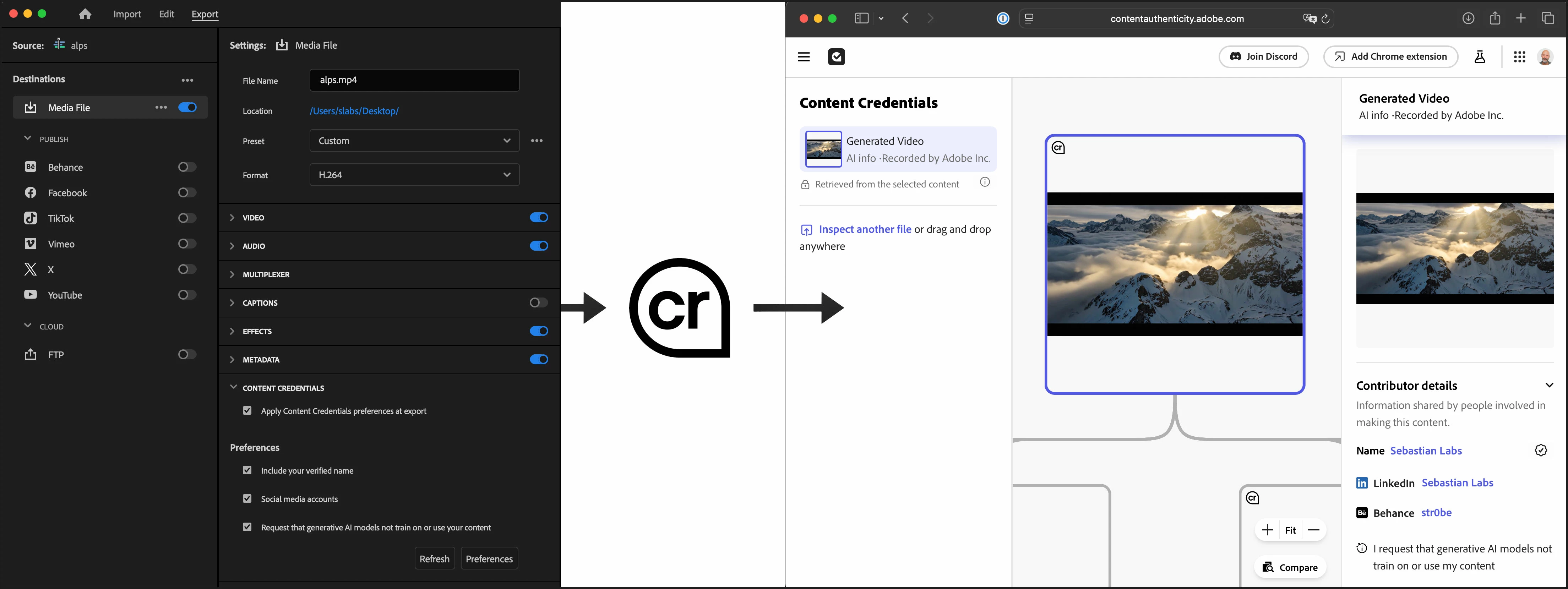
Premiere and Media Encoder can use your preferences from the Adobe Content Authenticity site to sign your exported content, making it easy to protect your work, connect with your audience, and control how your content is used by AI.
Setting Preferences
- Visit the Preferences Page
- Configure Your Profile:
- Verified Name: You can verify your identity (currently via LinkedIn) and set your preferred display name for signing content.
- Social Accounts: Link your social media profiles so they can be attached to your exported files.
- AI Training Opt-Out: Enable the option to request that generative AI models do not use your content for training.
These preferences are securely stored and used by Adobe applications, including Premiere and Media Encoder, during export.
Workflow in Premiere on desktop
Import & Scanning
- When you import files into Premiere, the application can automatically scan for existing Content Credentials (if enabled in Preferences: Media > ‘Scan files for Content Credentials on import’).
- You can also initiate scanning on-demand in the Project Panel by right-clicking assets and selecting ‘Scan for Content Credentials’. The results are shown in the project panel’s Content Credentials column, indicating status.
Exporting with Content Credentials
- In Export Mode, look for the ‘Content Credentials’ section and opt-in to include Content Credentials.
- Choose to include your preferences from the Content Authenticity site to sign the exported content, attaching your verified name, social accounts, and AI opt-out request as configured.
Verification
After exporting, you can verify the Content Credentials attached to your files using Adobe’s Inspect tool.
We want to know what you think. Please join the conversation below.
 AdChoices