



Now in Beta: Separate Crosstalk in Premiere
Hey everyone! We're excited to share a new Firefly AI-powered audio feature that just landed in Premiere Beta [26.5.0 (Build 75)]: Separate Crosstalk.
If you've ever shot a scene on a single mic – whether that's a boom, a phone, or just one lavalier on set – you know the moment: two people start talking at the same time, the mic can't tell the voices apart, and the only real fix is a re-record. Now Separate Crosstalk gives you a way to pull those overlapping voices apart, right inside your timeline!
What's New?
Separate Crosstalk is built for one specific moment: when two speakers talk over each other at the same time on a single recording – actual overlapping speech, not just two people who happen to be in the same scene. It works on mono and stereo clips and separates up to two overlapping speakers from that shared audio. This isn't full diarization and it isn't meant to split every speaker onto their own track across a whole project. It's meant to solve the crosstalk moment that today has no fix in post beyond rerecording.
Just feed it a clip and it returns three tracks: Speaker 1, Speaker 2, and a background/ambience track, so you have full control in the mix.
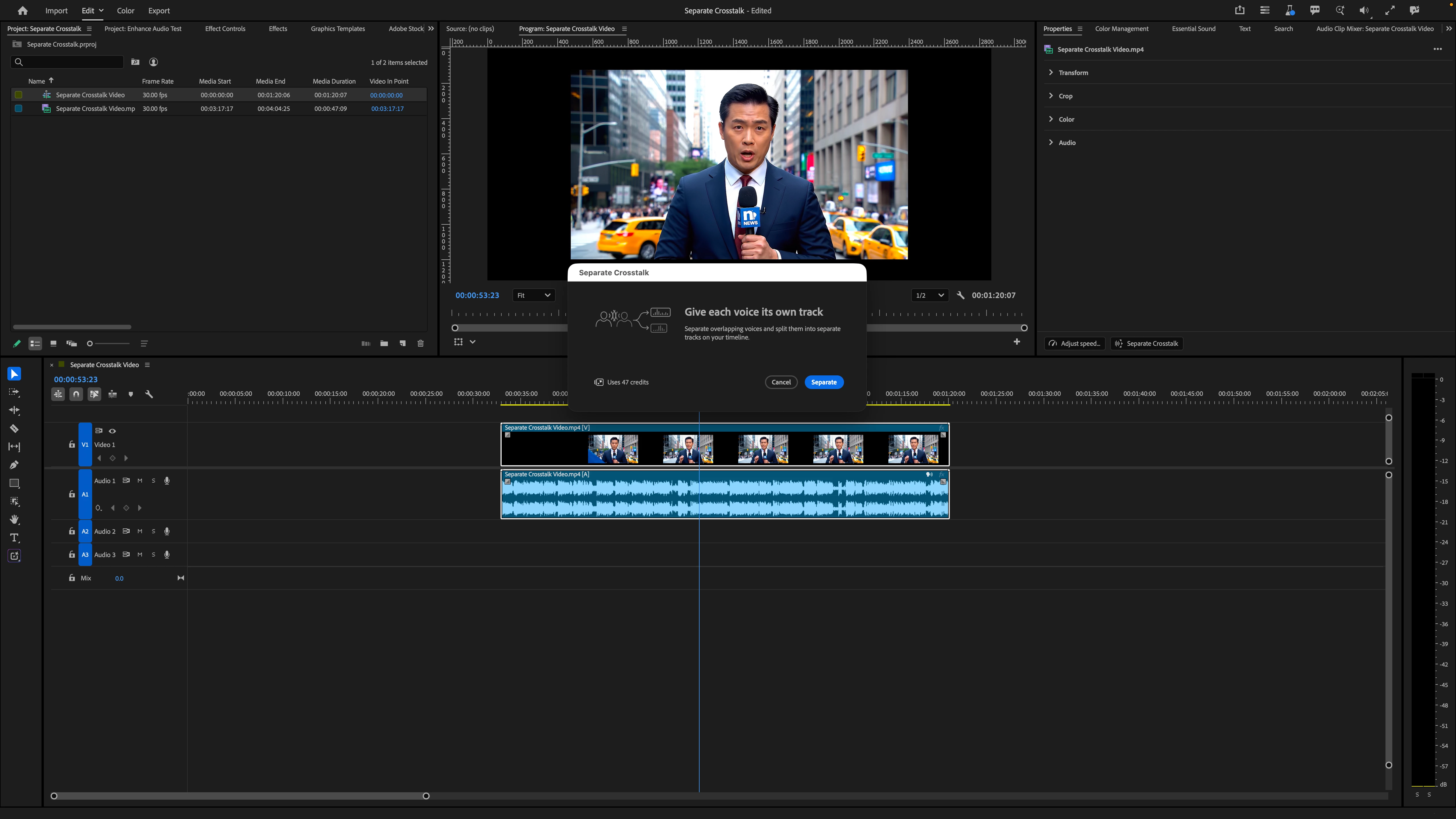
This is a premium feature. Processing costs 1 Generative Credit per second of audio processed, so it's worth trimming your selection down to the crosstalk section rather than running it on a long clip. Keep in mind that Separate Crosstalk automatically adds a 2 second handle to each side and that added time will be reflected in the cost shown before you process.
Where to Find Separate Crosstalk
The workflow starts with finding where the crosstalk actually happens in your clip. Select the clip on your timeline, listen for the section where the two speakers overlap, and either:
- Trim to that range and process just the overlapping section for the fastest, most targeted result, or
- Select the full clip and let Separate Crosstalk find the overlap range on its own within it
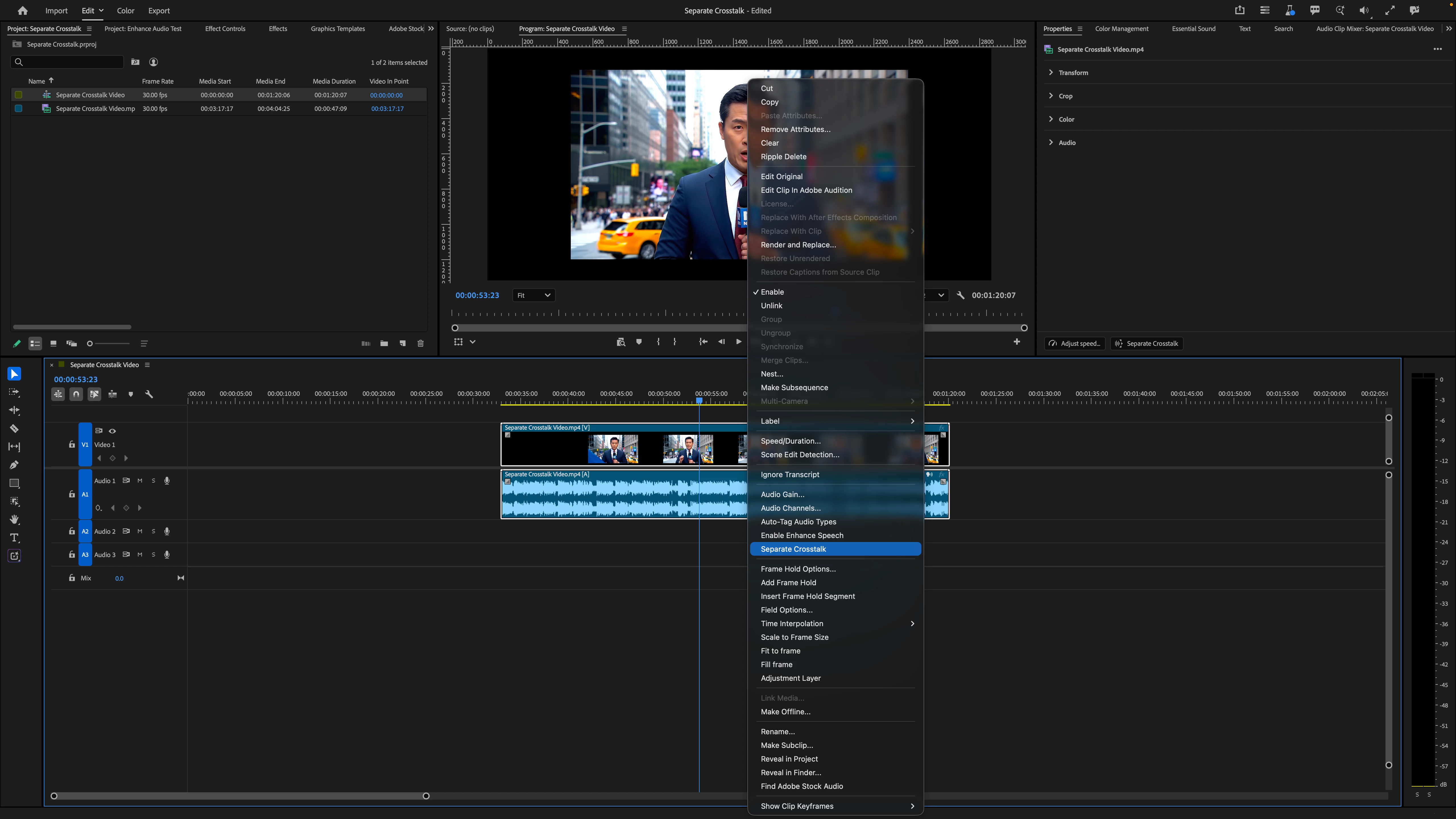
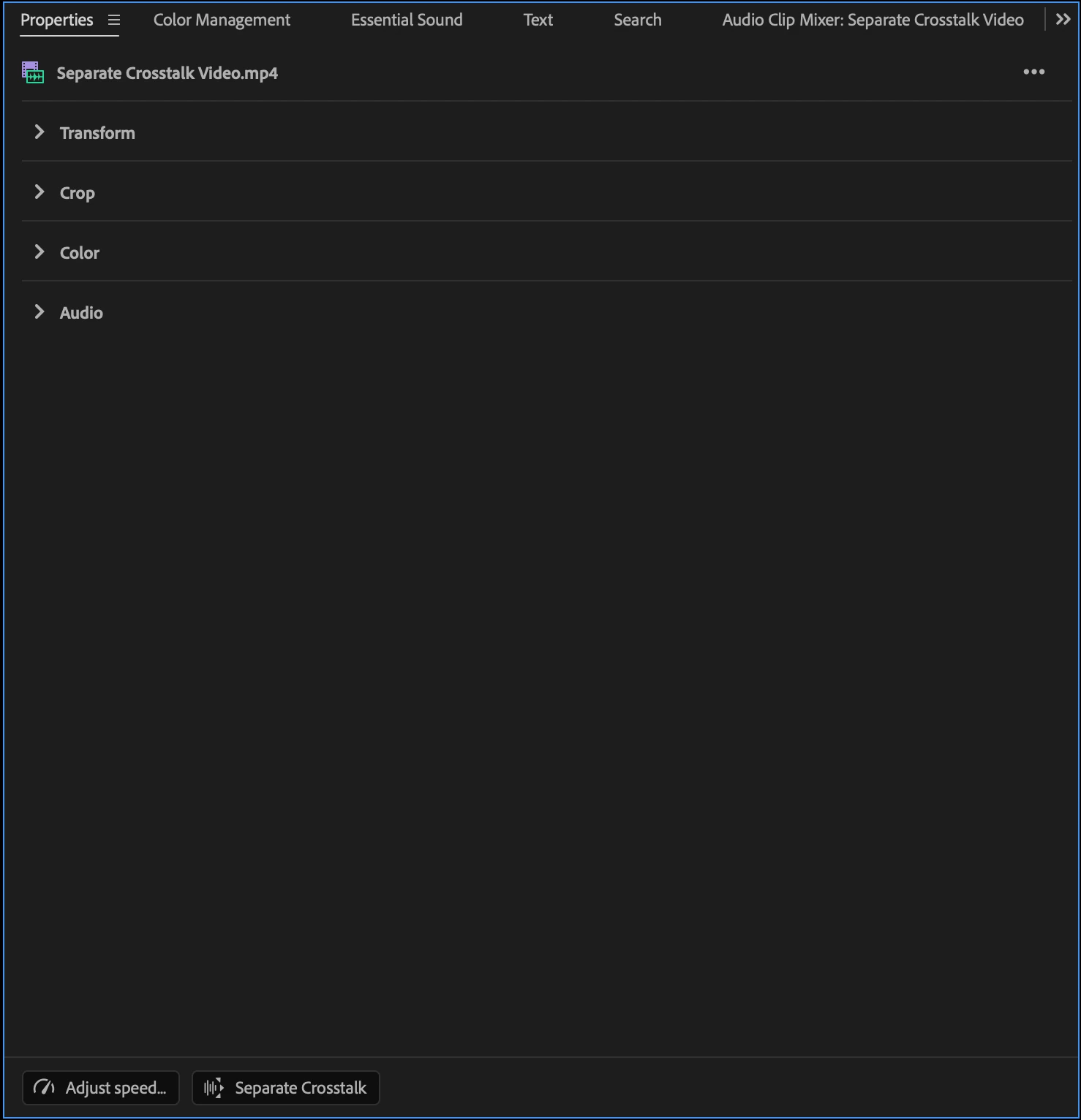
From there, right-click the clip and choose Separate Crosstalk, or use the quick action in the Properties panel labeled Separate Crosstalk. Both methods will open a dialog box to process the selection. Because it's a premium feature, narrowing to just the crosstalk moment before you process keeps your credit usage efficient.
Clips can run anywhere from 1 second up to 10 minutes. If your overlapping section falls outside that range, trim it down first.
For editors working in documentary, run-and-gun, or single-mic setups, overlapping dialogue has always been a dead end. Once two voices are captured on top of each other on the same mic, there's no manual way to untangle them. Separate Crosstalk removes that dead end.
To recap, you can:
- Recover usable dialogue from a moment where two speakers talked at the same time, without a rerecord.
- Work with mono or stereo source, including phone and single-mic recordings.
- Get separate Speaker 1, Speaker 2, and background tracks to mix independently.
- Target just the overlapping section of a clip to keep credit cost down.
- Process clips from 1 second up to 10 minutes.
- Trigger it directly from the clip or the Properties panel, no extra setup.
Try It Out Now
This feature is available now in the latest Premiere (beta) build (26.5.0, Build 75). Give it a spin on real crosstalk moments from your own footage, whether that's a run-and-gun interview, a documentary scene, or anything shot on a single mic. Let us know how it feels and what you want to see next. Community feedback has shaped Separate Crosstalk, so your feedback directly shapes where this feature goes next!
Happy editing!
Note: We're still polishing some interactions, so expect to see improvements as we iterate.
 AdChoices