



Vaibhavi Jani
Community Manager
Community Manager
November 24, 2024
Question

Now in Beta: Translate Captions for Premiere Pro

  • November 24, 2024
  • 21 replies
  • 15369 views

Ever since we launched Text-Based Editing, you’ve been asking for translation capabilities. We’re happy to have an answer to this top request: now you can translate captions in 17 languages without leaving Premiere Pro! 


You can translate captions that are generated inside Premiere Pro or imported via .srt file. Currently, only translation of captions is supported – not transcripts.  
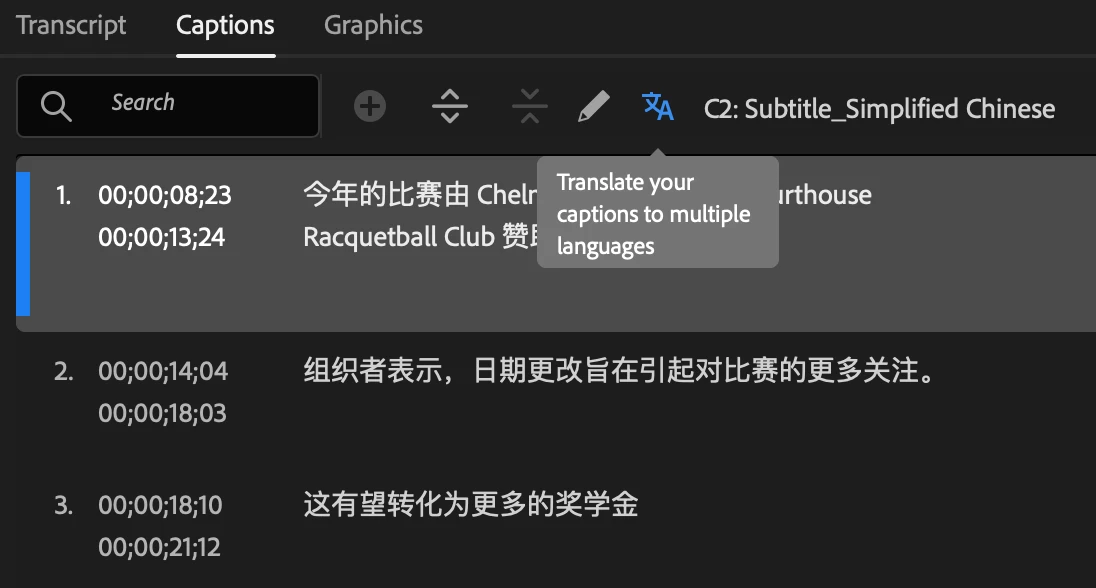


To use caption translation: 

  • Create Captions in the Text panel. 
  • Select the Translate captions icon in the Captions tab.  
  • Choose the language you want your captions translated into and select Translate. You can select multiple languages! 
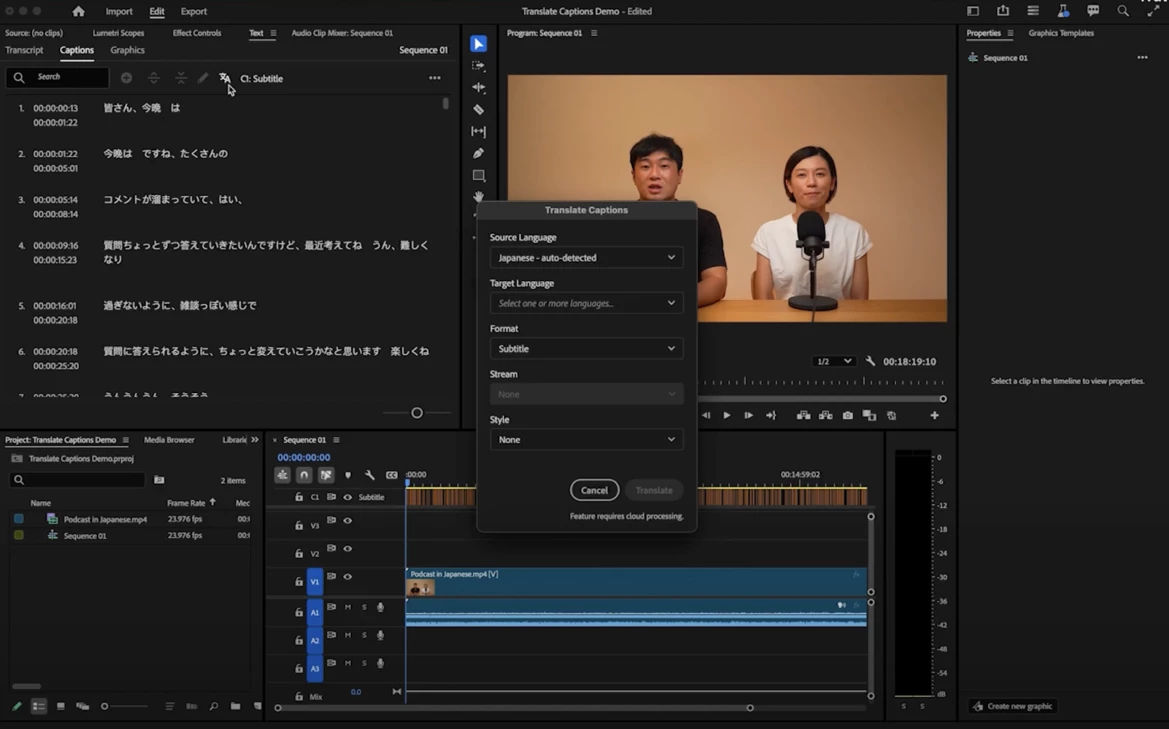


  • Captions will be translated using a cloud service and third-party translation models, and a new track will be created in the Timeline panel. The progress of the translation is displayed in the Progress panel and on the track item.  
  • You can now enable multiple captions simultaneously! Just select the eye icon for each corresponding language track to display all the captions on the Program Monitor.


Styling Captions 

You can then select and style the captions using the options in the Properties panel. Once you are done styling, apply the style to all captions in the track by selecting the Redefine style icon in the Properties panel and selecting All captions on track


Exporting Captions 

After styling the captions, you can export captions (as .srt files), or export videos with captions burned-in, or sidecar filesBurned-in captions allow exporting multiple captions simultaneously, while currently, embed and sidecar captions only support exporting one caption at a time. 


For more details you can visit the page https://helpx.adobe.com/premiere-pro/using/translate-captions.html


Your feedback is valuable!

We hope this new feature helps to breaks language barriers, enabling you to connect with global audiences effortlessly. Your feedback is critical, especially when it comes to the nuance of translation as well as the overall workflow within the app.


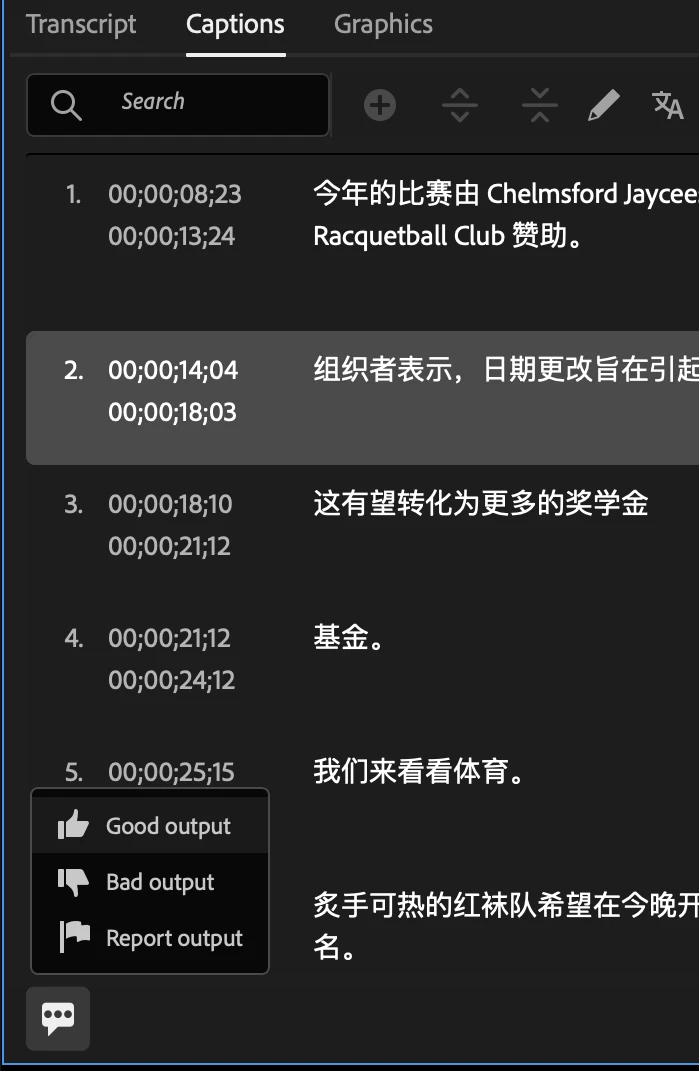
You can provide feedback on the quality and accuracy of the translation or report it for being problematic or offensive by selecting the icon at the bottom-left corner of the Captions tab and rating or reporting the content. 
 

Let us know what you think! 


Vaibhavi Jani

Senior Product Manager, Adobe Premiere Pro

21 replies

Stan Jones
Community Expert
Community Expert
January 7, 2025

"Multiple Caption Tracks Enabled"


This is new functionality added as part of the caption translation feature. @Vaibhavi Jani's post here is the only announcement of it. It has been argued for by many users, and this feature alone will be a major advancement.


It changes some of the basic operation of caption tracks. For example, when creating more than one caption track, each new track is enabled by default. Previously, only the new track would be enabled.


When there is no selection of a caption in one of the caption tracks, "Multiple caption tracks enabled" appears in the Captions tab of the Text panel, with a new icon and message. (Screenshot at the end.) There are several keyboard shortcuts for working with Caption Tracks, and some will no longer operate as expected. For example, Activate next/previous caption track.


If a caption in any track is selected, the captions of that track appear in the Text Panel/Captions tab, and that caption appears in the Properties Panel. If you deselect all, the "multiple tracks" message returns.


As noted in the announcement, only one sidecar file can be exported at a time. If using the 3 dot menu to export srt, it appears to be the track showing in the captions tab, whether it is enabled or not. If nothing is selected (the "multiple tracks" message shows in the Captions tab), the export options are greyed out.


If you "export media" and pick burn in, it shows which tracks are being burned in, and these are any that are enabled. If you export and pick sidecar with only one enabled, it uses that track. If you have multiple tracks enabled, it uses the lowest numbered track that is enabled (e.g. C2 over C3). If no tracks are enabled, as expected, Captions in the export settings is greyed out.


As noted in the announcement, you can apply a different style to each track. This means that you can position different tracks to differentiate speakers as well as translations. Many users will be hoping that there are plans to include Speaker information (from the transcript) to Captions.


My tests were using Win10 on Beta v25.2.0.50 and 25.2.0.71.


Stan


Participating Frequently
January 7, 2025

Nice on Stan, thanks for staying with this, interesting news.

Of course some two years on I'm no longer working with the 'needs two captions' people...

Does anyone know if the Adobe Programmer has been asked to allow us to put them outside 'broadcast safe', I hear that this thing called 'the internet' is going to make a mockery of over scanned screens...

Apologies if it has already been actioned...

Legend
January 7, 2025

They still adhere to the strict rules of captioning. But you can select them all, choose Graphics and Titles > Upgrade Caption to Graphic and move them wherever you want.

Participant
January 6, 2025

Trying out the translation transcribe and it is giving me an error message saying "Can't Complete Caption Translation: Try Again" 


How can I fix this?

Vaibhavi Jani
Community Manager
Community Manager
January 8, 2025

@Joshrifkin Are you consiitently getting this error or only with specific files? Is it possible for you to share the source file you are trying to translate and also which languages are selected?

Joost van der Hoeven
Community Expert
Community Expert
January 6, 2025

Hi @Vaibhavi Jani ,

Any reason I'm not seeing the Translation icon in version 25.2.0 BETA?

Stan Jones
Community Expert
Community Expert
January 7, 2025

@Joost van der Hoeven,


You're on build 23. The first build I saw it in was Build 50.


Stan


Joost van der Hoeven
Community Expert
Community Expert
January 7, 2025
Aha. Thanks. Uninstalling and reinstalling fixed it.
Participant
December 19, 2024

How long does the cloud server store these translations?

Vaibhavi Jani
Community Manager
Community Manager
December 20, 2024

@anttit97170192 It stores them temporarily for max 12 hours.

Vaibhavi Jani
Community Manager
Community Manager
December 17, 2024

If you have tried the feature in the beta build please leave your feedback here https://forms.office.com/r/d3Zdn0DEkp

Inspiring
December 11, 2024

This looks like a pretty good start. Are there any plans to add this functionality to the Text > Graphics panel so we can translate text in graphics and MORGTs as well?

Vaibhavi Jani
Community Manager
Community Manager
December 11, 2024

@Amozza Not yet, but I have taken a note of your request. 

Participant
December 10, 2024

This is a great feature but it's stopping translation of existing captions at about 4:45 minutes while the video is about 52 minutes long. Is that an intentional limitation while in beta?

Vaibhavi Jani
Community Manager
Community Manager
December 11, 2024

@Aaron38664741wzi0 It should work for the entire length. Could you share the .srt file? We would like to debug the scenario

Participant
December 11, 2024

Thank you for the reply. I'm not sure I'll get client approval to share the file since the transcript on its own combined with a separate translation service was enough for the needs of this specific project, but I'll explain the situation and share a screenshot since I hope to use this full feature in the future. The recording is an .mp4 Teams recording that I transcribed in Premiere Beta. It's a German language recording and that setting was selected during transcription. The transcription appears to run the entire lenght of the 51:42:04 video. However, after I create captions from the transcript and use the translate feature (German selected as the source language with English as the output) after selecting the entire clip it only translates to 4:44:14. It has consistently done the same length each time I've tried. Even after opening a new project, retranscribing and trying to translate again. Simillarly, I tried transcribing with Descript, imported the .srt file to Premiere Beta and ran into the exact same issue. The translation appears to be mostly accurate up to the point it cuts off, as you can see in the screenshot.

_nicdean
Community Expert
Community Expert
December 5, 2024

This is awesome. I would like the Advanced Preferences + Lines to be sticky.


Please default to the user's last used settings, so we don't have to open the dropdown + change the sliders every time we Translate/Create Captions.


Participating Frequently
January 7, 2025

Great point! Any time saved having to reset preferences repetitively on parameters is time well spent editing instead!

Participant
December 3, 2024

The option to Translate caption is not available on my premiere 25.

What should I do? 

Kes Akalaonu
Inspiring
December 7, 2024

That's because it's still in beta

AndrewTheGreat
Known Participant
November 26, 2024

As a person who's constantly translating videos to and from different languages, I'm happy to finally get an built-in translation feature in Premiere Pro. One thing I'd like to know - are you, guys, planning to add any AI-audio translation feature, like dubly.ai or any other service out there which dubs the actors preserving their voice timbre and lip sync? That kind of a tool is really needed.

Vaibhavi Jani
Community Manager
Community Manager
December 11, 2024

@AndrewTheGreat Stay tuned for more updates on this one!