




Palash Sanjay Kotgirwar
Adobe Employee
Adobe Employee
February 7, 2025
질문

[Now Released]: Improvements in Zoom and Pan behavior along with introduction of global shortcuts

  • February 7, 2025
  • 18 답변들
  • 5586 조회

Please note: This feature has been updated, please refer to the ‘Updates’ section at the end of this post.

The feature changes mentioned in 'Updates' section were released in Premiere Pro. If you've got questions or comments about it, please post to the main Premiere Pro support forum


We’re excited to introduce some powerful improvements in zoom and pan behaviors in the Program and Source monitors with Adobe Premiere Pro Beta 25.2 (Build 104). Here’s an overview of what’s new and improved:


Overview of New Features:

  1. Pan with Scroll, Zoom with Modifier
    • Scrolling on any input device will now perform panning.
    • Scrolling with a modifier key will trigger zooming.
  2. New Global Shortcuts
    • ‘Zoom to Fit’ and ‘Zoom to 100%’ are now available as global shortcuts for both Program and Source monitors.
  3. Improved Trackpad support
    • Pinching in or out on trackpad will continue to perform zooming.
    • Two finger swipe (scroll) will perform pan.


Key Details:

Please refer the following table to refer what actions on which devices perform what functions:
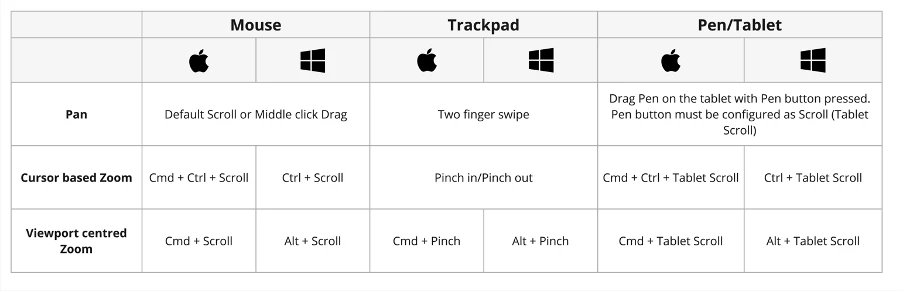
For panning, you can also continue to use Hand Tool and/or Scroll Bars as earlier.


Additionally, ‘Zoom to Fit’ and ‘Zoom to 100%’ commands are now accessible in the Global Shortcuts window, but you’ll need to manually assign them for now. The default assignments will be available when the feature goes live in GA. Both the shortcuts are available both in Program and Source monitor.


Btw the default assignment of the shortcuts when the feature goes live in GA will be as follows:
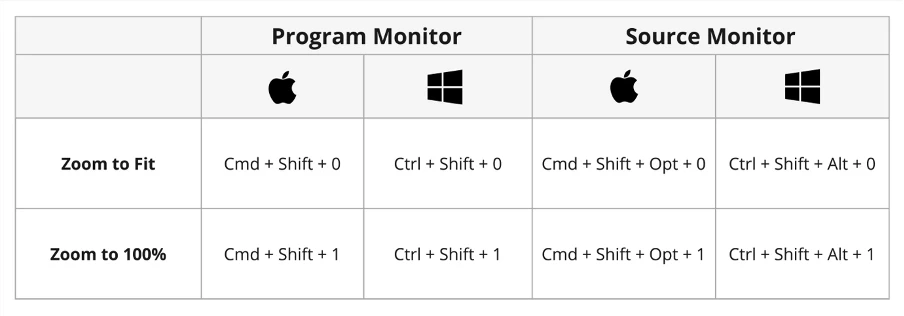
Btw for now, as stated earlier, you’ll need to manually assign them.


There are couple of known bugs which we are working on and you will see them getting fixed very soon in upcoming builds (will keep you posted):

  • Mouse scroll or trackpad two-finger swipe at the edges of the view monitor is performing zoom instead of pan.
  • For Win : Using Alt + Mouse scroll/Trackpad two-finger swipe leads to loss of panel focus. Any action (for e.g. Ctrl + Mouse scroll/Trackpad two-finger swipe) performed immediately after does not work.
    Current Workaround – Please bring back the view monitor in focus by performing mouse or trackpad click. Then the actions should start working again.


Feel free to try out these new zoom and pan improvements and let us know what you think! Happy editing!


Updates

Based on the feedback received from the beta community, we’ve made a few changes in the latest Adobe Premiere Pro Beta version 25.3.0.52:

  1. Scroll to Zoom (Reverted Behavior)
    The ‘Pan with Scroll, Zoom with Modifier’ feature has been reverted. Now, scrolling on any input device will perform zoom.
  2. Global Shortcuts Remain
    You can still use global shortcuts for Zoom to Fit and Zoom to 100% in both the Program and Source monitors.
  3. Trackpad Gesture Support
    On trackpads, a two-finger swipe (scroll) will perform zoom.


We're exploring alternatives to the previous implementation that will improve trackpad support without sacrificing the convenience of the mouse scroll-to-zoom behavior. In the meantime, thanks for all your feedback–keep it coming!

18 답변

Inspiring
April 10, 2025

I'm someone who has screamed loudly and often about the "random zooming" in the program/source panels - particularly when using the Apple Magic Mouse. This goes for the same issue in other Adobe applications as well. The new options in the latest beta versions are very helpful and the only reason I'm editing in Premiere Beta. I like being able to quickly "zoom in" on the program panel when making small adjustments to text, so the zoom function is a convenience. However, as someone who assigns keystroke shortcuts to a lot of my functionality, I would like to be able to toggle on or off the pan/zoom function in the program panel with a keystroke. I'm hoping Adobe gives us this option. Having to constantly hit Command-Option-0 to Zoom to Fit is not ideal.

Inspiring
June 20, 2025

I know I posted in April about this issue. but I have to re-post. Nothing makes me crazier than having to re fit the image in the program window after my mouse randomly zoomed in 200%. This happens at lest 20-30 times a day.

The zoom function is itself a great tool I love it. BUT WE HAVE TO BE ABLE TO TURN IT OFF WITH A CLICK OF A BUTTON OR KEYSTROKE. I don't mind having to turn it back on when I use it. Please fix this!!!!!

Palash Sanjay Kotgirwar
Adobe Employee
Adobe Employee
June 24, 2025

Hi @Editor Jim,

Thank you for the feedback. We truly appreciate your input and are carefully considering future changes to enhance this feature.

Kes Akalaonu
Inspiring
March 18, 2025

For the life of me, I can't set Zoom to Fit or Zoom to 100% in the Mac Beta to Control+Option+Z which is the shortcut I use in 25.1. Any reason why they could be happening?

Participant
February 20, 2025

Thanks for re-opening the discussion on scroll-wheel behaviour. I feel the new global command to 'fit size' is great and is an overall improvement.


The change to scroll wheel now panning up and down however is not. I find no use for this, since panning using middle mouse button exists and feels more efficient and useful. I understand this is made in consideration to how trackpads perform, but ask yourselves this: are most of your users on trackpads (editing on the go) or are the majority probably (and preferably) working using a mouse. This change is a step backwards I believe for the majority of users.


For me the ideal behaviour would be to:

- global zoom using default scroll-wheel

- free pan using middle mouse button

- modifier key + scroll to pan up/down or left/right

- another modifier key + scroll to step through time frame-by-frame


The last I mentioned I believe is currently truly absent. I am aware you can navigate the mouse cursor the the time-indicator beneath the monitors and scroll there to step through frame-by-frame. That is however a complete waste of time and terribly inefficient when using the scroll wheel to help in the task of masking. When manually masking you want to be able to zoom in the monitor, pan it freely around and use a modifier key + scroll to jump frame-to-frame. You don't want to have to take the cursor away from the shape you are manipulating just to jump to a next or previous frame. Masking is one (if not the most) of the most important features that this scrolling function is made for. For me at least, it is actually almost the only reason why I am zooming in or out of the monitors. Improving the experience from this point of view would be most helpful!

MyerPj
Community Expert
Community Expert
February 19, 2025

Hey @Mike McCarthy, your posts have been right on. You did miss the "Show Scroll Bars" on the wrench menu.


I thought we were going to wait for the new implementation with something useable, like the zoom feature as it was a 10 days ago-ish. as of build 119 we still have the most non-sensical option, pan up and down! ? 


So, can we have the zoom back while you implement the next part of this.

MyerPj
Community Expert
Community Expert
February 19, 2025

Also, the new keyboard short 'Fit' still doesn't work when the Program monitor is selected. And when I (always accidentialy) pan the monitor, by a few pixels or as much as it will go, I get a reading of 27% on my Select Zoom Level on the program monitor. PP 25.2.0 b119. Win11 23H2.


Ann Bens
Community Expert
Community Expert
February 19, 2025

No that does not work: try Fit under Magnification. Works for both monitors.

Mike McCarthy
Community Expert
Community Expert
February 19, 2025

I agree with @Shebbe that the AE implementation is optimal, and should be replicated in Premiere as closely as possible for consistency. (But they have spacebar for panning around, Premiere will need an alternate modifier.)  And I still think there needs to be a clear way of communicating to the user when they aren't seeing the entire frame.  This used to be denoted by the presence of scroll bars, and has not been replaced when that was redesigned.

Ann Bens
Community Expert
Community Expert
February 19, 2025

Scroll bars have been re-implemented. See wrench Program Monitor. They are default off.

Shebbe
Community Expert
Community Expert
February 19, 2025

So AE beta published their implementation of smooth zoom.

What instantly jumps out is that they offer user preference to a degree.

I hope you take note and provide comparable options.

Legend
February 18, 2025

I passionately hate the new behavior. 

  • Default Scrolling behavior should be Global Zoom. The old "Zoom around mouse pointer" behavior was working against me when drawing masks. Global Zoom would be what most people expect. At least that's what people think when I'm doing training.
  • Press and hold a modifier key to zoom around the pointer. I don't really care which one, but why not use the same one as AE?


After Effects got this right. No need to reinvent the wheel. Use the same default behaviors as AE, and feel free to add other behaviors with other modifier keys. Just don't mess with the defaults. 

Love the new Zoom to Fit commands, though! 

Palash Sanjay Kotgirwar
Adobe Employee
Adobe Employee
February 13, 2025

We appreciate your feedback on this feature. After the previous change in mouse functionality, we've worked hard to overcome some longstanding limitations in Premiere Pro in order to enable improved trackpad interactivity. While we've made good progress in enabling trackpad pinch-to-zoom and swipe to scroll in either direction, Premiere Pro remains unable to distinguish between different devices in order to allow a mouse to have different mappings than a trackpad or pen and tablet.

As a result, our effort to enable pan/scroll and zoom with every pointing device required us to adopt the Lightroom mapping for scroll, pan, and zoom due to the need for strict consistency among every device. However, since feedback has been poor, we're rethinking that solution and contemplating a more comprehensive fix which would require substantially more time, but that will finally allow each type of pointing device to have specific pan and zoom mappings optimized to that device.

We'll continue in beta for a while longer to gather additional feedback from as many customers as possible, and if the consensus is that people would rather go back to using the previous mouse behavior while waiting for a better solution, then that's what we'll do. It's important to us to deliver the best experience we can, and we appreciate that these kinds of changes can be painful so we only want to ship them if the improvement is clear. Thanks for your patience...

MyerPj
Community Expert
Community Expert
February 13, 2025

Hi @Palash Sanjay Kotgirwar ,

Thanks for that info. Right before the up/down scrolling the Zoom was enabled, and I believe it was ctrl-drag (left mouse) would Pan the screen in any direction. Unless you are thinking of going with an onKeyPress down, you implemnt the panning using the spacebar, the ctrl-drag pan would be my preference. In any case the Zoom should be as you had it, IE: no modifiers. My mouse 'wheel' does pan up/down/left/right. And has as most mice an awkward to reach middle button, But as above, ctrl/cmd-drag that would be my preference.

DJP2014
Inspiring
February 11, 2025

As a trackpad user this gets the thumbs up from me but why is panning so juddery? Should be as smooth as using the Hand tool.

Mike McCarthy
Community Expert
Community Expert
February 10, 2025

This is a shocking bad "improvement."  It took me a while to comprehend what happened, but it appears this change was driven by trackpad functionality, and mouse users just weren't fully considered in the design.  I think nearly all mouse users will agree that scrolling to 'pan" (tilt) vertically in the viewport is a useless mapping, so what should it do?  Someone suggested scrolling could advance frames in time, but it was pointed out that can be done by moving the cursor lower to the mini timeline.  So zoom is the most logical option, and it matches AE's behavior for years.  And the code exists, because it was working last week.  (Also, I wouldn't be unhappy with keeping CTRL and ALT for the zoom option, and scroll frames in time, but you lose consistency with AE, and the current vertical pan is terrible.)

Now removing the CTRL+Drag function for panning was also removed, (replaced for trackpad users with this new 'scrolling' but not for mouse users) unless you count middle click dragging, which many people don't have access to.   So adding middle click drag is fine for those who have it, but I see no benefit of removing the CTRL drag support.  (I can see how middle drag, plus the previous scrolling zoom functionality, could allow full viewport manipulation with a single clicking wheel, but it is not lost on me that Adobe is giving mouse users that functionality with the middle finger;)

MyerPj
Community Expert
Community Expert
February 10, 2025

Oh, great post and ended on a big laugh, thanks mate! 🙂