Jessica Nuñez
Community Manager
Community Manager
December 16, 2024
Question

[Now Released]: Search panel finds the shot faster with visual search

  • December 16, 2024
  • 19 replies
  • 20483 views

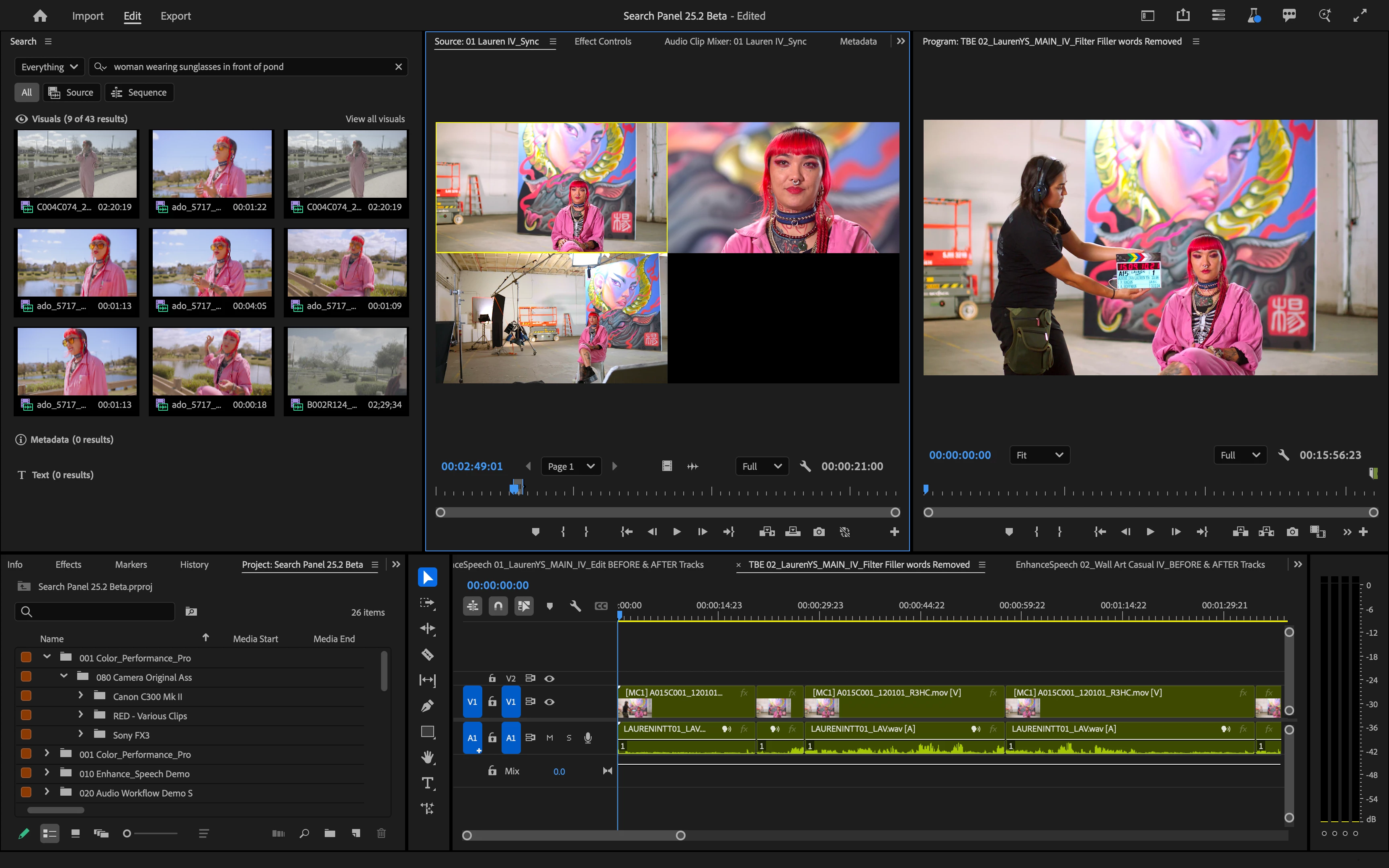
Now in Premiere Pro (beta), AI-powered Media Intelligence automatically identifies visuals such as people, objects, location, camera angles, and more across thousands of clips in seconds. With the new Search panel, use natural language to find these visuals, plus spoken words in transcripts or clips with embedded metadata like shoot date, location, or camera type – all at the same time. The media intelligence analysis is faster than real time and runs locally on your computer, there is no internet connection required. Your media and searches are never used to train Adobe’s AI models. 
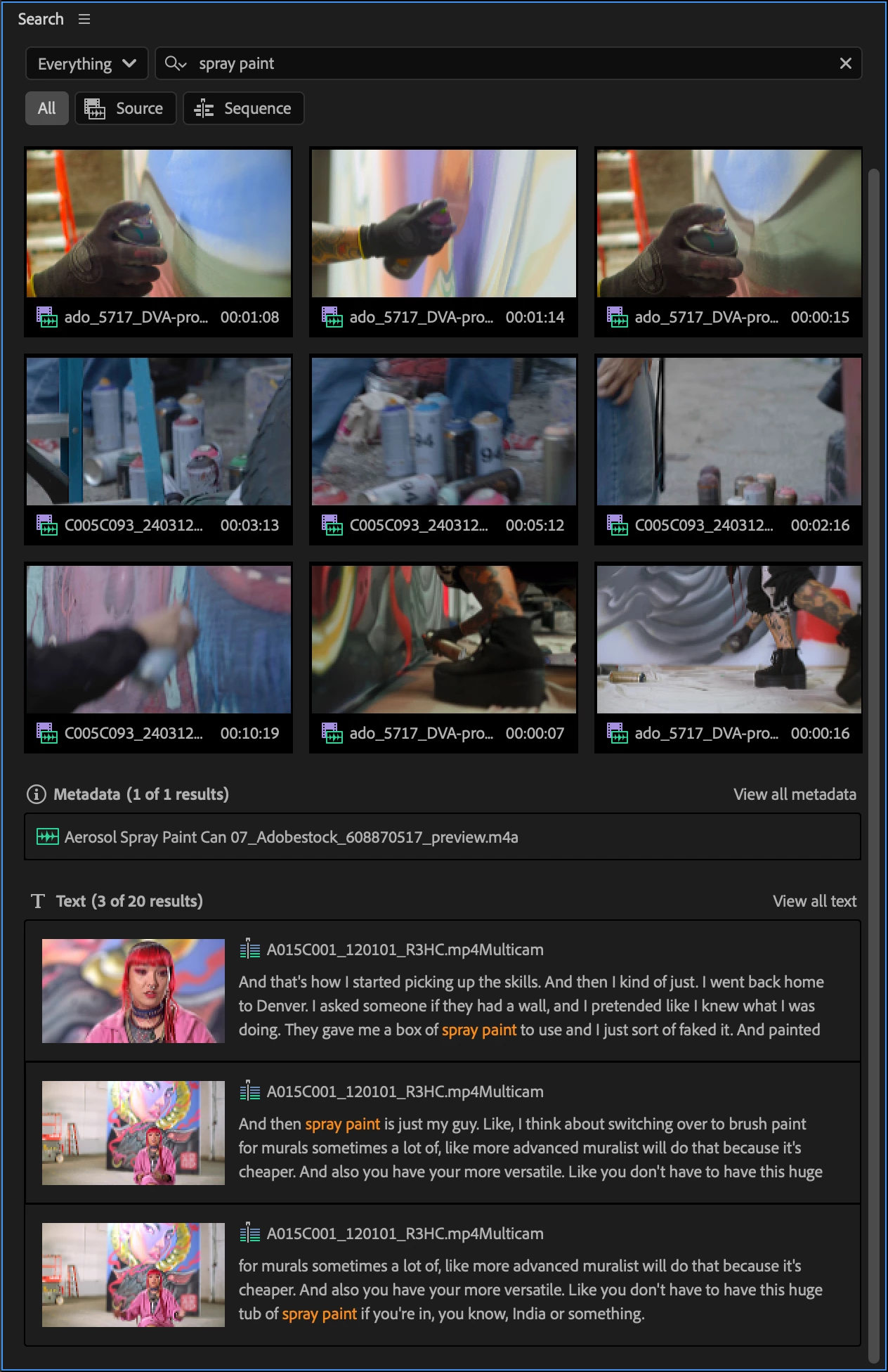
 

This new search can help you at any stage of your edit, whether you’re diving into organizing hours of new footage, or you need to quickly find that one shot you know you’ve seen before.  


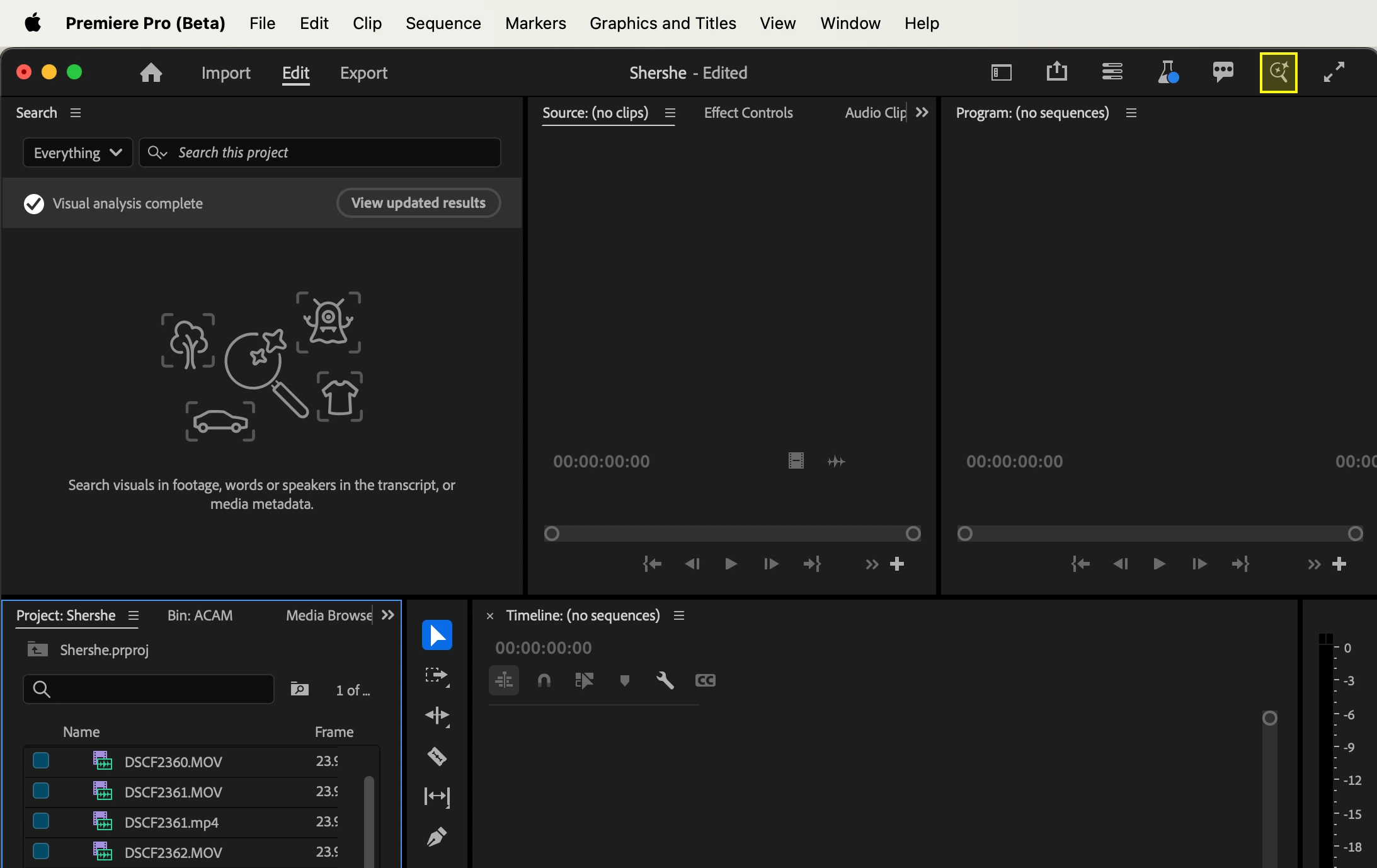
How to get started: 

  1. Import your footage into a new project or open an existing project. 
  2. Open the Search panel by clicking the magnifying glass button in the upper right corner of Premiere Pro app or under Window > Search. 
  3. Let the background analysis process finish. When the analysis is finished you should see ‘Visual analysis complete’ in the Search panel. 
  4. Type in the search field. Visual search can give better results the more specific you are in describing the scene. 


 How media intelligence visual search works: 

  1. Premiere Pro analyzes your footage using on-device models. You have settings to control caching of the analysis. You can turn off analysis altogether in Preferences > Media Analysis & Transcription. 
  2. The analysis from each clip is collected into an index for your project. You’ll see this as a new .prin file next to your project file. 
  3. When you type into the Search panel, your text is analyzed by the same models and then compared against all the analysis collected in the index to find the best semantic matches. 


Read more about Media Intelligence search and check out the Frequently Asked Questions. 


While Search panel is in beta your feedback is invaluable – please give it a try and share how it went for you: what worked, what needs work, and what you’d like to see us do next with media intelligence. 


Once you’ve tried out the new search, let us know what you think in this short survey: https://forms.office.com/r/r0nxuQkPZH – Thank you! 

19 replies

Rollan Banez
Community Expert
Community Expert
January 8, 2025

Thank you for this, will definitely try it and provide feedback on it.

Creative Community Leader / Educator - Empowering fellow educators with creativity and innovation
Participant
January 6, 2025

This is cool. Is there an easy way to clear the results to start it over?

Alexander_DVA
Adobe Employee
Adobe Employee
January 7, 2025

Thank you for your feedback.


The search information is stored per file and per project. At least in theory you dont need to reset these as they are dynamically updated. E.g. if you use a clip in a sequence it will automatically show up in the search results.

If you want to clear the index you can e.g. delete the media side car file .prmi / .prin , to re-generate them.

Best regards,
 Alexander

Participant
January 7, 2025

Thanks for the reply. I am sure that I know the anwser to this, is there a recommended compression for the video files to maximize results, especially for offline?

Known Participant
December 30, 2024

This is awesome! It would be great if the panel worked like a normal bin in thumbnail view. I'd like to be able to use the keyboard to navigate between thumbnails, +/- to enlarge thumbnails,  enter to open a clip in the source window, be able to assign shortcuts for reveal in the Project/Finder (the same that works for revealing clips from timeline).


I found that sometimes, when I open old project Media Intelligance Analysis won't start. If I import the same media to a new project it works fine. It would be nice to have an option to manualy force software to start analysis for selected clips.

AndrewTheGreat
Known Participant
December 23, 2024

"use natural language to find these visuals"

Tried the word крест which is cross in russian - no results found. So no russian language support then?

Also I'm not seeing some previews. These are the default Premiere Pro videos:


Alexander_DVA
Adobe Employee
Adobe Employee
December 30, 2024

Thank you for your feedback - the current beta version only supports english search queries.


Could you give some details about the file format used for the files that did not show a thumbnail? do they show a thumbnail in the project panel? Search should show you the point in time inside the clip as a thumbnail.

Best regards,

 Alexander

AndrewTheGreat
Known Participant
December 30, 2024

The default Premiere Pro videos, Premiere Pro is installed with. 

The thumbnails are shown everywhere except for the Search panel

lbernier
Known Participant
December 18, 2024

Hi, this is awesome! I have a few recommandations for a better usage. What is the best way to provide feedback between an all-in-one post VS multiples separated posts?

mattchristensen
Community Manager
Community Manager
December 18, 2024

Hi @lbernier  thanks for trying this out! Replying right here is fine, if you have separate points just use bullet points. This will make sure we can easily share this feedback with the team. Thanks.

Known Participant
December 22, 2024

Please add the option to disable this feature. If you have a project with hundreds or thousands of clips this feature will freeze Premiere completely.


Edit. Found where you can disable this if needed. Now that I have done some testing, seems to be quite usefull feature in some cases.


Could someone from Adobe take a look at his bug:


Timeline/performance problems since 25.2.0 Build 5... - Adobe Community - 15034753


Could it be related to this feature?

Inspiring
December 17, 2024

I'm not getting any hits from things I know to be in the project. Tried a lot of things like: crane, pickup-truck, i-beam, drone shot, and nothing comes up except "truck" which was in a transcript and didn't pull up any relevant images of trucks in this project. 


I deleted the (very small) index file and media cache. That seemed to kick off media analysis again.  I'll report back if it captures more info this time around...

Inspiring
December 18, 2024

Yeah for whatever reason it is only indexing a few files and not everything in the project. 

Inspiring
December 18, 2024

Hi Matt. That add-on seems to be installed. I will try importing this project into a new empty one and see if I have better luck! Thanks. 

allenj15290054
Participating Frequently
December 16, 2024

I'm not receiving any results in the visuals category, no matter how basic the terms are. Is there something I can try?

Thank you

Jessica Nuñez
Community Manager
Community Manager
December 16, 2024

Thank you for testing Media Intelligence! Are you working in an existing project? Go to your Preferences and under "Media Analysis & Transcription" ensure that the box is checked under Visual Analysis for "Analyze all imported media for visual elements." Can you try that?

allenj15290054
Participating Frequently
December 16, 2024

I am working with an existing project. Thank you, I will give that a try.

Inspiring
December 16, 2024

I just tested this on a project with several hours of footage. Once the analysis is started - how can you stop it?

Also why does this not use the GPU? I just slams my 13900K on every core with 100% while the GPU(s) idle.

NicoBecherer
Adobe Employee
Adobe Employee
December 16, 2024

Thanks for testing out Media Intelligence. All our models should make use of your GPU, so let's get to the bottom of this 🙂 Could you send me your system specy (e.g. GPU Model, Driver version etc) and also what kind of video codecs you've been using in your testing. 

Thanks, 

Nico

Inspiring
December 16, 2024

Hey Nico, thanks for your quick response.


I just remembered that I just updated the GPU driver for the Intel GPU today, but I haven't restarted the system yet. So that might be related.


The system specs (PC is running Windows 11 23H2):

  • Intel i9 13900K (2504 BIOS) with Intel UHD 770 (32.0.101.6325)
  • NVIDIA 3080 12GB (566.14)

The process gradually filled my RAM until it reached the limit of 106GB set in the control panel.

The codec of the footage is mainly H265 with some ProRes422 mixed in - all in 3840p50 / 3940p100.


Consdering the X to cancel - there was no X to cancel in the overall progress in the status panel. Sadly I haven't taken a screenshot of it, but maybe I just missed it, but that's why I asked.

Participant
December 16, 2024

Please add the select find box shortcut to work with this panel thanks.