



[Now Released] Video Transition Handles in Premiere Pro
The Premiere Pro Team is excited to introduce a new Beta feature: Video Transition Handles.
This update makes it faster and more intuitive to create and edit transitions directly on video clips, just like you already can with audio.
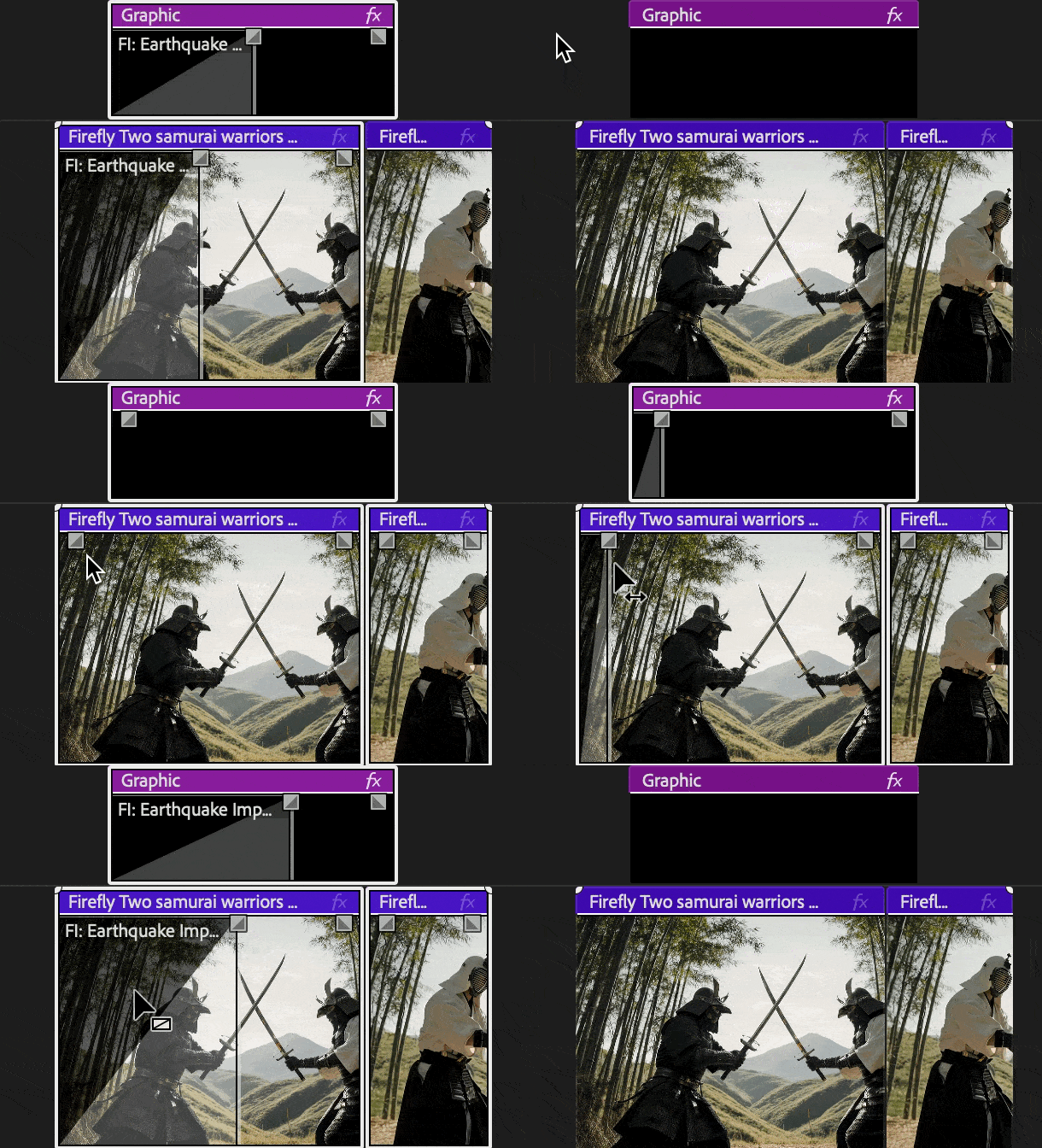
Video Fade Handles allow users to control the transition duration directly from the timeline, providing a way to create and modify the timing of transitions.
Key Enhancement
Drag the new handles at clip edges in the timeline to quickly fade video clips in or out. The handle appears directly on each clip, showing transition length instantly for one or multiple clips.

More Control with Transitions
Want to use your favorite transitions on the video fade handles? No problem.
Video Fade Handles respect your default transition defaults, meaning the transtion will automatically use the transition type and duration you’ve assigned as default, whether that’s a cross dissolve, dip to black, or one of the new Film Impact transitions.
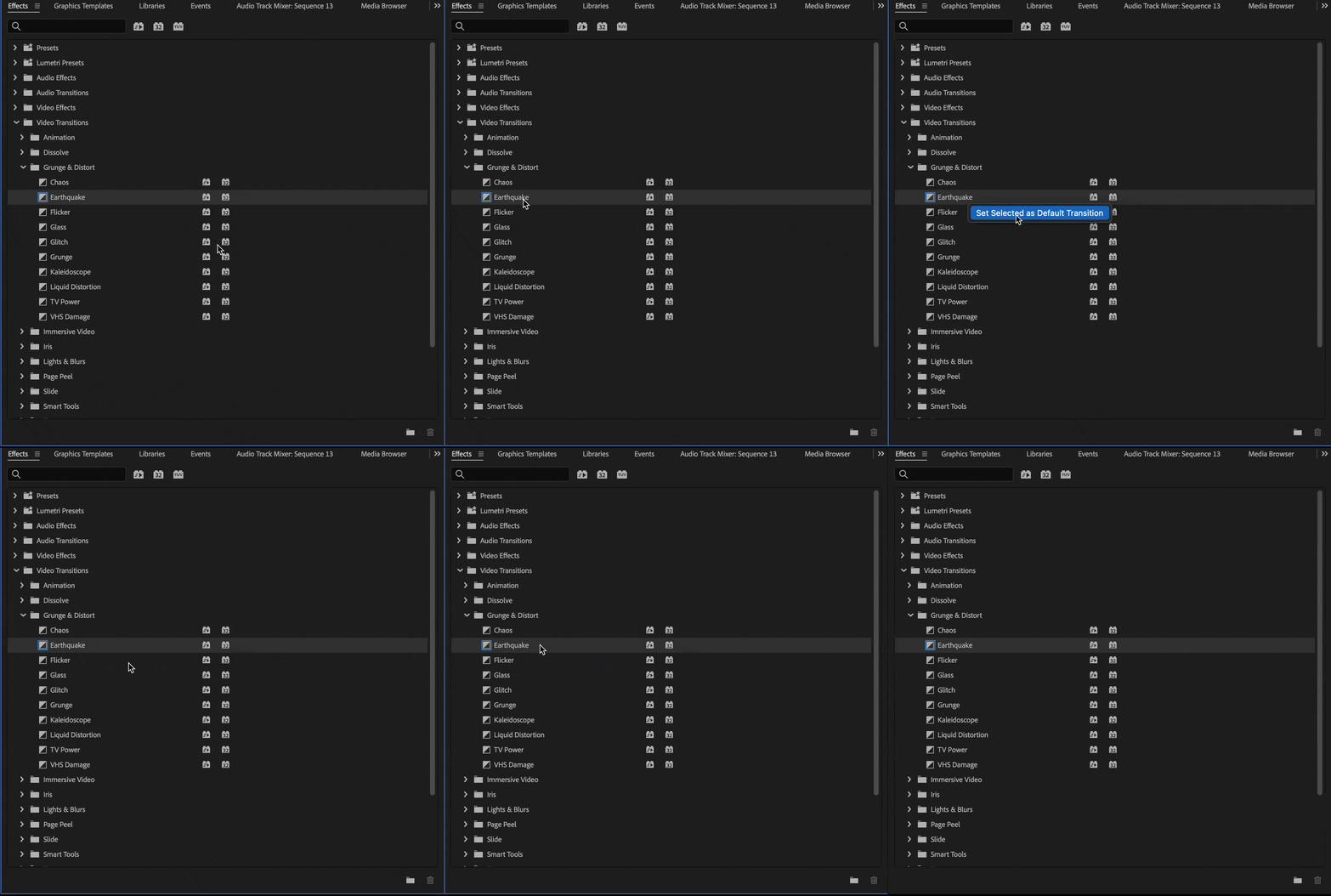
This gives you flexibility to decide the visual style you want for your transitions while keeping the workflow simple and consistent.
Why It Matters
- Makes adding and adjusting transitions faster and more intuitive.
- Works seamlessly with your default transitions or the new Film Impact transitions.
- Reduces mouse mileage.
- Speeds up finishing and creative timing adjustments.
Try It Out
This feature is available now in the latest Premiere Pro Beta build. Give it a try, test it across different clip types, and let us know how it fits your editing workflow.
Your feedback directly shapes how we improve transitions and timeline control in Premiere Pro.
Note: We’re still polishing some interactions, so expect to see improvements as we iterate.
Happy editing!
 AdChoices