




Search Markers Across Your Entire Project
Available in Build 18 or higher (26.2.0.18)
It was almost a year ago that we launched the new Search Panel in Premiere. At that time, you could search your clips using Media Intelligence, including visuals, transcript, and metadata. Finding things with AI is cool and useful! However, we also know that every video editor has your own way of tagging and organizing takes and clips. As a result, we have added Marker Search to the Search Panel, making it much faster to find and compile clips that you or your collaborators have already tagged with markers, across your entire project.
How It Works
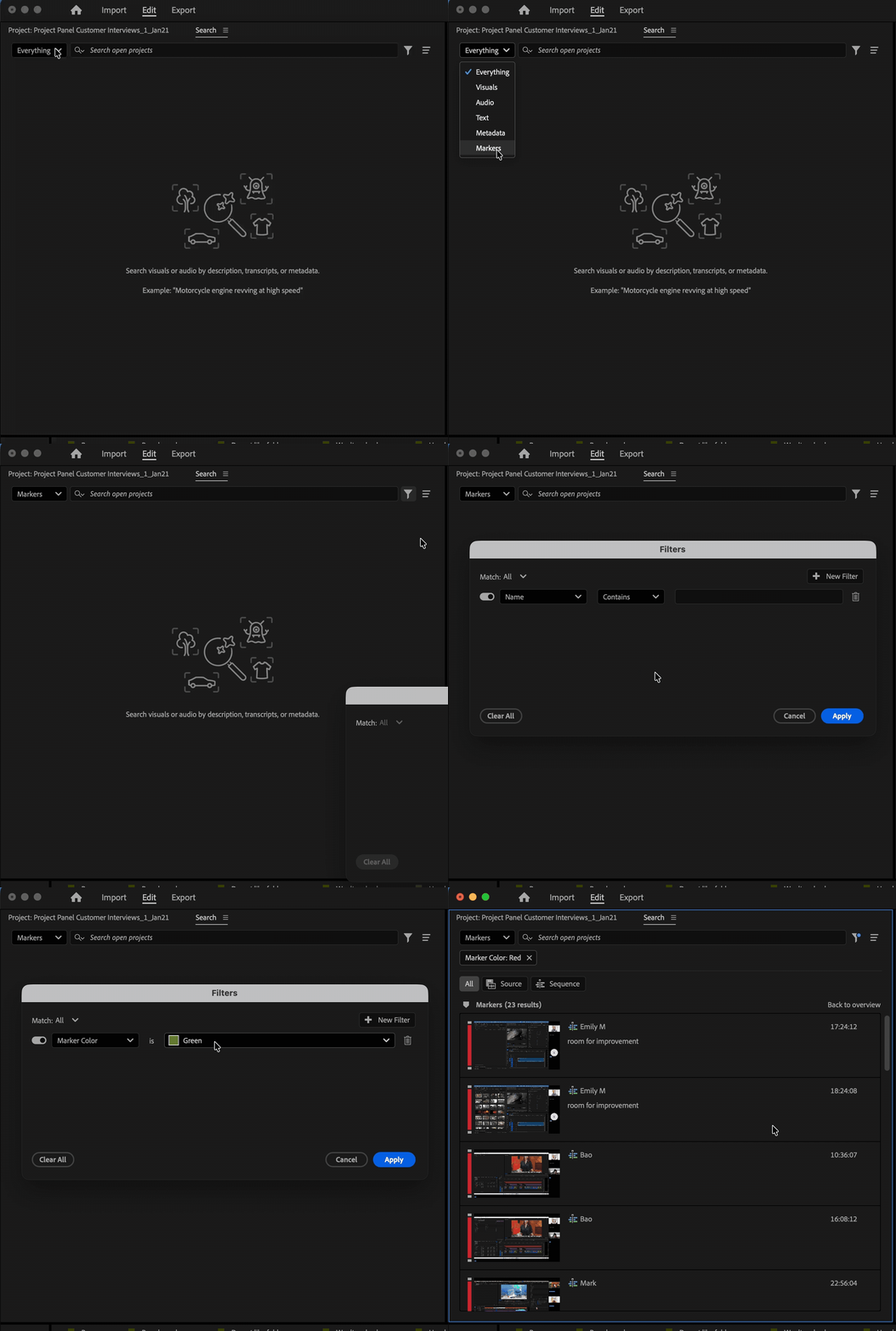
- Open the Search panel
- Use the Markers dropdown
- Choose one of two ways to search:
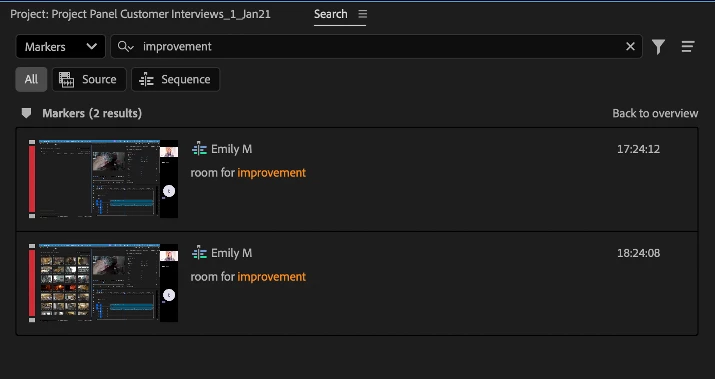
- Search by marker text – find words from the marker Name or Comment
- Filter by marker color – click the Filter button to add a Marker Color filter and see only markers of a certain color
What You Can Search
Marker Search looks across your entire project. As with before, you can narrow searches down to Source markers or Sequence markers.
Take Action
You can drag marker results from the Search panel directly into your sequence. Or, right click and choose one of the other common actions.
Note: Single-frame markers will be cut into a sequence with a duration of 5 seconds. You can change this in Preferences > Timeline > Still Image Default Duration.
Outstanding Issues
If your marker has a non-zero start time, it might not work. We are working on this now.
We would love your feedback. In particular:
- How do you use Markers in Premiere, and how can we make finding them in the Search panel even better?
- What other tagging systems would you like to have incorporated into the Search Panel?
 AdChoices