




Search Panel Updates: Audio Search and Search Similar Frames
We continue our Media Intelligence journey with the ability to search for sounds (Audio Search) and similar visual frames (Search Similar). You can try them out in Premiere Pro Beta v25.6 build 41 or later.
Audio Search
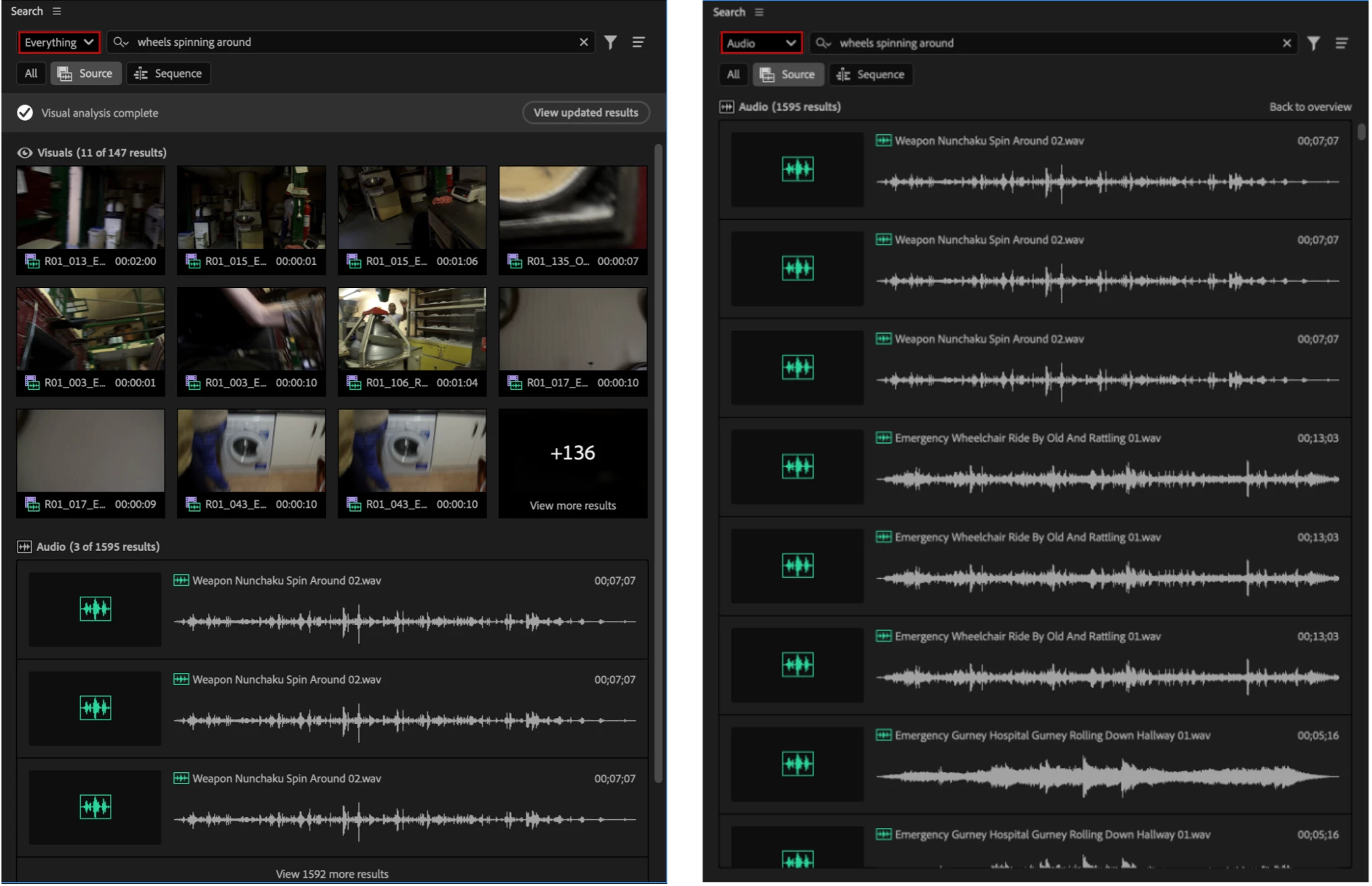
We launched Visual Search in the Search Panel this Spring, helping you find the perfect clip using natural language to describe visual scenes. Now you can search for those things that are harder to scrub and see: cheering crowds, barking dogs, train engines, and crying.
If you have a large sound effects library, you can quickly hone in on relevant sound effects without knowing the name of the clip, simply by typing in “swoosh” or “lightning crack thunder.”
How to use Audio Search
- Open the Search Panel using the magnifying lens icon in the top-right corner of Premiere Pro

2. Type a description of the audio that you want to find into the Search Panel bar.
3. You can filter by “Everything” (meaning Audio, Video, Transcription and Metadata) or simply narrow your search down to Audio only
Note: Audio analysis now happens automatically when you import audio, similar to the visual analysis. All of the answers in this FAQ about visual analysis apply to audio analysis as well. The analysis happens on your device, and Adobe does not see or train on your media or your search queries.
Search Similar
Search Similar uses the same visual search technology, except your search query is a visual frame rather than a text description. You can use Search Similar on a visual search result or from the Source or Program Monitor.
Search Similar is great for:
- Exploring other options for a shot in your sequence
- Finding other instances of a character, branded content, or other proprietary visuals not available in the search tool
- Narrowing your search without needing to think of the exact language
How to Use Search Similar
- In the Source or Program Monitor, stop on a frame you want to use for search, then
- Option 1: Click the “Search Similar Frames” button in the Program Monitor toolbar:
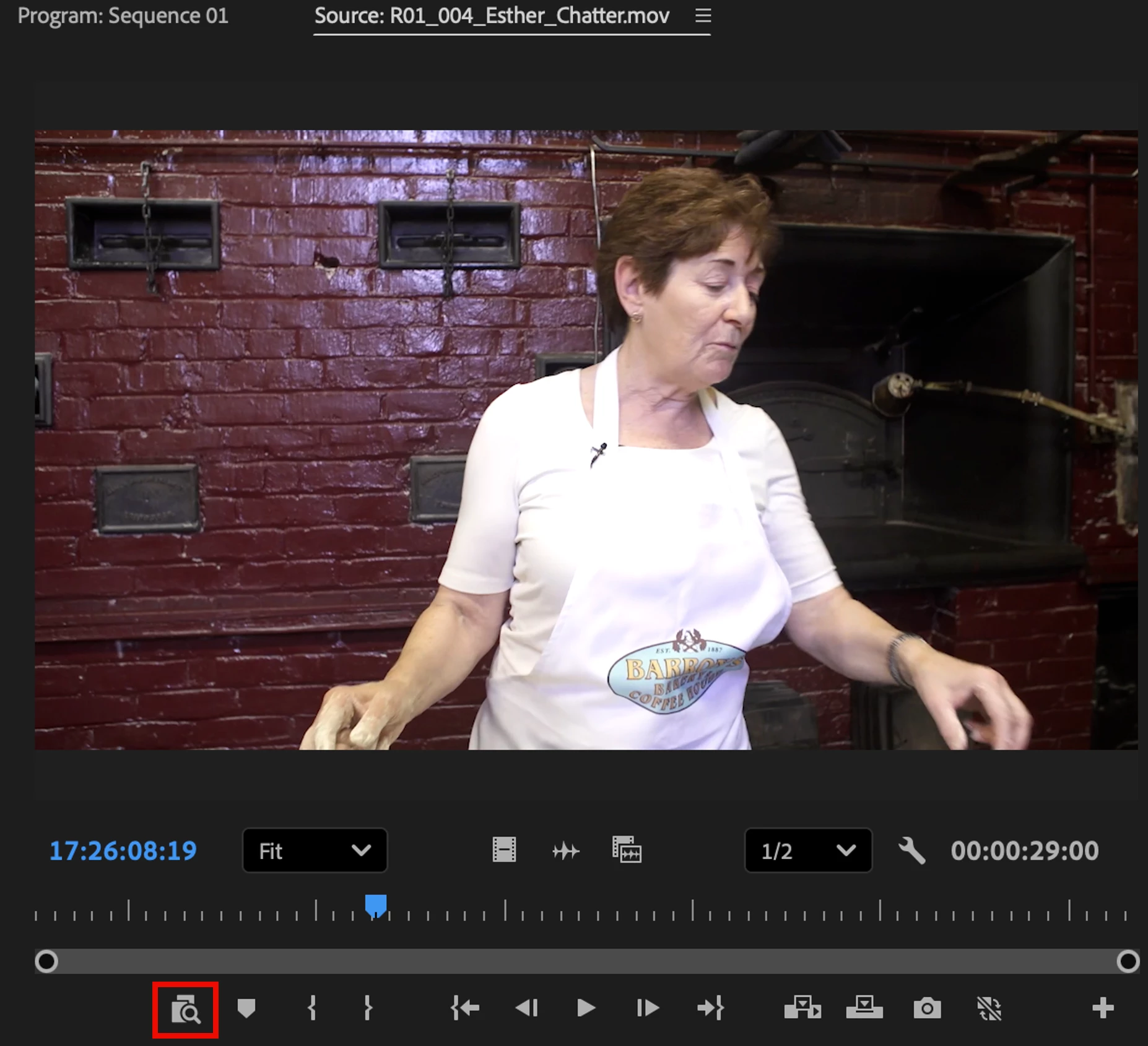
- Option 2: Right click on the frame and choose “Search Similar Frames”
- Option 1: Click the “Search Similar Frames” button in the Program Monitor toolbar:
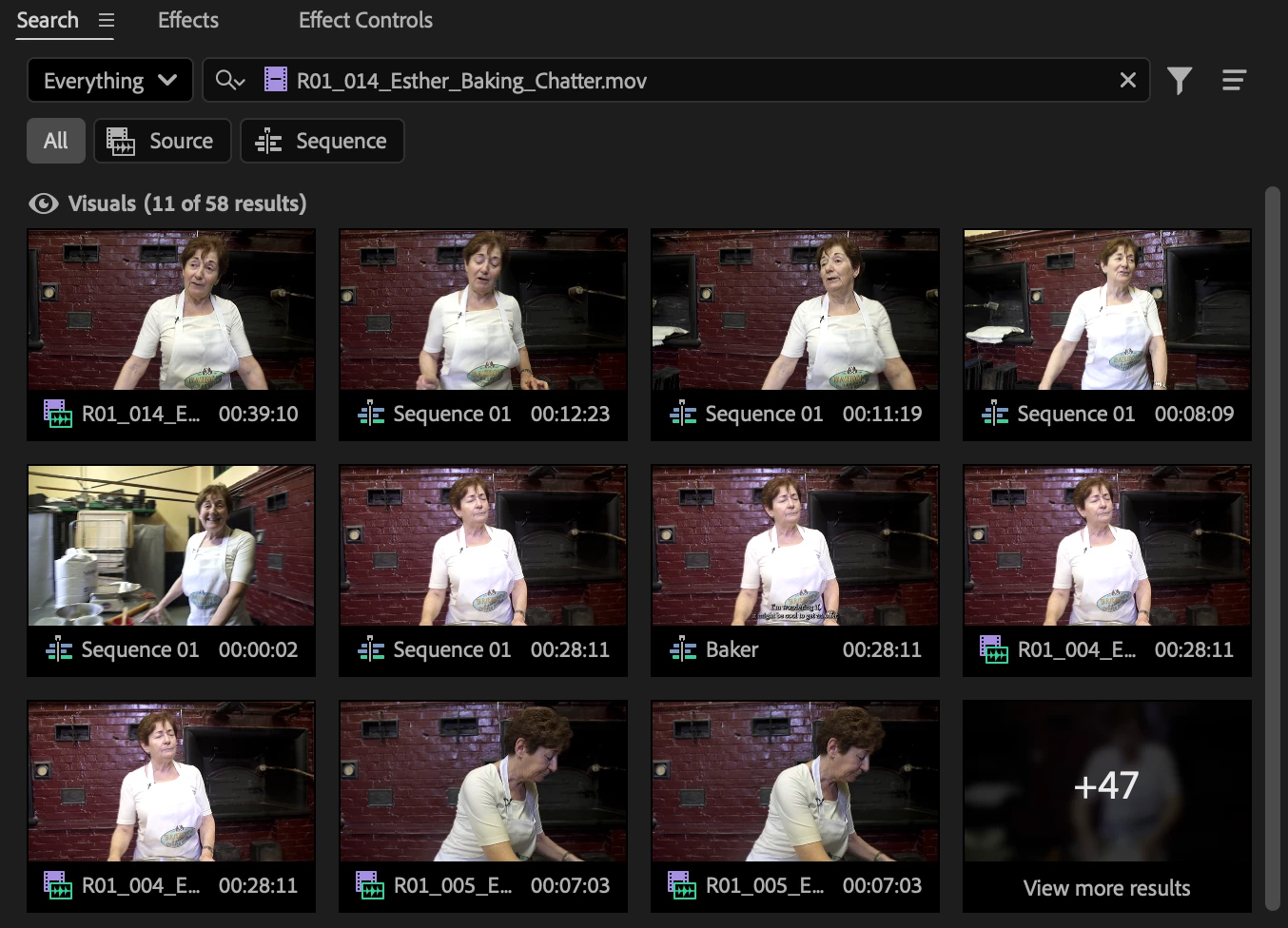
- The Search panel opens, showing the similar results
Or
- In the Search panel, right click on a visual result and choose “Search Similar Frames”
We want to hear from you
- How does the Audio search work for you? Do you find the sounds you expect?
- Are there any other ways you’d like to use Search Similar Visuals in the application?
 AdChoices