


Unable to upload image to Firefly Video “Frame” — Upload button inactive despite correct settings
Hello Adobe team,
I’m encountering a consistent issue in Firefly Video (https://firefly.adobe.com/generate/video).
The “Upload image” button under the *Frame* section remains inactive and cannot be clicked, even though:
- All camera motions and motion references are fully disabled,
- No reference video is uploaded,
- Aspect ratio and resolution are correctly set to Vertical (9:16), 720p or 540p,
- File format is valid (JPG/PNG, under 25 MB, tested with 1080×1920 px vertical image),
- All browser extensions (including adblockers) are disabled,
- Cache has been cleared, and tests were done in Incognito mode.
I also tested in multiple browsers (Chrome, Edge), but the issue persists.
The “Upload image” frame icon stays greyed out and does not react when clicked.
It seems to be a UI/session bug affecting users even with correct configurations.
**System info:**
- OS: Windows 11 Pro, version 25H2
- Browser: Google Chrome (latest stable)
- Adobe account: *Paid Firefly plan*
- No active extensions during testing
Please verify if this issue is already known or tied to recent Firefly Video updates.
Thank you for your assistance!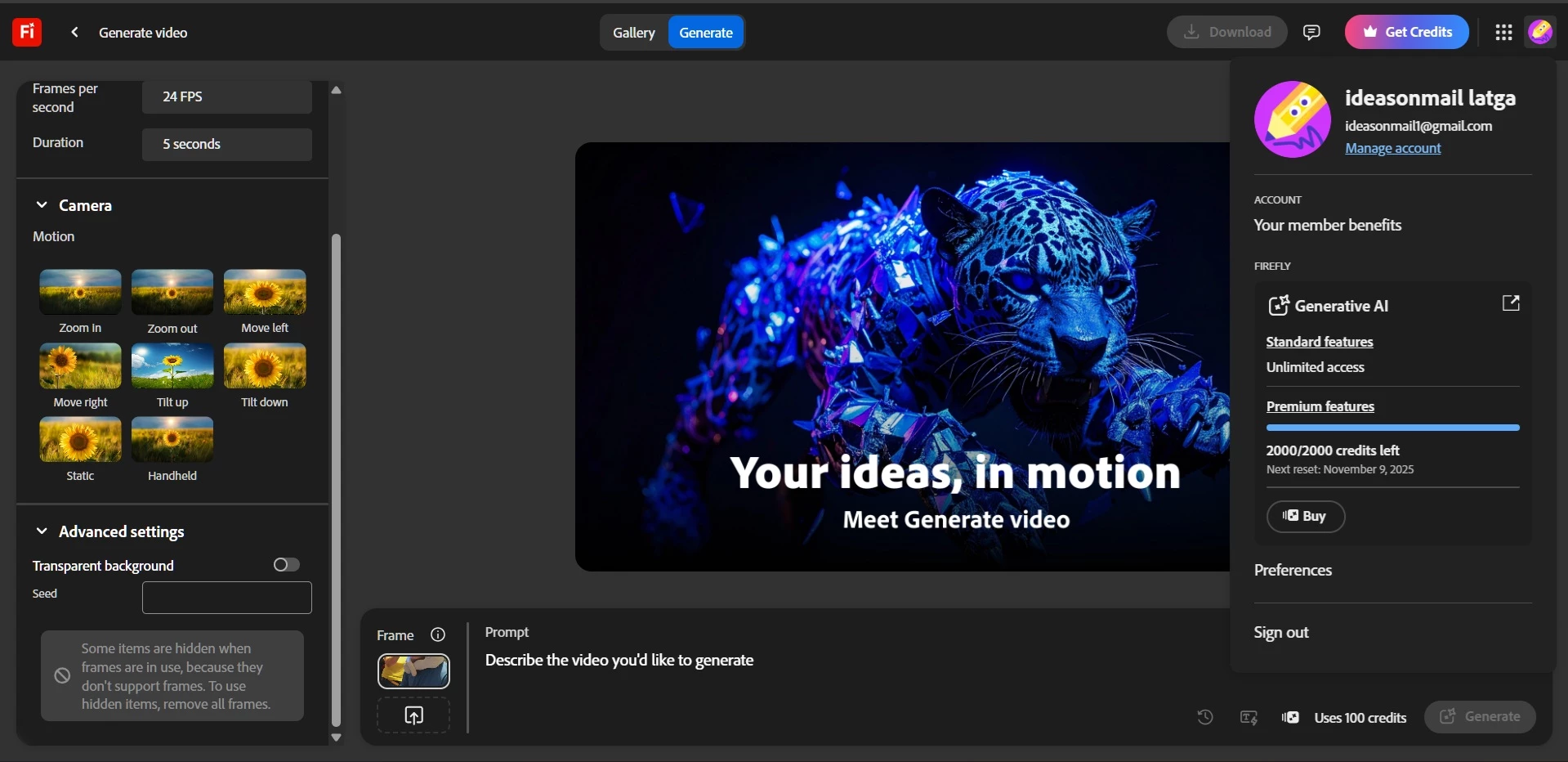
 AdChoices