


Participant
August 19, 2025

After Effects 25.1 -- Motion Blur Bug

  • August 19, 2025
  • 4 replies
  • 380 views

I'm attempting to add a motion blur to a graphic and experiencing an issue where the blur never "disappears" when an animation/motion is completed (see image below):
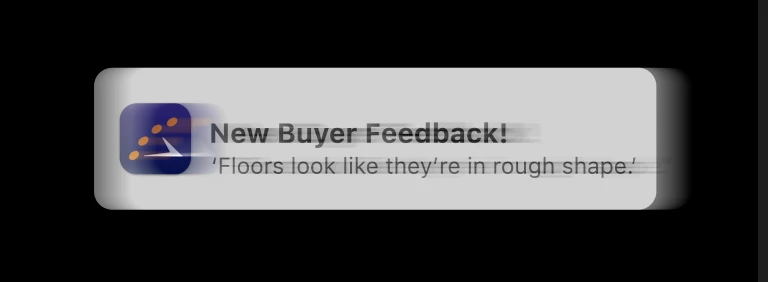


The issue is appearing both in the comp preview and final renders/exports, and started after I updated AE to 25.1. The blur immediately appears on any graphic when it's applied, regardless of whether I have an animation/position keyframed or not. I've deleted my cache, removed all plugins and reinstalled AE to no avail. 

Is anyone else experiencing this?

4 replies

Participant
October 14, 2025

Hi

Same issue here on 2 macs with AE 25.5…

No solution ?

JohnColombo17100380
Community Manager
Community Manager
August 22, 2025

Hi @adventurous_Radiance5E6B,

Thank you for reporting this issue. Are you able to share a simple project that shows the issue? Also, does the issue persists if you update to the latest 25.4 version of After Effects?


Thanks again for reporting this and for any further information you can provide,

- John, After Effects Engineering Team 

Participant
August 21, 2025

Thanks for the response, Rob! I followed your steps (forgot to mention in the original post that I'm on Mac), but unfortunately, the issue has not been resolved. I have:
- attempted to load AE in safe mode
- removed plugins
- reset preferences
- uninstalled and reinstalled AE

Not sure if this is a known bug, or something specific with my system, as I noticed this issue happening as soona as I updated to 25.1. 

Is there a way to revert to a previous version of AE from Creative Cloud?

Community Expert
August 20, 2025

You may want to try resetting preferences. Here are the steps:

  1. Launch After Effects and hold down any modifier key, such as CommandOptionShift (macOS), or CtrlAlt, or Shift (Windows). Or open it through the Preferences dialog.
  2. If you've opened the Reset options dialog by holding down any modifier key, select the relevant options, press the Continue button to perform the specified actions, and resume the launch process.
  3. Depending on the keyboard modifier (or modifiers) used, the options will be pre-selected in the dialog:

Opt or Alt: Reset app preferences

Shift: Reset plugin loading cache

Opt or Alt + Shift: Reset app preferences and reset plugin loading cache

Cmd or Ctrl + 3: Disable third-party video plugins

  1. If you've opened the Reset options through Preferences, then select your relevant options from the given dialog.
  2. After selecting the OK button, a confirmation dialog will appear, displaying the specific options selected in the previous dialog.
  3. Select OK to confirm, and the next time After Effects is manually restarted, the selected options in the Reset options dialog will be processed.