
Participant
December 19, 2024

Switch Motion Graphics Template Media

  • December 19, 2024
  • 1 reply
  • 211 views

I have a large Premiere Pro project containign hundreds of Graphics Templates created in After Effects (Beta)

I am on a new machine with only uses standard After Effects, the Graphics in Premiere are broken, and when I try to relink them I get the following error. Adobe After Effects (Beta) must be installed to import this file.
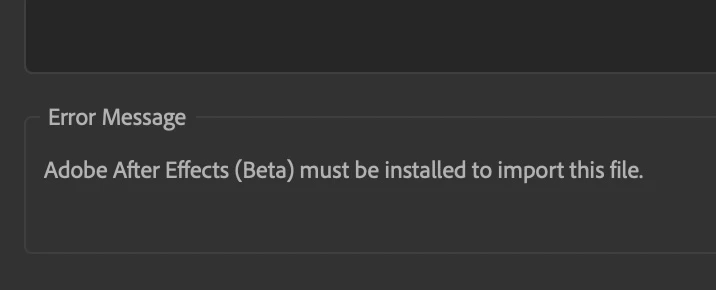
I thought I could fix this by opening the orignial After Effects file that the template was created in After Effects (Beta), I exported it using After Effects giving it the same name, but the same error pops up


Another thing I tried was importing the new template then OPT-drag to replace, as the Graphic Parameters are identical, but that didn't work either


Is there anything else I can try? I don't enough space to install After Effects (Beta) as well as After Effects

This topic has been closed for replies.

1 reply

Theresa Rostek
Community Manager
Community Manager
December 20, 2024

Hi @adb_5785,


While it's true that AE created mogrts are basically an AEP wrapped up with some sidecar files and zipped up, mogrts are unpacked inside of Premiere to its inner aegraphic file, which is treated as footage. The importer is giving you a weird message about After Effects, which is half true but not the information you need.


You'll need to locate the original aegraphics - they're by default next to your project in a Motion Graphics Template Media folder, but check your Scratch Disk settings to see where they are located (File -> Project Settings ->Scratch Disk). 


The fastest fix would be to get back to the other machine, collect the project in the Project Manager to package up all of the aegraphics for you.


The way you should have been able to relink is to alt/opt+replace each of the mogrts in the timeline, however this has highlighted that there are two bugs when the aegraphic goes offline, so I will get those filed. 


What you're going to do:

  1. Alt/opt + replace the mogrts in the timeline. The aegraphic will be populated on disk, but Premiere is not making the connection automatically.
  2. In the Project panel in the Motion Graphics Template Media folder, right click on the media and select Link Media.
  3. Now Locate the aegraphic.
  4. The mogrts will not play correctly just yet. Alt/opt+replace the mogrt again. If you are using the mogrt multiple times in the timeline, you'll get the Multiple Matching Graphics Detected dialog, select yet to replace all of them.
  5. Your mogrts should be playing correctly now.


Thanks for bringing this to our attention and sorry for the frustration. Let me know if this worked or didn't work for you.


Best,

Theresa