

Participating Frequently
July 25, 2023

P: Canon 24-240 lens profile v3

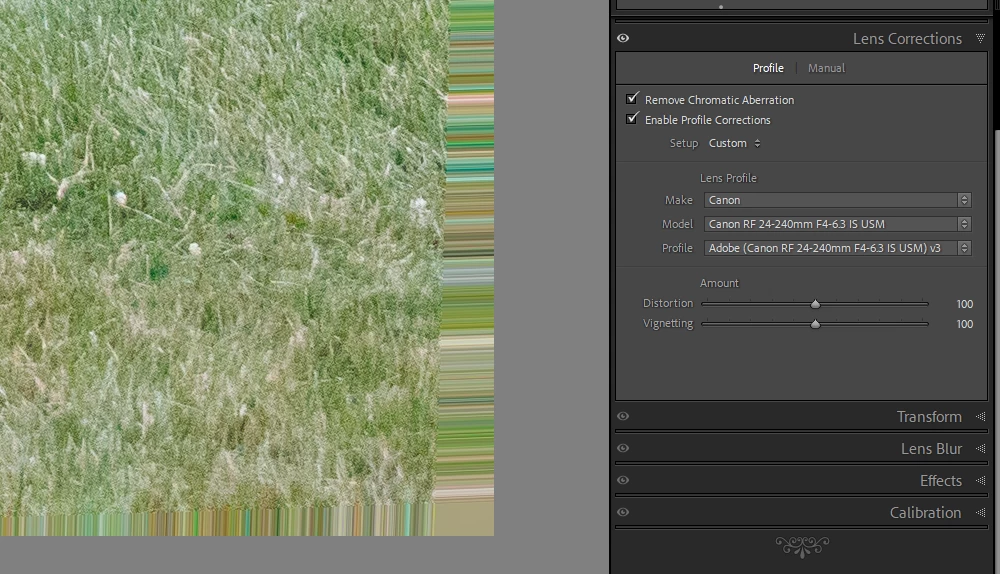
On the latest Lightroom Classic release version 13.5 there is a new lens profile (v3) for the Canon 24-240 lens. It has reintroduced the "bad borders" bug. Workaround is simply to select the older v2 profile.

このトピックへの返信は締め切られました。

返信数 56

Rikk Flohr_Photography
Community Manager
Community Manager
October 14, 2024

Greetings all, 


A new update for Adobe Photography Products has been released.  The October (MAX) update contains an update for this issue. 

If you do not see the update in your Creative Cloud Application, you can refresh it by hitting [Ctrl/Cmd]+[Alt/Opt]+[ R ].

Note: It may take up to 24 hours for your update to be available in your Creative Cloud app.


Thank you for being so patient.

Rikk Flohr: Adobe Photography Org
Participant
October 11, 2024

Facing the same issue.

Any idea when this will be fixed?

Participant
October 10, 2024

I have been using the 24-240 Lens as well.  I have reverted the files back to V2 in the lens profile.  However, what I noticed is that the picture just "CROPS" the image from the edge artifacts, taking with it the full frame of the picture.  I lose things in the edges that I saw and captured, and see in the LRC frame, when I revert to V2.0.  We need a solution that keeps the integrity of the frame, especially when adding a specific lens profile.  This is a long term problem that keeps appearing and re-appearing...

Participant
October 9, 2024

It was with a 24-200 lens - thanks I'll try with the old profile.

Participant
October 9, 2024

Uploading my recent batch of photos I've found significant artifacts introduced so a number of my photos. I've done this thousands of times and this is the first time that it has happened.

My process: I upload the photos to my PC with canon's software and then import them into lightroom.  When I look at the photos in canon's software there are no artifacts, when I open the images in MS photo viewer, no artifacts, when I import them into Luminar neo, no artifacts but if I open it straight in photoshop or lightroom, artifacts.


I'm using LrC 13.5.1 and ACR 16.5

Photoshop


Has anyone else had this problem?


Here are two images of the same photo with one being a close up of the artifact.


[Moved from ‘Bugs’ to ‘Discussions’ by moderator, according to forum rules.]

Per Berntsen
Community Expert
Community Expert
October 9, 2024

My guess is that these pictures are taken with a 24-240 mm lens.

The version 3 lens profile is what's causing the artifacts, and the solution is to use the version 2 lens profile instead.

@Rikk Flohr: Photography please merge with

https://community.adobe.com/t5/camera-raw-bugs/p-canon-24-240-lens-profile-v3/idi-p/14801628#comments

Participant
October 8, 2024

I do have the same problem with the RF24-240 with Lightroom on MACs since a few months. In the time before the profile works with the corrections w/o any artefacts. Obviously some changes on the profile were provided - with the described effects. Hopefully the change back will be operated soon...

Participant
October 6, 2024

Recently when I import new images I am getting bad edges (blurry/banding) or very bad vignetting. This happens when I import new photos from cards or import older photos from aan external harddrive. The first three photos are the new problem, the last twi are the original imports from 5 months ago. I am using Lightroom Classic Version 13.5.1 Windows 10  Thanks 


[Moved from ‘Bugs’ to ‘Discussions’ by moderator, according to forum rules.]

Per Berntsen
Community Expert
Community Expert
October 6, 2024

Are you using a Canon 24-240 mm lens? If so, see this thread:

https://community.adobe.com/t5/camera-raw-bugs/p-canon-24-240-lens-profile-v3/idi-p/14801628


The fix is to use the version 2 lens profile instead of version 3, which is buggy.

Known Participant
October 4, 2024

When i import Raw files from a Canon RP there is a strange borden around the files with all little stripes.

When i look at the originals (in the finder) the image seems to be perfect.


Community Manager
September 24, 2024

@oda6317 Does it help if you:

1. finish syncing anything pending upload from the mobile app, and then

2. re-install the mobile app?


EDIT ---

Please ignore what I wrote just above.  I have since realized this post was merged with an existing thread that describes the problem.

Participant
September 22, 2024

Hi there
All my imported RAW files have a strange border after imported with Lightroom Mobile to my iPad Pro. So i have to crop every image. See Attachment. Any suggestions or explanations? 

Thany you for any help on this. 


iPad Pro: 12.9" 6. Generation

Lightroom Mobile: Ver. 9.5.1


Community Manager
September 22, 2024

What camera make and model captured your images?  


In the app Settings, under Import, what is selected for Raw Default Settings?  Adobe default or Camera Settings?  Does it help if you import using the alternate setting?


If you sign into your same account at lightroom.adobe.com, thr LR Web app, do the images look the same there?

Participant
September 24, 2024

I use the Canon R5 with the Canon Lens 24-240mm. LR iOS App on iPad Pro Ver. 9.5.1. Aspect Ratio to FULL Resolution (3:2).


Normaly I use the Adobe default Import Settings. I changed that and the problem is still there. In the LR Web App on lightroom.adobe.com the pictures have the same failor. 


The funny thing is, that in May, i used the same equipment for a trip, importet more then 1500 RAW pictures without any problems.