


Participating Frequently
June 18, 2020

P: Lightroom Classic: "Open as layers in Photoshop" function broken after update

  • June 18, 2020
  • 86 replies
  • 4733 views

I edit about 30 images per day by selecting the below command, within Lightroom Classic (recently updated):


PHOTO > EDIT IN > OPEN AS LAYERS IN PHOTOSHOP (also recently updated)


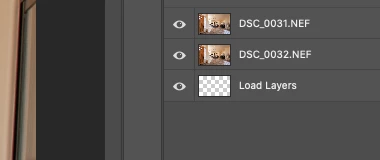
But after the most recent update of PS and LrC I have reliability lost this ability.  If I select 5 images in LrC and try to do the above, only about 1-2 images appear in my layered PS file as a layer, then a blank "LOAD LAYERS" layer appears (see attached) and one more image will open in a separate PS file and not a part of the layered file - then the import quits.


After I am done editing the layered file and when I save it - it will automatically save and load the modified layered file in LrC - which it does not do anymore. I was able to get it to work properly  couple times, but it always ends up giving me this problem about 80% of the time.


Obviously the only work around is for me to copy and past each layer individually and then manually save the file and import into my LrC catalog - which makes the process of editing images very inefficient when doing dozens of these edits per day.


I'm on a Macbook Pro, latest install of LrC and PS / most recent Catalina & have uninstalled/re-installed PS - again, I have edited hundreds of images like this prior to the recent updates and never had an issue so obviously it have something to do with the update, at least for me.


andrew
This topic has been closed for replies.

86 replies

Ian Lyons
Community Expert
Community Expert
February 8, 2022

Uninstall both Photoshop and Lightroom Classic, then reinstall Photoshop first followed by Lightroom Classic

daring_Dusk5C1F
Known Participant
February 7, 2022

Still having the issue here. It's really annoying tbh. 

Inspiring
August 18, 2021

Really? IT'S NOT FIXED!

johnrellis
Legend
April 12, 2021

"Alter the metadata or edit settings of any of the current file(s) so the risk of accidentally applying the settings doesn't damage the existing images."

If only it were that simple. Right-clicking the Loupe image and doing Open As Smart Object opens the most-selected image only, even though it won't change the selected images. Right-clicking the filmstrip thumbnail and doing Open As Smart Object opens all the selected images.

Similarly for Create Virtual Copy.

In general, the rules for which photos are affected by commands in Loupe are extremely complicated:

https://feedback.photoshop.com/conversations/lightroom-classic/lightroom-classic-long-time-pet-peeves/5f5f460f4b561a3d42716a96?commentId=5f5f49074b561a3d424b1bbf 

Bob Somrak
Legend
April 12, 2021

@Rikk 

I think Edit In, Open as Layers and Merge etc. have always opened multiple photos in Develop.  I think this is the way is should work as they are not edits to the individual photos but are creating new derivative photos.  

M4 Pro Mac Mini. 48GB
Rikk Flohr_Photography
Community Manager
Community Manager
April 12, 2021

That makes sense as none of these specific operations:

Merge

Edit In

Open as Layers

Alter the metadata or edit settings of any of the current file(s) so the risk of accidentally applying the settings doesn't damage the existing images.

It would still apply to Flags, Color Labels, Stars, Metadata, Edit Settings etc.  

Good to know. 

Rikk Flohr: Adobe Photography Org
Known Participant
April 12, 2021

By the way, it also works from Filmstrip for Panorama and HDR in PS, so it cannot be just a random coincidence.

Best

andre

Rikk Flohr_Photography
Community Manager
Community Manager
April 12, 2021

It turns you that is correct. Odd that Open in Layers works as almost all Filmstrip functions are limited to the Target Image and not the selection. I will include that in my notes. 

Rikk Flohr: Adobe Photography Org
Known Participant
April 12, 2021

Sorry but it's incorrect..!!! .I have spent an hour or so today with Adobe Support and they have fixed the issue which was a combination of updating Nvidia driver and purging Cache in PS and CR.

Now, you select images in Develop -> Right Click -> Edit In - Open as Layers in Photoshop et voilà...back as it used to work. The images are opened as Layers in PS.

Rikk Flohr_Photography
Community Manager
Community Manager
April 12, 2021

This sounds as-designed. 

Grid View - functions happen to all selected images

Loupe only happens to most selected (Target) image) 

The same is true of many other functions (e.g. adding metadata, flags, stars, etc. 

Rikk Flohr: Adobe Photography Org