
Participating Frequently
June 18, 2020

P: Lightroom Classic: "Open as layers in Photoshop" function broken after update

  • June 18, 2020
  • 86 replies
  • 4733 views

I edit about 30 images per day by selecting the below command, within Lightroom Classic (recently updated):


PHOTO > EDIT IN > OPEN AS LAYERS IN PHOTOSHOP (also recently updated)


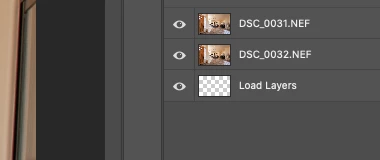
But after the most recent update of PS and LrC I have reliability lost this ability.  If I select 5 images in LrC and try to do the above, only about 1-2 images appear in my layered PS file as a layer, then a blank "LOAD LAYERS" layer appears (see attached) and one more image will open in a separate PS file and not a part of the layered file - then the import quits.


After I am done editing the layered file and when I save it - it will automatically save and load the modified layered file in LrC - which it does not do anymore. I was able to get it to work properly  couple times, but it always ends up giving me this problem about 80% of the time.


Obviously the only work around is for me to copy and past each layer individually and then manually save the file and import into my LrC catalog - which makes the process of editing images very inefficient when doing dozens of these edits per day.


I'm on a Macbook Pro, latest install of LrC and PS / most recent Catalina & have uninstalled/re-installed PS - again, I have edited hundreds of images like this prior to the recent updates and never had an issue so obviously it have something to do with the update, at least for me.


andrew
This topic has been closed for replies.

86 replies

Nature Mike
Known Participant
October 2, 2020

I'm using Photoshop 21.2.4 and Lightroom Classic 9.4. For the past few weeks I've been encountering problems when trying to open multiple photos as layers from Lightroom to Photoshop. Photoshop will usually import a few photos into on document and then it will just stop importing and whatever photo it get stuck on opens up in a different document and no other photos are loaded.

Inspiring
October 1, 2020

I frequently use the "Edit In" > "Open as Layers in Photoshop" and then have to select all layers and auto-align every time. I would love to see a "Open as Auto-Aligned Layers in Photoshop" option added

Inspiring
September 28, 2020

This is a huge problem for me professionally. I open multiple images as layers constantly for my work. Been doing so for over ten years. This is the first time this has been a problem. Same issues described above. Adobe needs to solve this pronto. Many of us work with Lightroom and Photoshop for a living. Hello, Adobe! You got my subscription out of me, now fix your stuff!

Participating Frequently
September 19, 2020

I found my 67-image set and yes, the workaround works fine. (I don't know where I read about this several weeks ago. Maybe David and I both saw it there.)


Inspiring
September 19, 2020

I tested Linda’s method yesterday (repeatedly) on 80 layers and it worked fine!

johnrellis
Legend
September 19, 2020

Linda, does the workaround you posted work with your 60-layer test set?

Participating Frequently
September 19, 2020

I could affect how many images loaded as layers by freeing up RAM and increasing scratch disk space in PS. But I never could get all the way back to loading all 60 images in my test set as layers in PS. iMac with 32 GB of RAM, 24MP raw files, too many Topaz and On1 plugins loading into PS. LrC 9.3 and PS 21.2.0.


Based on Jim Robertson's report, maybe I'll update LrC and PS. But then I may run into the syncing bug of LrC 9.4 (cosmetic though)... Since updating didn't help Brad MacDonald, I'm not optimistic.

Inspiring
September 18, 2020

I am using LrC 9.4 and PS 21.2.2 on a PC. I have spent 12-15 hours over the last two days editing files from LrC as Layers in PS. Some up to 50 layers. 

Touch wood 😀, I have had no problems.

Inspiring
September 18, 2020

@linda_alschuler. Thank you.  Helpful!   

Participating Frequently
September 18, 2020

The method from David Wilkins should help in the meantime. Select the images in Lightroom Classic and use Photo > Edit in Photoshop. Photoshop should open with those files (not in layers). Close any files you don't want in your new layered document. Then go to File > Scripts > Load Files into Stack. Click on Add Open Files, then OK. You should now have a file with layers for all of the images that were open.