
Participating Frequently
June 18, 2020

P: Lightroom Classic: "Open as layers in Photoshop" function broken after update

  • June 18, 2020
  • 86 replies
  • 4733 views

I edit about 30 images per day by selecting the below command, within Lightroom Classic (recently updated):


PHOTO > EDIT IN > OPEN AS LAYERS IN PHOTOSHOP (also recently updated)


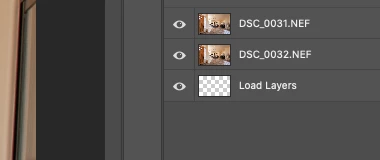
But after the most recent update of PS and LrC I have reliability lost this ability.  If I select 5 images in LrC and try to do the above, only about 1-2 images appear in my layered PS file as a layer, then a blank "LOAD LAYERS" layer appears (see attached) and one more image will open in a separate PS file and not a part of the layered file - then the import quits.


After I am done editing the layered file and when I save it - it will automatically save and load the modified layered file in LrC - which it does not do anymore. I was able to get it to work properly  couple times, but it always ends up giving me this problem about 80% of the time.


Obviously the only work around is for me to copy and past each layer individually and then manually save the file and import into my LrC catalog - which makes the process of editing images very inefficient when doing dozens of these edits per day.


I'm on a Macbook Pro, latest install of LrC and PS / most recent Catalina & have uninstalled/re-installed PS - again, I have edited hundreds of images like this prior to the recent updates and never had an issue so obviously it have something to do with the update, at least for me.


andrew
This topic has been closed for replies.

86 replies

TheDigitalDog
Inspiring
June 19, 2020
 I re-installed an older version of PS (21.1.3) and  LrC (9.2.1) which didn't make much of a difference.

Be sure to install LR first, THEN PS. The order can make a difference. 
Author “Color Management for Photographers" & "Photoshop CC Color Management/pluralsight"
Participating Frequently
June 19, 2020

So I ran Onyx, repaired my system directory, cleared both my PS and LrC prefs and still continue to get the issue. The only thing worked for me was quitting both programs after each edit, and it works about half the time. I re-installed an older version of PS (21.1.3) and  LrC (9.2.1) which didn't make much of a difference.


Seems like PS gets stuck with the Load Layers function and will just sometimes stop and leave me hanging.


Hope that a future version magically corrects this.
johnrellis
Legend
June 18, 2020
Bob Somrak reports the problem occurred for him once out of ten tries:
https://community.adobe.com/t5/lightroom-classic/quot-open-as-layers-in-photoshop-quot-function-in-l...
Rikk Flohr_Photography
Community Manager
Community Manager
June 18, 2020
It is likely you need to reset your Photoshop and/or Lightroom preference files. They will survive an uninstall/reinstall.

  • Close Each App
  • Open App with [Opt]+[Shift] held down 
  • Reset Preferences when prompted
Rikk Flohr: Adobe Photography Org
brezeljo
Participating Frequently
June 18, 2020
No problems here either, MB Pro 2015 Catalina
Inspiring
June 18, 2020
5 images loaded fine for me from LRC, all the same specs as you except the 2019 iMac (64GB RAM). Try Onyx to rule out a corrupt cache or application state, instructions below (I was a Mac IT pro for 25 years). Run Onyx monthly to fix issues before they break stuff.

Download the free Onyx (https://www.titanium-software.fr/en/onyx.html), select the Onyx version for your OS, download, run it, reboot.

In Onyx run almost everything in the Maintenance tab, deselecting things you may not want deleted, like Launch Services . Hit the "Options" button across from Internet and deselect more stuff like Cookies & Other Site Data, Browser History, Form Values, etc. (most of these are OFF by default). If you don’t know what something is, google it, or don’t run it, or ask me), then hit Run Tasks. After it's done it will ask for a reboot.

Also try to fix any directory damage by running Disk First Aid from Disk Utility: boot into Recovery Mode, (hold down Command-R when booting). When you're in Recovery Mode go to the Utilities menu and launch Disk Utility, say Repair Disk. When done go to Apple Menu for Startup disk and restart normally.