cyrilw
Participating Frequently
April 2, 2023

P: Merged Images show Vignetting Artifacts (Nikon Z7II with 24-70 F4)

  • April 2, 2023
  • 18 replies
  • 3655 views

Dear Adobe Support


Use Case & Setup

I own a Nikon Z 7 II with a kit lens, the Nikkor Z f/4 24-70mm, which I use a lot when travelling. Typically, I would shoot a lot of images at 70mm and build panoramas, which is why I need vignetting to be eliminated completely, as the bright, respectively dark vignetting on the original pictures can otherwise be seen in the final resulting panorama.


The problem

It seems like there is no way currently to automatically correct the lens profile to remove vignetting using the NIKKOR Z f/4 24-70mm kit lens.


The process

I typically import my images in .NEF and first convert the to .dng (with lossy compression). I assume this step has no impact but I'm mentioning it here for completeness.

I have seen similar posts on this forum but they don't seem to answer exactly this question. More on this later.

Here is what I see, to give you an example:
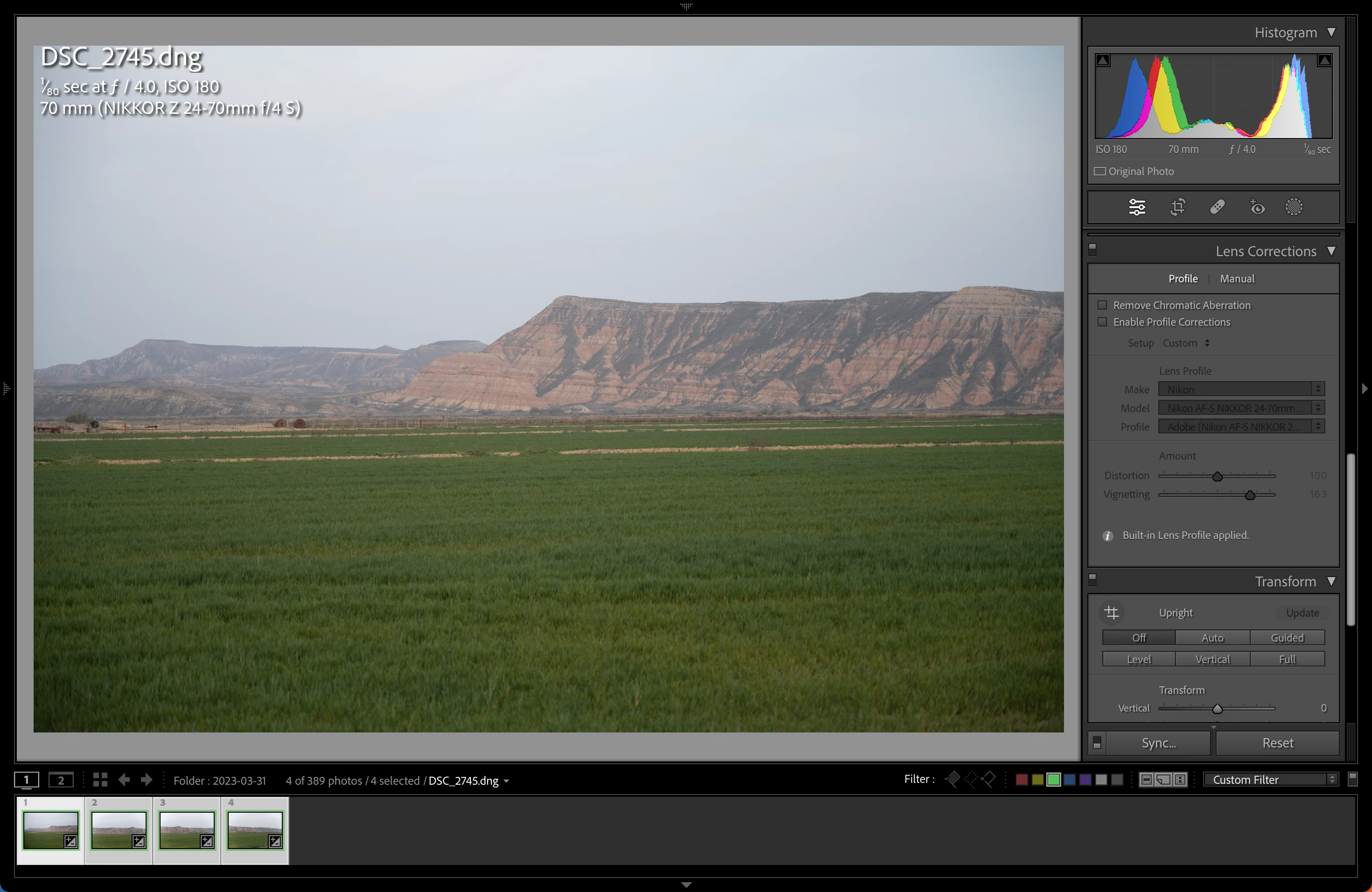
After importing and without profile corrections enabled, you can clearly see vignetting just by looking at the image. It becomes even more striking when combining the four pictures shown to a panorama and applying, just for the sake of demonstration, some (exaggerated) dehazing and histogram stretching:
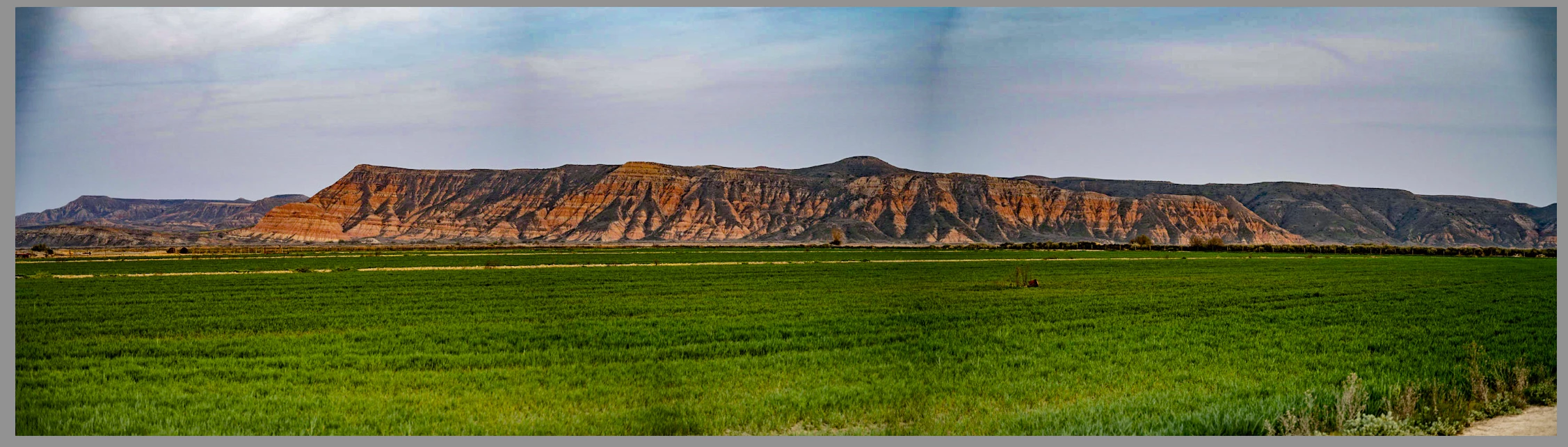
This of course is not pretty and is meant to be only a demonstration. It looks to me like the dark parts are results of vignetting when stitching together the panorama.

When I apply "auto" profile corrections, it will again use the "built-in" lens profile, which is equal to unticking the box:
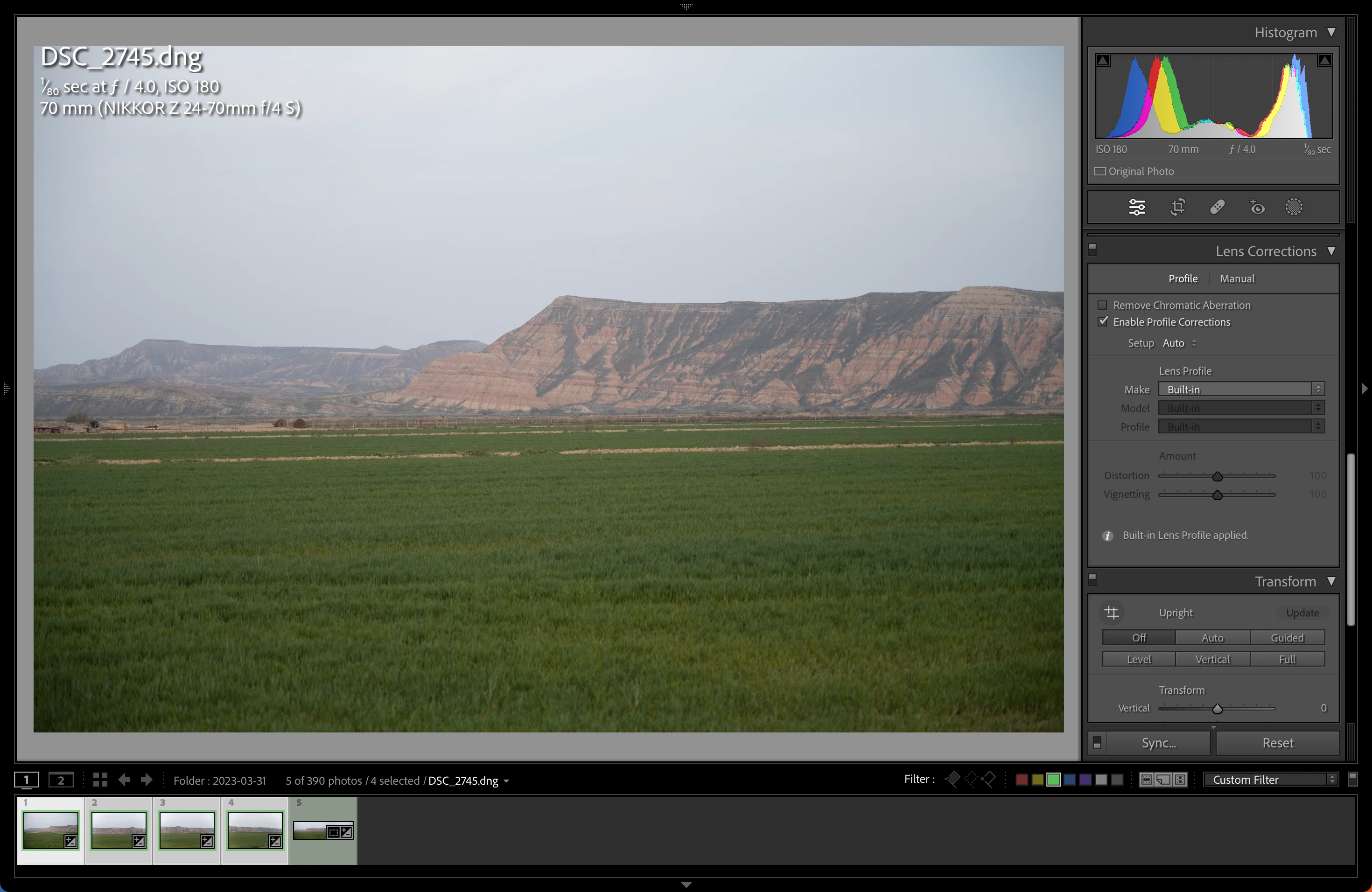
(this is something else I don't understand with Lightroom, why is no way to remove the built-in, even when lens profile corrections are unticked? But this is a side question)


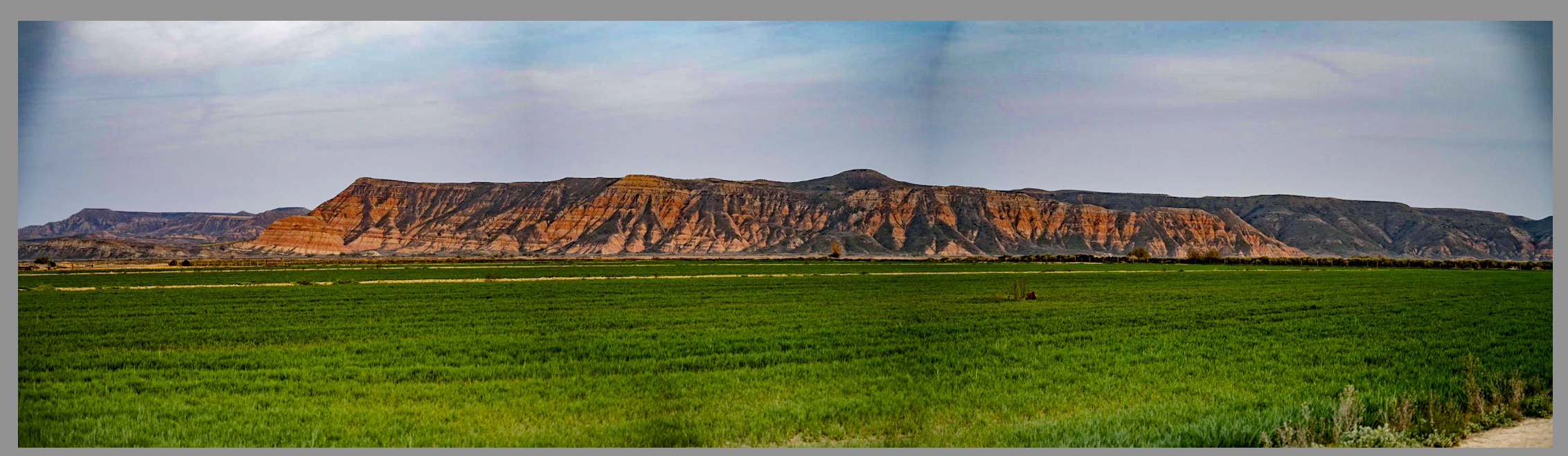
This results in the exact same panorama (I synced all edits to make sure the images are comparable).
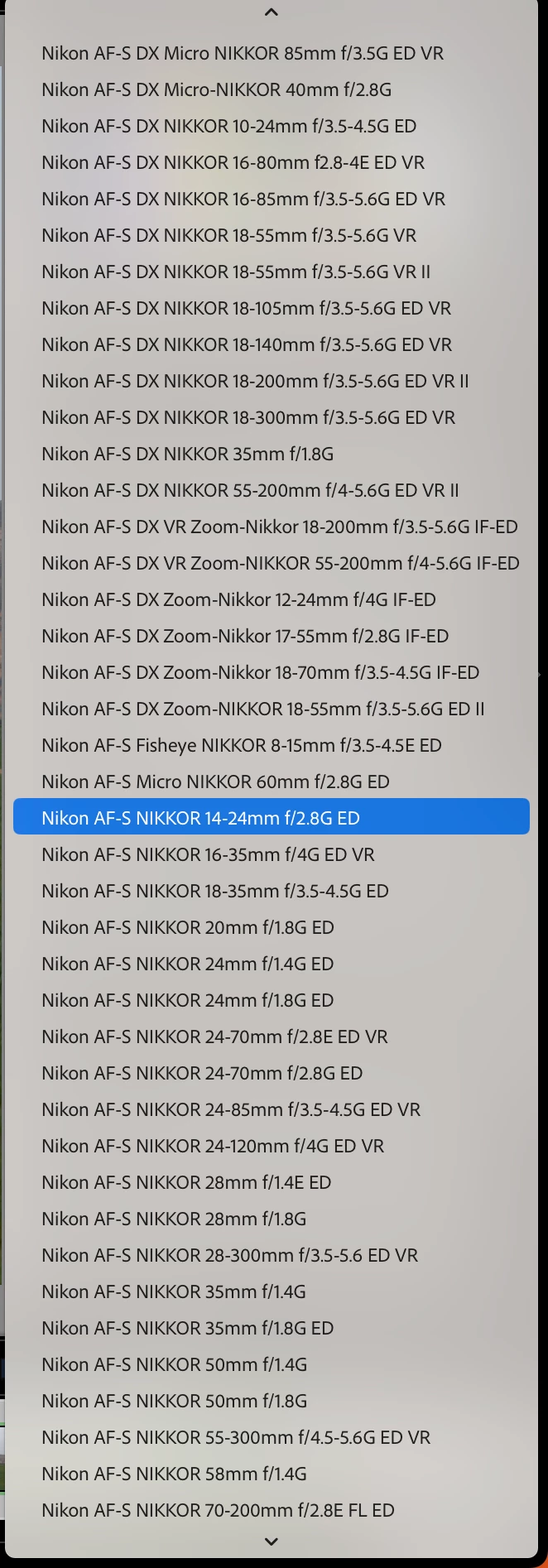
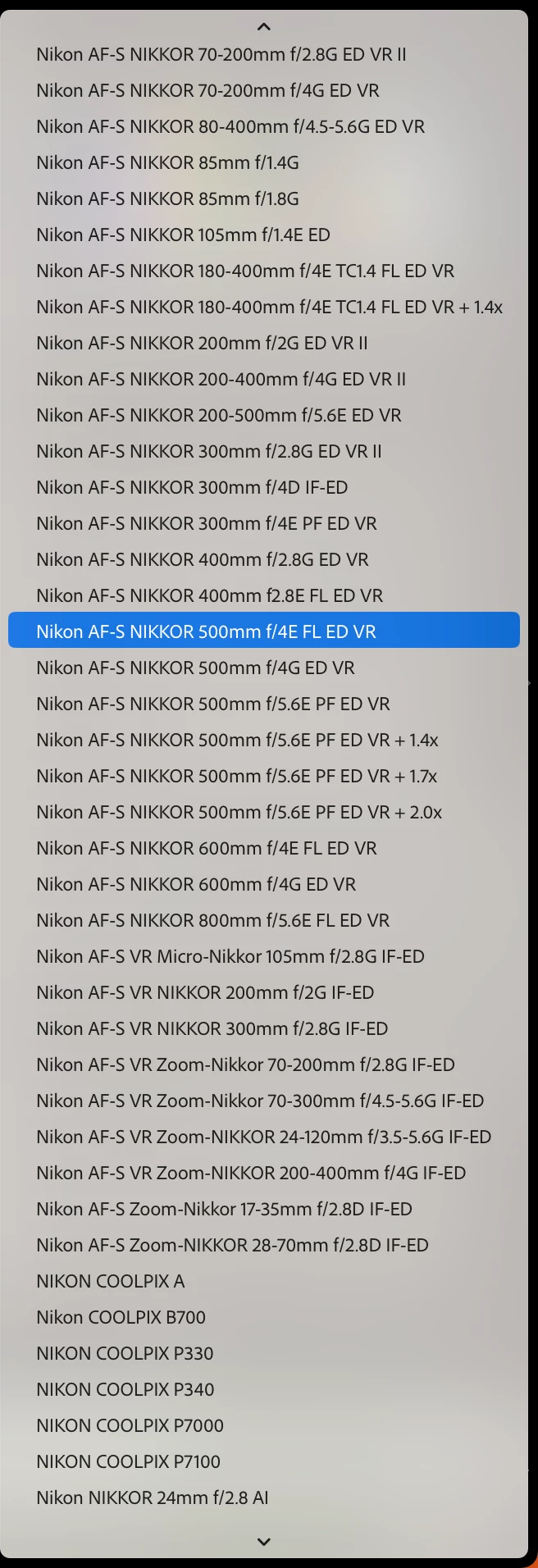
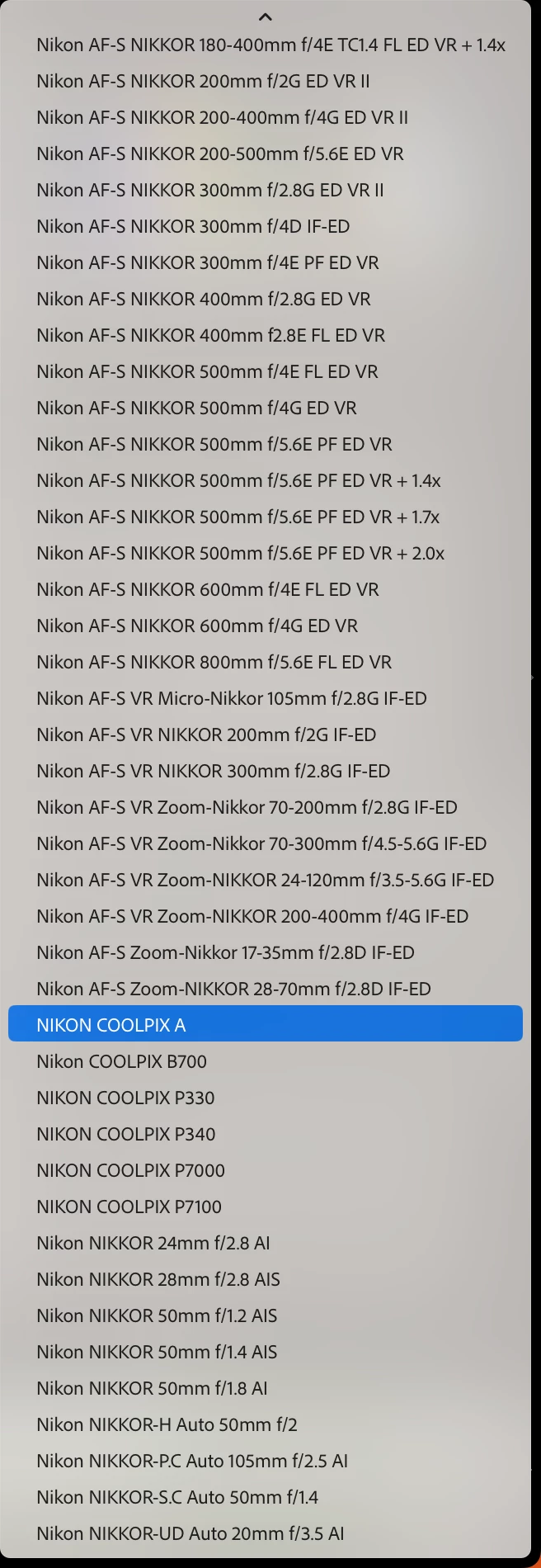
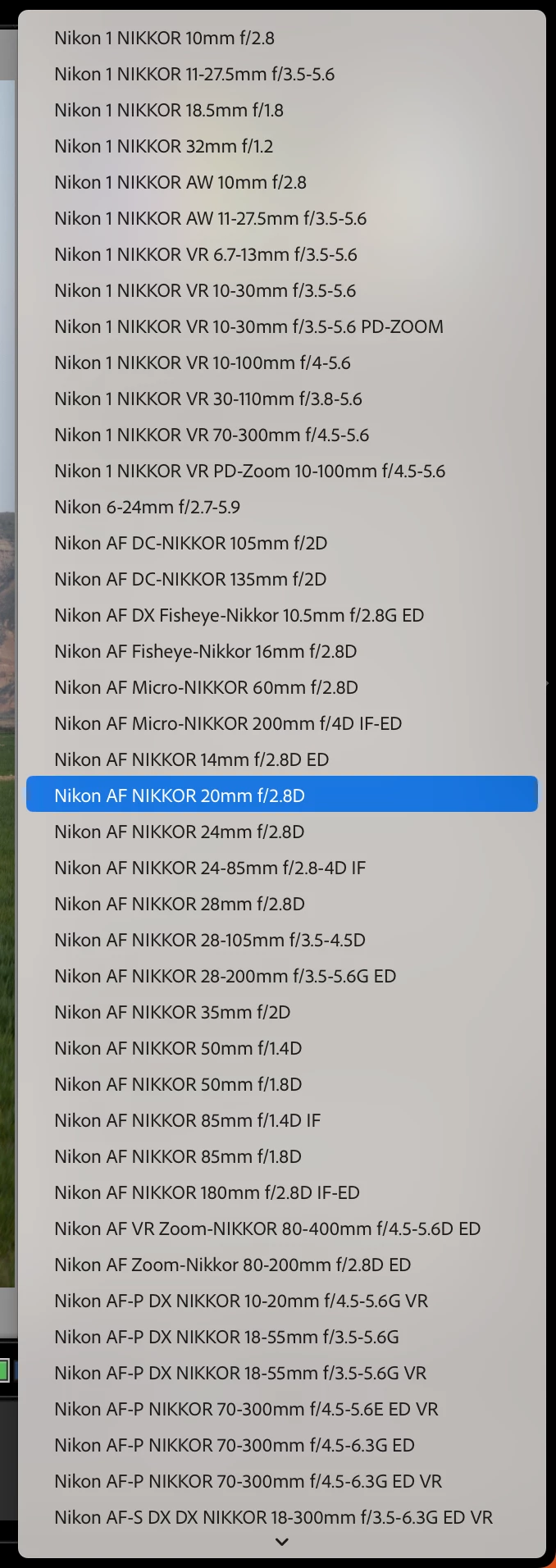
I looked at manually finding my lens but it does not appear to be there (in fact, I see no Z lenses in my dropdown at all):   
Now, I can try to manually remove the vignetting by doing something like this:

  1. Select a "more or less similar" lens from the available models in the dropdowns shown above, such as the "Nikon AF-S NIKKOR 24-70mm f/2.8E ED-VR" and apply some manual adjustments to make the vignetting in one image appear to disappear (by looking at it only)
  2. Sync the edits to all photos which will go into the panorama
  3. Generate a panorama merge preview (with auto settings to stretch the contrasts) to see if the vignetting seems about gone.
  4. Repeat steps 1-3 until the outcome of step 3 seems satisfying

You can imagine that somebody with a camera which aims to be "for perfectionists" (from Nikon's website) will not be happy with such a process and the outcome is not optimal by any means.
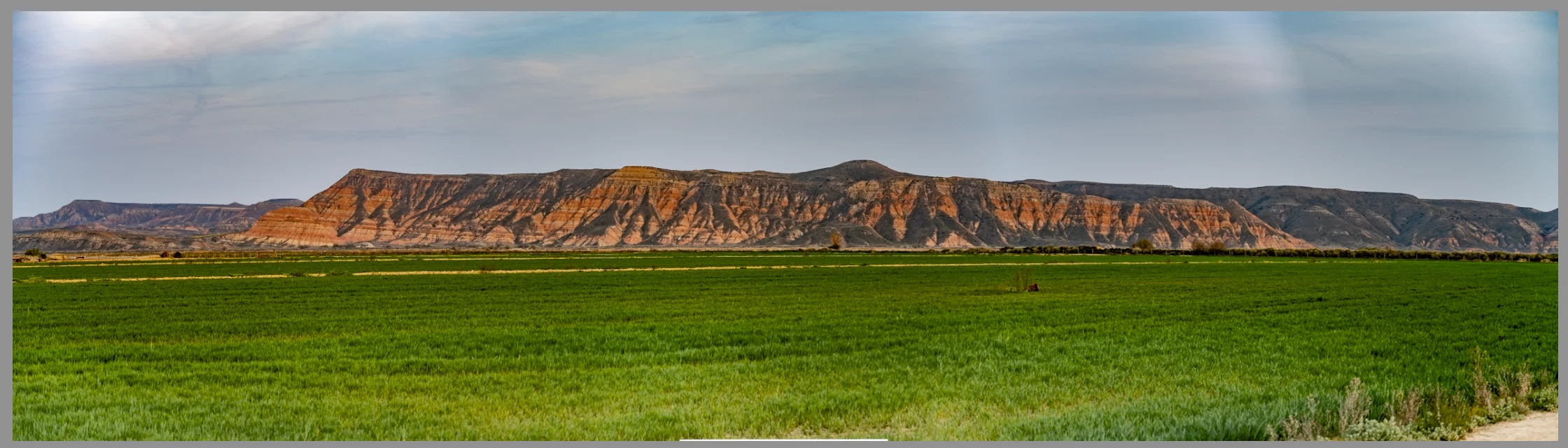
This is about the best I could get using the method above, it still looks like some dull water-damaged print. 

I would really hope that Adobe collaborates with Nikon to address this issue.


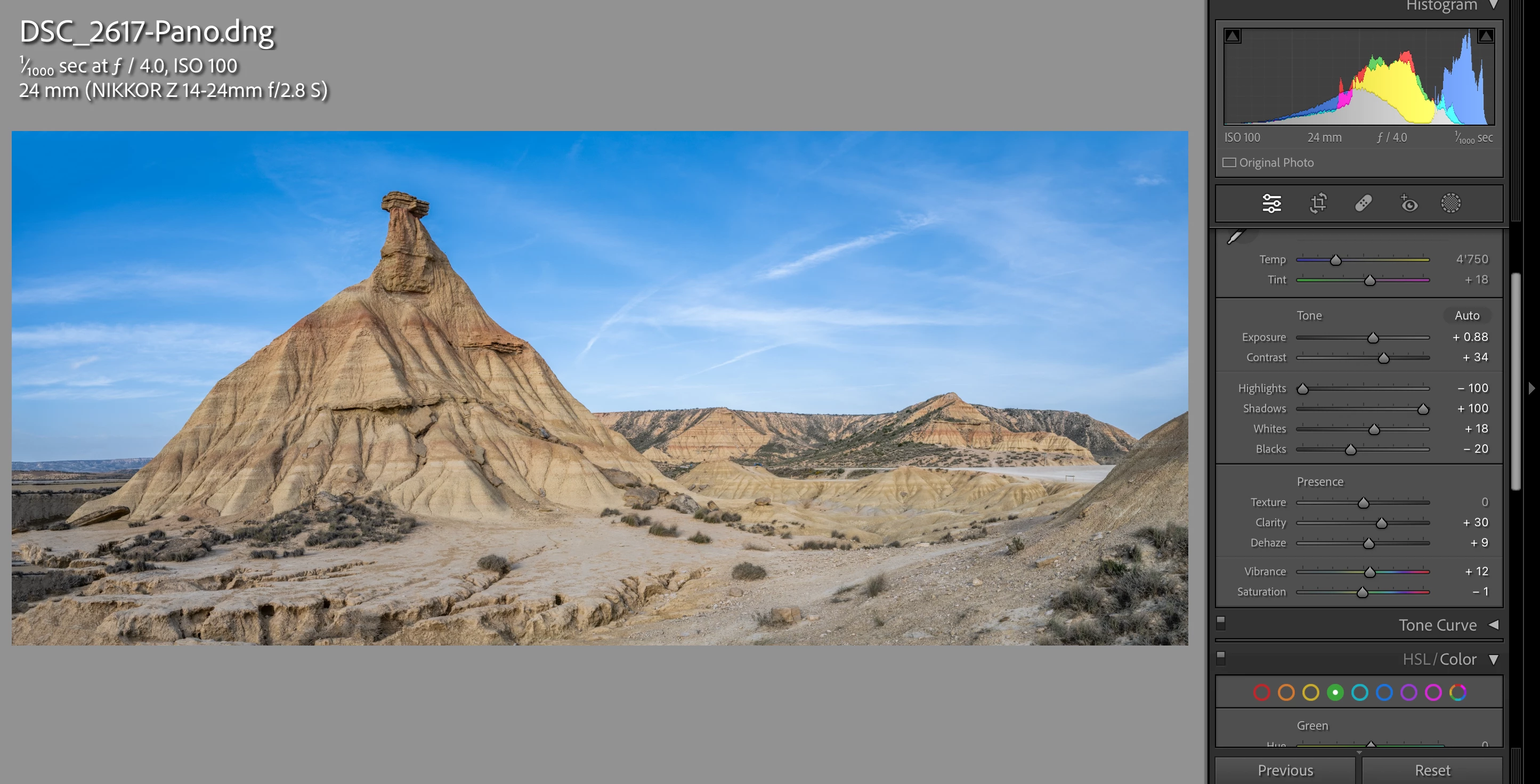
In the remaining steps, I want to demonstrate that the same steps would produce satisfying outcomes if done based on images taken with another lens for which there is a correctly functioning lens profile, such as the NIKKOR Z 14-24mm f/2.8 which I also own.
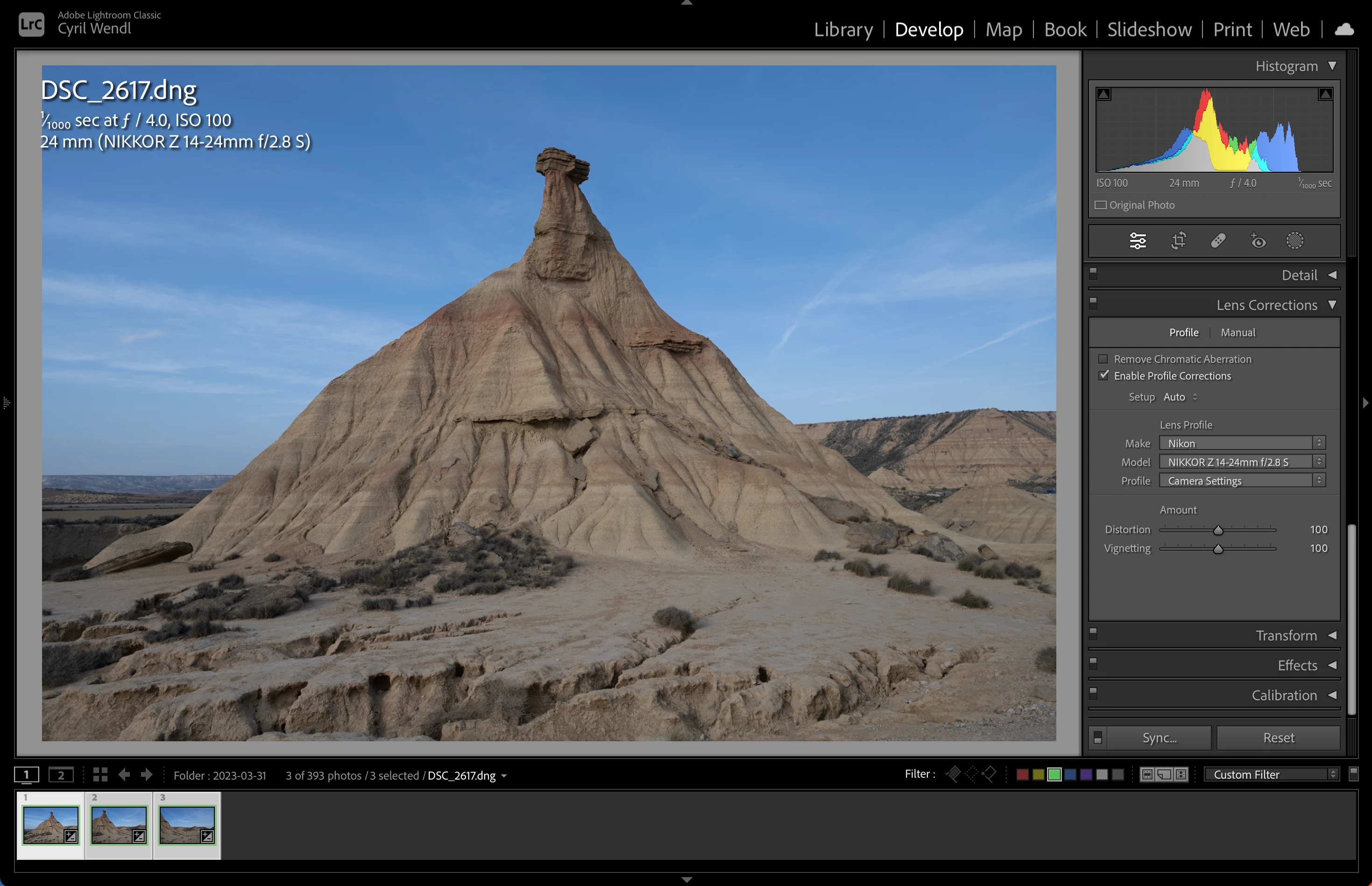
 

First of all: there seems to be a lens profile (see right bar) corresponding to my exact lens.


If I merge the three pictures and apply aggressive contrast enhancement, I can see no signs of the lens profile not being applied to the original images.
 

Thank you in advance for any help and happy to provide further clarifications if needed.

Kind regards,

Cyril Wendl


This topic has been closed for replies.

18 replies

Rikk Flohr_Photography
Community Manager
Community Manager
April 4, 2023

Greetings again @cyrilw.,

The Camera Raw team has asked if you would be willing to share with us a set of images including the merge components and the final merge result. Is that possible?


The files will be too large to upload here. You could upload them via Creative Cloud folders, Dropbox or similar and then provide to us a link.


Thanks for your assistance. 

Rikk Flohr: Adobe Photography Org
cyrilw
cyrilwAuthor
Participating Frequently
April 4, 2023

Hi Rikk

Thank you for your message. Please forgive me for being upset at the chat "support", this was a really painful and time-consuming process so far.

Sure, please find a link to my files below, hopefully everything will be self-explanatory.

http://gofile.me/6YFll/PUeomtAIu

The password is "adobepleasefixthis". 😉

Thank you in advance for your support and best wishes,

Cyril

cyrilw
cyrilwAuthor
Participating Frequently
April 3, 2023

Hi folks

So after 2 vain attempts to contact Adobe over chat, in both of which they randomly closed the chat session at one point and did not understand the questions I asked, I got a somehow competent person and he promised to forward the issue to the developer team so somebody will look into my question and potentially (that's probably a word I should underline and put in italics to emphasize its emportance, so I do it) answer on this blog post.

Best wishes, Cyril

Rikk Flohr_Photography
Community Manager
Community Manager
April 4, 2023

Do you see the same issue if you perform the Panorama Merge in Camera Raw?

Rikk Flohr: Adobe Photography Org
cyrilw
cyrilwAuthor
Participating Frequently
April 4, 2023

I usually don't use Camera Raw so I can't comment on this. Maybe somebody else who uses it would be able to tell?

D Fosse
Community Expert
Community Expert
April 3, 2023

Since I have only Sony lenses to test, not Nikkors - is it possible to go into the manual tab and correct it there? Or is the manual tab blocked too?


If so, it may be necessary to do the pano in Photoshop, where Auto-Align does have a "remove vignetting" function.


And clearly, as shown by Jao's screenshots, Lightroom fails here in applying the embedded lens profile completely/correctly. This qualifies as a bug in my book.

Community Expert
April 3, 2023

In my experience the Manual tab's tools will stay live regardless of what is going on with profiled corrections. That's useful for de-fringing any (logitudinal) chroma aberrations, and the Vignette tool there may help overcome this issue but it won't be at all scientific. Also the "Remove (lateral) Chromatic Aberration" checkbox stays active regardless of profile because, as I understand it, that does not refer to any profile.

D Fosse
Community Expert
Community Expert
April 3, 2023

Right, that makes sense. So the vignetting can be corrected, just not automatically.


EDIT oh, cyrilw, forgot to say - you mention using profiles for "similar" non-Z lenses. Don't do that! First of all, theyre not as similar as you think. Chances are it's an entirely different optical construction. Second, since the embedded profile is already applied, you risk double profiling.

GoldingD
Legend
April 3, 2023

Hmm, in the single frame the vignette is not obvious, and in the PANO very obvious, mind you that may be in part to develop settings making it stand out more.


Looking at the PANO, I am tempted to think this is not in camera  vignetting , but perhaps due to something attached to the lens. Had it been a wide angle lens with a hood that has to be in a correct orientation, I would think that was the issue, been their done that. But your hood is circular, correct? Did you  have filters attached? Perhaps a filter holder attached?

cyrilw
cyrilwAuthor
Participating Frequently
April 3, 2023

Hi GoldingD

Thanks for your answer! I understand your point, there seemed to be little vignetting in the original picture, mainly because I did not edit the original pictures, unlike the panorama. However, I think you can see the vignetting clearly in the upper right corner of the original pre-pano pictures in my original post. For the sake of clarity, I applied similar adjustments to a similar, pre-pano (normal, original) image as I already deleted the one from above. This should make the vignetting hopefully clearer, here is the result (making contrast very exaggerated on purpose):

I see massive vignetting in the upper corners, and would see the same in the bottom had it a similarly bright, uniform color as the sky.

To your other points: I agree in principle but I have neither a filter, nor holder nor anything attached except for the sunhood which to the best of my knowledge is attached correctly (solid filled and hollow circles of sunhood aligned with lens. Also, the problem occures for all focal lengths between 24-70mm so I really think it's a problem with the way Adobe Lightroom Classic handles built-in profiles, as pointed out by other users.

cyrilw
cyrilwAuthor
Participating Frequently
April 2, 2023

Hi Jao and D Fosse

Many thanks for your opinions and feedback. If I understand you correctly, the problem is with Nikon's built-in profile correction, which does not do what it's supposed to do, is this correct? I've forwarded this post message to Nikon, let's see what they will say. I will keep you posted if I receive any news from them. Let's see if somebody from Adobe also weighs in on this topic, which seems to affect many people.

It's also interesting that you say that the lens profile correction works with Nikon's software. I'd be curious to see an example (screenshots) of your steps here if you don't mind sharing them. I've never had an issue with vignetting in panoramas in Lightroom with previous cameras and I would like to continue using Lightroom for most of my photo editing, so I hope this will be fixed either by Adobe or Nikon.

Best wishes,

Cyril

Community Expert
April 3, 2023

The profile is perfectly fine. You'll see if you take the NEF into a Nikon app, it perfectly corrects the vignette and you can even dial in how much vignette correction you want. The problem is at Adobe's side. The standard vignette correction with built-in profiles is not done quite right which I think is just a finetuning issue.

Here are screenshots. Left is Lightroom Classic with built in profile applied (which cannot be turned off for my Z7) and right is Nikon's Capture NX-D. Clearly Lightroom does a terrible job correction the vignette. It's completely gone in Capture and almost feels like too much. The image needs a bit of vignette for its mood but that is beside the point.

Lens is Z 14-30mm f/4 S. Happens to varying degrees with all my Nikon lenses.

cyrilw
cyrilwAuthor
Participating Frequently
April 3, 2023

Very interesting, but I have never really used Nikon NX-D so far... Are there other reasons you would use this software over Lightroom except for it's correct handing of vignettes?

Community Expert
April 2, 2023

D Fosse is correct. There are no Adobe lens profiles for Z lenses. It just uses the built in profiles that Nikon supplies in the raw file. Problem is that they don't fully correct the vignette and I have complained about this before on the (now defunct) feedback forum. It's usually just off a bit. The geometry is corrected perfectly but the vignette is off. We need an amount slider for this correction (and we need the ability to turn off lens profile corrections for series I Z cameras BADLY and not just for ZII series).

Annoyingly the same lens profiles do correctly correct the vignette in Nikon's software! 

That said, I use hugin for panoramas from my Z7 and it does a much better job with vignetting in panoramas than Lightroom does. Unfortunately since moving to a M1 mac I haven't been able to get hugin running very well.

D Fosse
Community Expert
Community Expert
April 2, 2023

The lens profile is embedded in the file by Nikon. Nikon does not allow disabling the profile for some lenses.


There is no Adobe lens profile.


Apparently this applies to some Nikkor Z lenses, but not all.


This is getting more and more common with mirrorless systems. With Sony there's also a built-in profile that can't be turned off, but it only corrects CA, not geometry. Not sure about the status for Canon.

cyrilw
cyrilwAuthor
Participating Frequently
April 2, 2023

My system info is shown below, if needed