


iridios
Participating Frequently
January 6, 2020

P: Repair brush - creates a color fringe of about 1 pixel width in the target area

  • January 6, 2020
  • 19 replies
  • 1174 views

Unfortunately, the following problem occurs constantly:
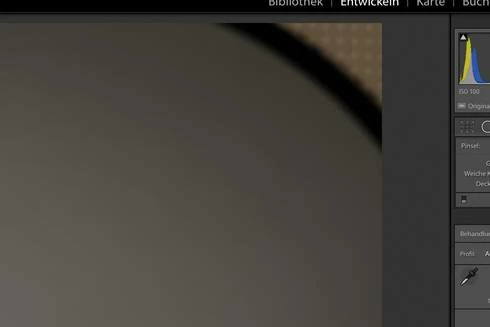
If the repair brush is used to paint over an area adjacent to the edge of the image, Lightroom creates a color fringe of about 1 pixel width in the target area.
The error is visible in the preview image and in the exported image, too.
I use Lightroom 9.1 on MacOS 10.14.6.

Add background with repair brush:

Color fringe appears:
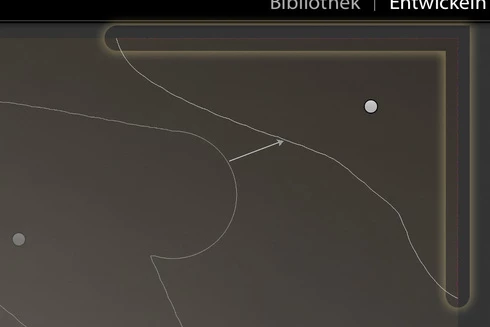

Magnified 8 times:


Edit: Changed second image to better show the issue.

This topic has been closed for replies.

19 replies

Legend
January 9, 2020
Further tests on a CR2 file have shown that it doesn’t matter whether the clone or heal mode is used, the edge artifact is still produced. In fact, for my test it seemed worse in clone mode. The artifact also changes as you drag the sampled area around, but for this image, it only appeared on the right edge (or the left edge if clicking the bottom left corner). To make it more visible, I first pushed the exposure up quite a bit and then clicked the spot removal tool in a dark corner of the image at 11:1 zoom. Here is a screen shot:


Once again, I tried this with one of my NEF files and could not produce any edge artifacts in either the clone or heal mode.

Tony

Legend
January 8, 2020
Patrick, my camera is a Nikon D750. Downloaded a cr2 raw image and tried the test in a dark corner. Resulted in a coloured line down one edge where the spot removal was placed. I'll try more tests later.

Tony
iridios
iridiosAuthor
Participating Frequently
January 8, 2020
It's a .cr2 raw-image from a Canon 5Dmk4. No processing is done before applying the repair brush, not even any Lightroom adjustment.
Legend
January 7, 2020
Can you provide details about the image?
i.e. Camera/filetype ,was there any processing like Pano/HDR /Photoshop done first?

I tried a few images myself LR9.1/Win10 and could not see anything like what you have shown.
iridios
iridiosAuthor
Participating Frequently
January 7, 2020
Here you can clearly see, that it's just showing up where the repair brush was applied.(The small image size and the heavy compression in this forum makes it appear less pronounced than it is in reality.)

iridios
iridiosAuthor
Participating Frequently
January 7, 2020
Thanks Anthony for testing. You prove that this is not by design but by accident.

I have to correct myself. The fringes appear even in Clone mode and whether I have gpu acceleration turned on or off does not change anything.

Painting several times over the edges solves the problem partially or in places. But it's a lottery whether it works or not.

It would be helpful if an Adobe engineer could look at this issue.
In the meantime, I will have to perform an action over the exported images to remove the outermost pixels.
Legend
January 6, 2020
Tried this in Heal mode on my Windows 10 system with Lr Classic 9.1 and don't see any edge artifacts, even at 11:1 zoom.
iridios
iridiosAuthor
Participating Frequently
January 6, 2020
Hi Ed

Yeah, the repair brush is indeed set to Heal. Sorry, that I didn't specify.
I know it works with Clone. From what I understand, Heal is basically a Clone followed by a low pass filter. (I suppose the actual implementation is a bit more sophisticated.)

I did a lot of numerical simulations during my engineering studies and you always had to put a lot of thought into proper handling of the boundary conditions.

The described color fringes are definitely not the desired function of the repair brush in Heal mode, but an insufficient implementation of these boundary conditions. The pixels at the image border have a different 'neighbourhood' than all the other pixels. This has to be taken into account.

Patrick
Inspiring
January 6, 2020
Hi Patrick! When using LR's repair brush on the edges of your photos, you need to ensure it's set to Clone instead of Heal. Otherwise you'll get the result displayed here. Can you confirm if your brush was set to Heal (as it's not included in the screenshot snippets you've attached above)? If yes, then what you observed is not a bug, but the proper function of the brush.

Hope this helps...
Ed