



djroe
Known Participant
December 26, 2023

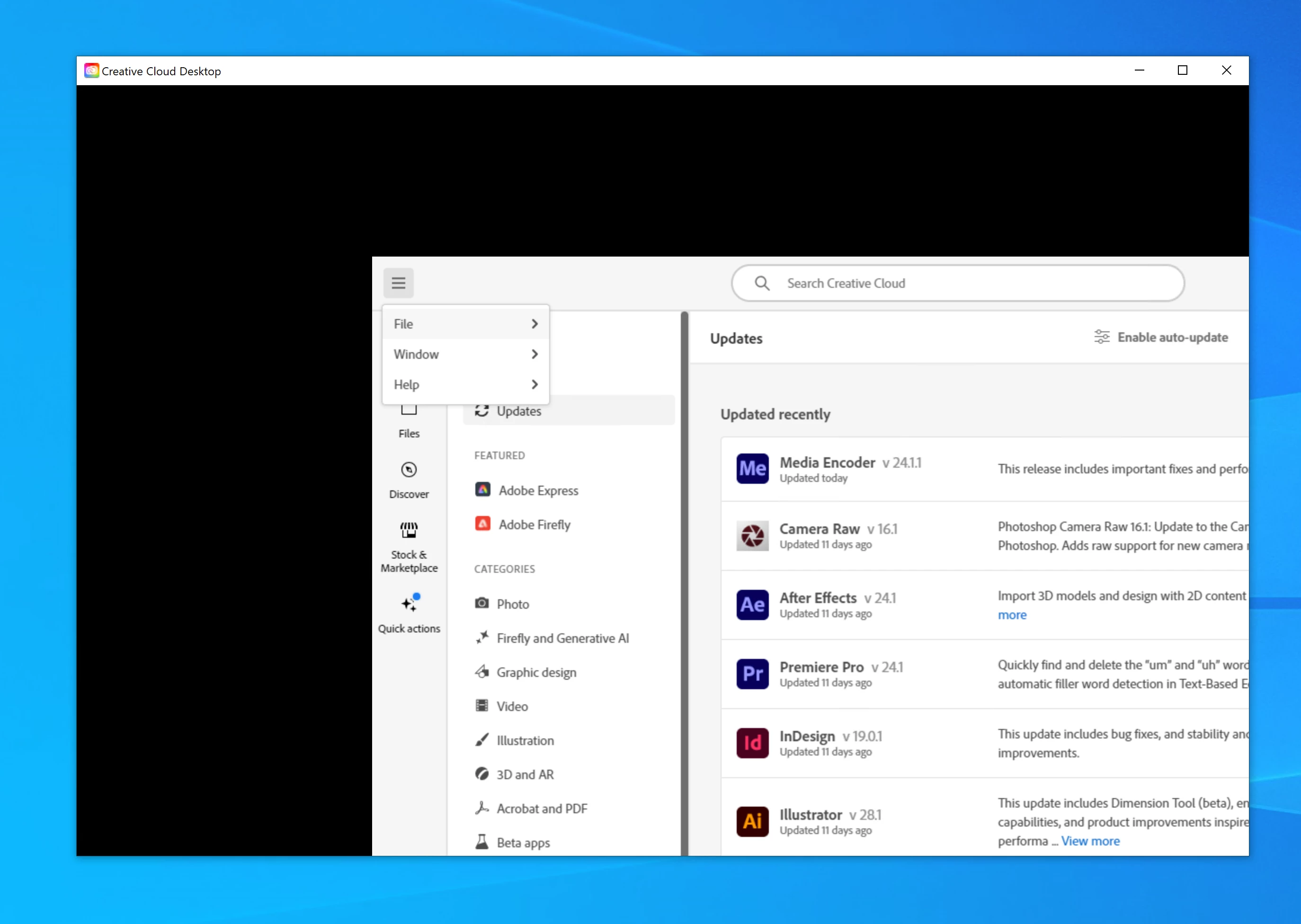
Creative Cloud Desktop interface offset

  • December 26, 2023
  • 5 replies
  • 530 views

I'm running Creative Cloud via Remote Desktop.

All the interfaces on my Creative Cloud apps are working fine, but when I select the Creative Cloud Desktop app itself, the interface opens wonky and all the button clicks are offset. For example, I have to click about two inches to the left of a button and one inch above it in oder to select it. For the life of me, I can't figure out a way to fix the offset issue that *only* appears in this one app. I have attached a sceen grab -- normally, the white box that holds the Creative Cloud Desktop interface would be all the way up in the top left corner, but it's not displaying that way. Any ideas?


5 replies

kglad
Community Expert
Community Expert
December 26, 2023

thanks for that. then in the future if that recurs, just reset the cc desktop app.

djroe
djroeAuthor
Known Participant
December 26, 2023

I fixed it. I had to use key commands to quit the Creative Cloud Desktop application. When I restarted it, all was displaying correctly. Thanks again for your reply.

kglad
Community Expert
Community Expert
December 26, 2023

yes, it's your os setting 

djroe
djroeAuthor
Known Participant
December 26, 2023

Thank you. Do you mean change the screen display percentage on the Windows computer I am remoting into ? Because I can't change the display percentage of Windows remotely. And, again, it *only* happens in the Creative Cloud Desktop interface. All of the individual apps -- InDesign, Photoshop, Acrobat, Illustrator -- display fine.


Thank you for your help.

I don't see any settings within the Creative Cloud Desktop app itself to change the display percentage (and even if I could trying to click on the offset inteface to select it would make it next to impossible).

kglad
Community Expert
Community Expert
December 26, 2023

set your screen display at 100%